wfmark

Forum Replies Created
-
Hey @jinzc, apologies for the late response.
I noticed that you are using a custom login page. As explained above, our 2FA and reCAPTCHA features are only supported for the default WordPress/WooCommerce login and registration pages and may not work on custom versions of these pages created manually or by other plugins/themes.We have plans to expand our compatibility in the future, although we cannot commit to timelines here on forums.
Thanks,
Mark.
Hi @samopp, thank you for reaching out.
With Google Webstories activated, please navigate to your Wordfence > Tools > Live Traffic page, and see whether you find any blocked requests, click on it to expand it, then click “Add Param to Allowlist”. If that doesn’t work, you can also try Learning Mode to resolve it.
If that doesn’t work, Learning Mode might be helpful help.
From the Wordfence Dashboard click on Manage WAF. Then you will see Basic Firewall Options > Web Application Firewall Status. Change the option to Learning Mode. Now confirm that you can access Google Webstories without issues. This will help Wordfence learn that these actions are normal and it will allow them in the future. Once done, switch the WAF from Learning Mode back to Enabled and Protecting. Now test to see if you’re able to access Google Webstories without JSON errors going forward.
Let me know in case the above doesn’t solve your issue.
Thanks,
Mark.
@florismk,
Glad I could be of help. In case you have any other questions do not hesitate to reach out.
Thanks,Mark.
Hi @mar1as, thanks for getting in touch.
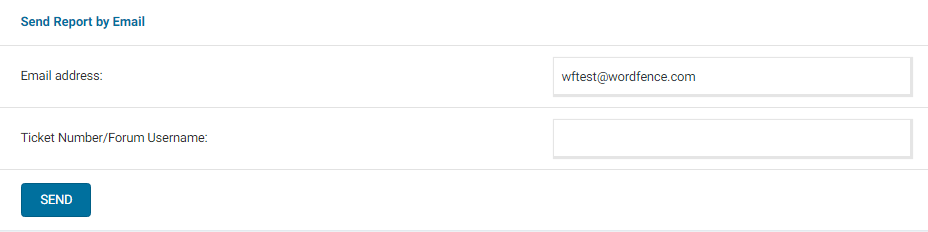
Can you send us a diagnostic to wftest@wordfence . com. You can find the link to do so at the top of the Wordfence Tools > Diagnostics page. Click on “Send Report by Email”.
Let me know when you’ve sent it so I can take a look.
Thanks,
Mark.
Hi @hotrodradio, thanks for getting in touch.
Usually, when in your FTP or hosting file manager, navigating to your wp-content/wflogs folder and checking for rules.php can show you the last modified date on this file. If it’s 0kb in size or the last updated time matches what Wordfence is saying, you should be able to delete the wflogs folder or its contents entirely and Wordfence should try to repopulate it within 30 minutes.
If you have persistent problems with this file/folder, you can bypass this entirely by setting Wordfence to write to the MySQLi storage engine instead: https://www.wordfence.com/help/firewall/mysqli-storage-engine/
Thanks,
Mark.
Hi @hampalm1, thanks for reaching out.
I recommend reviewing the contents of the files Wordfence has flagged. If you do not know what the files are, we recommend making a backup of the file, whether by making a full backup of the site or by saving only the file and the location where it belongs, before you remove it, in case it was a false positive.
Once done, clear any cache you may have on your site as plugins or on your hosting plan and trying another scan to see if the same results are found. If so, the repair/remove option offered by Wordfence should help.
This page should be resourceful https://www.wordfence.com/help/scan/
Thanks,
Mark.
Hi @1seth, thanks for your question.
We are not allowed to discuss the premium version on this forum. You can see our guide below and if you have any further questions please email us at presales@wordfence.com
https://www.wordfence.com/help/wordfence-premium/
Many thanks,
Mark.
Hi @w1ck, thanks for getting in touch.
Usually, when in your FTP or hosting file manager, navigating to your wp-content/wflogs folder and checking for rules.php can show you the last modified date on this file. If it’s 0kb in size or the last updated time matches what Wordfence is saying, you should be able to delete the wflogs folder or its contents entirely and Wordfence should try to repopulate it within 30 minutes.
If the issue persists, a complete re-install of Wordfence might be a good step. It’s always best to make a backup of the site and database before installing/removing plugins, just to be safe.Additionally, you can back up your Wordfence settings via the Export option. Navigate to Wordfence > Tools > Import/Export Options and click Export. You can also take note of the current Whitelisted URLs you have in Wordfence > Firewall > All Firewall Options > Whitelisted URLs as these are NOT included in the Import/Export and will be lost during the re-install.
Here is what is exported: https://www.wordfence.com/help/tools/import-export
During the export, you will be given a long string of text. Keep this safe.
After that, enable the option to delete Wordfence tables and data on deactivation in All Options > General Wordfence Options. Please remember to disable this after you reinstall Wordfence.
After you enable that option, you can deactivate Wordfence from the Plugins area of your site, then delete it. Next, from the plugins area, search for and re-install Wordfence like normal.
To import the settings, go to Tools > Import/Export Options, paste that string of text into the Import Wordfence Options field, and click the button there.
If you have persistent problems with this file/folder even after reinstallation, you can bypass this entirely by setting Wordfence to write to the MySQLi storage engine instead: https://www.wordfence.com/help/firewall/mysqli-storage-engine/
Thanks,
Mark.Hi @nosaint, Thank you for reaching out to us.
Can you please send a diagnostic report to wftest@wordfence.com? You can find the link to do so at the top of the Wordfence > Tools > Diagnostics page. Then click on “Send Report by Email”. Please add your forum username where indicated and respond here after you have sent it.
NOTE: It should look as follows – Screenshot of Tools > Diagnostic > Send by Email
Thanks,
Mark.
Hi @cucinareblog, Thank you for reaching out to us.
Are you using a custom login page by any chance? Please note that our 2FA and reCAPTCHA features are only supported for the default WordPress/WooCommerce login and registration pages and may not work on custom versions of these pages created manually or by other plugins/themes.
If you’re not using a custom login page, please try accessing wp-admin while keeping a Browser Console open to see if you can detect any JavaScript errors or files that fail to load. If you see any red text in the console, please take a screenshot and send it to me.
However, if you need immediate access back I’m happy to provide you with instructions:
- Please use FTP/SFTP — or any file manager your web host provides via their administration panel.
- Look inside the /wp-content/plugins/ directory and rename the wordfence directory to wordfence.bak. This will deactivate Wordfence and allow you to login without the 2FA code.
- Once you have logged in to your WordPress admin you can name the folder back to wordfence again.
Thanks,
Mark.
Hello @rapx21, and thanks for reaching out to us and sending the diagnostic report.
This normally occurs when there’s a time offset on your site or device time. From the diagnostic, that looks good.
Does the same issue occur with both your 2FA app’s generated code AND your backup recovery code(s)? I just wanted to check whether you’d been able to try both methods.
You could check whether there are any JavaScript errors in your browser console on that page, then paste me a screenshot of what you’re seeing. However, if you need immediate access back I’m happy to provide you with instructions:
- Please use FTP/SFTP — or any file manager your web host provides via their administration panel.
- Look inside the /wp-content/plugins/ directory and rename the wordfence directory to wordfence.bak. This will deactivate Wordfence and allow you to login without the 2FA code.
- Once you have logged in to your WordPress admin you can name the folder back to wordfence again.
- Go to your user profile and add 2FA back to your account, making sure to download the backup codes in case of problems in the future.
If you have any other trouble logging in, feel free to reach out here.
Thanks,
Mark.
Hi @rezariazi, Thank you for reaching out to us.
Please note that our 2FA and reCAPTCHA features are only supported for the default WordPress/WooCommerce login and registration pages and may not work on custom versions of these pages created manually or by other plugins/themes.
We have plans to expand our compatibility in the future, although we cannot commit to timelines here on forums.
Thanks,
Mark.
@supervinnie41, thanks for your reply.
I still can’t find your diagnostic report on email. Navigate to Wordfence > Tools > Diagnostic page and then click the “Export” button. Send the txt file to wftest@wordfence.com. Add your forum username in the subject and respond here once done.
Scan Time Limit Exceeded errors are generally caused by either scanning a VERY large number of files, or something running slowly at the host. Go to Wordfence > Scan > Scan Options and Scheduling and check to see if the bottom two options in General Options are disabled. It would be best to have those disabled for now (Scan files outside your WordPress installation, Scan images, binary, and other files as if they were executable)
Additionally, please confirm that the Scan Option is set to Standard. Be sure to save your changes in case you make any changes here.
Thanks again,
Mark.With WooCommerce disabled (since you mentioned you are not able to do anything due to the popup), change the Wordfence Web Application Firewall into Learning Mode. From the Wordfence Dashboard, click on Manage WAF. Then you will see Basic Firewall Options > Web Application Firewall Status. Change the option to Learning Mode. Now activate WooCommerce and confirm whether the issue recurs. This will help Wordfence learn that these actions are normal, and it will allow them in the future.
Once done, switch the WAF from Learning Mode back to Enabled and Protecting.
Let me know in case the above doesn’t solve your issue.
Thanks,
Mark.
Let us know how that works out. In case of anything else, do not hesitate to contact us. We are always happy to help.
Thanks,
Mark.