wfmark

Forum Replies Created
-
Hi @anafasia , thanks for reaching out.
We have seen the Scan Engine Error: The signature on the request to start a scan is invalid. Please try again. message solved by deactivating and reactivating Wordfence or a complete plugin reinstallation in the past, so that could be worth a try. You can choose to keep plugin settings when deactivating Wordfence from the WordPress > Plugins page.
This issue has sometimes been caused by caching, so it might be good to clear any caching plugins or site caching you have enabled to see if it rectifies the issue. Also, ensure that Wordfence > Tools > Diagnostics > Debugging Options > Start all scans remotely isn’t enabled.
If that doesn’t solve the issue, please do the following for me:
- Go to the Wordfence > Tools > Diagnostics page
- In the “Debugging Options” section, check the circle “Enable debugging mode”
- Click “Save Changes”.
- CANCEL any current scan and start a NEW scan
- Copy the last 20 lines from the log (click the “Show Log” link) or so of the activity log once the scan finishes and paste them in this post.
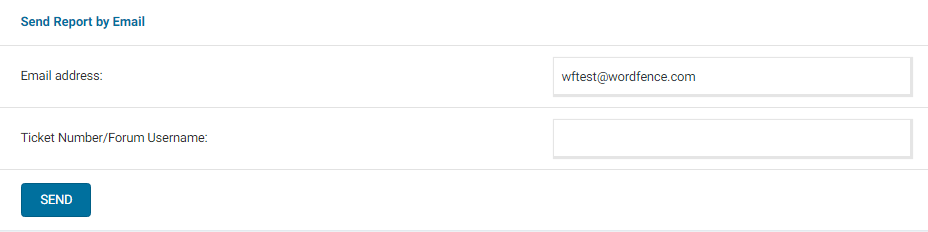
This will help me see exactly what is happening when the scan fails. Additionally, please send us a diagnostic report from the “Diagnostics” page to wftest@wordfence.com. You can find the link to do so at the top of the Wordfence Tools > Diagnostics page. Then click on “Send Report by Email”. Please add your forum username where indicated and respond here after you have sent it.
The log plus diagnostics would give us a good amount of information to try getting to the bottom of it for you.
Thanks,
Mark.
Hi @ashoklale , Sorry to hear that you’re having problems with this.
Could you please provide us with an approximate time and date when the error occurred? You can click the “Get your Wordfence License” button again if need be.
Additionally, please send a diagnostic report to wftest @ wordfence.com. You can find the link to do so at the top of the Wordfence > Tools > Diagnostics page. Then click on “Send Report by Email”. Please add your forum username where indicated and respond here after you have sent it.
NOTE: It should look as follows – Screenshot of Tools > Diagnostic > Send by Email
Thanks,
Mark.
Hi @scruffy1 , thanks for reaching out to us.
Can you please confirm the setting you used to block this domain?
If you want to block traffic where the referral headers come from a specific domain, please try this:
1) Go to Wordfence > Firewall > Blocking
2) Choose a Custom Pattern
3) Put *allbrands.com* for the Referrer
4) Put anything for the block reasonThis method, of course, can also be used for other IPs or referrers in the future for similar issues from other sources.
Let me know if this helps.
Thanks,
Mark.
Hi @mrg14071972 , thank you for reaching out to us.
In the past, we have had instances where Wordfence was deactivated due to a failed auto-update.
I recommend disabling auto-updates for the Wordfence plugin. You can do this on the WordPress Plugins page or under Wordfence> All Options > General Wordfence Options and unchecking the Update Wordfence automatically when a new version is released.
To receive an email alert when a new version of Wordfence is available, set the “Alert me with scan results of this severity level or greater” to at least “Medium” under Wordfence> All Options> Email Alert Preferences.
If auto-updates for Wordfence are disabled at the moment, please enable the Email me if Wordfence is deactivated option under Wordfence > All Options > Email Alert Preferences. You should receive an alert in the format below the next time Wordfence is deactivated.A user with username “Username Here” deactivated Wordfence on your WordPress site.
User IP: XXX.XXX.XXX.XXX
User hostname: XXX.XXX.XXX.XXX
User location: Town, Country
Additionally, please ensure your site has strong passwords for all admin accounts and enable 2FA & reCAPTCHA features. This significantly reduces the possibility of plugins being disabled by a malicious source.
Let me know how it goes.
Thanks,
MarkHi @gtcdesign , thank you for reaching out to us.
From the description above, it seems you have enabled the Immediately Lock Out invalid usernames option in the Brute Force Protection section.
Wordfence will immediately lock out anyone who attempts to log in with an invalid username when the option above is enabled. Please note that your real users may mistype their usernames and get locked out. We recommend enabling this feature for sites that have a low number of users, such as 1 or 2 administrators and/or possibly a few editors.
To disable this, access the WordFence> Firewall> Manage Brute Force Protection section and uncheck the Immediately lock out invalid usernames. Remember to save your changes.
You can also find and unblock the IP address of the users that are locked out on the Wordfence> Firewall > Blocking page. Select the checkbox next to the block entry, then click the “Unblock” button.
Just to confirm, are you using the default login flow or a membership plugin? If by any chance you are using WooCommerce please be sure to enable WooCommerce integration under Wordfence> Login Security> Settings .
Let me know if this helps.
Thanks,
Mark
Hello @thedetoureffect, thank you for reaching out to us.
From the description, I suspect this could be a false positive issue that can be resolved by switching the firewall to Learning Mode. Sometimes, WordPress plugins or themes may exhibit behaviour that resembles known attack patterns, which results in the Wordfence Firewall blocking something that is not malicious
Please try enabling the Learning Mode. From the Wordfence Dashboard, click on Manage WAF. Then, you will see Basic Firewall Options > Web Application Firewall Status. Change the option to Learning Mode, then try signing up using the MailPoet form. This will help Wordfence learn that any actions during this time are expected, and it will allow them in the future. After you’re done, switch the WAF from Learning Mode back to Enabled and Protecting and test to see that you can still sign up.
Please get back to us in case the above doesn’t solve your issue.
Thanks,
Mark.
Hello @franckw, thanks for reaching out to us.
To stop this spam registrations on the site, I recommend enabling reCAPTCHA in Wordfence > Login Security > Settings> Enable reCAPTCHA on the login and user registration pages so that the default WordPress registration page can only be used by humans.
General treatment of bots can also be set in the Rate Limiting section of Wordfence > All Options to limit how many pages visitors and automated crawlers can access your website per minute as described in this article https://www.wordfence.com/help/firewall/rate-limiting/
You could also consider installing a dedicated anti-spam plugin if you’re not currently using one. You can find a few recommended plugins here https://wordpress.org/plugins/search/antispam/
Let me know if this helps.
Thanks,
Mark.
Hello @soozie10, and thanks for reaching out to us!
This could be due to an issue with your IP Detection.
To double-check that your IP detection is correct, first check the following site and take note of your IP (note that this detection can sometimes not be 100% accurate on cellular phone network connections): https://www.whatsmyip.org.
Then, head over to your site and go to Wordfence > All Options > General Wordfence Options > How does Wordfence get IPs and reference the area under that section that says Detected IPs and Your IP with this setting. Start from the top and check to see if any of the settings show that both of those show the same IP as the site above does.
If this doesn’t resolve your issue, can you send a diagnostic report to wftest@wordfence.com? You can find the link at the top of the Wordfence Tools > Diagnostics page. Then click on “Send Report by Email”.
Please add your forum username where indicated and respond here after you have sent it.Thanks,
Mark.
Hi @webexs , thank you for contacting us.
Can you please confirm the block reason you’re seeing on the Wordfence Block Page when you access the site?
If the IP address has been blocked for violating any rules configured in Wordfence, it should be listed under Wordfence> Blocking with a reason for the block. These blocks usually expire after some time, depending on your settings.
To unblock the IP address, navigate to Wordfence > Firewall > Blocking. Select the checkmark next to the block entry, then click the “Unblock” button.
If you can’t find the IP address on the Blocking page above, check the Live Traffic Page under Wordfence> Tools>Live Traffic and use the advanced filters to specify the IP address that is blocked. Expand the results using the view (eye) icon and share a screenshot of the Live Traffic entry.
Thanks,
Mark
Hi @ismailsirajeittembe, thank you for reaching out to us and bringing this to our attention.
ClamAV “UNOFFICIAL” signatures are broad and prone to false positives but it’s best to be safe, so please send the highlighted files along with any pertinent data that may be helpful to our team at samples@wordfence.com so that our team can look into it and determine why Wordfence didn’t pick it up.
In your email, please include a link to this forum topic so that our team will know you had raised the issue with us. Remember to obscure any passwords or keys/salts in any files you send us.
Thanks,
Mark
Hi @mtnweekly , thanks for reaching out.
Can you please confirm the Wordfence version you’re on? Wordfence appends a parameter during the process of checking whether a visitor is human but hasn’t used the name wordfence_logHuman for quite some time. We’re unable to provide support for older versions of the plugin and recommend that customers keep WordPress, Wordfence, and other plugins up-to-date at all times to ensure the security of their site.
The Live Traffic feature in Wordfence uses ?wordfence_lh=x&hid=xxx… query string URLs, and so these are normal to observe. When these URLs are visited, the expected behavior is to return a blank page. With time, Google should recognize that those paths are not useful to crawl.
If the URLs in your case don’t return a blank page, it indicates that Google bots are listing different query string combinations as legitimate site pages, which is often due to a theme misconfiguration – automatically redirecting any invalid page URLs to the homepage.
You may need to consult your theme developer or address plugin/custom code settings that might be causing this behaviour.
Thanks,
Mark.Hi @songdove , thanks for reaching out.
Can you please provide a precise description of the issue you’re trying to solve?
Wordfence has a rate-limiting feature that you can use to limit how many pages visitors and automated crawlers can access your website per minute.
You can read more about it here: https://www.wordfence.com/help/firewall/rate-limiting/
Thanks,
Mark
Hi @alexliii, thanks for reaching out.
Wordfence can’t be deactivated on a subsite, as it can only be installed as a Network-activated plugin on multisite setups.
Do you have specific problems or a particular use-case that requires Wordfence to be disabled on this particular subsite?
Please let me know.
Thanks,
Mark.
Hi @minhazmohamed, thanks for reaching out.
Unfortunately, there is no way to get the activity for each site separately. Wordfence can only be installed as a Network-activated plugin on multisite setups.
Let us know in case you need any further assistance.
Thanks,
Mark.
Hi @grahappa , thanks for reaching out.
This is currently not a feature available in Wordfence. We currently have options to allowlist IP addresses so they can bypass Wordfence Rules and 2FA or reCAPTCHA.
The closest feature to what you want is on the Wordfence > Firewall > All Firewall Options page in the Brute Force Protection section. You can input specific usernames/emails for which you see login attempts in the textbox next to “Immediately block the IP of users who try to sign in as these usernames.” Don’t forget to save the changes before leaving the page.
You can read more about this feature here – https://www.wordfence.com/help/firewall/brute-force/#lockout-usernames
Please note that this option will not prevent users or bots from registering using the same username or email. If you’re seeing any spam registrations on the site, you will need to enable reCAPTCHA in Wordfence > Login Security > Settings so that the default WordPress registration page can only be used by humans.
General treatment of bots can also be set in the Rate Limiting section of Wordfence > All Options to limit how many pages visitors and automated crawlers can access your website per minute as described in this article https://www.wordfence.com/help/firewall/rate-limiting/
Let me know in case you need any further assistance.
Thanks,
Mark.