wfmark

Forum Replies Created
-
Thank you for sending the diagnostic report.
I suspect that there might be a plugin conflict causing the issue, therefore, I would suggest disabling all other plugins except for Wordfence, then trying again. If that doesn’t work, you could also try to revert to a default theme, such as Twenty Twenty-Three, to confirm whether the users can access the page.
If there’s a plugin or theme conflict, I would suggest changing the Wordfence Web Application Firewall into Learning Mode. From the Wordfence Dashboard, click on Manage WAF. Then you will see Basic Firewall Options > Web Application Firewall Status. Change the option to Learning Mode. Now confirm that you can view the page. Once done, switch the WAF from Learning Mode back to Enabled and Protecting and test to see whether it works..
https://www.wordfence.com/help/firewall/learning-mode/ is an amazing resource for learning more about the WAF and learning mode.
Let me know in case the above doesn’t solve your issue.
Thanks,
Mark.
Can you send a diagnostic report to wftest @ wordfence.com? You can find the link to do so at the top of the Wordfence Tools > Diagnostics page. Then click on “Send Report by Email”. Please add your forum username where indicated and respond here after you have sent it.
Thanks,
Mark.
Hi @dszsup, Thank you for reaching out and sending over the report!
That could be from a plugin that tries to hide the WordPress version, or a plugin that modifies how updates are retrieved. Otherwise, it might be from a database issue.
Can you run this database query:
select * from wp_options where option_name = ‘_site_transient_update_core’
If you have WP-CLI installed on the server then try running the command:
wp transient get update_core –network
Send the outcome wftest@wordfence.com. Please add your forum username on the email subject and respond here after you have sent it.
Thanks,
Mark.
Hi @antonidevseo, thanks for reaching out.
Also, can you send a diagnostic report to wftest @ wordfence.com? You can find the link to do so at the top of the Wordfence Tools > Diagnostics page. Then click on “Send Report by Email”. Please add your forum username where indicated and respond here after you have sent it.
Thanks,
Mark.
Hello @headstwogether, and thanks for reaching out to us!
If you could navigate over to Wordfence > Scan page, find these results, click on them to expand the details, then screenshot them for me to review. You can post them here if you remove the sensitive data or send them to wftest@wordfence.com.
Also, can you send a diagnostic report to wftest @ wordfence.com? You can find the link to do so at the top of the Wordfence Tools > Diagnostics page. Then click on “Send Report by Email”. Please add your forum username where indicated and respond here after you have sent it.
Thanks!
Mark
Hi @johnbairdconsulting, thanks for reaching out.
Are these added under the setting “Exclude files from scan that match these wildcard patterns (one per line)” in Wordfence> Scan> Scan Options and Scheduling> Advanced Scan Options?
If so, Wordfence does not add folders automatically to this section.
Wordfence automatically adds the directories wp-content/cache and wp-content/wflogs under Wordfence> All Options> List of directories to exclude from recently modified file list because file modifications in these folders are normal and frequent.
Thanks,
Mark.Hi @siobhanf, thanks for reaching out.
ReCAPTCHA logo should show on login/registration pages provided they’re default WordPress pages. Our 2FA and reCAPTCHA features are not yet compatible with custom login pages.
Could you please take a look at your browser console on the pages where you expect to see reCAPTCHA? You may see errors that could point to either a plugin conflict (testable by disabling all other plugins to see if it starts working) or an error when initializing reCAPTCHA. You can show any errors to me using a service like Snipboard if you need further assistance diagnosing the cause.
Thanks,
Mark.
Hi @andryus93, Thank you for reaching out.
Can you please confirm the error message you get when you log in? If Wordfence is causing the block, you should see a Wordfence blocking page. You can send a screenshot if need be.
If Wordfence is locking you out, follow these steps to disable Wordfence manually and get back into your site:
- Please use FTP/SFTP — or any file manager available to you.
- Look inside the /wp-content/plugins/ directory and rename the wordfence directory to wordfence.bak.
- Once you have logged in to your WordPress admin you can name the folder back to wordfence again.
- Refresh your dashboard and you should be able to see Wordfence Active again. If not, go to the Plugins page and Activate it.
Thanks,
Mark.
Hi @chordzone, Thank you for reaching out.
Have you already tried all of our troubleshooting tips centered around this type of error message? https://www.wordfence.com/help/scan/troubleshooting/#scan-process-ended-after-forking
From the error log, I noticed you have high value set for the max_execution_time . Sometimes, a higher max_execution_time value has been found to be detrimental to scan speed. We have seen issues arise when this number exceeds 60, although Wordfence will only attempt to use half of this value by default. don’t have some performance options set.
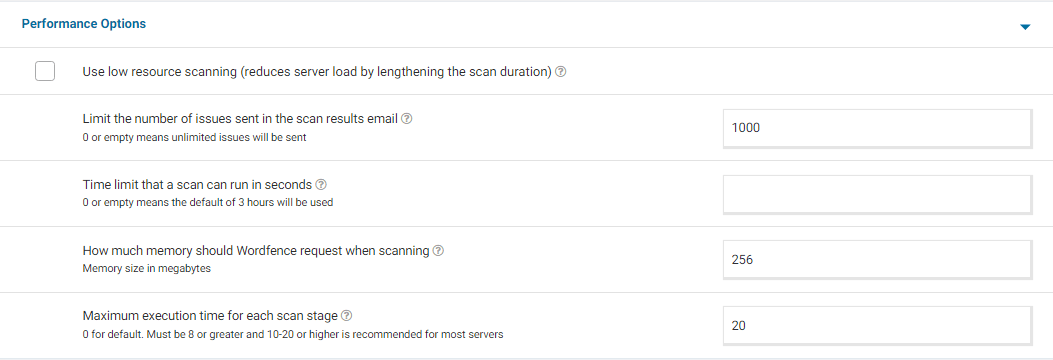
Go to your Wordfence > Scan > Manage Scan and locate the “Performance Options” section. Set “Maximum execution time for each scan stage” to 20. For a screenshot of my recommended Performance setting options – Click Here.
Adding “20” for the “Maximum execution time for each scan stage” tells the scan to pause every 20 seconds and start again where it left off, which makes the scan more performance-friendly for some servers. Once done, go to Wordfence > Scan > Scan Options and Scheduling and check to see if the bottom two options in General Options are disabled. It would be best to have those disabled for now (Scan files outside your WordPress installation, Scan images, binary, and other files as if they were executable)
Additionally, confirm that the Scan Option is set to Standard. Be sure to save your changes in case you make any changes here.
Please try running scan with the updated settings and let me know whether you have any issues.
Thanks,
Mark.
Hi @suselx, thanks for your question.
All known vulnerabilities for Contact Form 7 are documented here:
https://www.wordfence.com/threat-intel/vulnerabilities/wordpress-plugins/contact-form-7
From the documentation above, all the vulnerabilities have all been patched.
Please note that we exercise Responsible Disclosure when a vulnerability is found in another plugin, so will report the issue to the relevant developer only, allow them time to patch it and add a Wordfence firewall rule to help protect any of our customers with the vulnerable plugin installed in the meantime.
If you have any further Wordfence Premium related questions please email us at presales@wordfence.com as we are not allowed to discuss the premium version on this forum.
Thanks,
Mark
Hi @maxco7, thank you for reaching out.
Kindly navigate to Wordfence> Firewall > Rate Limiting and check the value you have for “How long is an IP address blocked when it breaks a rule”.
There are two different actions you can choose from when someone breaks a firewall rule. You can “block” them, which immediately removes access from the site for a predetermined amount of time, defined by the setting “How long is an IP address blocked when it breaks a rule”. Or, you can “throttle” them, which means that their site access will be temporarily blocked until they reduce their request frequency to below the limit that you have set.
The option “How long is an IP address blocked when it breaks a rule” controls how long an IP address is blocked if you have set the option to “block”. If you would like to be very aggressive, you can set the duration to 24 hours or longer, but it is important to note that IP addresses are dynamically assigned on the internet. So if you block someone using a certain IP address, they may switch to using a different IP address in a day or two, and a new user who is not engaging in malicious activity but who is now assigned the IP you have blocked may now be prevented from accessing your site if you have set this duration very long.
Hope this helps.
Thanks,
Mark.
Hi @lucaswap, thank you for reaching out.
Wordfence does not set a limit for the maximum file size you can upload on the site. In most cases, this limit varies depending on your hosting provider. You may need to reach out to them for assistance if you need to adjust the limit to 2GB.
Wordfence has three rules that check for unsanitized files containing malicious code that can be uploaded to and executed by the web server. The rules are “Malicious File Upload“, “Malicious File Upload (PHP)“, or “Malicious File Upload (Patterns)” and can be found in Wordfence > All Options > Firewall Options > Advanced Firewall Options > Rules after expanding the list.
There have been occasions when customers needed to disable one of these to prevent false positives. There are layers to how uploaded files are checked, so having to turn one of these rules off to fix any issues should still ensure malicious files are caught at a different stage of the checking process. Disabling/enabling them one by one can reveal exactly which one(s) can be permanently turned off to prevent any upload issues from reoccurring for your users.
I hope this is helpful.
Thanks,
Mark.
Hi @infomed, Thank you for reaching out to us.
Any “Verification Required” messages and emails are related to the message Google will send back when the user fails to be confirmed as human by reCAPTCHA checks.
We don’t receive inside information from Google about why a human may sometimes receive a low enough score to always require verification. The “reCAPTCHA human/bot threshold score” setting in Wordfence > Login Security > Settings is set to 0.5 by default. I recommend using the “Run reCAPTCHA in test mode” option for a short time to see what sort of scores you get.
Please note that our 2FA and reCAPTCHA features are only supported for the default WordPress/WooCommerce login and registration pages and may not work on custom versions of these pages created manually or by other plugins/themes. This explains why you have issues on your custom login page created by LearnDash.
We have plans to expand our compatibility in the future, although we cannot commit to timelines here on forums.
Thanks,
Mark.
Hi @milsou, Thank you for reaching out to us.
Can you please more details of the issue you’re having? Send screenshots if possible.
If you’re experiencing this issue when using a specific plugin, I would suggest changing the Wordfence Web Application Firewall into Learning Mode. From the Wordfence Dashboard, click on Manage WAF. Then you will see Basic Firewall Options > Web Application Firewall Status. Change the option to Learning Mode. Now confirm that you can view the users details. Once done, switch the WAF from Learning Mode back to Enabled and Protecting and test to see that you can still view the user details.
https://www.wordfence.com/help/firewall/learning-mode/ is an amazing resource for learning more about the WAF and learning mode.
Let me know how it goes.
Thanks,
Mark.
Hi @cucinareblog,
I get a 404 not found error on https://www.cucinareblog.it/wp-login.php. Can you please confirm that you updated the login URL?
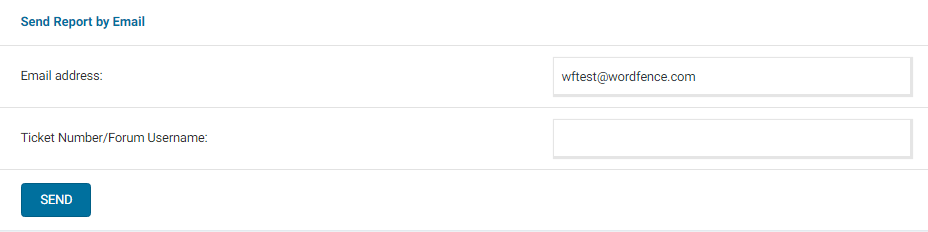
Additionally, please send a diagnostic report to wftest@wordfence.com. You can find the link to do so at the top of the Wordfence > Tools > Diagnostics page. Then click on “Send Report by Email”. Please add your forum username where indicated and respond here after you have sent it.NOTE: It should look as follows – Screenshot of Tools > Diagnostic > Send by Email
Thanks,
Mark.