wfmark

Forum Replies Created
-
Hi @fred001, Thank you for reaching out.
Please try all of our troubleshooting tips centered around this type of error message.
https://www.wordfence.com/help/scan/troubleshooting/#scan-process-ended-after-forking
From the error log, I noticed you have high value set for the max_execution_time . Sometimes, a higher max_execution_time value has been found to be detrimental to scan speed. We have seen issues arise when this number exceeds 60, although Wordfence will only attempt to use half of this value by default. don’t have some performance options set.
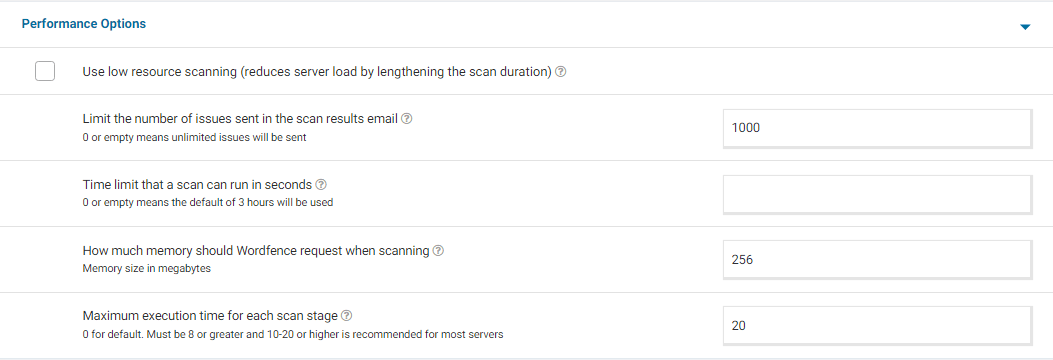
Go to your Wordfence > Scan > Manage Scan and locate the “Performance Options” section. Set “Maximum execution time for each scan stage” to 20. For a screenshot of my recommended Performance setting options – Click Here.
Adding “20” for the “Maximum execution time for each scan stage” tells the scan to pause every 20 seconds and start again where it left off, which makes the scan more performance-friendly for some servers. Once done, go to Wordfence > Scan > Scan Options and Scheduling and check to see if the bottom two options in General Options are disabled. It would be best to have those disabled for now (Scan files outside your WordPress installation, Scan images, binary, and other files as if they were executable)
Additionally, confirm that the Scan Option is set to Standard. Be sure to save your changes in case you make any changes here.
Please try running scan with the updated settings and let me know whether you have any issues.
Thanks,
Mark.
Hi @starhorsepax2,
Thank you for sending the screenshots.
If you are certain that these are legitimate, you have two options:
- You should be able to select “Ignore” for the results in the Wordfence > Scan page so that it does not appear in subsequent scans under the “Results Found” tab. It will appear under the “Ignored Results” tab instead.
- You can exclude the folder wp-content/wphb-cache/cache/* folder from scans by navigating to Wordfence > Scan> Scan Options and Scheduling> Advanced Scan Options. Remember to save your changes.
You can read more about excluding files from the scan here https://www.wordfence.com/help/scan/options/#advanced-options
Thanks,
Mark.
Hi @mar1as,
Apologies for the late response.
Are you still experiencing the same challenge? Were you able to contact the booking system developer and what response did they give you?
For custom setups, the only way to confirm whether it works is to test it. Let me know whether creating a new standard user on WordPress and adding them into the booking system worked.
Thanks,
Mark
Thank you for sending the diagnostic report.
Are you by any chance running your website on Cloudfare?
If your site is running Cloudflare, you may need to update your Cloudflare settings to allow your site to connect back to itself. You should be able to do this by going to your Cloudflare control panel.
- Login to Cloudflare
- Go to “Firewall”
- Click the “Firewall Rules” tab
- Click “Create a Firewall rule”
- Name the rule under “Rule Name”
- Set the “Field” under “When incoming requests match…” to “IP Source Address”
- Enter your site’s IP address under “Value”
- At the bottom, under “Then…Choose an action” change “Block” to “Allow”
- Click “Deploy
Once you have added your site to the Cloudflare Whitelist, head back over to your site and attempt another scan. Sometimes, the same process needs to be done for our IP addresses, which can be found here: https://www.wordfence.com/help/advanced/#servers-and-ip-range
Also ensure your visitor IP detection is set up correctly for Cloudflare. Head over to your site and go to Wordfence > All Options > General Wordfence Options > How does Wordfence get IPs. You will most likely need to select “Use the Cloudflare “CF-Connecting-IP” HTTP header to get a visitor IP. Only use if you’re using Cloudflare.”.
Thanks,
Mark
Hi @imthdpvpjcr, thanks for reaching out to us.
Have you added the sites to Wordfence Central?
If you sign into Wordfence Central and click the grey cog in the top-right of the Dashboard next to the Add New Site button, it takes you to the /central/settings page where you can scroll down and change the address in the “Alert Type Configuration” section.
I hope this helps you out!
Thanks,
Mark.Hi @jasperhartog, thanks for reaching out.
The init.php file Wordfence flagged does match the malware signature we have in place to detect any custom code that prevents update notifications which we strongly recommend against.
The developers of uncode have an explanation for this here: https://support.undsgn.com/hc/en-us/articles/14741976929693-Wordfence-false-positive
You can choose to Ignore the scan result but you will need to manually check for theme updates as the code will not allow update notifications.
Hope this helps,
Thanks,
Mark.
Hi @dimalifragis, thanks for reaching out to us about this.
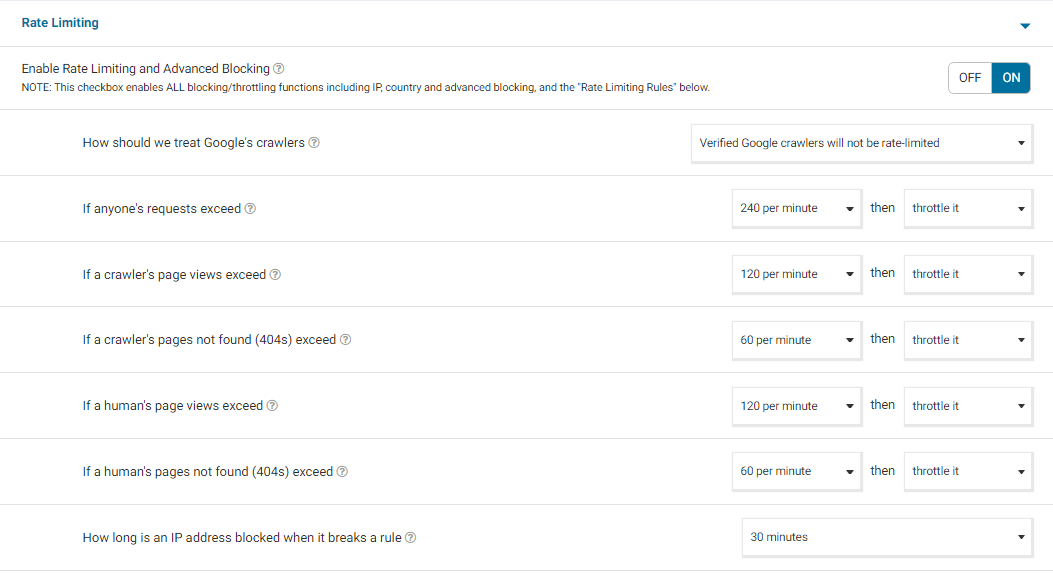
Getting caught by “Page not found errors limit for humans” could be because your Rate Limiting settings are very strict. I generally set my Rate Limiting Rules to these values to start with:
Rate Limiting Screenshot- If anyone’s requests exceed – 240 per minute
- If a crawler’s page views exceed – 120 per minute
- If a crawler’s pages not found (404s) exceed – 60 per minute
- If a human’s page views exceed – 120 per minute
- If a human’s pages not found (404s) exceed – 60 per minute
- How long is an IP address blocked when it breaks a rule – 30 minutes
I also always set the rule to Throttle instead of Block. Throttling is generally better than blocking because any good search engine understands what happened if it is mistakenly blocked and your site isn’t penalized because of it. Make sure and set your Rate Limiting Rules realistically and set the value for how long an IP is blocked to 30 minutes or so.
Remember there is no hard and fast, one size fits all set of rules for every site. This is just a good place to start. During an attack you may want to make those rules stricter. If you see visitors, like search engine crawlers getting blocked too often, you might want to loosen them up a little.
Here is a video guide to Rate Limiting as well:
Rate Limiting GuideLet me know how you get on!
Thanks,
Mark.
Hi @oliversafo,
Thank you for reaching out to us.
We are not allowed to discuss the premium version on this forum. Please reach out to presales@wordfence.com with a description of your issue.
We will be happy to assist you.
Thanks,
Mark.
Hi @userweb, thanks for reaching out to us about this.
There is no limit to the period of time you can use the free version of wordfence. You can use it for as long as you like.
In case you need to move to the premium version or have any premium questions, please reach out to presales@wordfence.com with a description of your issue as we are not allowed to discuss the premium version on this forum.
Thanks,
Mark
Hi @brandsteve,
Thanks for your message and sorry to see you’re having problems with site speed.Wordfence runs well and unintrusively on the vast majority of ~5m sites it’s installed on despite having to consider many server and plugin/theme combinations. We constantly work on making the plugin faster, perform better, and use less resources but there are not set amounts of RAM, CPU or database queries that we know Wordfence will definitely require in each use-case or hosting environment. The cases of slow-down are small in relation to the quantity of customers using Wordfence, but does crop up from time to time with certain configurations or larger databases/number of installed plugins.
For a screenshot of my recommended Performance setting options – Click Here.
You could also set max_execution_time = 60 in php.ini, Wordfence’s scan only ever attempts to use half of this value by default.
Your WP_MEMORY_LIMIT should be set to 128M or 256M in wp-config.php. WooCommerce, for example, recommend 64M minimum, so if you also have many hits on the site at once especially during a Wordfence scan, a lower limit here could be reached fairly easily. Your PHP memory_limit value could also be adjusted to 128M or 256M to accommodate this change.
Aside from this, if there are any load-balancers or other APIs running on your server such as Litespeed or Cloudflare, you could check if these (or their configuration with Wordfence) are contributing in any way to the slow loading times. Cloudflare for example requires a bespoke Wordfence IP detection option selecting, and whitelisting of your own server’s IP in their settings for scans to run correctly.
Thanks,
Mark.
Hi @userweb,
Thank you for reaching out.
We made changes to the free license sign-up process. Existing free site keys created before the change will continue working, but all new installations require you to register for a new key.
You can see the reasoning behind why we changed the free signup process in the following blog post: https://www.wordfence.com/blog/2022/11/wordfence-7-8-0-announcement/
Please resume the installation and follow the instructions in the video on the page below to obtain a free license key.
https://www.wordfence.com/help/api-key/#installing-your-free-license-key
Please note that you can use the same email address to obtain license keys for all your sites. There’s no limit to the number of free sites a single email address can configure.
Let me know in case you have any issues.
Thanks,
Mark.
Hi @logologics,
Thank you for reaching out and for the positive feedback.
We are happy to hear that you love Wordfence.
To stop receiving alerts when plugin updates are available, set the “Alert me with scan results of this severity level or greater” to “High” under Wordfence> All Options> Email Alert Preferences.
Let me know if this helps.
Thanks,
Mark.
Hi @ajrossnz, thanks for getting in touch.
Could you please try deactivating and reactivating Wordfence from the Plugins area of your site?
Problems might arise if you attempt to install your license after 24 hours from generation, you will no longer be able to automatically install the Wordfence license key. Additionally, if you are in a different browser than the one used when requesting your Free Wordfence license, you will be unable to automatically install your new Free Wordfence license. In those cases you will need to manually copy and paste the key from the email to complete the activation of Wordfence Security.
Aside from verifying that you did not inadvertently copy only part of the license key, I would check whether you can install the license when Wordfence is the only active plugin on your site. There could be a Javascript conflict with another plugin potentially stopping the verification of the key from communicating with our servers.
Let me know if it still doesn’t work after trying the above.
Thanks,
Mark.
Hi @webdes2a,
Thank you for reaching out.Please check that permissions on your WordPress site’s directories are
755, and that the process owner iswww-data.If you have persistent problems with this file/folder but don’t see connectivity or permissions failures/error messages in your Wordfence > Tools > Diagnostics page, you can bypass this entirely by setting Wordfence to write to the MySQLi storage engine instead of a file: https://www.wordfence.com/help/firewall/mysqli-storage-engine/
I hope that helps you out.
Thanks,
Mark.
Hey @jaxsology,
Thank you for reaching out.If you already know about the listed file, you can click the link to ignore the file until it changes. If you do not know what the file is, it may require some investigation to find out if your host has placed it there, or if it may have been created by your FTP application or server operating system, or if it is malicious.
We recommend that you make a backup of any files before you delete them.Please let me know what you find out.
Thanks,
Mark