Abdullah Kaludi

Forum Replies Created
-
Hello @muzammil1a
Yes you can add a header with “date” to display the submission date.
You can also refer to this
CF7 Google Sheet Connector Plugin Settings – FREE VersionHope this helps!
@shwetaarya
Please share the sheet with me, you may had received an email,
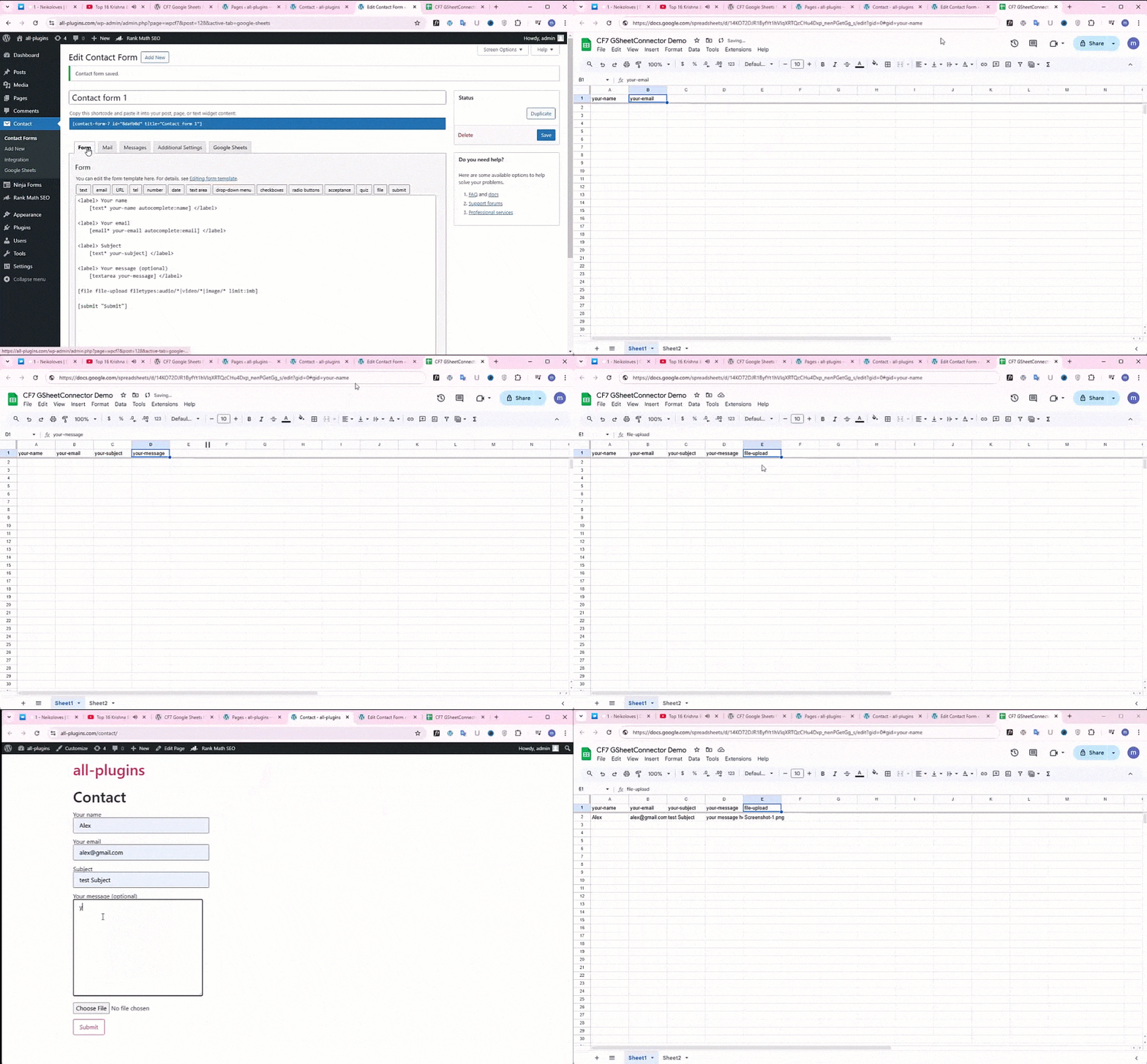
Also, make sure you entered exactly like shown here, also add “date” in first and last column to record the submission date
https://ps.w.org/cf7-google-sheets-connector/assets/screenshot-3.gif?rev=3233909
If still entries are not showing, look at debug view log under Integration tab and share the current error log with latest today’s date error to understand the exact issue and help you.Thanks
AbdullahHello @luxworx
The quota is shared across all users of the plugin, which is why you’re running into a quota limit issue.
We’ve already explained this in detail here, along with the official limits from Google:
👉 How to Fix Missing Entries Caused by Google Quota Limits
Hope this clarifies things!Thanks
AbdullahHello @vinem
Thanks for getting in touch and sorry for the trouble,
Can you please share a screenshot and also fill the form here for our support team to take a closer look and help you out further.Thanks
AbdullahHello @luxworx
Thanks for getting in touch,
Can you please deactivate the Auth and then Reauthenticate with google again and check?
As we have changed the API for Contact Form 7 to avoid quota issues.
Additionally you can look at this link to understand the exact issue
How to Fix Missing Entries Caused by Google Quota LimitsHope this helps!
Thanks
AbdullahHello @shwetaarya
Thanks for getting in touch,
Can you confirm you had added the field names in sheet headers like this
https://ps.w.org/cf7-google-sheets-connector/assets/screenshot-3.gif?rev=3233909
As in the free version of the plugin you have to add manually like this.Please refer to this doc for configuring the CF7 Google Sheet Connector
Hope this helps!
Thanks & Regards
Abdullah
GSheetConnectorHello @cheets_uk
Thanks for your message, and sorry for delay in responding,Just to clarify, it’s not possible that entries would fail to reach the Google Sheet only on Firefox for Mac while working fine on Chrome or Safari. The form submission process is handled server-side, and the browser type shouldn’t affect whether the entry is sent to Google Sheets.
However, there’s a chance that during your testing in Firefox, you may have hit a Google quota limit, which can silently block entries. I’d recommend checking the View Debug Logs from the Integration page in your WordPress dashboard.
Please clear any old errors and test again, if an entry is missed, the specific error (including quota limit notices) will be recorded there.
Also, make sure that debugging is enabled in your
wp-config.phpduring testing, so you can capture any exact errors if they occur.For detailed guidance, please refer to this article:
👉 How to Fix Missing Entries Caused by Google Quota LimitsLet me know what you find, happy to help further!
Best regards,
Abdullah@happybrain
Ah, that happens! 😄
Glad you figured it out, thanks for the update and we’re super happy to hear that the issue is resolved!If you run into anything else or need help with more forms, just let us know.
We’re here to help!
If you don’t mind us asking, we’d really appreciate it if you could take a moment to leave us a 5-star review (if you haven’t already) based on your experience with the CF7 Google Sheet Connector plugin.
Your feedback helps us grow and keep improving the plugin for everyone. 🙌
👉 Leave a reviewBest regards,
AbdullahHello @happybrain
Thanks for getting in touch,It sounds like the first form synced fine, but the new one isn’t working. Let’s check a few quick things:
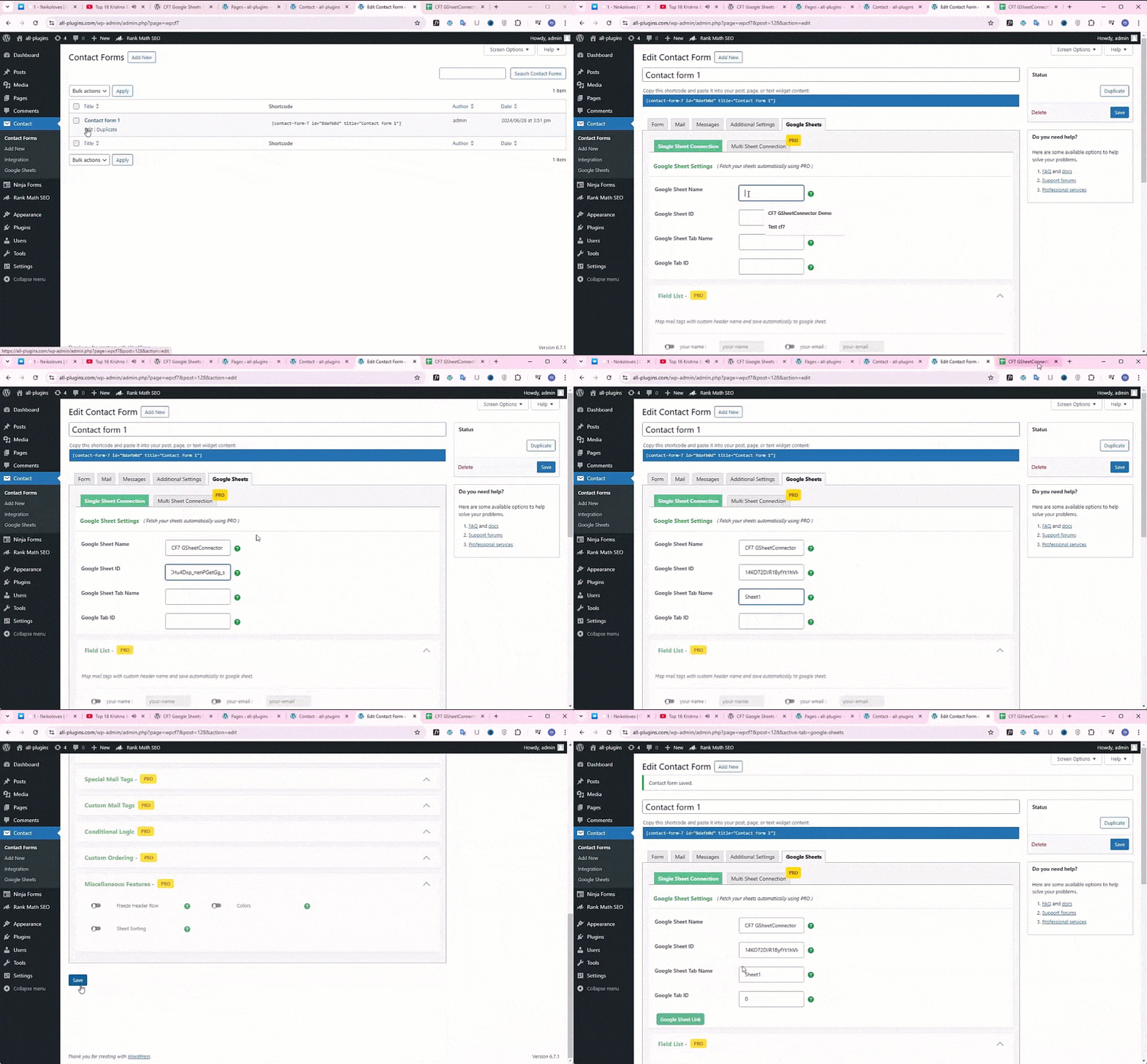
- Sheet & Tab Info: Please double-check that you’ve entered the correct Spreadsheet Name, Sheet ID, Tab Name, and Tab ID. This screenshot might help:
👉 https://ps.w.org/cf7-google-sheets-connector/assets/screenshot-2.gif?rev=3233909 - Field Labels: Make sure the field labels in your form exactly match the column headers in your sheet. Even small differences can break the sync.
👉 https://ps.w.org/cf7-google-sheets-connector/assets/screenshot-3.gif?rev=3233909 - Debug Logs: On the plugin settings page, click “View Debug Logs” to check if any errors are showing. If you see something odd, feel free to share it with us.
👉 Refer to this if Quota Limit is showing
Hope this helps, Let us know what you find, and we’ll help you get it working! 😊
Thanks
AbdullahHello @luduva
Thanks for getting in touch,Can you make sure you have arranged the label names in the sheet, exactly as you defined.
Refer to this
https://support.gsheetconnector.com/kb/elementor-forms-gsheetconnector-plugin-setting-free-version
Alternatively you can also create a feed and try out
https://support.gsheetconnector.com/kb/elementor-forms-gsheetconnector-plugin-feed-setting-free-versionHope this helps! Let me know further
Thanks
Abdullah@acpublideas
Thank you so much for your kind words! We’re glad to hear you’re enjoying the Elementor Google Sheet Connector addon plugin and that it’s been helpful for you. Much appreciated!
If you ever need any assistance or have questions, feel free to reach out, we’re always happy to help. Thanks again for your support!Hello @luxworx
Thank you for your message.Could you please confirm whether you’re currently using the Default Authentication Method or the Manual Authentication Method in your setup?
In the Default Authentication Method (available in the Free version), once the authentication is successfully completed, it should remain active and not expire unless permissions are manually revoked from your connected Google account.
To help us investigate this further and assist you effectively, could you please share a few screenshots of:
- Your Authentication tab from the plugin settings
- The exact error or issue you’re seeing when the connector gets disconnected
- And any recent changes made on your Google account side (if any)
This will allow us to better understand what might be causing the disconnection and guide you accordingly.
Looking forward to your reply!
Thanks
AbdullahForum: Plugins
In reply to: [GSheetConnector for Forminator Forms] not working@petrusmaximus
Thank you for your message and for clarifying the setup.Regarding the issue with the email field — it looks like the field name you entered was incorrect.
You usedemail-1and{email-1}, but in our plugin, the field name must match the exact label text displayed in the form (for example: “Email Address”).As clearly mentioned in our documentation, the plugin maps fields based on their label text, not internal IDs or shortcodes. That’s why your date column worked — because the label matched — while the email field didn’t.
To resolve this, please update your Google Sheet headers to match the exact label names from your form. You can refer to this screenshot for reference:
https://ibb.co/qFhvKrvPWe’ve also detailed this in our documentation here:
📖 https://support.gsheetconnector.com/kb/forminator-forms-gsheetconnector-plugin-settings-free-versionRegarding your note about Forminator’s built-in Google Sheet integration — yes, it’s available and works for many users. However, our plugin exists because it offers extra flexibility, supports older setups, and is useful for specific use cases where native integrations may not cover every requirement.
We sincerely appreciate your feedback. If you’d like to give it another try with the correct label names, feel free, and we’re always here if you need any further assistance.
Best regards,
AbdullahForum: Plugins
In reply to: [GSheetConnector for Forminator Forms] not workingHello @petrusmaximus,
Sorry for the trouble you’re facing. Could you please confirm if you’ve manually added the form fields as headers in your Google Sheet?
Once the headers are added, the form submissions should start appearing in your sheet.
You can also refer to our detailed guide here for assistance:
https://support.gsheetconnector.com/kb/forminator-forms-gsheetconnector-plugin-settings-free-versionWe have thousands of users successfully using the plugin, so it’s likely a minor setup issue on your side.
Kindly review the settings and let us know if you need any further assistance, we’re happy to help!Thanks & Regards
AbdullahHello @carloseciani
Thanks for getting in touch along with the error log, it looks that access code is not saved correctly along with the permissionsplease do the following
1. Deactivate the Auth from Integration tab
2. Deactivate the Plugin
3. Then Activate the Plugin, and then clear the log once and Authenticate with Google along with drive and sheets permissions and let me know if have any issues and look at the log for latest errors with date and timeHope this helps!
Thanks
Abdullah - Sheet & Tab Info: Please double-check that you’ve entered the correct Spreadsheet Name, Sheet ID, Tab Name, and Tab ID. This screenshot might help: