wfmark

Forum Replies Created
-
Hi @wadoadi, thank you for reaching out to us.
Wordfence protects against a vast variety of web attacks. Whether you were hacked because of an unknown attack method or because there is some other issue in your system is hard to say. Some plugins contain vulnerabilities that are new (commonly referred to as “zero days”) and no one has written a signature for it yet.
Regarding how they gained entry, here are some possible scenarios:
- Are there other sites hosted on the same hosting account? If so, they could have been infected and spread the infection to this site
- You may be using a plugin or theme with a vulnerability that is so severe that we cannot protect against it
- Your wp-config.php file is readable to the hacker, either directly via your account, via a vulnerable plugin or via another hacked site on the same server
- The hosting accounts on the server are not properly isolated on the server so the hacker has access to your database via another user’s database
- The server software has vulnerabilities that allow the hacker to get root access
- You were actually hacked many months ago, but the backdoor was not activated until now
- You have a compromised hosting account (Change your password immediately)
- You have a compromised FTP/SSH account (Remove any accounts you don’t need and change the passwords on the ones you do)
Please note that these are just possible scenarios, you may need to look at the logs to identify the intrusion vector.
You can clean the site by using the following guide: https://www.wordfence.com/docs/how-to-clean-a-hacked-wordpress-site-using-wordfence/
As a rule, any time I think someone’s site has been compromised I tell them to update their passwords for their hosting control panel, FTP, WordPress admin users, and database. Make sure to do this because attack vectors around your hosting or database environments are outside of Wordfence’s influence as an endpoint firewall. Ensure the your WordPress Core version is up to date.
Additionally, you might find the WordPress Malware Removal section in our free Learning Center helpful. https://wordfence.io/TheMoreYouKnow
If the issue recurs, I would recommend that you get the site cleaned, there are paid services that will do it for you. Wordfence offers one, and there are others. Per the forum rules, we’re not allowed to discuss Premium here, but please reach out to us at presales@wordfence.com if you have any questions about it.
Regardless, if you choose to clean it yourself or let someone else do so, we recommend that you make a full backup of the site beforehand.
I hope this helps.
Thanks,
Mark
Hi @phpnukes, thanks for reaching out.
The best way to test this is to run Wordfence as your only enabled plugin and also revert to a default theme such as Twenty Twenty-Three.
If Adsense works as expected, then reenable your plugins and theme one by one until the issue recurs to help find the cause.
If Wordfence is blocking Adsense, I would suggest changing the Wordfence Web Application Firewall into Learning Mode as this can help allow normal operations if they’re being blocked in the background. From the Wordfence Dashboard, click on Manage WAF. Then you will see Basic Firewall Options > Web Application Firewall Status. Change the option to Learning Mode. Now confirm that you can verify Adsense. Once done, switch the WAF from Learning Mode back to Enabled and Protecting and test to see whether it works.
https://www.wordfence.com/help/firewall/learning-mode/ is an amazing resource for learning more about the WAF and learning mode.
If learning mode doesn’t help, but you’re not seeing Google-related IPs or paths blocked in Wordfence> Tools> Live Traffic, then it may be necessary to also troubleshoot with Adsense.
Let me know how it goes.
Thanks,
Mark.
Hi @awpny,
The unlock emails can be sent to any WordPress user that has Admin-level access to the site.
As per the forum guidelines below, could you please create a new topic for the issue you’re having? We will be happy to give you a hand there. You can do so by going to https://wordpress.org/support/plugin/wordfence/ and clicking the Create Topic button.
“Unless users have the exact same version of WordPress on the same physical server hosted by the same hosts with the same plugins, theme, and configurations, then the odds are the solution for one user will not be the same for another. For this reason, we recommend people start their own topics.”
Thanks,
Mark
Hi @suecarroll, thanks for getting in touch.
It sounds like you’ve been quite thorough with your troubleshooting so far, but I will provide some standard instructions that are normally successful below in case you haven’t been through that exact order of attempting to reconnect to Central.
- Head over to Wordfence Central.
- Go to the Connection Issues tab.
- Clear out any sites that might be in here.
- Visit your site and log in as an admin.
- Navigate to and select Tools > Diagnostics > Other Tests > Clear all Wordfence Central connection data.
- After clearing the connection data, from the Wordfence Dashboard, click on “Connect this site” in the Wordfence Central widget.
https://www.wordfence.com/help/central/connect/#troubleshooting-connection-issues also has some troubleshooting steps that may help you.
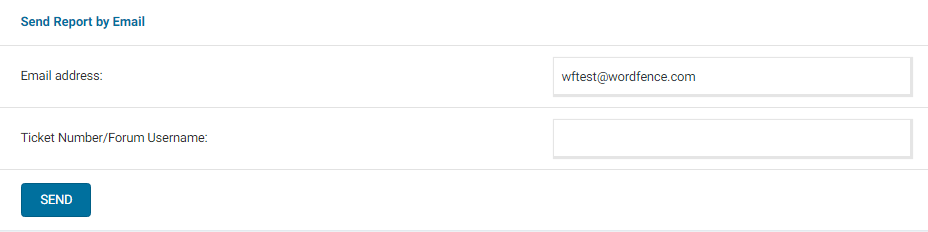
If nothing works for you, please could you send a diagnostic from the site in question that you’re having trouble with? You can send the diagnostic report to wftest@wordfence.com. You can find the link to do so at the top of the Wordfence > Tools > Diagnostics page. Then click on “Send Report by Email”. Please add your forum username where indicated and respond here after you have sent it.
NOTE: It should look as follows – Screenshot of Tools > Diagnostic > Send by Email
Thanks,
Mark.
Hi @amiya1672, Thank you for reaching out.
From the screenshot you provided, this looks like it could be the Japanese keyword hack: https://web.dev/fixing-the-japanese-keyword-hack/
We also have a video (43:17) and article that describe this specific type of hack: https://www.wordfence.com/blog/2020/09/the-hacker-motive-what-attackers-are-doing-with-your-hacked-site/
You can clean the site by using the following guide: https://www.wordfence.com/docs/how-to-clean-a-hacked-wordpress-site-using-wordfence/
Make sure and get all your plugins and themes updated and update WordPress core, too. As a rule, any time I think someone’s site has been compromised, I also tell them to update their passwords for their hosting control panel, FTP, WordPress admin users, and database. Make sure to do this because attack vectors around your hosting or database environments are outside of Wordfence’s influence as an endpoint firewall.
Additionally, you might find the WordPress Malware Removal section in our Learning Center helpful: https://wordfence.com/learn/
If you’re unable to clean this on your own, there are paid services that will do it for you. Wordfence offers one, and there are others. Per the forum rules, we’re not allowed to discuss Premium here, but please reach out to us at presales@wordfence.com if you have any questions about it.
Regardless, if you choose to clean it yourself or let someone else do so, we recommend that you make a full backup of the site beforehand.
Thanks,
Mark.
Hi @cfenwickwp, Thank you for getting back to us.
Wordfence reCAPTCHA might not work for you since you have a custom login page. You can try disabling the Formidable reCAPTCHA feature to see whether it makes a difference.
If not, I suspect there could be a plugin or theme conflict causing the issue. Please try disabling all other plugins except for Wordfence, then try logging in again to see if there’s a plugin or theme conflict causing the issue. You could also revert to a default theme, such as Twenty Twenty-Three.
If it works as expected, reenable your plugins and theme one by one until the issue recurs to help find the conflict.
For plugin or theme conflicts, try enabling the Learning Mode. From the Wordfence Dashboard, click on Manage WAF. Then, you will see Basic Firewall Options > Web Application Firewall Status. Change the option to Learning Mode, then try to log in again. This will help Wordfence learn that any actions during this time are expected, and it will allow them in the future. After you’re done, switch the WAF from Learning Mode back to Enabled and Protecting and test to see that you can still sign up.
Let me know how it goes.
Thanks,
Mark.
Hi @megunticook, Thank you for reaching out.
Could you please navigate to Wordfence> Scan and confirm whether the last scan was successful? If not, please do the following:
- Go to the Wordfence > Tools > Diagnostics page
- In the “Debugging Options” section, check the circle “Enable debugging mode”
- Click to “Save Changes”.
- CANCEL any current scan and start a NEW scan
- Copy the last 20 lines from the Log (click the “Show Log” link) or so of the activity log once the scan finishes and paste them in this post.
Wordfence > Tools > Diagnostic > Debugging Screenshot
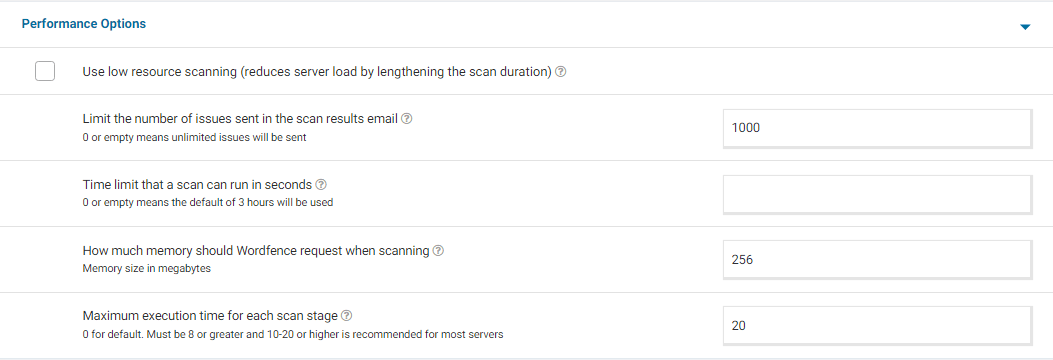
Additionally, please navigate to Wordfence > Scan > Manage Scan, locate the “Performance Options” and share a screenshot of the settings you have there.
For a screenshot of my recommended Performance setting options – Click Here.
Also, please send a diagnostic report to wftest @ wordfence . com. You can find the link to do so at the top of the Wordfence > Tools > Diagnostics page. Then click on “Send Report by Email”. Please add your forum username where indicated and respond here after you have sent it.
NOTE: It should look as follows – Screenshot of Tools > Diagnostic > Send by Email
Thanks,
Mark.
Hi @christianlinner, Thank you for reaching out.
Are the files marked as malicious or unsafe by Wordfence? I recommend reviewing the contents of the files Wordfence has flagged. If you do not know what the files are, we recommend making a backup of the file, whether by making a full backup of the site or by saving only the file and the location where it belongs, before you remove it, in case it was a false positive.
I will provide our site cleaning instructions for you below, even though you’ve already gone some way to dealing with this, just in case anything may have been missed: https://www.wordfence.com/docs/how-to-clean-a-hacked-wordpress-site-using-wordfence/
Make sure to get all your plugins and themes updated and update WordPress core, too. If you are on an older branch (WordPress 4.x etc) because you wanted to wait before installing the latest version because of Gutenberg or a custom theme compatibility, you still need the latest update in that version. Those can be found here: https://wordpress.org/download/releases/
WordPress sometimes patches their older releases if they find a vulnerability, so make sure to update your version if needed. We, of course, recommend that you update to the latest version.
As a rule, any time I think someone’s site has been compromised, I also tell them to update their passwords for their hosting control panel, FTP, WordPress admin users, and database. Make sure to do this.
Additionally, you might find the WordPress Malware Removal section in our free Learning Center helpful.
If you are unable to clean this on your own fully there are paid services that will do it for you. Wordfence offers one, and there are others. Regardless if you choose to clean it yourself or let someone else do so, we recommend that you make a full backup of the site beforehand.
Thanks,
Mark,
Hi @cfenwickwp thank you for reaching out.
Could you please confirm whether you have enabled the option “Enable reCAPTCHA on the login and user registration pages” under Wordfence> Login Security> Settings?
This could explain your issue as our 2FA and reCAPTCHA features are only supported for the default WordPress/WooCommerce login and registration pages and may not work on custom versions of these pages created manually or by other plugins/themes.
We have plans to expand our compatibility in the future, although we cannot commit to timelines here on forums.
Thanks,
Mark.
Sounds good @vanzo115.
Glad everything is working well now.
Should you need any further assistance, please create a new topic and we will be happy to help.
Thanks,
Mark.@alanrogers, I am glad your hosting provider was able to assist you with this.
The “Ignore until file changes” option will cause the file to be ignored until further modifications are detected on the file. The scan result will reappear in the “Results Found” tab the next time the file changes.
Thanks,
Mark.
Hi @vanzo115, thanks for reaching out to us!
Head over to Wordfence Central and go to the Connection Issues tab. Clear out any sites that might be in here.
Now head over to your site and log in as an admin. Navigate to Tools > Diagnostics > Other Tests > Clear all Wordfence Central connection data. Clear the connection data, and then from the Wordfence Dashboard, click “Connect this site” in the Wordfence Central widget.
https://www.wordfence.com/help/central/connect/#troubleshooting-connection-issues also has some troubleshooting steps you could follow.
Can you also confirm that the login URL isn’t hidden, or you have not disabled the REST API with another plugin? This can cause Central not to see any route(s) into the site.
You can test your REST API access by editing this link to your domain:
http://www.inserturl.com/wp-json/wordfence/v1
Let me know if you’ve tried all of the approaches there and are still having trouble connecting.
Thanks,
Mark.
Hi @redkatdesign, Thank you for reaching out.
Blocks usually expire after the amount of time set under WordFence> Firewall> Manage Brute Force Protection > Amount of time a user is locked out or WordFence> Firewall> All Firewall options > Rate Limiting> How long is an IP address blocked when it breaks a rule.
To get back into your site. Follow these steps:
- Please use FTP/SFTP — or any file manager your web host provides via their administration panel.
- Look inside the /wp-content/plugins/ directory and rename the wordfence directory to wordfence.bak.
- Once you have logged in to your WordPress admin you can name the folder back to wordfence again.
- Refresh your dashboard and you should be able to see Wordfence Active again. If not, go to the Plugins page and Activate it.
If you are not receiving emails, the unlock emails actually come from your website and not our servers. If you aren’t getting emails then you might want to check:
- The emails (they come from wordpress@yoursitename.com) are getting sent to your junk mail folder by your email client or provider. Make sure and whitelist or add your website to the list of safe domains so you get emails consistently.
- Your web server is having a problem with the email software on it. This isn’t like regular emails you send and receive, but rather server alert messages. Usually, a restart of postfix or sendmail (whichever is installed) can fix it. Your hosting provider may need to help with this.
- Your hosting provider has disabled SMTP from the server for some reason like preventing the server from being used to spam people.
- You have a third party plugin for sending emails with another service, like Gmail, which isn’t working. Reaching out to the plugin author for support can help.
Let me know if this helps.
Thanks,
Mark.
Hi @marco3253, thanks for reaching out to us.
I might be able to help more specifically by seeing scan result messages and your server configuration if you send me a diagnostic report.
Can you send one to wftest@wordfence.com? You can find the link to do so at the top of the Wordfence Tools > Diagnostics page. Then click on “Send Report by Email”. Please add your forum username where indicated.
Thanks,
Mark.
Hi @aprulliere97,
Thank you for reaching out.
We have also seen possible issues installing keys automatically more than 24 hours after generation. Additionally, if you are in a different browser than the one used when requesting your Free Wordfence license, you will be unable to automatically install it. In those cases, you must manually copy and paste the key from the email to complete the activation of Wordfence Security.
Aside from verifying that you did not copy only part of the license key, I would check whether you can install the license when Wordfence is the only active plugin on your site. There could be a Javascript conflict with another plugin, potentially stopping the code executing the verification check.
In some cases, disabling caching plugins resolves the issue.
For additional troubleshooting materials on how to install a license key, please visit this page: https://www.wordfence.com/help/api-key/#installing-your-free-license-key.
Let me know how it goes.
Thanks,
Mark