wfmark

Forum Replies Created
-
Hi @aga2442, thank you for reaching out.
Could you please confirm the error you see while the firewall is enabled?
Additionally, when logged in to wp-admin, head over to Wordfence > Tools> Live Traffic (Expand All Results) and share a screenshot of the live traffic entries recorded when the issue occurs. If there’s nothing there, the Traffic Logging Mode may need to be changed to ALL TRAFFIC temporarily, and then re-visit the site to log the attempt.
You can take a screenshot of the error using snipboard.io and share the link here so I can take a look and advise.
Thanks,
Mark.
@soolee, Thank you for the update.
If you ever need assistance with any other issues, please create a new topic and we will be happy to help.
Thanks,
Mark.Hi @supervinnie41, thanks for reaching out to us.
Sometimes, a higher max_execution_time value has been found to be detrimental to scan speed. We have seen issues arise when this number exceeds 60, although Wordfence will only attempt to use half of this value by default. Certainly, try changing that number before trying the following so I can get the information I need to help you?
- Stop the existing scan if it is still running (The “Start New Scan” button turns into a “Stop” button while the scan is running).
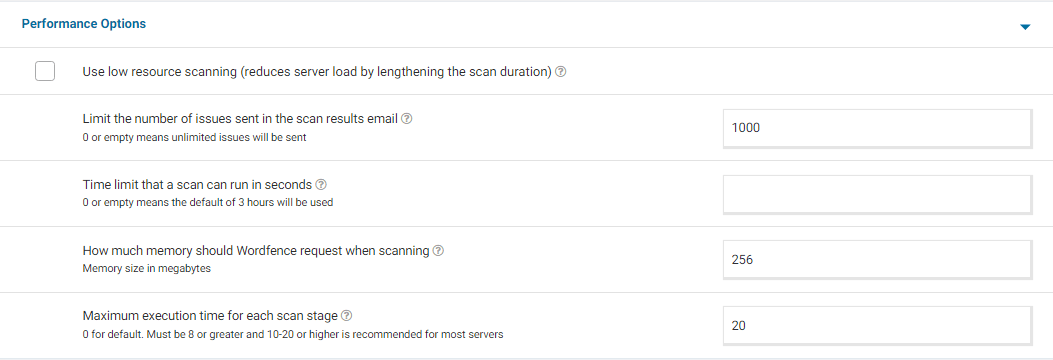
- Go to your Wordfence > Scan > Manage Scan and locate the “Performance Options” section. Set “Maximum execution time for each scan stage” to 20.
- Click to “Save Changes”.
- Go to the Tools > Diagnostics page.
- In the “Debugging Options” section check the circle “Enable debugging mode”.
- If “Start scan remotely” is checked, uncheck this option.
- Click to “Save Changes”.
- Start a new scan on the Scan page.
- If the scan fails again, copy the last 20 lines or so from the Log (click the “Show Log” link) once the scan finishes and paste them in the post.
I’d like to see the log again after the max_execution_time change to see if it’s linked/still fails after the value of 300 is reduced.
On some sites, this will correct the issue. Adding “20” for the “Maximum execution time for each scan stage” tells the scan to pause every 20 seconds and start again where it left off, which makes the scan more performance-friendly for some servers. If this fixes the issue and scans run again, you can leave all the settings above except for “Enable Debugging Mode”.
For a screenshot of my recommended Performance setting options – Click Here.
I couldn’t find your diagnostic report on email. Navigate to Wordfence > Tools > Diagnostic page and then click the “Export” button. Send the txt file to wftest@wordfence.com. Add your forum username in the subject and respond here once done.
Thanks,
Mark.
Could you confirm whether the “Review Button” still appears again once you revert to your theme and enable WooCommerce?
Thanks,
Mark.
Hi @techsoldd, Thanks for getting back to us.
It looks like an issue with a failed auto-update. Usually, such issues are resolved by manually deleting the Wordfence plugin directory in the plugins directory, which you already did.
Has the issue recurred after reinstallation?
You can leave auto-updates disabled for now. If you have the Wordfence email alert option “Alert me with scan results of this severity level or greater” set to at least “Medium,” then you will receive an email alert when a new version of Wordfence is available to install.
Thanks,
Mark.
Hi @soolee, Thanks for getting back to us.
It looks like the parameter keeps changing and that might be why the allowlist doesn’t work. Could you please try disabling the “Admin Panel” option for “Monitor background requests from an administrator’s web browser for false positives”:
https://www.wordfence.com/help/firewall/options/#monitor-background-requests
As the plugin worked with Wordfence but has recently changed, it’s also likely the way Beaver Builder works was recently updated by the developers. We’ve seen an issue before where unique IDs in every POST/GET request struggle to be permanently allowlisted.
Let me know if this helps.
Thanks,Mark.
https://wordpress.org/support/topic/scan-stage-failed-15/
Hi @hobby365, I hope you’re well.
Sorry, I didn’t see your reply here, but I just found your scan log on email.
I see the error Scan Engine Error: The signature on the request to start a scan is invalid on the log.
Do you have the Change wp-admin login plugin installed?
If so, I suspect this may be due to a conflict with the plugin. Please disable the Change wp-admin login plugin and run the scan again to see if you get any errors. Typically, we do not recommend changing or hiding the default login URL for WordPress, as explained in our blog:
https://www.wordfence.com/blog/2017/10/should-you-hide-wordpress-login-page/
Thanks,
Mark.
Thanks for getting back to us @ds1000.
Can you please try sending a test email from your site? Navigate to Wordfence> Tools> Diagnostics> Other Tests you’ll see an option to send a test email.
Let me know whether you receive an email. Be sure to check the spam/junk inbox, too.
Thanks,
Mark.
It depends on your preference as both are equally good. Regardless of the method you choose, we recommend creating a backup of the file first unless you are familiar with the file.Thanks,
Mark.
You’re welcome @anafasia
Glad to hear everything is working as expected now.
If you need any further assistance in future, please create a new topic and we will be happy to help.
Thanks,
Mark
Hi@wrathyimp, Thanks for getting back to us.
Wordfence has three rules that check for unsanitized files containing malicious code that can be uploaded to and executed by the web server. The rules are “Malicious File Upload“, “Malicious File Upload (PHP)“, or “Malicious File Upload (Patterns)” and can be found in Wordfence > All Options > Firewall Options > Advanced Firewall Options > Rules after expanding the list.
There have been occasions when customers needed to disable one of these to prevent false-positives. There are layers to how uploaded files are checked, so having to turn one of these rules off to fix any issues should still ensure malicious files are caught at a different stage of the checking process. Disabling/enabling them one-by-one can reveal exactly which one(s) can be permanently turned off to prevent any upload issues reoccurring for your users.
I hope this answers your question.
Thanks,
Mark.
Hi@paulproe, Thanks for reaching out again.
Unfortunately, we don’t offer support for any custom code on your site. Custom code could be overwritten or broken by future plugin updates, requiring extra time and effort.
Can you see the captcha logo on the wp-admin page when reCAPTCHA is enabled?
I’d suggest disabling all other plugins except for WooCommerce and Wordfence, then trying again. If that doesn’t work, you could also try to revert to a default theme, such as Twenty Twenty-Three, to confirm whether the theme causing reCAPTCHA not to work due to a conflict.
If there’s a plugin or theme conflict, I would suggest changing the Wordfence Web Application Firewall into Learning Mode. From the Wordfence Dashboard, click on Manage WAF. Then you will see Basic Firewall Options > Web Application Firewall Status. Change the option to Learning Mode. Now confirm that you can view the Login Security Page. Once done, switch the WAF from Learning Mode back to Enabled and Protecting and test to see that you can still view the Login Security page.
https://www.wordfence.com/help/firewall/learning-mode/ is an amazing resource for learning more about the WAF and learning mode.
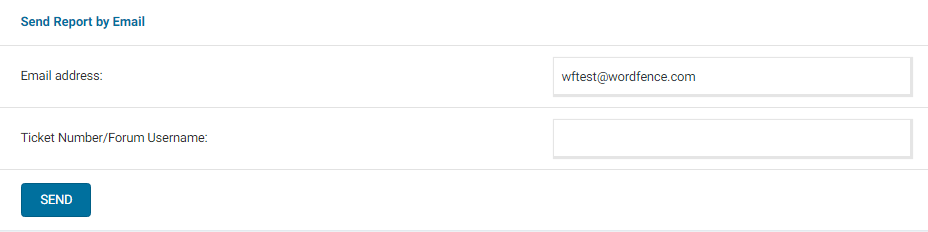
Additionally, can you please send a diagnostic report to wftest @ wordfence . com? You can find the link to do so at the top of the Wordfence > Tools > Diagnostics page. Then click on “Send Report by Email”. Please add your forum username where indicated and respond here after you have sent it.
NOTE: It should look as follows – Screenshot of Tools > Diagnostic > Send by Email
Thanks,
Mark.The issue could be browser-specific. Browser extensions, add-ons and cache can sometimes interfere with website functionality. Could you please try an incognito/private browsing window or a different browser than your default one to see if you can close the popup there?
That said, this could also be an issue with plugin/theme conflicts since you mentioned it happened after an update.
The best way to test for conflicts is to run Wordfence as your only-enabled plugin and revert to a default theme such as Twenty Twenty-Three. If you are now able to click the “Review” button and accept the terms, re-enable your plugins and theme one by one until the JS errors recur to help find the cause.
If this does not help, please send us a diagnostic report to wftest@ wordfence.com. You can find the link to do so at the top of the Wordfence > Tools > Diagnostics page. There, click on “Send Report by Email”. Please add your forum username where indicated and respond here after you have sent it.
Thanks,
Mark.
Thanks for getting back to us @awpny.
Can you please try sending a test email from your site? Navigate to Wordfence> Tools> Diagnostics> Other Tests you’ll see an option to send a test email.
Triggering a lockout is the only way to test the unlock emails. The best way to do this without risking your account is by creating a test user with admin privileges. You can then try logging in using a different connection/mobile data to test the unlock email function.
Be sure to check the spam/junk inbox too.
Let me know if this helps.
Thanks,
Mark.
You’re welcome, @vidishp.
Are you able to click the Review button?
You’re getting this popup because our terms and conditions changed recently. Please click on the Review button and accept the terms and conditions.
Once done, you should be able to enable Learning mode if the JS errors persist.
Let me know how it goes.
Thanks,
Mark.