wfmark

Forum Replies Created
-
Apologies for the late response. We did receive your report, however, we couldn’t find anything that could explain these scan results. Everything looks good.
Have you tried running the scan again? I have seen cases where running the scan again clears them. I’ve seen updates or backup restores come up with this sort of result that’ll clear once all the files and current versions all match up.Let me know if this is the case.
Thanks,
Mark
Hi @blferraz, sorry to see you’re having problems with this.
We have seen possible issues installing keys automatically more than 24 hours after generation. Additionally, if you are in a different browser than the one used when requesting your Free Wordfence license, you will be unable to automatically install it. In those cases, you will need to manually copy and paste the key from the email to complete the activation of Wordfence Security.
Aside from verifying that you did not inadvertently copy only part of the license key, I would check whether you can install the license when Wordfence is the only active plugin on your site. There could be a Javascript conflict with another plugin potentially stopping the code executing the verification check.
Let me know if this helps.
Thanks,
Mark
Hello @starhorsepax2, and thanks for reaching out to us!
If you could navigate over to Wordfence > Scan page, find these results, click on them to expand the details, then screenshot them for me to review. You can post them here if you remove the sensitive data or send them to wftest@wordfence.com.
Thanks,
Mark.
Hi @chadtusing,
Thank you for reaching out.
I would suggest changing the Wordfence Web Application Firewall into Learning Mode with the Formidable Form Plugin enabled. From the Wordfence Dashboard, click on Manage WAF. Then you will see Basic Firewall Options > Web Application Firewall Status. Change the option to Learning Mode. Now confirm that the feature works without any issues. Once done, switch the WAF from Learning Mode back to Enabled and Protecting and test to see that you can still use the feature without any issues.
https://www.wordfence.com/help/firewall/learning-mode/ is an amazing resource for learning more about the WAF and learning mode.
Let me know how it goes.
Thanks,
Mark
Hi @allie08,
Thank you for reaching out.
Is Wordfence blocking the upload?
To confirm you can attempt an upload with Wordfence activated,navigate to your Wordfence > Tools > Live Traffic page, and see whether you find any blocked requests, click on it to expand it, then click “Add Param to Allowlist”.
You could also try changing the Wordfence Web Application Firewall to Learning Mode. From the Wordfence Dashboard, click on Manage WAF. Then you will see Basic Firewall Options > Web Application Firewall Status. Change the option to Learning Mode. Now confirm whether you can upload the file without any issues. Once done, switch the WAF from Learning Mode back to Enabled and Protecting and test to see that you can still upload the files without any issues.
https://www.wordfence.com/help/firewall/learning-mode/ is an amazing resource for learning more about the WAF and learning mode.
If none of the above solutions work, you will need to contact your hosting provider’s support. They can check server logs and assist with server-specific issues.Thanks,
Mark.
Hi @reallydeej, Thank you for reaching out.
To troubleshoot the scans please follow these steps:- Stop the existing scan if it is still running (The “Start New Scan” button turns into a “Stop” button while the scan is running).
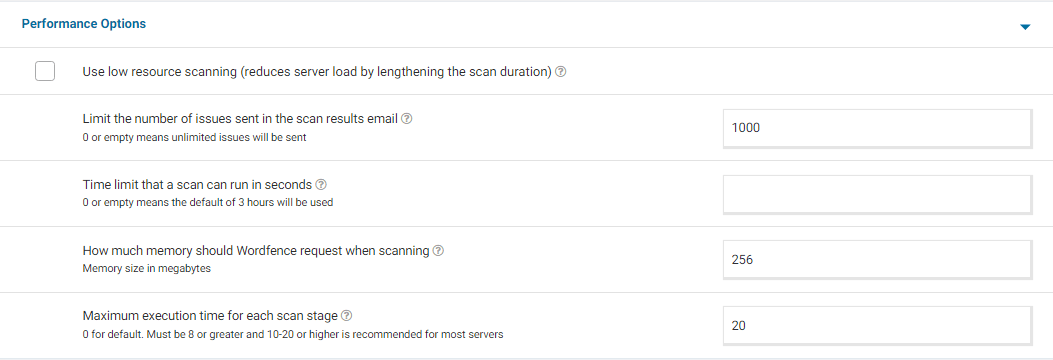
- Go to your Wordfence > Scan > Manage Scan and locate the “Performance Options” section. Set “Maximum execution time for each scan stage” to 20.
- Click to “Save Changes”.
- Go to the Tools > Diagnostics page.
- In the “Debugging Options” section check the circle “Enable debugging mode”.
- If “Start scan remotely” is checked, uncheck this option.
- Click to “Save Changes”.
- Start a new scan on the Scan page.
- If the scan fails again, copy the last 20 lines or so from the Log (click the “Show Log” link) once the scan finishes and paste them in the post.
On some sites, this will correct the issue. Adding “20” for the “Maximum execution time for each scan stage” tells the scan to pause every 20 seconds and start again where it left off, which makes the scan more performance-friendly for some servers. If this fixes the issue and scans run again, you can leave all the settings above except for “Enable Debugging Mode”.
For a screenshot of my recommended Performance setting options – Click Here.
Additionally, please send a diagnostic report to wftest @ wordfence.com. You can find the link to do so at the top of the Wordfence Tools > Diagnostics page. Then click on “Send Report by Email”. Please add your forum username where indicated and respond here after you have sent it.
Thanks,
Mark
There is no limit to the period of time you can use the free version of wordfence. You can use it for as long as you like.
In case you need to move to the premium version or have any premium questions, please reach out to presales@wordfence.com with a description of your issue as we are not allowed to discuss the premium version on this forum.
Thanks,
Mark
Hi @divslick, Thank you for reaching out.
You do not necessarily need FTP to set up Wordfence Firewall.
You should be able install the Wordfence plugin from the Plugins area on your WordPress site. You will need a license key also known as an API-key. The key can be a free key or a Premium key.
Once you have installed the Wordfence plugin you will be prompted to “Get Your Wordfence License”.
https://www.wordfence.com/help/api-key/ and https://youtu.be/uU43V3gnL9U can get you started.
Let me know if you have any other questions.
Thanks,
Mark
Hi @wakabayashi0827, thanks for reaching out.
The “Cannot modify header information – headers already sent by” error message typically indicates that something in your PHP code has caused output to be sent before the HTTP headers are fully defined. It’s been linked to another plugin loading WordPress core files out of order in the past, which is a possibility here.
To rule out plugin/theme conflict try to run Wordfence as your only enabled plugin and also reverting to a default theme such as Twenty Twenty-Three. If you no longer see the error, reenable your plugins and theme one-by-one until it recurs again to help find the cause.
If the above step fails, Please delete the Wordfence plugin directory located below:
~/wp-content/plugins/wordfence
The steps to follow when removing wordfence are documented here: https://www.wordfence.com/help/advanced/remove-or-reset/#remove-or-reset
Now install Wordfence on the WordPress Plugins page, and check whether you still see the PHP warnings.
Let me know if this helps.
Thanks,
Mark
Hi @shapal, thanks for reaching out.
Navigate to Live Traffic>Live Traffic Options and expand it. Then select ALL TRAFFIC. Can you now confirm that you are able to view the blocked IP address?
We recommend logging only security-related traffic, “Security Only”, to reduce the load on your web server.
You may also want to confirm the number you have set for Amount of Live Traffic data to store (number of rows) under Wordfence> Tools> Live Traffic> Live Traffic Options by default this is set to 2000. It looks like you have a high-performing site with lots of visitors, so you could consider increasing it.
Let me know if this helps.
Thanks,
Mark
Hi @eatbemary, Thank you for reaching out to us.
We are not allowed to discuss the premium version on this forum. Please reach out to presales@wordfence.com with a description of your issue. You can add screenshots if need be.
We will be happy to assist you.
Thanks,
Mark.
Hi @userweb,
Thank you for reaching out.
Wordfence-waf.php and the code on .htaccess will only be added if the firewall is optimized.
If you don’t see both, it means the firewall was not optimized.
Is the error you see when you log in Wordfence related? Send a screenshot if possible.
Thanks
Hi @ernanimarques,
Thank you for reaching out. I’m happy to provide you with instructions on how to get back into your site.
Have you tried the unlock email provision on the block page?
If so, can you try logging in from a different IP address using a VPN or a mobile connection? Wordfence blocks are based on IP addresses so that may work for you.
If none of these methods work for you, please follow the steps below to disable Wordfence manually:
- Please use FTP/SFTP — or any file manager your web host provides via their administration panel.
- Look inside the /wp-content/plugins/ directory and rename the wordfence directory to wordfence.bak.
- Once you have logged in to your WordPress admin, you can name the folder back to wordfence again.
- Refresh your dashboard, and you should be able to see Wordfence Active again. If not, go to the Plugins page and Activate it.
If you are not receiving emails, the unlock emails actually come from your website and not our servers. If you aren’t getting emails, then you might want to check:
- The emails (they come from wordpress@yoursitename.com) are getting sent to your junk mail folder by your email client or provider. Make sure and whitelist or add your website to the list of safe domains so you get emails consistently.
- Your web server is having a problem with the email software on it. This isn’t like regular emails you send and receive, but rather server alert messages. Usually, a restart of Postfix or Sendmail (whichever is installed) can fix it. Your hosting provider may need to help with this.
- Your hosting provider has disabled SMTP from the server for some reason, like preventing the server from being used to spam people.
- You have a third-party plugin for sending emails with another service, like Gmail, which isn’t working. Reaching out to the plugin author for support can help.
I hope this helps.
Thanks,
Mark.
Hi @a3360765, Thank you for reaching out.
I suspect this could be a plugin/theme conflict.
Do you have 2FA and/or reCAPTCHA enabled in Wordfence? It seems like the message you’re seeing is down to a problem when logging in but I’m not sure which stage you’re seeing the message.
To rule out any plugin/theme conflict, I’d suggest disabling all other plugins except for Wordfence, then try to log in again to see if there’s a plugin or theme conflict causing the issue. You could also revert to a default theme, such as Twenty Twenty-Three. If you receive the same error, letting us know that it definitely only occurs when Wordfence is active would be helpful knowledge to have.
Also, can you send a diagnostic report to wftest @ wordfence.com? You can find the link to do so at the top of the Wordfence Tools > Diagnostics page. Then click on “Send Report by Email”. Please add your forum username where indicated and respond here after you have sent it.
Let me know if this helps.
Thanks,
Mark.