wfmark

Forum Replies Created
-
@mohmmed88al,
Glad I could be of help. Please do not hesitate to reach out again if you have further questions.
Thanks,
MarkHi @mohmmed88al, thanks for reaching out.
Changing the login URL is a feature we do not include in Wordfence. Though it is something that many people swear by and can help a little in certain situations it’s ultimately not very beneficial. These are the reasons why:
1. Changing WordPress URLs involves a risk of breaking functionality of WordPress themes and plugins.
For example, WordPress JavaScript XMLHttpRequest object (AJAX) functions are triggered via admin-ajax.php which is located in wp-admin folder. Changing /wp-admin is a URL but it is also a folder path. We have seen plugins that change the admin URL break this functionality unintentionally, but it causes confusion as to what happened, what went wrong, and what was to blame..2. Changing the URL makes us feel more secure but it does not actually make the site more secure.
It is what many security analysts refer to as “security through obscurity”. It’s like boarding up the front door of your home to protect yourself against a burglary. Someone looking for a quick break in may be deterred, but any seasoned thief is just going to go look for another door or window to get in. Any serious attacker can and will anticipate this and look for other ways in too.3. Over half of all login attempts that are made on WordPress sites are made via xmlrpc.php.
Those will not be stopped by changing your admin URL. Our Wordfence Login Security and Wordfence plugins offer the option to block XMLRPC or at least require 2FA with authentication requests using XMLRPC on the Login Security > Settings page.Additionally, if you change the wp-admin or wp-login URLs you also lose visibility on who is attempting to log in to your site and when they are doing it since we’re not looking for logins on a random URL that you created.
What we recommend as a basic means of reducing login attempts is to use Country Blocking (available in the Premium Wordfence plugin only) to restrict access to your login only to countries that you are yourself going to log in from. This will make login via wp-login.php and xmlrpc.php only available from your country. Or by using the Brute Force Protection settings and by blocking XMLRPC like I mentioned before. Also using the 2FA functionality we give you for free in Wordfence and Wordfence Login Security will greatly reduce the risk of a compromise.
I hope my answer helps you understand our position on this.
Thanks,
Mark
Can you please confirm whether you have set 2FA to required under Wordfence> Login security> Settings> 2FA Roles? Do you have a Grace Period set on the same page?.
You can select ‘Optional’ from the drop down under the 2fa roles settings and try to log in again. Be sure to save your changes.
Let me know whether that makes a difference.
Thanks,
Mark
Hello @chordzone, Sorry for the delayed response.
Go to Wordfence > Scan > Scan Options and Scheduling and check to see if the bottom two options in General Options are disabled. It would be best to have those disabled for now (Scan files outside your WordPress installation, Scan images, binary, and other files as if they were executable)
Additionally, please confirm that the Scan Option is set to Standard. Be sure to save your changes in case you make any changes here.
Can you send a diagnostic report to wftest @ wordfence . com? You can find the link to do so at the top of the Wordfence Tools > Diagnostics page. Then click on “Send Report by Email”. Please add your forum username where indicated and respond here after you have sent it.
Thanks,
Mark
Hello @maxco7,
Can you send a diagnostic report to wftest @ wordfence . com? You can find the link to do so at the top of the Wordfence Tools > Diagnostics page. Then click on “Send Report by Email”. Please add your forum username where indicated and respond here after you have sent it.
Thanks again!
Mark
Hi @suecarroll
Your max_execution_time is set at 300, which should be at 60 maximum. WP_MEMORY_LIMIT is 40, please consider increasing that to 128M or 256M. The execution time probably won’t solve a cURL error 7, but it’ll help once you connect to not have further problems.
Additionally, I noticed that you are on a LiteSpeed server. There have been cases in the past, where LiteSpeed server will kill PHP processes without warning and without error messages. I think this may be what is happening on your site.
You should be able to prevent this behavior by adding one of the following codes to the .htaccess file that is located in the root of your site.# BEGIN litespeed noabort<br><br><IfModule rewrite_module><br><br>RewriteEngine On<br><br>RewriteRule .* - [E=noabort:1]<br><br></IfModule><br><br># END litespeed noabort
In some cases, depending on the host’s configuration, the above code may not help. An alternate method which may work is this:# BEGIN litespeed noabort<br><br><IfModule Litespeed><br><br>RewriteEngine On<br><br>RewriteRule .* - [E=noabort:1]<br><br></IfModule><br><br># END litespeed noabort
OR# BEGIN litespeed noabort<br><br>SetEnv noabort 1<br><br># END litespeed noabort
We have a bit more information on this in this page in our docs: https://www.wordfence.com/help/advanced/system-requirements/litespeed/
Thanks,
Mark.Are you still having issues with the scans?
You could also set max_execution_time = 60 in php.ini. It’s currently set to 120. We have seen issues arise when this number exceeds 60, although Wordfence will only attempt to use half of this value by default.
Your WP_MEMORY_LIMIT should be set to 128M or 256M in wp-config.php whereas it’s 40M at the moment. Your PHP memory_limit value should be large enough to accommodate this change, too.
After changing those, stop any currently running scans and start a new one.
Please let me know if you don’t have any luck with taking those steps.
Thanks,
Mark
Hi @samopp, Thank you for getting back to us.
It looks like the parameter keeps changing and that might be why the allowlist doesn’t work. Could you please try disabling the “Admin Panel” option for “Monitor background requests from an administrator’s web browser for false positives”:
https://www.wordfence.com/help/firewall/options/#monitor-background-requests
Let me know it goes.
Thanks,
Mark.
Hi @freddybee, Thank you for getting back.
If you’re still experiencing this issue after disabling Wordfence, there may be another issue on the site. Please try disabling all other plugins and reverting to a default theme, such as Twenty Twenty-Three. If you’re able to log in, reenable your plugins and theme one by one until the issue recurs to help find the cause.
You could also try loading the page while keeping a Browser Console open to see if you can detect any JavaScript errors or files that fail to load. If you see any red text in the console, please take a screenshot of it and send it to me so I can take a look.
I couldn’t find your diagnostic report. Can you please send it to wftest@wordfence.com? You can find the link to do so at the top of the Wordfence Tools > Diagnostics page. Then click on “Send Report by Email”. Please add your forum username where indicated and respond here after you have sent it.
Thanks,
Mark
Hi @kunjal123, and apologies for the late response.
Wordfence has three rules that check for unsanitized files containing malicious code that can be uploaded to and executed by the web server. The rules are “Malicious File Upload“, “Malicious File Upload (PHP)“, or “Malicious File Upload (Patterns)” and can be found in Wordfence > All Options > Firewall Options > Advanced Firewall Options > Rules after expanding the list.
You can disable these one by one to determine which rule may be blocking the upload.
There have been occasions when customers needed to disable one of these to prevent false positives. There are layers to how uploaded files are checked, so having to turn one of these rules off to fix any issues should still ensure malicious files are caught at a different stage of the checking process.
Let me know how it goes.
Thanks,
Mark.
Hi @netzenrob, thanks for getting in touch!
Sometimes, a higher max_execution_time value has been found to be detrimental to scan speed. We have seen issues arise when this number exceeds 60, although Wordfence will only attempt to use half of this value by default. Please try changing that number before trying the following so I can get the information I need to help you.
- Stop the existing scan if it is still running (The “Start New Scan” button turns into a “Stop” button while the scan is running).
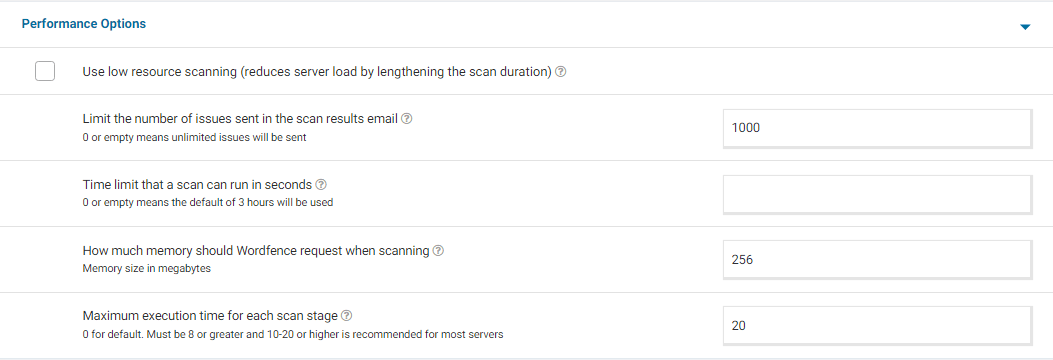
- Go to your Wordfence > Scan > Manage Scan and locate the “Performance Options” section. Set “Maximum execution time for each scan stage” to 20.
- Click to “Save Changes”.
- Go to the Tools > Diagnostics page.
- In the “Debugging Options” section check the circle “Enable debugging mode”.
- If “Start scan remotely” is checked, uncheck this option.
- Click to “Save Changes”.
- Start a new scan on the Scan page.
- If the scan fails again, copy the last 20 lines or so from the Log (click the “Show Log” link) once the scan finishes and paste them in the post.
On some sites, this will correct the issue. Adding “20” for the “Maximum execution time for each scan stage” tells the scan to pause every 20 seconds and start again where it left off, which makes the scan more performance-friendly for some servers. If this fixes the issue and scans run again, you can leave all the settings above except for “Enable Debugging Mode”.
For a screenshot of my recommended Performance setting options – Click Here.
Additionally, please send us a diagnostic report to wftest@ wordfence.com. You can find the link to do so at the top of the Wordfence > Tools > Diagnostics page. There, click on “Send Report by Email”. Please add your forum username where indicated and respond here after you have sent it.
Thanks,
Mark.
Hi @giorgos_d2, Sorry for the delayed response.
The attacks are already being blocked by Wordfence. I understand it’s alarming to see these attacks, but there’s nothing more for you to do since Wordfence is already blocking them.
I cannot edit a topic on my end either but the link redirects to the home page.
Thanks,
Mark.
Hi @marco3253, apologies for the late response, and thank you for sending the diagnostic report.
I suspect this may be due to a conflict with the Change wp-admin login plugin.
Please disable the Change wp-admin login plugin and run the scan again to see if you get any errors. Typically, we do not recommend changing or hiding the default login URL for WordPress, as explained in our blog:
https://www.wordfence.com/blog/2017/10/should-you-hide-wordpress-login-page/
Thanks,
Mark.
Hi @pao2,
As per the forum guidelines below, please open your own topic if the issue recurs and we would be glad to assist you:
“Unless users have the exact same version of WordPress on the same physical server hosted by the same hosts with the same plugins, theme, and configurations, then the odds are the solution for one user will not be the same for another. For this reason, we recommend people start their own topics.”
Thanks,
Mark.
Hi @cucinareblog,
Thank you for sending the diagnostic report. Everything looks good on the report.
Are you still having trouble logging in with 2FA enabled? Could you try loading the page while keeping a Browser Console open to see if you can detect any JavaScript errors or files that fail to load. If you see any red text in the console, please take a screenshot of it and send it to me so I can take a look.
You could also try clearing cache (site plugins and local browser) and disabling all other plugins except for Wordfence, then trying again to see if there’s a plugin or theme conflict causing the issue. You could also revert to a default theme, such as Twenty Twenty-Three.
If it works as expected, reenable your plugins and theme one by one until the issue recurs to help find the cause.
If there’s a plugin or theme conflict, I would suggest changing the Wordfence Web Application Firewall into Learning Mode. From the Wordfence Dashboard, click on Manage WAF. Then you will see Basic Firewall Options > Web Application Firewall Status. Change the option to Learning Mode. Now confirm that you can login. Once done, switch the WAF from Learning Mode back to Enabled and Protecting and test to see that you can still login.
https://www.wordfence.com/help/firewall/learning-mode/ is an amazing resource for learning more about the WAF and learning mode.
Let me know how it goes.
Thanks,
Mark.