wfmark

Forum Replies Created
-
Hi @wamwebdev, thanks for reaching out.
If you’re moving the site to the root directory, a different server/host, or changing the directory name, then you should remove WAF optimization first and follow the steps detailed in our migration guide: https://www.wordfence.com/help/advanced/remove-or-reset/#migrate-with-wordfence
If the site is staying in the same directory/location on your server and it’s just the domain being mapped to the existing site, Wordfence should remain in a working state as optimization refers to the path in your directory structure rather than rely on the web address. Any scan results that show the old subdomain location will update after the next scan.
If you’re using reCAPTCHA, don’t forget to make sure Google has the domain in its Domains List. Also if you’re using Wordfence Central you may need to disconnect the site and reconnect it using the new domain.
Before making the switch, it’s advisable to create a backup of your WordPress site and database.
I hope that helps you out!
Thanks,
Mark.
Hi @creativeartofficial, thank you for reaching out.
Wordfence sends email alerts on certain events if you have enabled the alerts in this section, Wordfence> All Options> Wordfence Global Options> Email Alert Prefereneces. You will see a series of checkboxes titled “Email me when…”. and “Alert me when…“. From this section, you can choose what settings fit best for you. Keep in mind that deactivating most of these notifications may lower your ability to quickly react to an attack or vulnerability. Don’t forget to press the SAVE button when done.
Using the option “Maximum email alerts to send per hour” allows you to limit the number of email alerts received per hour. You can also disable alerts if you are experiencing a brute force attack and the email alerts you are receiving are becoming overwhelming.
Let me know if this doesn’t solve your issue.
Thanks,
Mark.
Hi @philiwily, thank you for reaching out.
You may just need to deactivate and activate the plugin again from WordPress > Plugins > Installed Plugins, or may need to perform a clean Wordfence installation. You can import/export settings first, making sure to keep the key you’re provided with safe in the mean time, if there are any non-default settings you don’t want to lose.
The instructions for removal using the Wordfence Assistant, or manually (including database table names) are here: https://www.wordfence.com/help/advanced/remove-or-reset/
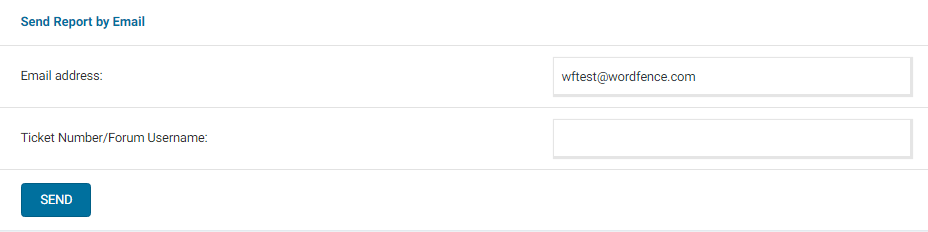
If that does work, please can you please send a diagnostic report to wftest @ wordfence . com? You can find the link to do so at the top of the Wordfence > Tools > Diagnostics page. Then click on “Send Report by Email”. Please add your forum username where indicated and respond here after you have sent it.
NOTE: It should look as follows – Screenshot of Tools > Diagnostic > Send by Email
Thanks,
Mark.
Hi @xyftx2023, Thank you for reaching out.
Could you please try to deactivate and reactivate Wordfence from the plugins area of your site? This solves the issue for some customers.
We have seen possible issues installing keys automatically more than 24 hours after generation. Additionally, if you are in a different browser than the one used when requesting your Free Wordfence license, you will be unable to automatically install it. In those cases, you will need to manually copy and paste the key from the email to complete the activation of Wordfence Security.
Aside from verifying that you did not copy only part of the license key, I would check whether you can install the license when Wordfence is the only active plugin on your site. There could be a Javascript conflict with another plugin potentially stopping the code executing the verification check.
In some cases, disabling caching plugins resolves the issue.
Let me know how it goes.
Thanks,
Janet
Hi @iarkgr, sorry to see you’re having problems with this.
The free version is still available. However, we made a few changes to the free license sign-up process. Existing free site keys created before the change will continue working, but all new installations require you to register for a new key.
You can see the reasoning behind why we changed the free signup process in the following blog post: https://www.wordfence.com/blog/2022/11/wordfence-7-8-0-announcement/
Please click on the Resume installation button on the site with issues and follow the instructions walkthrough video available on the links below that shows users how to install a free license, start to finish.
https://www.wordfence.com/help/api-key/#installing-your-free-license-key
Let me know in case you have any issues.
Thanks,
Mark.
Hi @guido07111975, Thank you for reaching out.
If you’ve restored a website with Wordfence installed and noticed an increase in the number of entries, it could be due to various reasons.
Wordfence logs various activities, including login attempts, changes to files, and other events. If your website has legitimate traffic or user interactions, Wordfence may log these activities, leading to an increase in entries.
Automated bots often attempt to exploit vulnerabilities in websites. If your website is being scanned or targeted by bots, Wordfence will log these activities as well. The number of entries may increase if there’s a significant amount of automated bot traffic.
The restoration process itself could trigger security-related events. For example, if files or database entries were modified during the restoration, Wordfence might log these changes.
If you do not wish to see the many entries, you can decide to do a complete reinstall of the Wordfence plugin by enabling the option “Delete Wordfence tables and data on deactivation” under “Dashboard” > “Global Options” page. Expand the “General Wordfence Options” section. Remember to save the changes. If you then deactivate the plugin, all Wordfence files and database tables will be deleted. You can then choose to activate Wordfence to start with the default configuration.
Thanks,
Mark.
Hi @said303, thanks for reaching out to us about this issue.
Have you tried any other authenticator apps such as Google Authenticator (as one possible example)? The reason I ask is that when the time offset seems fine, we have seen specific authenticators give different results. Confirming whether another authenticator also fails would be good to determine the cause.
If the issue persists on a different authenticator app, please send a diagnostic report to wftest @ wordfence . com. You can find the link to do so at the top of the Wordfence > Tools > Diagnostics page. Then click on “Send Report by Email”. Please add your forum username where indicated and respond here after you have sent it.
NOTE: It should look as follows – Screenshot of Tools > Diagnostic > Send by Email
Thanks,
Mark.
Hi @manipur, Thank you for reaching out.
To rule out any caching issues, could you please try an incognito/private browsing window or a different browser than your default one?Please access wp-admin while keeping a Browser Console open to see if you can detect any JavaScript errors or files that fail to load. If you see any red errors in the console, please take a screenshot and send it to me.
If the above steps fail, run Wordfence as your only-enabled plugin and revert to a default theme such as Twenty Twenty-Three to see if there’s a plugin or theme conflict causing the issue. If you are now able to load the backend, re-enable your plugins and theme one by one until the error recurs to help find the plugin causing the conflict.
If there’s a plugin or theme conflict, I would suggest changing the Wordfence Web Application Firewall into Learning Mode. From the Wordfence Dashboard, click on Manage WAF. Then you will see Basic Firewall Options > Web Application Firewall Status. Change the option to Learning Mode. Now confirm that you can successfully load your sites. Once done, switch the WAF from Learning Mode back to Enabled and Protecting and test to see whether it works..
https://www.wordfence.com/help/firewall/learning-mode/ is an amazing resource for learning more about the WAF and learning mode.
Let me know in case the above doesn’t solve your issue.
Thanks,
Mark.
Hello @lukashuggenberg and thanks for reaching out to us!
If you could please send an email to lockout@wordfence.com and provide your email address that is on the account or username, we can assist you!
Let me know if you have any issues!
Thanks!
Mark
Hi @solventweb,
Thank you for getting back to us.
Are you seeing any rules update failed error messages?
Could you please check the timestamp for the /wp-content/wflogs/rules.php file? If the timestamp is current and the Live Traffic page is updating as expected, there is no cause for alarm.
Let me know what you find.
Thanks,
Mark
Hi @jp5633, Thank you for getting back to us.
Brute force login attacks are one of the most common attacks that we see and is normal. We see millions of brute force login attempts per hour on WordPress sites protected with Wordfence.
I understand it’s alarming to see these attacks, but there’s nothing more for you to do since Wordfence is already blocking them and you have Brute Force Protection measures in place.
Thanks,
Mark.
Hi @fred001, Apologies for the delayed response.
I couldn’t find your diagnostic report. Please try the below instead:
Navigate to Wordfence > Tools > Diagnostic page and then click the “Export” button. Send the txt file to wftest@wordfence.com. Add your forum username in the subject and respond here once done. Let me know once you have sent the report.
Thanks,
Mark.
Hi @mj00712,
Please toggle the Expand All Results option at the top right and send us screenshots of the blocked RankMath requests.
For the admin area issue, it sounds like a conflict with your theme or another plugin. I’d suggest disabling all other plugins except for Wordfence, then trying again to see if there’s a plugin or theme conflict causing the issue. You could also revert to a default theme, such as Twenty Twenty-Three.
If it works as expected, then reenable your plugins and theme one by one until the issue recurs to help find the cause.
Thanks,
Mark.
Hi @lorenzone92, Thank you for sending the diagnostic report.
From the diagnostic report, it looks like Cloudflare is blocking your site from connecting back to itself.
You will need to update your Cloudflare settings to allow your site to connect back to itself. You should be able to do this by going to your Cloudflare control panel.
- Login to Cloudflare
- Go to “Firewall”
- Click the “Firewall Rules” tab
- Click “Create a Firewall rule”
- Name the rule under “Rule Name”
- Set the “Field” under “When incoming requests match…” to “IP Source Address”
- Enter your site’s IP address under “Value”
- At the bottom, under “Then…Choose an action” change “Block” to “Allow”
- Click “Deploy
Once you have added your site to the Cloudflare allowlist, head back over to your site and attempt another scan. Sometimes, the same process needs to be done for our IP addresses, which can be found here: https://www.wordfence.com/help/advanced/#servers-and-ip-range
Instructions for allowlisting on Cloudflare are available here: https://www.wordfence.com/help/central/connect/#troubleshooting-connection-issues
Also ensure your visitor IP detection is set up correctly for Cloudflare. Head over to your site and go to Wordfence > All Options > General Wordfence Options > How does Wordfence get IPs. You will most likely need to select “Use the Cloudflare “CF-Connecting-IP” HTTP header to get a visitor IP. Only use if you’re using Cloudflare.”.
Thanks,
Mark.
Hi @mj00712, apologies for the delayed response.
Everything looks good on the diagnostic report.
Can you please use Snipboard to send a screenshot of the blocked Live Traffic entries https://snipboard.io/ ?
Thanks,
Mark.