wfmark

Forum Replies Created
-
Hi @russellcardiff, Thank you for sending the diagnostic report.
Please use FTP or your hosting file manager to delete the wflogs directory located in the following path:
~/wp-content/wflogs
Loading any page on your site will create a new wflogs directory and all files needed inside.
Once done, please try switching to Enabled mode and let me know whether that makes a difference.Thanks,
Mark
Hi @wattsyourwebsite, Thank you for getting back to us.
- Go to the Tools > Diagnostics page.
- In the “Debugging Options” section check the circle “Enable debugging mode”.
- Click to “Save Changes”.
- Start a new scan on the Scan page.
If the scan fails again, copy the last 20 lines or so from the Log (click the “Show Log” link) once the scan finishes and paste them in the post.
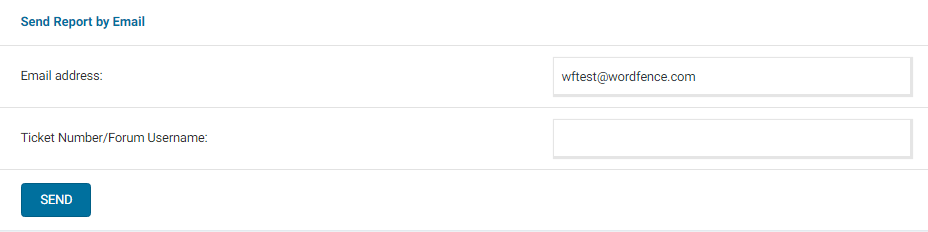
Additionally, please send a diagnostic report to wftest@wordfence.com. You can find the link to do so at the top of the Wordfence > Tools > Diagnostics page. Then click on “Send Report by Email”. Please add your forum username where indicated and respond here after you have sent it.
NOTE: It should look as follows – Screenshot of Tools > Diagnostic > Send by Email
Thanks,
Mark.
Hi @wpmakenorg, Thank you for getting back to us.
Could you please try clicking the specific buttons to review and accept the Agreements?
Wordfence dashboard notifications can also be disabled under Wordfence> All Options> General Wordfence Options> Dashboard Notifications.
Let me know how it goes.
Thanks,
Mark.
Hi @michael2010, Thank you for sending the diagnostic report and apologies for the delayed response.
Everything looks good on the report.
Please try all of our troubleshooting tips centered around this type of error message.
https://www.wordfence.com/help/scan/troubleshooting/#scan-process-ended-after-forking
From the error log, I noticed you have high value set for the max_execution_time . Sometimes, a higher max_execution_time value has been found to be detrimental to scan speed. We have seen issues arise when this number exceeds 60, although Wordfence will only attempt to use half of this value by default. don’t have some performance options set.
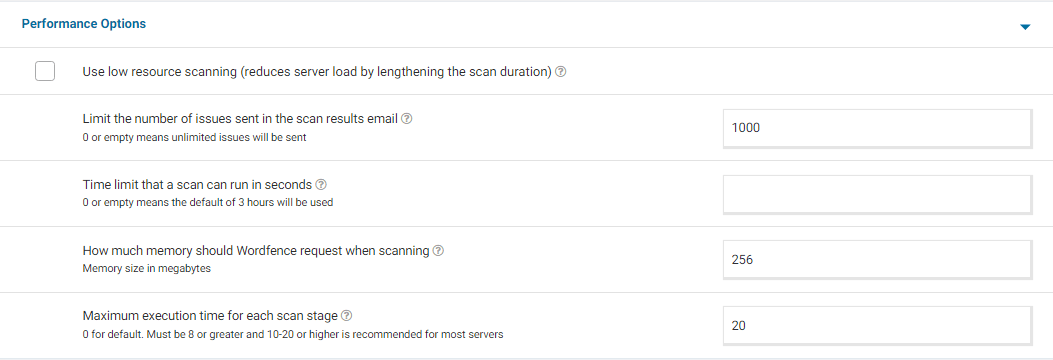
Go to your Wordfence > Scan > Manage Scan and locate the “Performance Options” section. Set “Maximum execution time for each scan stage” to 20. For a screenshot of my recommended Performance setting options – Click Here.
Adding “20” for the “Maximum execution time for each scan stage” tells the scan to pause every 20 seconds and start again where it left off, which makes the scan more performance-friendly for some servers. Once done, go to Wordfence > Scan > Scan Options and Scheduling and check to see if the bottom two options in General Options are disabled. It would be best to have those disabled for now (Scan files outside your WordPress installation, Scan images, binary, and other files as if they were executable)
Additionally, confirm that the Scan Option is set to Standard. Be sure to save your changes in case you make any changes here.
Please try running scan with the updated settings and let me know whether you have any issues.
Thanks,
Mark.
- This reply was modified 2 years, 1 month ago by wfmark.
Hi @spierbouwers, Thank you for sending the diagnostic report.
From the diagnostic, I can see the Scan Results under the Scan Issues section.
It is possible that this could be due to a browser extension breaking our JavaScript. Try from a different internet browser where all browser extensions have been disabled – don’t use a private or incognito session.If you don’t have the same issue in the other internet browser where all browser extensions have been disabled then see if you have the issue still in your normal browser. If you do then that indicates a browser extension in your normal browser is breaking our JavaScript.
If you still have the same issue in the other internet browser then your theme or another plugin may be loading JavaScript on our admin pages and creating a conflict.
Let me know what you find.
Thanks,
Mark.
Hi @sinapars,
I couldn’t find your diagnostic report. There was no attachment on the email you sent to us.
Please try the below instead:
Navigate to Wordfence > Tools > Diagnostic page and then click the “Export” button. Send the txt file to wftest@wordfence.com. Add your forum username in the subject and respond here once done. Let me know once you have sent the report.
Thanks,
Mark.
Hi @stefanp44, Thank you for sending the diagnostic report and apologies for the delayed response.
Everything looks good on the report.
In most cases, this is usually a problem with the cURL library on your hosting server and your hosting provider will need to fix it as WordPress is unable to send requests back to itself which Wordfence and other plugins on the site need.
Let me know if you need any further assistance.
Thanks,
Mark.
Forum: Plugins
In reply to: [Wordfence Security - Firewall, Malware Scan, and Login Security] reCAPTCHAHi enviroengineer, thank you for reaching out.
I suspect the human/bot threshold score set on your site is too high. Any “Verification Required” messages and emails are related to the message Google will send back when the user fails to be confirmed as human by reCAPTCHA checks.
We don’t receive inside information from Google about why a human may sometimes receive a low enough score to always require verification. The “reCAPTCHA human/bot threshold score” setting in Wordfence > Login Security > Settings is set to 0.5 by default. A higher threshold setting like 1.0 will cause the verification process to be more frequent as it would need to definitely be seen as a human to log in without verification. I recommend setting that to 0.5 and then using the “Run reCAPTCHA in test mode” option below that for a short time to see what sort of scores you see during your logins. You may need to reduce or increase the threshold score slightly after looking at the test mode score.
Thanks,
Mark@franaaa, Thank you for the update.
I am glad that you were able to figure out where the problem was.
If you have any further questions about this ticket, please respond here to reopen the ticket.Thanks,
Mark.
Hi @hebhansen, Thank you for reaching out.
I see you have a custom login page. The Wordfence 2FA and reCAPTCHA features are only supported for the default WordPress/WooCommerce login and registration pages and may not work on custom versions of these pages created manually or by other plugins/themes which explains the issue you’re having.
We have plans to expand our compatibility in the future, although we cannot commit to timelines at the moment.
Thanks,
Mark.
Hi @franaaa, Thank you for reaching out.
Could you please send me a screenshot of the Live Traffic entries?
Be sure to enable the “Expand All Results” option at the top right of the Live Traffic page, so we can see all the details. Obscure any sensitive information from the screenshots or , send them to wftest@wordfence.com and add your Forum username to the subject.
You can use Snipboard https://snipboard.io/ to send the screenshots.
Additionally, can you please send a diagnostic report to wftest @ wordfence . com? You can find the link to do so at the top of the Wordfence > Tools > Diagnostics page. Then click on “Send Report by Email”. Please add your forum username where indicated and respond here after you have sent it.
NOTE: It should look as follows – Screenshot of Tools > Diagnostic > Send by Email
Thanks,
Mark.
Hi @wattsyourwebsite, thanks for reaching out!
Can you do the following so I can get the information I need to help you?
- Stop the existing scan if it is still running (The “Start New Scan” button turns in to a “Stop” button while the scan is running).
- Go to your Wordfence > Scan > Manage Scan and locate the “Performance Options” section. Set “Maximum execution time for each scan stage” to 20.
- Click to “Save Changes”.
- Go to the Tools > Diagnostics page.
- In the “Debugging Options” section check the circle “Enable debugging mode”.
- Click to “Save Changes”.
- Start a new scan on the Scan page.
- If the scan fails again, copy the last 20 lines or so from the Log (click the “Show Log” link) once the scan finishes and paste them in the post.
On some sites, this will correct the issue. Adding “20” for the “Maximum execution time for each scan stage” tells the scan to pause every 20 seconds and start again where it left off, which makes the scan more performance-friendly for some servers. If this fixes the issue and scans run again, you can leave all the settings above except for “Enable Debugging Mode”.
For a screenshot of my recommended Performance setting options – Click Here.
Thanks,
Mark.
Hi @flintstoned,
Thanks for reaching out to us. Can you try the following steps, please:
- Stop the existing scan if it is still running (The “Start New Scan” button turns into a “Stop” button while the scan is running)
- Go to your Scan > Scan Options and Scheduling page and locate “Performance Options”
- Set “Maximum execution time for each scan stage” to 20 on the options page
- Select “Save Changes”
- Go to the Tools > Diagnostics page
- In the “Debugging Options” section, select “Enable debugging mode”
- If “Start scan remotely” is checked, uncheck this option.
- Select “Save Changes”
- Start a new scan
If the scan still won’t complete, please select the “Show Log” link and copy the last 20 (or so) lines from the Activity Log and paste them here.
If the scan completes successfully, you can turn off (unselect) “Enable debugging mode” from the previous steps.
Thanks,
Mark
Hi @rozza00, thanks for reaching out.
This message usually means that Wordfence has blocked you for violating a firewall rule.
Please follow these steps to disable Wordfence manually and get back into your site:- Please use FTP/SFTP — or any file manager available to you.
- Look inside the /wp-content/plugins/ directory and rename the wordfence directory to wordfence.bak.
- Once you have logged in to your WordPress admin you can name the folder back to wordfence again.
- Refresh your dashboard and you should be able to see Wordfence Active again. If not, go to the Plugins page and Activate it.
Once you login, check the “Tools” > “Live Traffic” page feed and locate the request that was blocked. If you are sure that the request is safe and should not be blocked, you can add the blocked request to the allowlist.I would suggest that you switch the Firewall to Learning Mode for sometime. From the Wordfence Dashboard click on Manage WAF. Then you will see Basic Firewall Options > Web Application Firewall Status. Change the option to Learning Mode. This will help Wordfence learn that these actions are normal and it will allow them in the future. After you have finished performing the actions, switch the WAF from Learning Mode back to Enabled and Protecting.
https://www.wordfence.com/help/firewall/learning-mode/ is an amazing resource for learning more about the WAF and learning mode.
Let me know how it goes.
Thanks!
Mark
Hi @uninvolved, Thank you for reaching out.
We are constantly working on making the plugin faster, perform better, and use less resources. There are not set amounts of RAM, CPU or database queries that we know Wordfence will definitely require in each use-case or hosting environment. The cases of slow-down are small in relation to the quantity of customers using Wordfence, but does crop up from time to time with certain configurations or larger databases/number of installed plugins.
For a screenshot of my recommended Performance setting options – Click Here.
You could also set max_execution_time = 60 in php.ini, Wordfence’s scan only ever attempts to use half of this value by default.
Your WP_MEMORY_LIMIT should be set to 128M or 256M in wp-config.php. WooCommerce, for example, recommends 64M minimum (and I often see only 48M in site diagnostics), so if you also have many hits on the site at once especially during a Wordfence scan, a lower limit here could be reached fairly easily. Your PHP memory_limit value should be set to 128M or 256M also to accommodate this change.
Let me know how it goes.
Thanks,
Mark.