wfmark

Forum Replies Created
-
Hi @sscoder, thanks for getting back to us.
Wordfence doesn’t offer an inbuilt option to hide wp-admin or wp-login.php for this reason. With certain “security through obscurity” methods, this would only serve to slightly slow down somebody with malicious intent rather than stop them.
Our thoughts on altering the wp-login URL is discussed in this video which is provided for your information: https://www.wordfence.com/blog/2017/10/should-you-hide-wordpress-login-page/
Using strong account passwords and two-factor authentication, along with always keeping your WordPress and plugin versions up-to-date should offer the best level of security.
Thanks,
Mark.
Hi @miminou, thank you for getting back to us.
Could you run Wordfence as your only-enabled plugin and revert to a default theme such as TwentyTwenty-Three to see if there’s a plugin or theme conflict causing the issue. If it works as expected, then reenable your plugins and theme one by one until the issue recurs to help find the cause.
Additionally, can you log in while keeping a Browser Console open to see if you can detect any JavaScript errors or files that fail to load. If you see any red errors in the console, please take a screenshot and send it to me.
Thanks,
Mark
Hi @eperlink, thank you for reaching out.
Great! Thank you for the update.
If you need any further assistance, create a new topic, and we’ll be happy to help.
Thanks,
Mark.
Hi @drgonzo3000, Apologies for the delayed response.
For the Browser user-agent to ignore option on Live Traffic, this is a single user-agent. Wildcards and multiple entries are not handled.
For List of comma separated IP addresses to ignore, it does seem to work expected from your explanation,but please note that this option only applies to the general Live Traffic records, like showing pageviews. Security-related events such as logins are still included.
For the allowlist services, it looks like StatusCake added a new IP address that isn’t currently on our allowlist — I’ve passed this on to the Development Team and they are working on updating the list. Ideally, services like this should use a DNS PTR record to identify their own servers, rather than using the default AWS domains, but there are several services that don’t do that, unfortunately. For that reason, we don’t recommend blocking all AWS traffic.
Thanks,
Mark.
Hi @kernvy,
Thank you for reaching out to us.Unfortunately, that’s not a service we offer at the moment. I would recommend reviewing the following: https://developer.wordpress.org/apis/security/ and going through the code looking for anything that doesn’t follow the guidelines.
Thanks,Mark.
Hi @adamhideseek, thank you for reaching out.
If you are having technical problems and you cannot set the “Web Application Firewall Status” to “Disabled”, you can instead set a constant. If you have the “Protection Level” set to “Basic WordPress Protection”, you can add this code to your WordPress “wp-config.php” file, just below the line about “WP_DEBUG”. If you have the “Protection Level” set to “Extended Protection”, the code should be added to the “wordfence-waf.php” file, before the line that begins with “if”:
define('WFWAF_ENABLED', false);Thanks,
Mark.
Hi @chins4, thank you for reaching out.
Sometimes updates can leave files present for various reasons, in most cases, it is safe to remove the files, but I recommend that you backup the site before removing or repairing any files found during a scan.
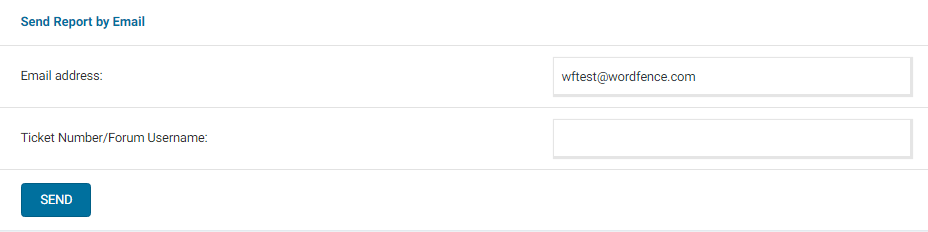
Would it be possible to send me a diagnostics report to wftest @ wordfence.com? You can find the link to do so at the top of the Wordfence > Tools > Diagnostics page. Then click on “Send Report by Email”. Please add your forum username where indicated and respond here after you have sent it.
NOTE: It should look as follows – Screenshot of Tools > Diagnostic > Send by Email
Thanks,
Mark.
Hi @solventweb, Thank you for getting back.
That’s right. As all the timestamps are current, there’s no cause for concern.
If any rule updates fail, you will see an error message on the Wordfence Dashboard.
Thanks,
Mark.
Hi @fred001, Thank you for sending the diagnostic report.
On the connectivity section wp_remote_post() test back to this server failed! Response was: 200 OK and the response is your homepage. This suggests to me that your theme or a plugin has been configured to redirect paths such as /wp-admin to your homepage rather than show the login page. This can be a problem for Wordfence and other plugins that need to access standard WordPress paths in order to connect.
You can test this yourself by disabling all plugins except for Wordfence and reverting to a default theme such as Twenty Twenty-Three. Now try scanning again. Does the error still display when Wordfence is the only plugin enabled on a default theme? If not, you may be able to re-enable your plugins and theme one-by-one until you find where the problem originates.
You can install a maintenance mode plugin during this time if site visitors are likely to be affected.
Thanks,
Mark
Hi @dimalifragis, Thank you for sending the screenshots and apologies for the delayed response.
I have confirmed that this is a racing issue. It happens if the hits are coming in fast and in parallel, and the server is fast enough to process them in parallel.
It looks like some of the hits were happening so close together that when Wordfence checks the rate limit, just before the limit is hit, a few of the hits see that the rate limit has not been hit yet — but each of them count as the first hit that should be blocked, so they add a block record.
This is unavoidable without adding a locking mechanism, which would slow down the site in order to avoid timing issues from overlapping hits, so this is expected behavior. Since these blocks are not permanent, they will all be removed when they expire.
Thanks,
Mark.
Hi @acontino,
We have also seen situations in which a fresh reinstall of the plugin or deactivating and reactivating Wordfence solves the issue.
As per the forum guidelines below, please open your own topic if the issue recurs and we would be glad to assist you:
“Unless users have the exact same version of WordPress on the same physical server hosted by the same hosts with the same plugins, theme, and configurations, then the odds are the solution for one user will not be the same for another. For this reason, we recommend people start their own topics.”
Thanks,
Mark.
Hi @alaminmollik,
Thank you for reaching out.
We have seen possible issues installing keys automatically more than 24 hours after generation. Additionally, if you are in a different browser than the one used when requesting your Free Wordfence license, you will be unable to automatically install it. In those cases, you will need to manually copy and paste the key from the email to complete the activation of Wordfence Security.
Aside from verifying that you did not copy only part of the license key, I would check whether you can install the license when Wordfence is the only active plugin on your site. There could be a Javascript conflict with another plugin potentially stopping the code executing the verification check.
In some cases, disabling caching plugins resolves the issue.
Let me know how it goes.
Thanks,
Mark
Hi @marisa2023, Thank you for reaching out.
Wordfence works well with most of the WordPress plugins. Some features/functionality may be the same as other security plugins features. So you would choose which plugin you want to handle that functionality and turn off the feature in the other plugin to avoid conflicts or a strain your site resources.
Thanks,
Mark.
Hi @ojkprabhu, thanks for your contacting us!
In some instances with load balanced databases and web sites, the scan will stop with this exact error. In Wordfence > Scan > Scan Options > General Options, this has been known to be fixed by disabling the “Scan file contents for malicious URLs” option.
If that doesn’t work, check your maximum execution time:
- Cancel any existing scans.
- Go to your Scan > Scan Options and Scheduling page and locate the “Performance Options”
- Set “Maximum execution time for each scan stage” to 20 on the options page
- Click to “Save Changes”
- Try another scan.
If you continue to experience problems, you can also take the following steps so that I can grab some information to help you:
- Go to the Tools > Diagnostics page
- In the “Debugging Options” section check the circle “Enable debugging mode”
- Click to “Save Changes”.
- Start a new scan.
- Copy the last 20 lines from the activity log (click the “Show Log” link) once the scan finishes and paste them here.
There could also be issues around caching, allowlisting of IPs, or a problem with the database itself (depending on your platform) so it might still be necessary to troubleshoot further, but seeing what exactly the scan was trying when it failed would be useful.
Thanks,
Mark.
Hi @psheirich, thanks for reaching out.
It’s difficult to tell definitively how long a user is logged in or when a user leaves a site as disabling JavaScript or using a browser that doesn’t support certain functions could bypass that check.
Therefore, we are looking into session timeout that can be configured by the site administrator. We have had other requests to set auto-logout after “x” days/hours. I can’t provide updates here on the forums regarding release-dates or development schedules, but all customer suggestions are seen and discussed.
Thanks,
Mark.