Kel Santiago-Pilarski

Forum Replies Created
-
Hi @elaine_simmons!
I straightened out everything in the template I was using
I’m glad to hear that, thanks for sharing! 🙂So I need to transfer those Pages template blocks to the Front Page template – I am confused what to name the new template that I intend to use for the Front Page though – the documentation says I can’t name it “Front Page”, or the name “Front Page” will not show up in list of templates? Could you please explain.
You can copy the blocks from the Pages template to the “Front Page” template (the template you’re using for the front page or landing page of your site).
If you’re using the “Front Page” template, it will appear in Appearance > Editor > Templates.
From the documentation, “If you already added a template from the Template Editor (for eg: Front Page), it will not display that template name (in this case, Front Page) in the drop-down menu, when you try to add a new template.”
When you create a new template, there will be premade templates to choose from like the Front Page template, Pages template, Author Archives template, and more.
If you’ve already selected “Front Page” template, when you create a new template, “Front Page” won’t be available on the list of premade templates.Although templates can be renamed, it’s not necessary. You can continue using the “Front Page” template for your front or home page.
I’ve tested this further and reported here. If a block is in a template part, setting that block to sticky doesn’t work. But if a block is not included in the template part, setting it to sticky works fine.
Hi @pierrotlunaire,
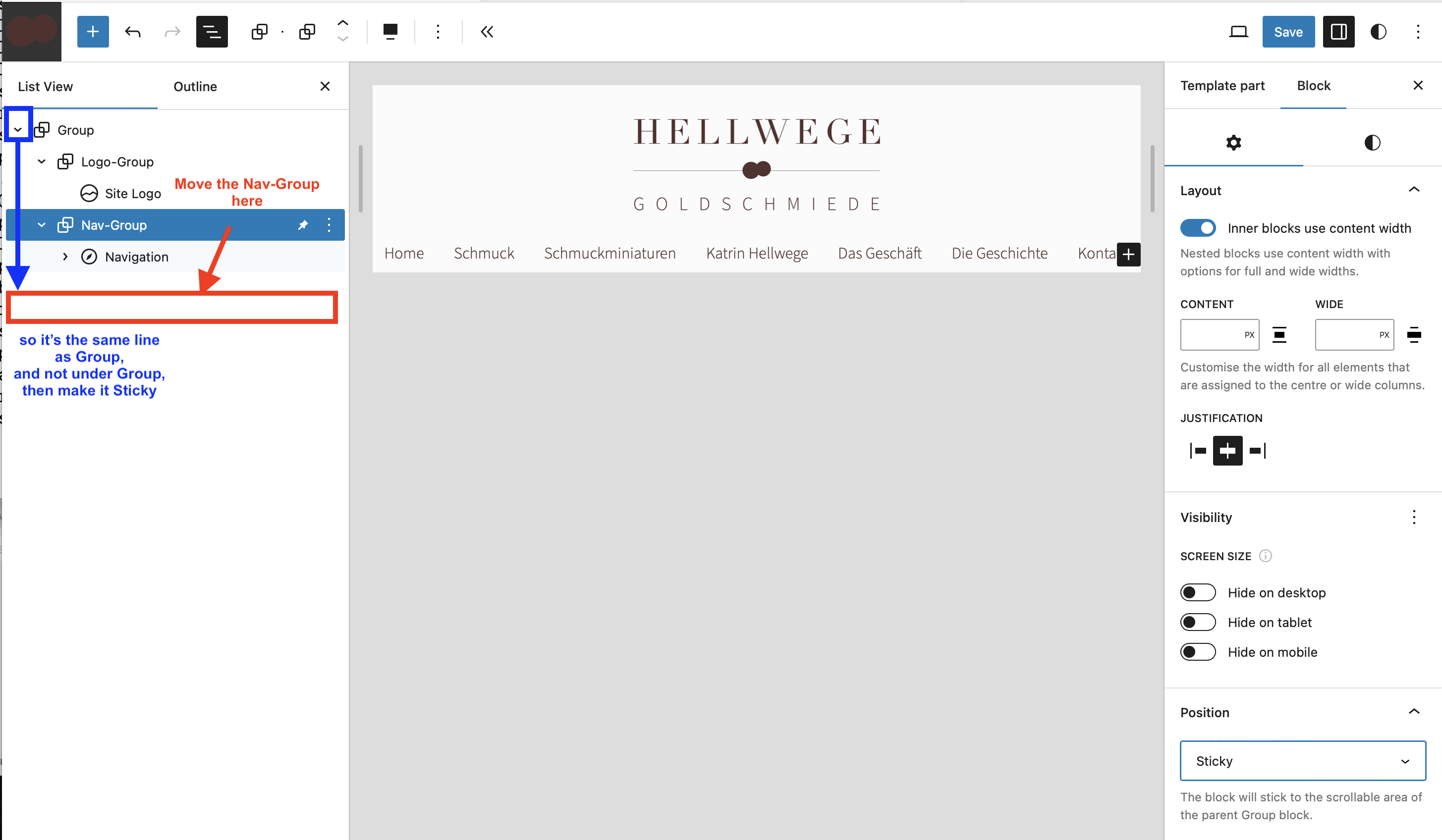
I moved Nav-Group to the same level and made (kept) it sticky. It does not stick. Both Logo-Group and Nav-Group scroll out.
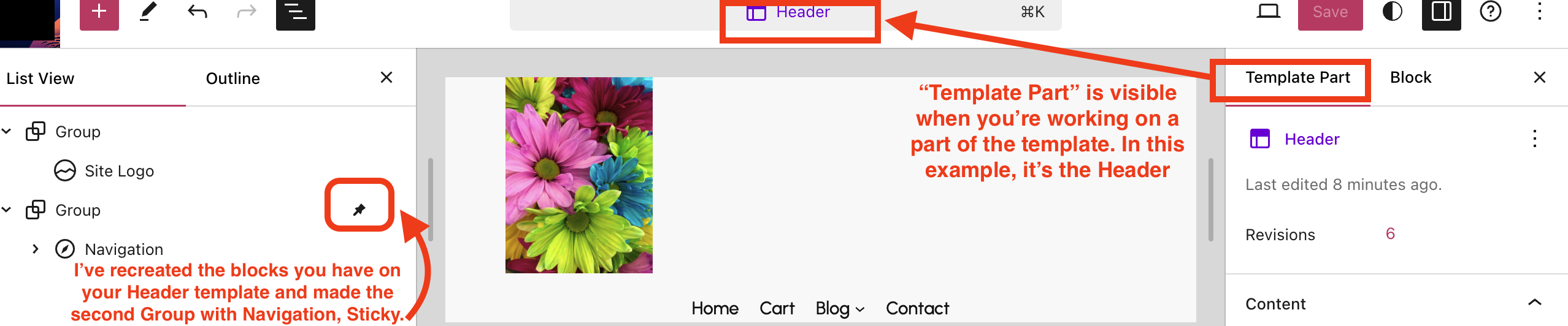
From your screenshots, you’re working on the Header template editor (as “Template part” is visible on the upper right side) and not on the editor of the home page.
On my test site, I’ve recreated your blocks and also worked on the Header template editor. I’ve set the Group Navigation sticky, and it doesn’t work too. Scrolling down the home page doesn’t make the navigation stay put even it’s sticky.
See the screenshot of my test site here: https://supportmedia.tech.blog/wp-content/uploads/2024/07/screenshot-2024-07-30-at-11.10.28.png
However, when not working on the editor for the Header template part, making the navigation sticky works fine. It looks like you may have found a bug! And I’ll create a report on that as well. In the meantime, you can work on the editor instead:- Go to Appearance > Editor and work on the home page editor
yoursitenamehere.com/wp-admin/site-editor.php?canvas=edit - Set the second Group of blocks (Nav-Group) to sticky and save.
- Visit your home page again to check. Clear your browser cache or use another browser to check the navigation.
Hello @zahidlatif5530!
Thanks for reaching out! I tried sharing the page link, and it’s not only in WhatsApp that the image is not visible, but also in other social networks and messaging platforms. On the page, although there’s an image caption “President Tinubu”, the image that should be above it is not displaying: https://panafricanvisions.com/wp-content/uploads/2024/04/president-tinubu-1024×686.jpg (not found).
Try to reupload the image or use another image on your page, then try to share again to check if the image is visible.Forum: Plugins
In reply to: [WordPress Importer] WordPress Importer: cannot import iframesGreat, we’re glad to hear that’s sorted out. Thanks for sharing that with us!
Hello @wordzebra!
You’d like to use paragraph for the site title, and use the font on the site title to the paragraph, is that correct?
I tested this on my test site and in Styles settings > Typography, there are several fonts that can be used for both site title and paragraph.
Please share more details:- What font are you using for the site title that you want to use for the paragraph?
- When you got to the editor > Styles settings > Typography, what fonts are available in the site title that are not in paragraph? Share screenshots if possible. Thanks!
I see, thanks for clarifying that @coffee_king.
Try these two codes and see if any of them works for you:.ytp-title-enable-channel-logo .ytp-title {
display: none;
}Or
.ytp-embed:not(.ad-showing) .ytp-title-text {

    display: none;
}Hi @fwgparkstein,
Thanks for sharing the site link. I see what you mean! Clicking on the menu “Unsere Politik” doesn’t display the submenu item under it. I’ve taken a look at this from the browser inspector and in the header (with the yellow background) adding extra space or padding at the bottom part will display the submenu item. Go to the site editor and edit the header by increasing the header height, or adding padding below the menu and save.
Hello @pierrotlunaire!
Thanks for writing in and sharing a screenshot. It’s possible to make the navigation stick on top of the page, then make the logo not visible as you scroll down the page.
Currently Logo-Group and Nav-Group (where the navigation is at) are both under “Group”. To make the navigation sticky, remove the Nav-Group from “Group”, so Nav-Group will be the same line as “Group” instead of under it. Then make Nav-Group sticky.
See the screenshot of example here: https://supportmedia.tech.blog/wp-content/uploads/2024/07/support.pngHi there @nikov!
Thanks for sharing your feedback, we appreciate that. This has been reported in https://github.com/WordPress/gutenberg/issues/56181 to make the modal optional.Hello there @wordzebra!
Although with Highlight this is possible with a paragraph or heading, it’s not possible for the site title. Using a paragraph or heading, you can highlight the letter you want to change the color of, then on the toolbar, click More and select Highlight where you can change a particular letter’s text color and background.
Changing one color of the text on the site title is also not possible with CSS code. If you want to change the color of one letter only, you can either:- Add the texts in a paragraph or heading and use Highlight instead of a site title.
- Or use an image with the texts on it.
Hi @coffee_king!
In Appearance > Customize, click “Additional CSS”. It will display a box where you can add the CSS code below, then click “Save”..ytp-title-link {
display: none;
}After you add this code, check your site again to see if the YouTube video title is removed.
Hi @elaine_simmons!
Thanks for sharing that. Duplicate content happens which can be caused by different factors.Maybe I just save the header+Nav I have going and the (2) Hero section rows I created as template parts and start over?
Please advise & thanks!Yes, you can do that. You can also create a new template and add the parts, and use that new template on the site editor front page. After that, use another browser or clear your browser cache first then check your site front page to see if the sections are no longer repeating.
Hi @coffee_king!
From the Header Media, the YouTube video title can be hidden using CSS code. In your site dashboard, go to Appearance > Customize and select “Additional CSS” and add this code and save:.ytp-title-link {
display: none;
}Hi @pradg !
Yes, after you’ve created post templates you can select which template you want to use for your new post. In the post editor, click the “Settings” icon on the upper right. Next to “Template” is the name of the template that you can click and select “Swap template” to select the template you want to use for that post.
If the post you’re writing is for a new template, select Template > Create new template. It will be saved in your templates which you use for other posts in the future. - Go to Appearance > Editor and work on the home page editor