Andrei

Forum Replies Created
-
Hello there,
Thank you for getting in touch.
Mostly, this is happening when you use a speed optimization plugin. These plugins compress all JS files into one file, but this process can create errors when you load a page.
See if you have this type of plugins, disable them and try again to do the translation.Also, please see if your server has HTTP2 and GZIP. If it does, auto-optimize doesn’t actually have a positive impact on your website speed as HTTP2 means everything is downloaded in parallel, on the same connection and GZIP means minification doesn’t actually do anything.
I understand some of the instructions we offer might be a bit difficult for non developers so let me know how else I may assist you.
Hello there,
Since this looks a lot like a conflict with some other code, the first/next recommended step is the conflict test (ideally in a staging environment):
Briefly disable all other plugins and enable the default Twenty Twenty theme. Please also disable all add-ons. If this fixes the problem, as it probably will, enable everything one by one, checking each time to see when the problem returns.
Please let us know when you find the conflict so that we can take a look and see what we can do about it.
Greetings
Thanks for reaching out
We did have similar issues in our previous versions of TP that the users reported but it should have been fixed. Try updating TP to the latest version
If that doesn’t work what you can do is to try our Advanced settings from TranslatePress enabling them one by one:
Fix missing dynamic content
Disable dynamic translation
Fix spaces between HTML attributes
Fix broken HTMLIf none of this present any progress the best workaround available is using the our translation block where you encounter this.
All the Best
Hello there,
You need to have your content written in the same language as the default language (from TP Settings). Also, your translations will not make sense, as it’s expected to be written in the default language.
One more thing you can try is translating this specific string from the database using the WP Data Access plugin https://wordpress.org/plugins/wp-data-access/
Let’s say for example that your default site’s language is English (United States) and that you want to translate a string to Spanish.
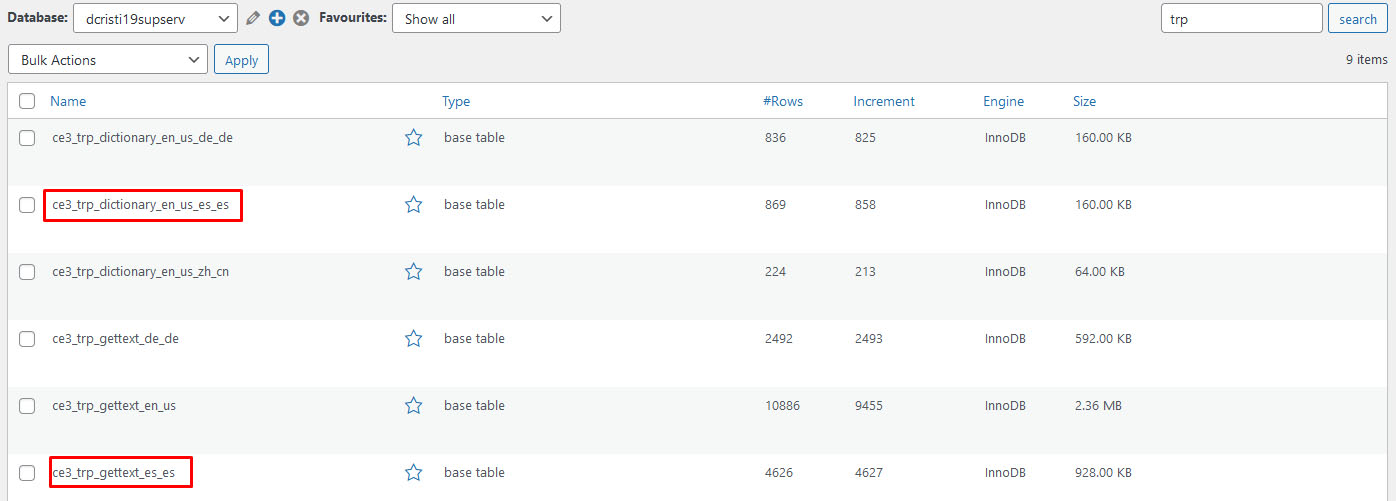
Using WP Data Access, you will have to search for that string either in the wp_trp_dictionary_en_us_es_es table or in the wp_trp_gettext_es_es table.
The gettext table contains all the strings related to plugins or themes, while the dictionary table contains the strings related to your site’s content.Here is an image of how WP Data Access looks when you search for the trp tables: https://www.cozmoslabs.com/wp-content/uploads/2021/05/wp_data_access_search_for_table.jpg
You can never be too sure in which table a string will be, so the best practice is to search for it in both tables. Start with one table and if you are not able to find it there, search for it in the other table.
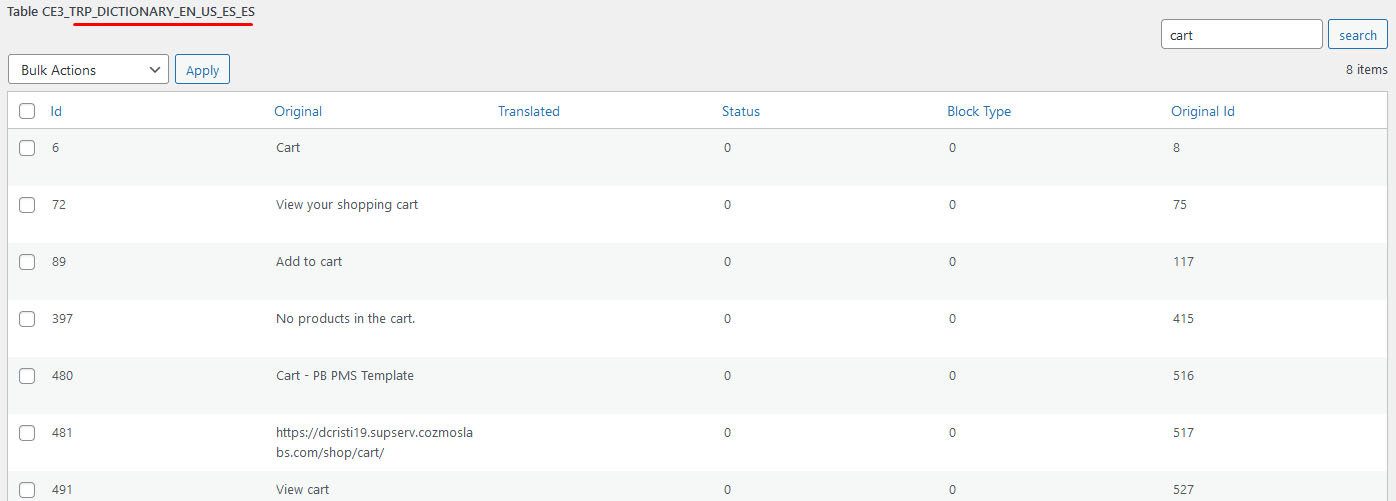
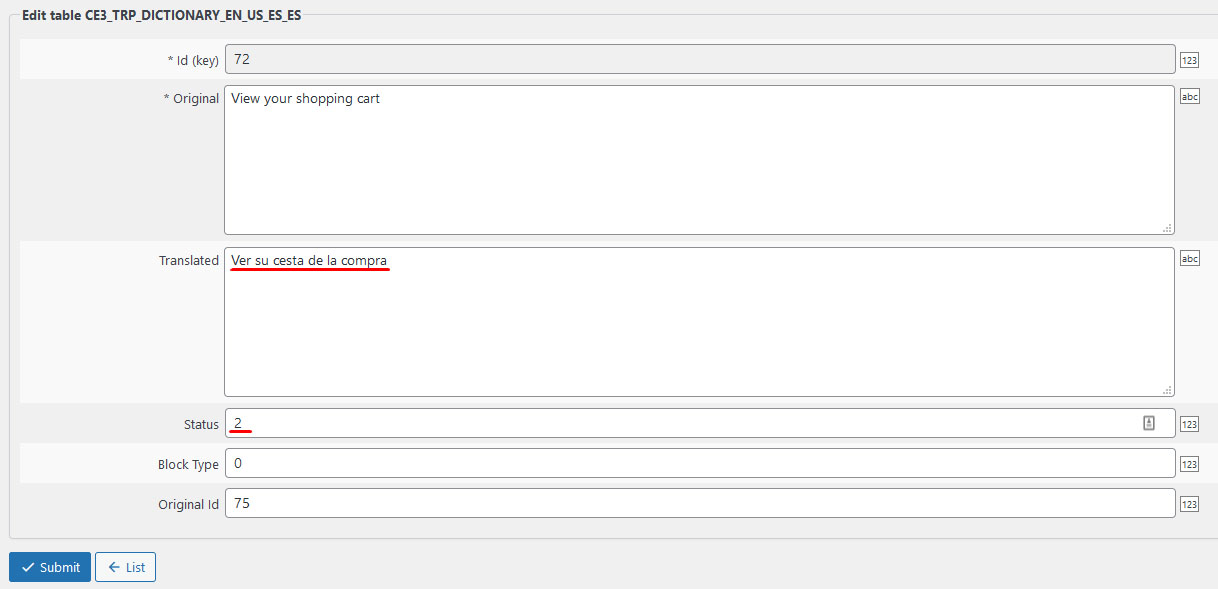
Here is an image of how I was able to search for all strings that contain “cart” in the wp_trp_dictionary_en_us_es_es table: https://www.cozmoslabs.com/wp-content/uploads/2021/05/wp_data_access_search_for_string.jpgAfter you find the string that you want to edit, all you have to do is to edit the row and to add the translation in the Translated column. It is also important to add 2 in the Status column (0 – not translated; 1 – automatic translated; 2 – manually translated).
Here is an image of how to do the translation: https://www.cozmoslabs.com/wp-content/uploads/2021/05/wp_data_access_translate_string.jpg
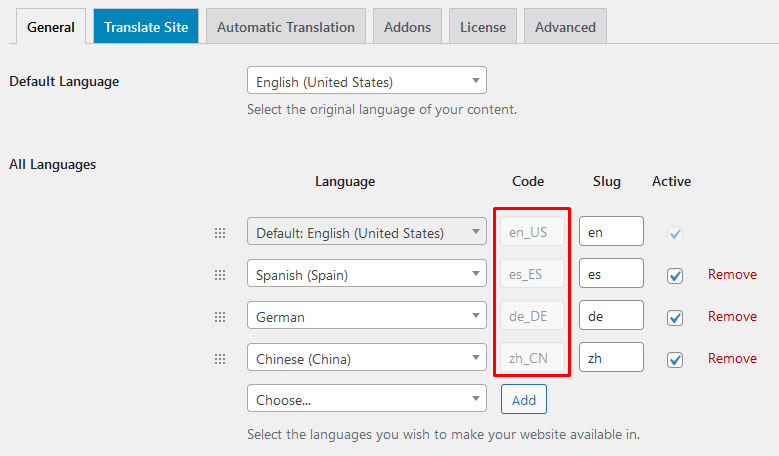
After you have filled the Translation and Status columns, press the Submit button and the translation is going to be saved.In the example I gave above, I used English and Spanish, you can do the same for all languages, just make sure to replace the en_us and es_es language codes with the ones that you are using. You can find the codes for your languages by going to: Settings –> TranslatePress –> General tab https://www.cozmoslabs.com/wp-content/uploads/2021/05/general_langauge_code.jpg
You should be able to find this specific strings under the string dropdown in the Translation Interface.
If you are not able to do so in the translation interface you can try doing this directly from the database using the WP Data Access plugin https://wordpress.org/plugins/wp-data-access/
Let’s say for example that your default site’s language is English (United States) and that you want to translate a string to Spanish.
Using WP Data Access, you will have to search for that string either in the wp_trp_dictionary_en_us_es_es table or in the wp_trp_gettext_es_es table.
The gettext table contains all the strings related to plugins or themes, while the dictionary table contains the strings related to your site’s content.Here is an image of how WP Data Access looks when you search for the trp tables: https://www.cozmoslabs.com/wp-content/uploads/2021/05/wp_data_access_search_for_table.jpg
You can never be too sure in which table a string will be, so the best practice is to search for it in both tables. Start with one table and if you are not able to find it there, search for it in the other table.
Here is an image of how I was able to search for all strings that contain “cart” in the wp_trp_dictionary_en_us_es_es table: https://www.cozmoslabs.com/wp-content/uploads/2021/05/wp_data_access_search_for_string.jpgAfter you find the string that you want to edit, all you have to do is to edit the row and to add the translation in the Translated column. It is also important to add 2 in the Status column (0 – not translated; 1 – automatic translated; 2 – manually translated).
Here is an image of how to do the translation: https://www.cozmoslabs.com/wp-content/uploads/2021/05/wp_data_access_translate_string.jpg
After you have filled the Translation and Status columns, press the Submit button and the translation is going to be saved.In the example I gave above, I used English and Spanish, you can do the same for all languages, just make sure to replace the en_us and es_es language codes with the ones that you are using. You can find the codes for your languages by going to: Settings –> TranslatePress –> General tab https://www.cozmoslabs.com/wp-content/uploads/2021/05/general_langauge_code.jpg
Let me know if you encounter any difficulties along the way.
Hello there,
Apologies for not getting back to you any sooner, our team was out of office due to seasonal holidays but now we continue from where we left off.
TranslatePress does have integration with Rank Math and you should be able to translate meta description without any issues.
However if you are unable to do so please get back to us!
Best Regards,
Greetings,
Thanks for contacting us regarding your issue.
Apologies for not getting back to you any sooner, our team was out of office due to seasonal holidays but now we continue from where we left off.
Apologies but this is the only method that we have available for changing fonts. This works just fine on my instance. Please try clearing your cache and let me know if you see any improvement.
All the Best,
Hello there,
Thanks for reaching out to us!
Did you try to look for these strings in the list of strings from Translation Editor also? You should be able to translate those specific strings with this method.
If you are unable to find them please get back to me so we can see what to do about it.
All the Best,
Hello there,
Thank you for contacting us regarding your issue!
Apologies for not getting back to you any sooner but our team was out of office due to holidays. Now we continue from where we left off.
Did you try to look for these strings in the list of strings from Translation Editor also?
If they are not there, what happens if you refresh the page while you are in the translation mode, is only the first block of posts appears? If so, probably we will need to replicate this in order to know how to fix it, so please, let me know exactly, step-by-step, how you implemented it.Looking forward to your reply.
Hey there,
Thank you for reaching out!
Apologies for not getting back to you any sooner but our team was on a break due to holidays. Now we continue from where we left off.
The only available solution that we have at the moment for this is creating a second form and wrapping it with one of our Conditional Shortcodes based on Language. Here you have more details on shortcodes.
Let me know if you have any difficulties in implementing this.
All the Best
Hello there,
Thanks for reaching out to us!
Would you mind sharing with me a couple of screenshots of this specific dropwdown that you are not able to translate?
Looking forward to your reply.
Hey there,
Thanks for reaching out!
We are very grateful for bringing this issues to our attention. Could you please write back to us here so we can have a better look?
All the Best,
Hello there,
Thanks for reaching out to us!
Please check your debug log for any fatal errors. You can enable the debug log as such: https://wordpress.org/support/article/debugging-in-wordpress/
Looking forward to your reply.
Regards,
Hey there,
Thanks for reaching out to us!
The way TranslatePress work is that you have your website in a default language and after this you translate the default version to all your secondary ones.
There is no option to have just a couple of posts translated. This will mean that your secondary versions will have a couple of posts in that language and the rest of it will in the default language(untranslated).
Please let me know if you have any further questions.
Best Regards,
Hey there,
We deeply apologize for the delayed response.
There has been a great load on our support team in the past few days, but such a long reply time is very uncommon.
The 500 error (or sometimes a white page or “The site is experiencing technical difficulties.”) is a very general server error.
One of the first web search results says that “The 500 Internal Server Error is a very general HTTP status code that means something has gone wrong on the website’s server but the server could not be more specific on what the exact problem is.”
To debug this further, please follow these steps:
1. Ask your host to identify this specific error and/or for the PHP error log.
2. Try and increase your WordPress memory limit: https://docs.woocommerce.com/document/increasing-the-wordpress-memory-limit/
3. set WP_DEBUG to true in wp_config.php file: https://codex.wordpress.org/WP_DEBUG and try again. See if you get any errors.
4. Check if you have duplicate entries in your *trp_* tables from the database. If you do, you can use the Remove duplicate rows option from TP Settings –> Advanced tab to clear them.
5. Try to do a conflict test. *Briefly* disable all other plugins and enable the default Twenty Twenty theme. Please also disable all add-ons. If this fixes the problem, enable everything one by one or in small bulks, checking each time to see when the problem returns.Let me know about this.
Best Regards,