Andrei

Forum Replies Created
-
Hey there,
Thanks for reaching out.
One method that you could try would be to wrap this text with a translation block. Please try the following and let me know if it helps:
<div class="translation-block">
  You must be logged in to create new topics
</div>
Regards
Hey there,
Thanks for reaching out to us!
Unfortunately this is not yet doable with our plugin. The best I can do for you at the moment is to make a feature request to our team but the chances of this being implemented are low.
Best Regards
Hello there,
Thanks for reaching out!
Unfortunately I do not think we are able to translate such strings but there are ways of trying to do so.
First of all please check our String Translation Editor for this specific string.
If you do not find it there it means our plugin can not detect that string. You can try wrapping this box with a translation block, this might help detect those strings.
Let me know if any of this helped
Greetings,
Apologies for not getting back to you any sooner!
Thank you for reaching out to us!
Please try running a conflict test:
*Briefly* disable all other plugins and enable the default Twenty Twenty theme. Please also disable all add-ons. If this fixes the problem, enable everything one by one, checking each time to see when the problem returns.
Let us know if you find the conflict so that we can take a look and see what we can do about it.
Hey there,
Thanks for reaching out to us!
Unfortunately I am not able to tell what might be causing this just from your description.
Would you mind writing back to us here?
Regards
Hello there,
Thanks for reaching out to us!
I will make a feature request for this and forward it to our team. This should not take a long time to implement so you should be able to see it live in the future versions of TP.
Greetings,
Thanks for reaching out.
If you are looking for more radical changes, you can create your own language switcher using our code as an example.
Basically, the language switcher consists of a series of anchor tags with href attributes pointing to the equivalent page in different languages.
It’s important to use anchor tags if you are planning to use the Automatic User Language Detection Add-on.You can find the code for the already built language switchers here:
1.Shortcode language switcher [language_switcher]
wp-content/plugins/translatepress/includes/class-language-switcher.php ( function language_switcher )
wp-content/plugins/translatepress/partials/language-switcher-shortcode.php
wp-content/plugins/translatepress/assets/css/trp-language-switcher.cssUse the code as an example of how to build a language switcher.
After this most of the changes that you desire can be achieved by targeting the [language switcher] with custom css.
Regards
Greetings,
Thanks for reaching out!
It seems this issue is caused by the
User subdirectory in default languageoption from TranslatePress. If you set this to no, the login redirect will work correctly.Greetings,
Thanks for reaching out about your question!
In the editor where you entered the information for the cookie policy, try to use our conditional shortcode: https://translatepress.com/docs/translation-shortcode/
If that doesn’t work, clear your cookies, login again, go to the translation editor, there, the cookie policy should appear again, thus allowing you to translate it.
If that also doesn’t work, you’ll need to copy paste the exact text in the cookie policy in another page and translate it there.
Best Regards,
Greetings,
Thanks for reaching out to us!
You can also translate your strings directly from the backend using the WP Data Access plugin https://wordpress.org/plugins/wp-data-access/
However if you are not able to see the strings in the database it means that they are not being detected by TP.
Let’s say for example that your default site’s language is English (United States) and that you want to translate a string to Spanish.
Using WP Data Access, you will have to search for that string either in the wp_trp_dictionary_en_us_es_es table or in the wp_trp_gettext_es_es table.
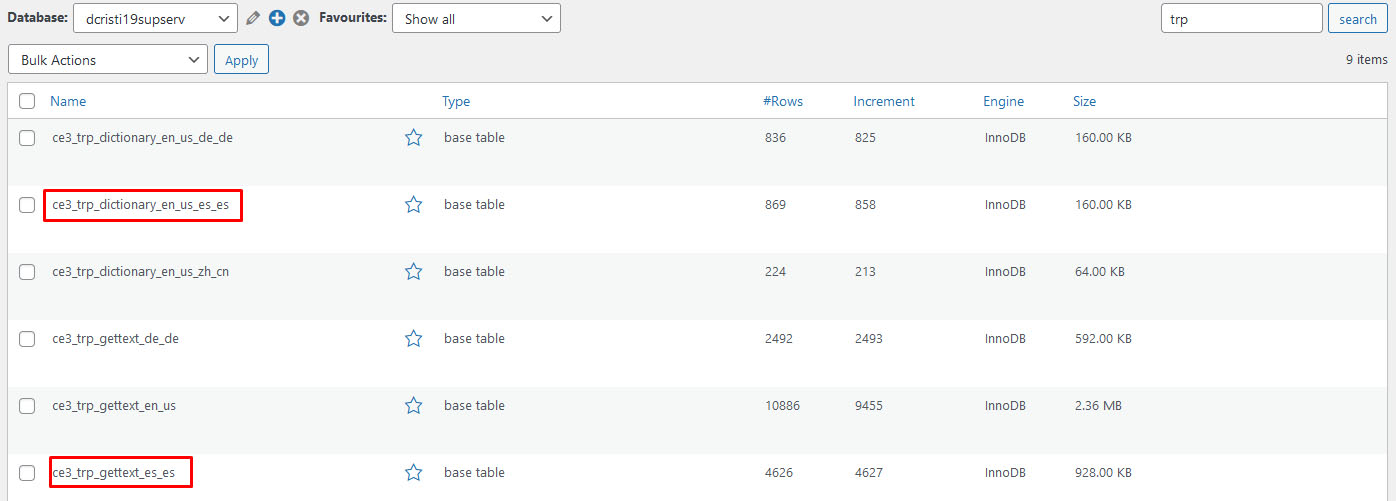
The gettext table contains all the strings related to plugins or themes, while the dictionary table contains the strings related to your site’s content.Here is an image of how WP Data Access looks when you search for the trp tables: https://www.cozmoslabs.com/wp-content/uploads/2021/05/wp_data_access_search_for_table.jpg
You can never be too sure in which table a string will be, so the best practice is to search for it in both tables. Start with one table and if you are not able to find it there, search for it in the other table.
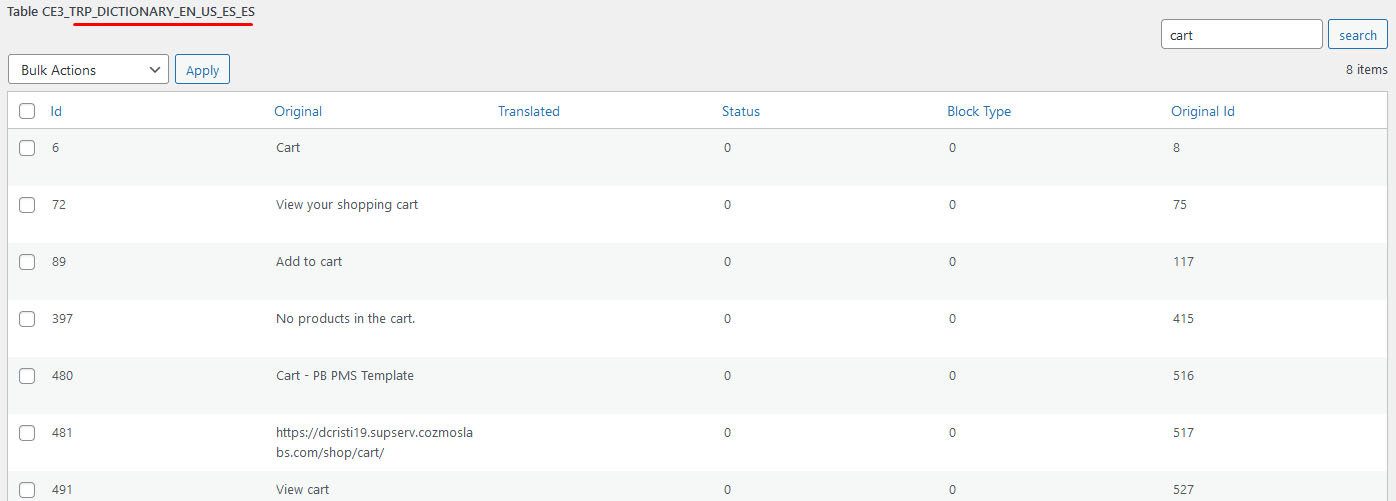
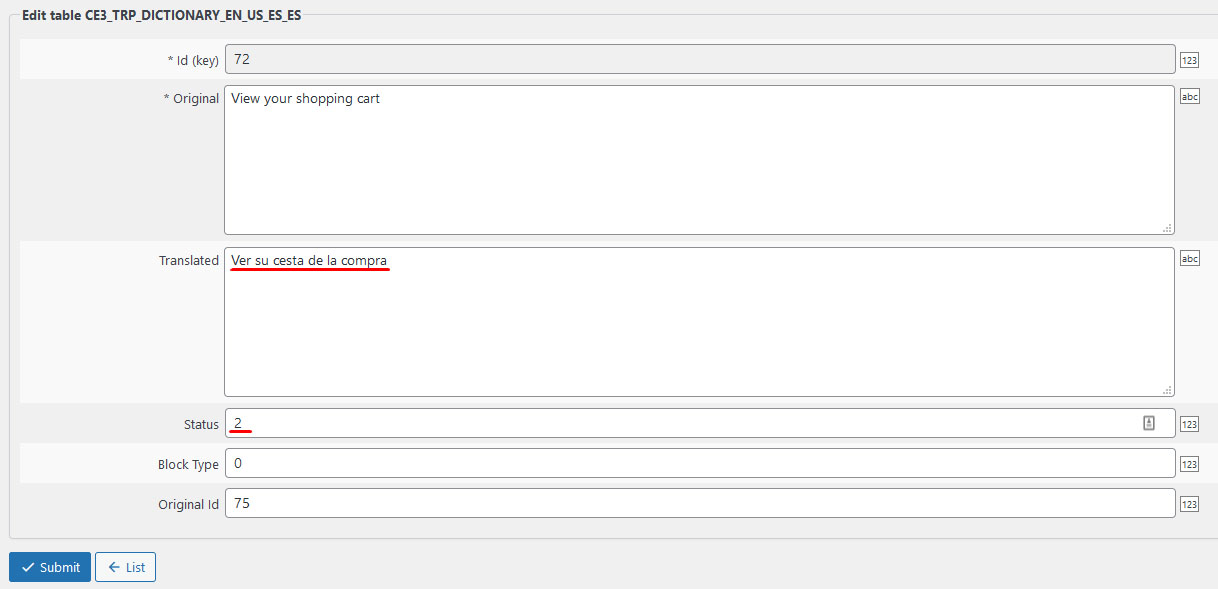
Here is an image of how I was able to search for all strings that contain “cart” in the wp_trp_dictionary_en_us_es_es table: https://www.cozmoslabs.com/wp-content/uploads/2021/05/wp_data_access_search_for_string.jpgAfter you find the string that you want to edit, all you have to do is to edit the row and to add the translation in the Translated column. It is also important to add 2 in the Status column (0 – not translated; 1 – automatic translated; 2 – manually translated).
Here is an image of how to do the translation: https://www.cozmoslabs.com/wp-content/uploads/2021/05/wp_data_access_translate_string.jpg
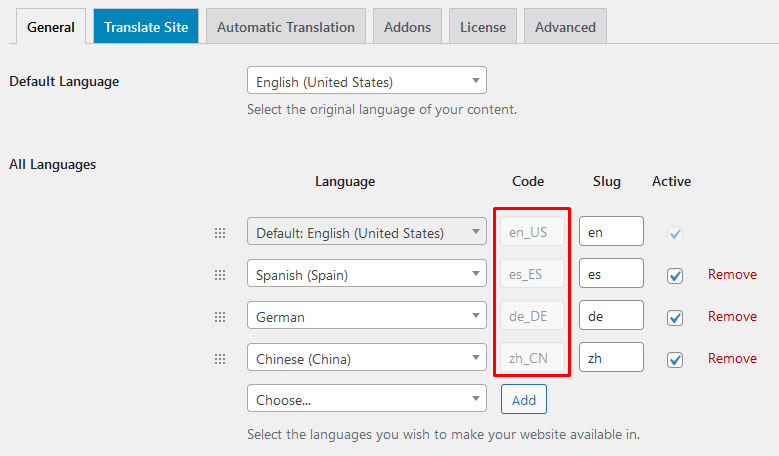
After you have filled the Translation and Status columns, press the Submit button and the translation is going to be saved.In the example I gave above, I used English and Spanish, you can do the same for all languages, just make sure to replace the en_us and es_es language codes with the ones that you are using. You can find the codes for your languages by going to: Settings –> TranslatePress –> General tab https://www.cozmoslabs.com/wp-content/uploads/2021/05/general_langauge_code.jpg
Let me know if this helped
Hello there,
The most effective approach for this would be to translate those string directly from the database. However if you are not able to find them in your database it means TP is unable to detect them and we would need to use another method. I will leave you below the steps to the first method and let me know if it works.
You can also translate your strings directly from the backend using the WP Data Access plugin https://wordpress.org/plugins/wp-data-access/
Let’s say for example that your default site’s language is English (United States) and that you want to translate a string to Spanish.
Using WP Data Access, you will have to search for that string either in the wp_trp_dictionary_en_us_es_es table or in the wp_trp_gettext_es_es table.
The gettext table contains all the strings related to plugins or themes, while the dictionary table contains the strings related to your site’s content.Here is an image of how WP Data Access looks when you search for the trp tables: https://www.cozmoslabs.com/wp-content/uploads/2021/05/wp_data_access_search_for_table.jpg
You can never be too sure in which table a string will be, so the best practice is to search for it in both tables. Start with one table and if you are not able to find it there, search for it in the other table.
Here is an image of how I was able to search for all strings that contain “cart” in the wp_trp_dictionary_en_us_es_es table: https://www.cozmoslabs.com/wp-content/uploads/2021/05/wp_data_access_search_for_string.jpgAfter you find the string that you want to edit, all you have to do is to edit the row and to add the translation in the Translated column. It is also important to add 2 in the Status column (0 – not translated; 1 – automatic translated; 2 – manually translated).
Here is an image of how to do the translation: https://www.cozmoslabs.com/wp-content/uploads/2021/05/wp_data_access_translate_string.jpg
After you have filled the Translation and Status columns, press the Submit button and the translation is going to be saved.In the example I gave above, I used English and Spanish, you can do the same for all languages, just make sure to replace the en_us and es_es language codes with the ones that you are using. You can find the codes for your languages by going to: Settings –> TranslatePress –> General tab https://www.cozmoslabs.com/wp-content/uploads/2021/05/general_langauge_code.jpg
Regards
Hello there,
Thanks for reaching out to us.
Please try excluding this URL from translation and let me know if it helps. You can find more details on that here: https://translatepress.com/docs/developers/exclude-certain-text-or-element-from-being-translated/
Let me know if it works.
Greetings,
We deeply apologize for the delayed response.
There has been a great load on our support team in the past few days, but such a long reply time is very uncommon.
I tested this on my instance and it seems it is a compatibility issue. I will be forwarding this to our team!
Thank you very much for reporting this!
Regards
Hey there,
We deeply apologize for the delayed response.
There has been a great load on our support team in the past few days, but such a long reply time is very uncommon.
Unfortunately the specific addon that you mentioned should work only for websites that do not use any kind of structure for the permalink, thus what you are trying to achieve is not possible.
It would be possible to make a request in order to add this to the base of TP but this might take a while.
Regards
Greetings,
Since 5 days have already passed without a reply we will be marking this topic as “Resolved”. Do not hesitate to open another ticket if we did not solve your problem.
Have a great day!
Regards