The Math block lets you display mathematical notation in your content. You can enter formulas using LaTeX or MathML and show them as a standalone block or inline within text. Inline math formatting is also available in rich text fields such as Paragraphs, Headings, Lists, and Table cells.
Requirements
- WordPress 6.9 or later.
Add a Math block
- Open a post or page in the editor.
- Place your cursor where you want the formula to appear.
- Open the Block Inserter (+) in the top toolbar, search for “Math,” and select the Math block.
You can also type /math in the block editor and press Enter.

Read detailed instructions on adding blocks.
Enter a formula
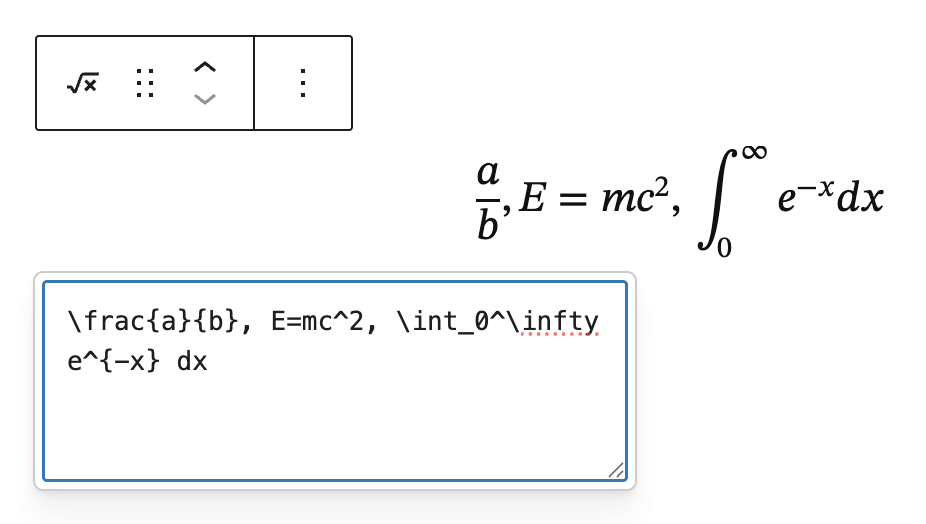
- Click inside the Math block to edit.
- Type or paste your formula using LaTeX (for example,
\frac{a}{b}, E=mc^2, \int_0^\infty e^{-x} dx) or valid MathML markup. - Exit the block to preview the rendered result in the editor.
Add inline math inside text
- Add or select a text block (for example, Paragraph, Heading, List item, or Table cell).
- Select the portion of text where the formula should appear.
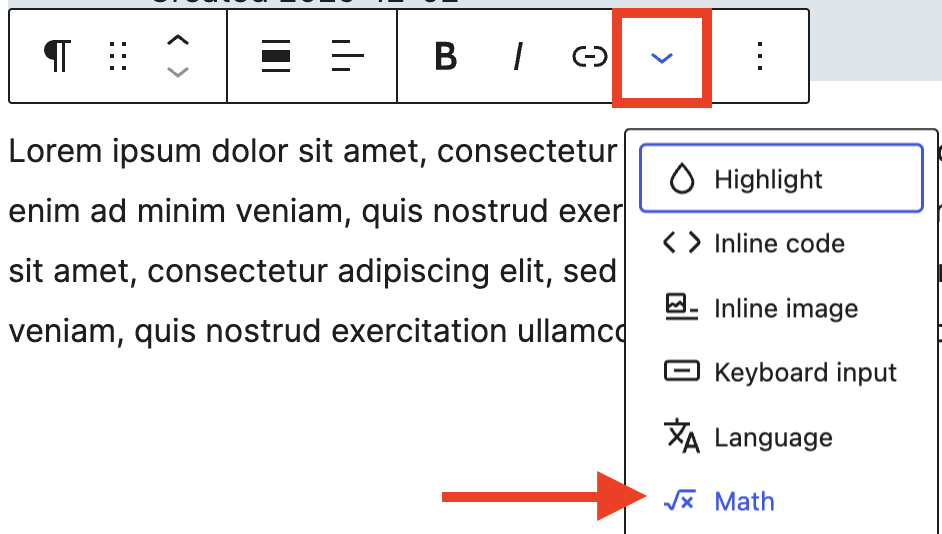
- Select the More icon (down arrow) in the the block toolbar, and then Math.
- In the field that appears, paste or type your LaTeX or MathML.
- The expression will render inline with your text like this example:
Block toolbar
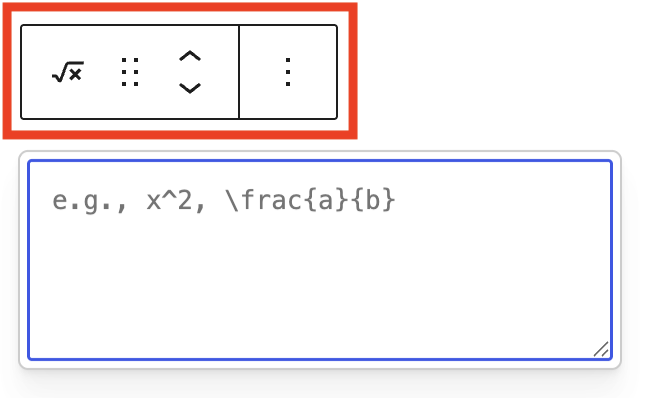
Each block toolbar comes with different options that let you customize or modify the block in the editor. To view the Math block toolbar, select the block and it will show a list of toolbar options.
The Math block has the following options:
- Transform to
- Moving handles
- More options
Transform to

The Transform to tool allows you to convert the Math block into the following blocks:
- Columns
- Group
- Details
Moving handles

To move a Math block, select the block in the editor. Use the Move up or Move down arrows in the block toolbar to move it one position at a time.
You can also click and hold the Drag icon, which looks like six dots, to drag the block to a new location.
Get more information about moving a block within the editor.
More options
These controls give you the option to copy, duplicate, remove, lock, and other standard actions.
Read about these and other settings.
Block settings

In addition to the block toolbar, each block has specific options in the Settings sidebar on the right side of the editor. To view Math block settings, select the Math block. If the sidebar is closed, click the Settings button next to the Save/Publish button in the top toolbar.

Here is a list of the Math block settings options:
Color
With the Color settings, you can customize content in the Math block by applying text and background colors. You can also add gradients as a background color. The color selections vary depending on your active theme.
For details, refer to this support article: Color Settings overview
Typography
The Typography settings enable you to customize the font size of content in the Math block. For example, you may want to increase the font size of a complex math equation so it’s more easily readable.
For details, refer to this support article: Typography settings overview
Dimensions
The Math block provides dimension settings options to add padding and margin to control the space around the block, and the space between the block and its edges.
For details, refer to this support article: Dimension settings overview
Borders
The Math block provides border settings options to add border color, width, and radius.
For details, refer to this support article: Border & Shadow settings overview
Advanced
The Math block provides the following Advanced settings options: HTML Anchor, Additional CSS Class(es), Additional CSS, and Styles.
Learn more about advanced settings
Demo
Tips
- Use block display for large equations or multi-line expressions; use inline display for short formulas inside sentences.
- Keep LaTeX simple and standard. Complex packages or custom macros may not be supported.
- Prefer MathML output for improved accessibility where possible; include explanatory text nearby for readers using assistive technologies.
- Save commonly used formulas as Patterns to reuse across posts.
Frequently asked questions
Which syntax should I use?
LaTeX is often easiest to type; MathML is a web standard that supports accessibility. The block supports both.
Can I number equations or add references?
WordPress doesn’t include built-in equation numbering. You can add labels in surrounding text or use patterns to keep numbering consistent.
Can I use inline math everywhere text appears?
Inline math works in most rich text fields, including Paragraphs, Headings, Lists, and Table cells.
Troubleshooting
My formula isn’t rendering:
- Check for typos or unmatched braces in LaTeX.
- If using MathML, ensure tags are valid and properly nested.
- Switch the input format in settings to match what you typed (LaTeX or MathML).
Characters are being escaped or removed:
- Paste plain text (not rich text) to avoid hidden formatting.
- In MathML, angle brackets and entity references must be valid HTML; ensure your content isn’t stripped by another plugin.
Changelog
- Updated 2026-06-13 (props to @lanamiro1 @kjoyner)
- Replaced inline math video with a screenshot.
- Updated 2026-05-24 (props to @awetz583 @kjoyner)
- Updated “Advanced” section to refer to new overview page.
- Updated 2026-05-19 (props to @ellatrix @joen)
- Updated screenshots and refactored Block Settings section for WordPress 7.0 changes.
- Updated 2026-05-13 (props to @awetz583 @aialvi)
- Added links to list of blocks, instructions on adding blocks, moving blocks, and more options settings.
- Added screenshots for a LaTeX formula example, block toolbar options, transform to options, and moving handles.
- Added video of how to add inline Math equations in the Paragraph block
- Created 2025-12-02
Lorem ipsum dolor sit amet, consectetur adipiscing elit, sed do eiusmod tempor incididunt ut labore et dolore magna aliqua. Ut enim ad minim veniam, quis nostrud exercitation ullamco laboris nisi ut aliquip ex e\frac{a}{b}, E=mc^2, \int_0^\infty e^{-x} dxa commodo consequat. Duis aute irure dolor in reprehenderit in voluptate velit esse cillum dolore eu fugiat nulla pariatur. Excepteur sint occaecat cupidatat non proident, sunt in culpa qui officia deserunt mollit anim id est laborum.
Was this article helpful? How could it be improved?
Log in to submit feedback. If you need support with something that wasn't covered by this article, please post your question in the support forums.