IniLerm

Forum Replies Created
-
Forum: Plugins
In reply to: [Advanced IP Blocker] AIB Community Defense Network (Beta)Hello @secretuser777,
Thank you for your patience and for confirming the 403 HTTP error from your logs.
We have conducted a deep investigation and traced your request through our infrastructure. Here is what is happening:
- Your Web Server’s IP (62.109.31.252) is 100% clean and explicitly allowed on our firewalls. This is why 24 of your websites successfully registered without any issues. 2. When yandex-blog.ru attempts to register, it passes cleanly through our Cloudflare edge network. However, our internal Data Center (Origin Server) firewall is immediately rejecting the connection with a 403 Forbidden error before our WordPress API can even process it.
Since the IP is definitely allowed, the server-level firewall is almost certainly reacting to the specific payload sent (the domain string yandex-blog.ru). Strict datacenter firewalls (like ModSecurity) sometimes have globally enforced rules that drop POST requests containing certain keywords (like “yandex”) to block spoofed bot traffic.
But do not worry, I have some excellent news for you: Even without the V3 API Key, your website is STILL receiving the AIB Community Defense list! The plugin is designed with a smart fallback mechanism: if it fails to connect to the secure V3 API, it automatically downgrades and downloads the public V2 Community List feed. Therefore, your yandex-blog.ru website is fully protected right now, despite the registration 403 error.
There is no need to reinstall or change your server configurations. You can safely leave it as it is while we investigate checking our origin server’s ModSecurity logs to see if we can manually whitelist that keyword bypass for your specific domain in the future.
Please let me know if you have any other questions. We are glad to hear all your other 24 sites are perfectly synced!
Best regards, AIB Support Team
- This reply was modified 5 months, 3 weeks ago by IniLerm.
Forum: Plugins
In reply to: [Advanced IP Blocker] AIB Community Defense Network (Beta)Hello @secretuser777,
We have reviewed the entire infrastructure and your IP is not blocked by our firewall.
Please, since this error only occurs on this website, check the plugin settings for any discrepancies, misconfigured rules, or anything different compared to other 24 sites.
Also look Security -> Logs & Sessions -> General Logs and search a log event similar to “Community Network Registration failed (HTTP ??????): ERROR ….” copy and send us.
Best regards,
Advanced IP Blocker Team
Forum: Plugins
In reply to: [Advanced IP Blocker] AIB Community Defense Network (Beta)Hello @secretuser777,
Thank you very much for providing the server IP and the extra context! That actually clears up the mystery entirely. 🕵️♂️
Since you’ve successfully registered 24 other websites hosted on the exact same server IP (62.109.31.252), you hit our Central Network’s anti-spam Rate Limiting firewall.
To protect our API against mass bots and DoS attacks, our firewall temporarily blocks any IP address that makes more than 20 connection requests (such as API key generations, telemetry, or network syncs) within a few seconds. Since all 25 of your WordPress sites share the exact same outbound server IP, registering them back-to-back quickly triggered this temporary security block exactly on your last domains.
The good news is that this is incredibly easy to fix. The block is purely temporary and clears itself automatically.
To get the key for yandex-blog.ru: 1. Please wait for about 5 minutes without pressing the button to let the rate limit counters reset on our firewall. 2. Click “Free API Key” again, and it will generate instantly.
Let me know if you can successfully get it now! Thanks for using Advanced IP Blocker to protect your network of sites.
Best regards,
Advanced IP Blocker Team
Forum: Plugins
In reply to: [Advanced IP Blocker] AIB Community Defense Network (Beta)Hello @secretuser777,
Thank you for reaching out and reporting this!
The error message “Connection to Central Server failed: Unknown error during registration” typically occurs when your web server is unable to successfully reach our central API server or the connection is intercepted and blocked along the way (usually returning an HTML firewall page instead of the expected JSON response).
We have double-checked our systems, and we do not have any active geographic blocks for Russia or specific User-Agent blocks that would prevent your site from registering. Furthermore, we couldn’t find your domain in our recent request logs, which strongly suggests that the connection is being blocked before it even reaches our application layer (possibly due to server reputation filters or data center firewalls).
To help us investigate this further and whitelist your server if necessary, could you please provide us with the following information?
- Your Web Server’s IP Address: Please share the exact IP address of your web server (where yandex-blog.ru is hosted), so we can check our firewall and security logs directly. 2. Internal Plugin Logs: Just after pressing the “Free API Key” button and getting the error, if you go to the Advanced IP Blocker’s “Event Logs” or “Audit Logs” on your WordPress dashboard, do you see a more specific HTTP error code recorded there (such as “HTTP 403” or “HTTP 503”)?
Looking forward to your reply so we can get this resolved for you as soon as possible!
Best regards,
Advanced IP Blocker Team
TIP: Server’s Detected IP Address
https://your-site.ru/wp-admin/admin.php?page=advaipbl_settings_page&tab=dashboard&sub-tab=status
Forum: Plugins
In reply to: [Advanced IP Blocker] WordPress DatabaseHi @ljfent,
Yes, absolutely!
Since you had to remove the plugin directory manually via FTP/File Manager previously, the standard WordPress uninstallation process (which cleans up the database) didn’t have a chance to run.
You have two safe ways to completely remove all remaining data without affecting the integrity of your WordPress database in any way:
Option 1: The Easy Way (via the Plugin)
- Reinstall and activate the latest version of Advanced IP Blocker.
- Go to Security > Settings > Uninstallation.
- Check the box for “Delete Data on Uninstall” and click Save.
- Go to your WordPress Plugins page.
- Deactivate and then Delete the plugin normally.
This will automatically and safely erase all tables, settings, and cache files.
Option 2: The Advanced Way (via phpMyAdmin)
If you prefer to do it manually, you can safely drop (delete) all tables that start with your database prefix followed by advaipbl_.
These tables are completely isolated and only used by our plugin:- wp_advaipbl_logs
- wp_advaipbl_notifications_queue
- wp_advaipbl_ip_scores
- wp_advaipbl_request_log
- wp_advaipbl_malicious_signatures
- wp_advaipbl_cache
- wp_advaipbl_blocked_ips
- wp_advaipbl_endpoint_lockdowns
- wp_advaipbl_community_ips (if you used v8.6.3+)
- etc ….
(Note: Replace wp_ with your actual database prefix if it’s different).
You can also safely delete the advaipbl_settings row from your wp_options table.
Either method is perfectly safe for your site. Let me know if you need any further assistance!
Best regards,
Advanced IP Blocker Team
Forum: Plugins
In reply to: [Advanced IP Blocker] wp-admin/css/Hi @martje65,
This is a great technical observation!
The reason your Honeypot URL isn’t working for /wp-admin/css/ is because Advanced IP Blocker (and WordPress itself) never actually sees that request.
Here is the technical breakdown:
- The bots are requesting a physical folder that actually exists on your server (/wp-admin/css/).
- Because the folder exists, your web server (Apache) intercepts the request before handing it over to WordPress (PHP).
- Apache sees that there is no index.php file in that folder, and since directory browsing is disabled on your server, Apache immediately rejects the request with a 403 Forbidden error.
Since the request is killed by Apache at the server level, it never reaches PHP, which means our Honeypot module never gets the chance to scan the URL or block the IP.
The good news:
You don’t actually need to block them! What you are seeing in your server logs is proof that your server is already perfectly protected against directory browsing. The bots (which are doing “Referrer Spam” pretending to come from binance.com) are hitting a brick wall. They are consuming zero PHP/Database resources.If you really want to permanently ban those specific IPs, you would have to add a custom .htaccess rule manually, but my recommendation as a security developer is to just ignore them. Let Apache drop the connection instantly; it is the most efficient way to handle them.
Best regards,
Advanced IP Blocker Team
Forum: Plugins
In reply to: [Advanced IP Blocker] No IP logged + Blocked CountriesHi @sabotoro,
That is fantastic news! I am so glad to hear the “ghost logs” are finally gone. 🎉
I want to sincerely thank you for your patience and for sticking with us through the troubleshooting process. Your detailed feedback and testing were absolutely crucial in helping us identify and fix this unique edge-case. Because of your reports, the plugin is now more stable and accurate for everyone.
If you have a moment, and feel that the support you received was helpful, we would be incredibly grateful if you could leave a quick 5-star review for the plugin. It helps our free project grow immensely.
👉 Rate Advanced IP Blocker here
I am marking this topic as Resolved, but please feel free to open a new one if you ever need assistance again.
Best regards,
The Advanced IP Blocker Team
Forum: Plugins
In reply to: [Advanced IP Blocker] No IP logged + Blocked CountriesPlease let us know if this update resolves the issue.
= 8.9.6 =
- CRITICAL FIX: Resolved an issue where server-level CLI tasks (like background cron jobs) were incorrectly logged as
403attacks with empty IPs and empty User-Agents. The plugin’s error listener now gracefully ignores Command Line Executions and requests with empty URIs, completely eliminating these “ghost” false positives from your security dashboard. - BUG FIX: Fixed a rare edge-case during fresh installations where the Setup Wizard could accidentally overwrite the plugin’s default configuration (such as Logging state and HTML Block Messages) if the database initialization was delayed.
- UX IMPROVEMENT: During the Setup Wizard, if the user agrees to activate the Server-Level Firewall (.htaccess), the “Include Temporary Blocks” performance feature is now automatically enabled by default for maximum server offloading.
Forum: Plugins
In reply to: [Advanced IP Blocker] No IP logged + Blocked CountriesHello again @sabotoro,
Thank you so much for your extensive testing and for providing all these details. The fact that the errors continue exactly every 15 minutes—even with
cron-job.orgpaused and/wp-cron.phpfully excluded—is an incredibly valuable clue.We have been analyzing this behavior deeply with our development team, and we have a strong working hypothesis about what might be happening on your server.
Our Hypothesis: The Server-Level CLI Cron We strongly suspect that there is a scheduled task (a cron job) running directly on your server’s operating system (via CLI / Command Line Interface) exactly every 15 minutes.
Because this task executes directly on the server and not through a standard web browser:
- It has no IP address.
- It has no User-Agent.
- It has no Request URL (URI).
During the execution of this background task, something in your WordPress environment (perhaps another security plugin, a theme function, or a core restriction) is failing and returning an internal
403 Forbiddenstatus.Why is Advanced IP Blocker logging it? Our plugin actively monitors WordPress for any outgoing
403HTTP status headers to catch attackers. Because this CLI request has a completely empty URL, it bypasses the/wp-cron.phpexclusion rule you set up. Advanced IP Blocker is simply observing the 403 error generated by your system and dutifully logging it: “A 403 error occurred”, resulting in those confusing, completely blank log entries.What we are doing for v8.9.6: While our plugin isn’t the one blocking the request, it shouldn’t be logging internal server CLI errors as external attacks. We are preparing a patch for our upcoming version 8.9.6 that will explicitly instruct the plugin’s error listener to completely ignore any processes running via CLI or lacking a valid Request URL.
If our hypothesis is correct, installing v8.9.6 will instantly silence these “ghost” logs from your security dashboard.
What you can do in the meantime: Since something is still throwing a 403 error every 15 minutes, we highly encourage you to investigate your server’s scheduled tasks. Check your cPanel/Plesk “Cron Jobs” section, or ask your hosting provider if there is a server-level script running every 15 minutes that might be failing or lacking permissions. Identifying that script will solve the root cause of the 403 error itself.
Thank you again for your patience and for helping us uncover such a unique edge-case. We will let you know as soon as v8.9.6 is officially released!
Best regards, The Advanced IP Blocker Team
Forum: Plugins
In reply to: [Advanced IP Blocker] No IP logged + Blocked CountriesHi @sabotoro,
I have done some deep diving into the cron-job.org documentation, and I found the exact reason why your whitelist attempt failed, even though you did it correctly for that one IP.
The Discovery:
According to their official FAQ, cron-job.org does not use a single IP address. They use a cluster of 5 different executor nodes that rotate or act as backups for each other.You whitelisted 128.140.8.200 (which worked for that specific node), but the other 4 nodes were still hitting your site and getting blocked by the “Empty UA” rule or the Community Network blocklist.
Here are the 5 official IPs they currently use https://cron-job.org/en/faq/:
- 116.203.134.67
- 116.203.129.16
- 23.88.105.37
- 128.140.8.200
- 91.99.23.109
The Final Fix:
Please go to Security > IP Management > Whitelist, click the Bulk Import button, paste those 5 IPs (one per line), and click Import.This covers your entire network. If this works, you can now remove the “Global URL Exclusion” for /wp-cron.php if you added it previously, as whitelisting is the safest and most appropriate way to allow them access.
- This reply was modified 5 months, 4 weeks ago by IniLerm.
Forum: Plugins
In reply to: [Advanced IP Blocker] No IP logged + Blocked CountriesHi @sabotoro,
This is turning into quite the mystery! The fact that the User-Agent fix didn’t work and the IP is still showing up empty tells us something very important: The problem is happening before our plugin’s logic can even read the request properly.
If an IP is in our Whitelist, it gets a 100% free pass. If it’s still being blocked, and the Security Log shows an empty IP/User-Agent, it means the request is likely being mangled or blocked by a layer above our plugin.
Let’s do a definitive test to isolate the issue.
Step 1: The Global Exclusion Test
We need to tell the plugin to completely ignore wp-cron.php.- Go to Security > Settings > General Settings.
- Find the “Global URL Exclusions” text box.
- Ensure that /wp-cron.php is on its own line in that box.
- Click Save.
What this does: This completely turns off Advanced IP Blocker for the cron file. If cron-job.org is still getting a 403 error after this, we know with 100% certainty that our plugin is not doing the blocking.
Step 2: Check Server-Level Firewalls
If Step 1 doesn’t fix it, the block is happening at the server level.- Do you use Cloudflare? Check your Cloudflare WAF events. A “Bot Fight Mode” rule might be blocking cron-job.org.
- Hosting ModSecurity: Many hosts (like Hostinger, SiteGround, cPanel) have a built-in firewall called ModSecurity. It often blocks external cron services because they look like automated bots. You may need to ask your hosting provider to whitelist the IP 128.140.8.200 in their server firewall.
Please apply the Global URL Exclusion for /wp-cron.php and let me know if the 403 errors stop in your cron-job.org dashboard!
Best regards,
Advanced IP Blocker Team
Forum: Plugins
In reply to: [Advanced IP Blocker] No IP logged + Blocked CountriesHello @sabotoro,
Fantastic investigative work! You found the exact source.
The IP
128.140.8.200belongs tonode04.executor.cron-job.org, which means you are using the external cron-job.org service to trigger your WordPress scheduled tasks! Since this is an external service, the request comes across the internet (from Germany) with an empty User-Agent, causing our “Empty UA” Advanced Rule to drop the connection.Why did the Whitelist not work? You correctly added that specific IP to your Whitelist, but
cron-job.orguses an enormous cluster of servers (nodes). The next time your 15-minute cron runs, it might ping you fromnode05,node12, ornode99— all with completely different IP addresses.Please do NOT whitelist their entire ASN (Hetzner) or their full IP range! Hetzner is one of the largest server providers in the world, and whitelisting them globally will leave your site wide open to severe bot attacks.
The Ultimate Configuration Fix (Takes 30 seconds): The safest and most permanent way to fix this is not by fighting with IP ranges, but by simply giving your cron job a User-Agent!
- Log in to your cron-job.org dashboard.
- Edit your scheduled job for this website.
- Open the “Advanced” tab / “Headers” section.
- Add a Custom Header:
- Header Name:
User-Agent - Header Value:
MyCustomCron(Or anything you like).
- Header Name:
- Save the job.
By doing this, the request will no longer be “Empty”. The Advanced IP Blocker rule will scan it, see
MyCustomCroninstead of an empty space, and immediately allow the connection through.This perfectly secures your site from real empty-UA attackers while allowing your trusted external cron service to work freely from any node.
Please implement this and confirm if your 403 logs finally disappear!
Best regards, The Advanced IP Blocker Team
Forum: Plugins
In reply to: [Advanced IP Blocker] No IP logged + Blocked CountriesHello again @sabotoro,
One quick follow-up tip that might save you some time digging through server logs!
Before you reach out to your hosting support, you can actually use our plugin’s built-in Cron Diagnostics to confirm if this 15-minute ping is indeed a scheduled task:
Simply go to Security > Logs > Cron Logs (or navigate to
wp-admin/admin.php?page=advaipbl_settings_page&tab=logs&sub-tab=cron_logs).Check if there are any Cron Events executing at the exact same time as your 403 errors (e.g.,
10:45:02,10:30:02). If the timestamps match perfectly, you have 100% confirmation that these are automated maintenance tasks. Sometimes, these logs can also help you identify the specific hook or external IP triggering the cron, making it much easier to whitelist!Let us know what you find.
Best regards!
Forum: Plugins
In reply to: [Advanced IP Blocker] No IP logged + Blocked CountriesHello @sabotoro,
Thank you for the update and for running those tests. We really appreciate your collaboration!
Since adding the 2nd Condition: IP is not 127.0.0.1 didn’t solve the issue, it gives us a very important clue: your 15-minute scheduled task (cron job) is not radiating from 127.0.0.1.
In modern hosting environments, internal cron jobs—or external uptime monitors—often trigger wp-cron.php using different network paths. It might be using your server’s public IPv4, an internal IPv6 address, or it could be an entirely external cron service originating from a datacenter in Cluj, Romania. Since this IP is not 127.0.0.1, the Advanced Rule continues to block the empty User-Agent.
To permanently fix this and prevent any interference with your site’s maintenance routines, we need to correctly identify and exclude that specific Cron IP.
Here is exactly how you can troubleshoot and fix this:
- Find the exact Cron IP: The “Top Attacking IP” might not aggregate this if the headers are unusual. The most reliable way to find it is to look at your Raw Server Access Logs (usually found in your cPanel, Plesk, or /var/log/apache2/access.log). Look for the exact timestamp of the error (e.g., 10:45:02 EET). Look at the IP address making the request at that precise second.
- Add it to the Whitelist: Once you find the exact IP or IPv6 address making those requests, go to Security > Allowed IPs (Whitelist) in our plugin and add it there. The Whitelist has the highest priority and will bypass the Empty UA rule completely.
- Check WAF / Endpoint Rules: Just as a precaution, ensure that wp-cron.php (or the URL the cron is hitting) isn’t accidentally being blocked by another strict setting. Our plugin usually ignores wp-cron.php out of the box, but it’s worth checking if you have customized the WAF exclusions.
- External Firewalls (ModSecurity / CDN): If you add that Romanian IP to the plugin’s Whitelist and the “403 Error” still appears in your logs every 15 minutes, it means the request is being blocked before it even reaches the plugin’s whitelist. If this happens, it’s highly likely that your hosting provider’s ModSecurity, or your Cloudflare WAF, is the one returning the 403 Forbidden error because of the empty User-Agent.
Try checking your raw server logs, whitelist the exact IP performing those requests, and let us know how it goes! We’re here to help you get your environment configured perfectly.
Best regards, The Advanced IP Blocker Team
Forum: Plugins
In reply to: [Advanced IP Blocker] No IP logged + Blocked Countries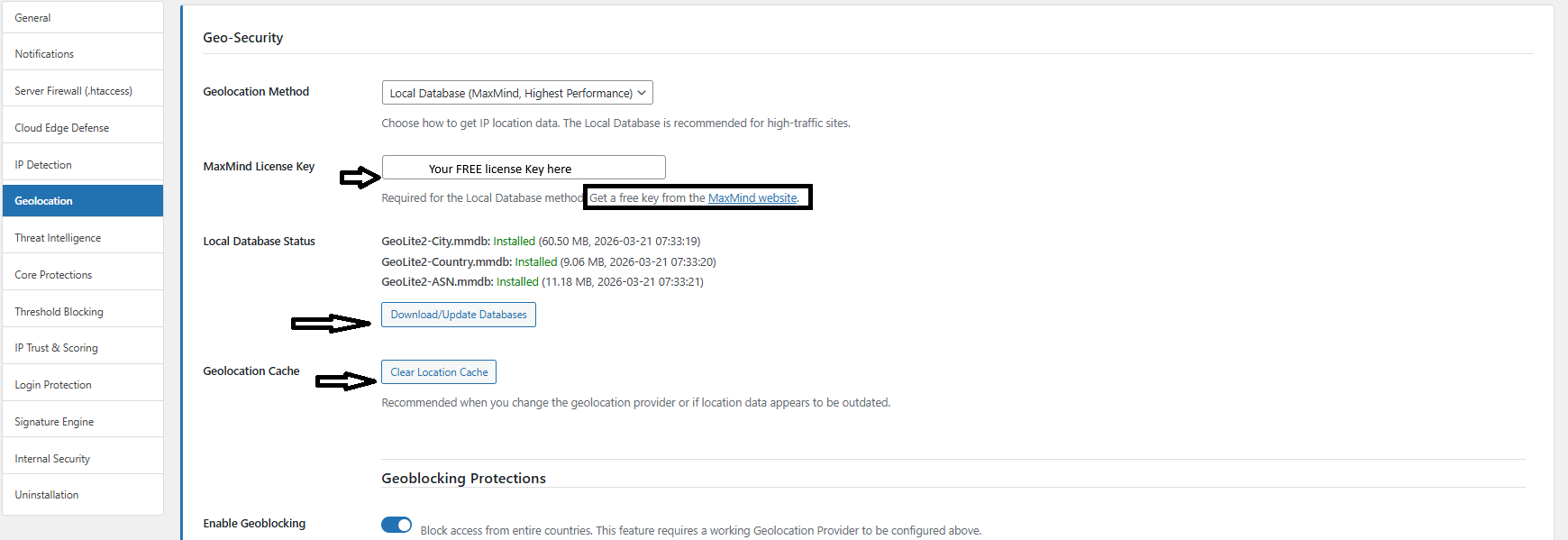
Geolocation .> Geo-Security -> Maxmind Local Database