IniLerm

Forum Replies Created
-
Forum: Reviews
In reply to: [Advanced IP Blocker] AmazingHi @cousineddie,
Thank you so much for taking the time to write this fantastic review!
Hearing that you find the balance between comprehensive security and simplicity to be spot-on is the best compliment a developer can receive. We worked hard to make those “one-click” options and the Security Scanner powerful yet easy to navigate, so your feedback confirms we are on the right track.
It is a pleasure to help protect your website. If you ever have suggestions to make it even better, we are listening!
Best regards,
Forum: Plugins
In reply to: [Advanced IP Blocker] How to unblock your self?We have created a help page to serve as a guide for other users:
Forum: Plugins
In reply to: [Advanced IP Blocker] How to unblock your self?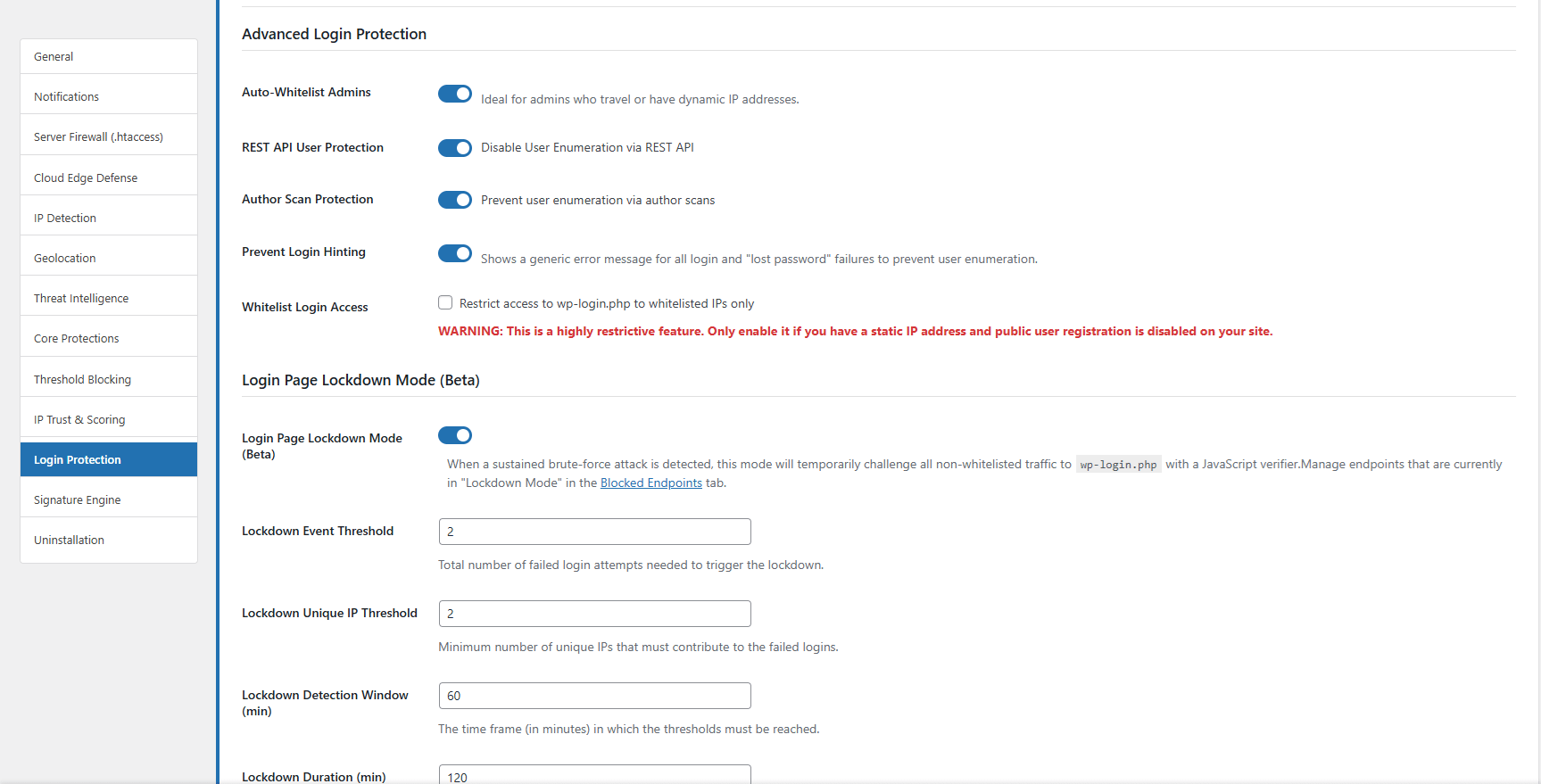
Security > Settings > Login Protection
Forum: Plugins
In reply to: [Advanced IP Blocker] How to unblock your self?Hi @martje65,
Getting locked out happens to the best of us! Here are the ways to unblock yourself, ordered from easiest to most technical.
Option 1: Wait (If it’s a temporary block)
If you were blocked by a failed login or a 404 error threshold, the block is temporary. Wait for the duration you set (default is usually 60 minutes) and try again.Option 2: Change your IP Address (The Quickest)
If you are on a mobile phone or home connection with a dynamic IP:- Turn off your Wi-Fi and use mobile data (4G/5G).
- Or restart your router to get a new IP.
Once you have a new IP, you can log in. Then, go to Security > Dashboard > System Status and whitelist your new IP to prevent this from happening again.
Option 3: Using FTP / File Manager (The Guaranteed Way)
If you are permanently blocked or cannot change your IP, you need to disable the plugin manually:- Log in to your hosting panel (cPanel, Plesk) or use an FTP client (FileZilla).
- Navigate to /wp-content/plugins/.
- Rename the folder advanced-ip-blocker to advanced-ip-blocker-disabled.
- This will instantly disable the plugin. You can now log in to WordPress.
- Once logged in, rename the folder back to advanced-ip-blocker and reactivate it.
- Go to Security > IP Management > Blocked IPs and unblock your IP.
Option 4: WP-CLI (For Advanced Users)
If you have SSH access to your server:
wp advaipbl unblock <your-ip-address>I hope this helps you get back in quickly!
Pro Tip to prevent this in the future:
Once you are back in, go to Security > Settings > Login Protection and:- Enable “Auto-Whitelist Admins”: This automatically whitelists your IP every time you log in successfully, which is perfect if you travel or have a dynamic IP.
- Uncheck “Whitelist Login Access”: Unless you have a static IP, this option is risky and can easily lock you out.
Best regards,
Forum: Plugins
In reply to: [Advanced IP Blocker] cannot read properties of undefinedWe’re taking this opportunity to inform you that we’ve included several improvements in version 8.6.8. We recommend enabling AIB Network in Settings and updating the ASN Whitelist to protect essential services (one per line) if you use them on your site. This will protect your site from false positives and keep essential services active.
https://advaipbl.com/aib-community-defense-network/
https://advaipbl.com/asn-blocking-guide/
This configuration ensures maximum compatibility with essential services while minimizing security risks.
Forum: Plugins
In reply to: [Advanced IP Blocker] cannot read properties of undefinedHi @tedraortega,
That’s fantastic news! I’m glad we could resolve it quickly for you.
We are working hard to make this the best free security plugin available, and feedback like yours really helps us improve.
If you have a moment, would you mind leaving us a 5-star review? It only takes a minute, but it makes a massive difference in helping other users find and trust the plugin.
👉 Rate Advanced IP Blocker here
Thanks again for your support!
Best regards,
Forum: Plugins
In reply to: [Advanced IP Blocker] cannot read properties of undefinedUpdate release Version 8.6.8
- This reply was modified 8 months, 3 weeks ago by IniLerm.
Forum: Plugins
In reply to: [Advanced IP Blocker] cannot read properties of undefinedHi @tedraortega,
Thank you for reporting this! It sounds like a JavaScript conflict in the admin area.
We have identified that our admin script might be loading on the post editor screen where it shouldn’t, or conflicting with the tag management script.
Immediate Fix:
We will release a patch (v8.6.8) very shortly to fix this.
Workaround for now:
If you need to add tags urgently, you can temporarily disable the plugin, add your tags, and re-enable it. Rest assured, this is a minor UI conflict in the admin panel and does not affect the security or performance of your site.
Thank you for your patience!Forum: Plugins
In reply to: [Advanced IP Blocker] Persistent Red Circle Notification# === Vulnerability Scanners & Pentesting Tools ===
Acunetix
Arachni
Burp
Dirb
DirBuster
Feroxbuster
Go-http-client
Havij
Nessus
Nikto
Nmap
Netsparker
OpenVAS
Photon/1.0
sqlmap
Vega
Wfuzz
WhatWeb
WPScan
WPSec
ZAP/
masscan
ScanNG
PressVuln
PostmanRuntime
CensysInspect
Expanse
internet-measurement
JSScanner/
paloaltonetworks
# === Generic Bots & Scripting Libraries ===
curl
HTTrack
Java/
okhttp
perl
php/
Python
python-requests
Scrapy
wget
libwww
ruby
# === Aggressive Scrapers & Black Hat SEO Bots ===
#AhrefsBot
Bytespider
contabot
dataprovider
DigExt
DotBot
EmailCollector
ExtractorPro
MegaIndex
#MJ12bot
SemrushBot
WebCollector
WebCopier
AliyunSecBot
AwarioBot
BW/
#GoogleOther
IonCrawl
ISSCyberRiskCrawler
# === Spam, Low-Quality AI & Comment Bots ===
Applebot-Extended
ClaudeBot
Diffbot
FacebookBot
FriendlyCrawler
#Google-Extended
ImagesiftBot
Image2dataset
#Meta-ExternalAgent
omgili
Timpibot
omgilibot
AcoonBot/
anthropic-ai
BoardReader
CCBot
ChatGPT-User
Claude-Web
DataForSeoBot
GPTBot
PerplexityBot
petalbot
#YandexBot
ZmEu
# === Aggressive Regional Crawlers (optional) ===
Baiduspider
Baiduspider-image
Baiduspider-news
Barkrowler
msnbot-media
SeznamBot
Sogou
YisouSpider
BLEXBot
news-please
Orbbot
peer39_crawler
VelenPublicWebCrawler
#wp_is_mobile
Zoominfobot
# === Suspicious or Malformed User-Agents ===
Dalvik/
morfeus
ShellBot
zgrab
Chrome/45
Mozilla/4.0
Empty
Mozlila
GRequests/Common User-Agent Suggestions to Block
You can copy and paste in Blocking Rules > User Agents > Blocked User-Agents ListMore info https://advaipbl.com/bots-you-should-block-to-protect-your-content/
Forum: Plugins
In reply to: [Advanced IP Blocker] Persistent Red Circle NotificationHi @wordlion,
Thank you so much for your kind words! I am really glad the solution worked for you.
I completely understand your frustration regarding AI scraping and content protection. That battle is actually one of the main reasons I continue to develop this plugin—to give creators the agency to decide who (or what) gets to access their work.
If you haven’t already, I highly recommend checking the Blocking Rules > User Agents tab. The default blocklist includes many of the major AI scrapers (like GPTBot, CCBot, ClaudeBot, and Bytespider). You can enforce those blocks to help keep your content safe from unauthorized training data collection.
Thanks again for your support and for rooting for us!
Best regards,
Forum: Plugins
In reply to: [Advanced IP Blocker] Persistent Red Circle NotificationHi @wordlion,
Thank you for your feedback! You make a very valid point about UX design: red indicators usually signal that an action is required, whereas in our case, it’s just a status report (“Threats blocked”).
We appreciate the suggestion and will definitely consider adding an option to toggle these badges in a future update (likely v8.7).
Immediate Solution:
In the meantime, you can regain control of your workspace by adding this small snippet to your theme’s functions.php file (or using a Code Snippets plugin). It simply hides the red notification bubbles for this plugin:codePHPadd_action('admin_head', 'advaipbl_hide_menu_badges'); function advaipbl_hide_menu_badges() { echo '<style> #toplevel_page_advaipbl_settings_page .awaiting-mod, #toplevel_page_advaipbl_settings_page .update-plugins { display: none !important; } </style>'; }This will instantly remove the “noise” while keeping the protection active in the background.
Thanks for helping us improve the interface!
Best regards,
Forum: Plugins
In reply to: [Advanced IP Blocker] Issue with Redis Object Cache PluginHi Fred,
I have good news: Your site is working correctly.
I personally tested your website using a VPN from the United States (via Opera and other tools) to trigger the Geo-Challenge.
I was presented with the challenge screen.
I solved it.
I was successfully redirected to your shop and could browse normally.
Why are you seeing the error?
The error “Verification failed” usually happens during testing for two reasons:
Browser Cache/Cookies: If you are testing from the same browser where you are (or were) logged in as Admin, or if you have tested multiple times, your browser might be sending conflicting cookies or cached nonces.
Admin Conflict: The plugin is designed to never challenge administrators. If you are testing while logged in (or if your browser remembers your session), the logic gets confused because it tries to challenge a user who shouldn’t be challenged.
My advice:
Please try testing from a completely different browser (e.g., Opera (Free VPN), Firefox or Edge) in Incognito/Private Mode where you have never logged into your site. You will likely see that it works perfectly, just as it did for me.
The “Redis Object Cache” is innocent here. If it were breaking the logic, it would have broken it for me too.
You can rest assured that your real visitors are passing the challenge without issues.
Best regards,Forum: Plugins
In reply to: [Advanced IP Blocker] Issue with Redis Object Cache PluginHi @fredpeng,
Thank you for confirming. This clarifies the issue completely.
The problem is that your theme or WooCommerce template uses a custom login form that does not trigger the standard WordPress hooks (login_form). Because of this, our plugin cannot inject the reCAPTCHA code into those specific “My Account” forms.
Since we cannot modify your theme’s code, my recommendation is to disable reCAPTCHA to ensure your customers can log in smoothly, and instead rely on the other powerful layers of protection included in Advanced IP Blocker.
Recommended Security Setup for WooCommerce:
Even without reCAPTCHA, you can achieve enterprise-grade security by enabling these features:
AIB Community Defense Network (New in v8.6.2):
Where: Security > Settings > Threat Intelligence
Why: This blocks thousands of verified malicious IPs (many of which target login pages) before they even load your site. It is a shared global firewall.
AbuseIPDB Protection:
Where: Security > Settings > Threat Intelligence
Why: Create a free account for each site. This checks every visitor against a global database of hackers. It is extremely effective at stopping brute-force botnets.
Failed Login Blocking:
Where: Security > Settings > Threshold Blocking
Why: Set this to block an IP after 5 failed attempts. This stops brute-force attacks cold.
Login Page Lockdown Mode:
Where: Security > Settings > Login & User Protection
Why: If your site comes under heavy attack, this will automatically present a JavaScript challenge to visitors, filtering out bots without bothering humans.
Critical Hardening (Enable These):
Prevent Login Hinting: Stops hackers from knowing if a username exists.
REST API User Protection: Prevents bots from scraping your user list.
(Note: Do NOT enable “Whitelist Login Access” on a WooCommerce site, or you will block your customers).
2FA for Administrators (Highly Recommended):
If your server runs PHP 8.1+, enable Two-Factor Authentication and enforce it for Administrator roles. This makes your admin accounts virtually impossible to hack, even if they guess the password.
Final Tip:
Ensure your own IP and your server’s IP are in the Whitelist (Security > Dashboard > System Status) to prevent accidental lockouts while configuring these settings.
I hope this helps you secure your shops effectively! I will mark this topic as resolved, but feel free to open a new one if you have other questions.
Best regards,- This reply was modified 9 months, 1 week ago by IniLerm.
Forum: Plugins
In reply to: [Advanced IP Blocker] Issue with Redis Object Cache PluginForum: Plugins
In reply to: [Advanced IP Blocker] Issue with Redis Object Cache PluginHi Fredpeng,
This is great progress! Seeing “Protected” in the Google Console means the connection is working.
The error Please complete the reCAPTCHA verification specifically means that when the login form reaches the server, the hidden “recaptcha token” field is empty.
Since the keys are correct, this is likely a Front-end / JavaScript issue:
Are you using a custom login form?
Are you logging in via the standard /wp-login.php page, or are you using a custom login widget (e.g., a popup, sidebar widget, or WooCommerce “My Account” page)?
Why this matters: The plugin automatically adds the necessary hidden field to the standard WordPress login form. Some custom theme forms do not use the standard hooks, so the field might be missing or the JavaScript cannot find where to put the token.
JavaScript Console Check:
If possible, could you open your browser’s Developer Tools (F12) on the login page, go to the Console tab, and check if there are any red JavaScript errors? (e.g., “Cannot set property of null” or “grecaptcha is not defined”).
A quick test:
Please try logging in directly via yourdomain.com/wp-login.php (the default WP login page) instead of any custom login page provided by your theme. Does it work there?
Best regards,