Yann

Forum Replies Created
-
Hi,
Twentig includes
tw-sm-order-firstandtw-sm-order-lastCSS classes that you can add to the Column block to change its order on mobile. For example, if you have 2 columns and want to reverse the stacking order on mobile, select the second column and apply thetw-sm-order-firstCSS class. See our guide for adding CSS classes.Hope that helps,
YannHi,
By default, the Columns block displays columns with equal heights. Could you please clarify which columns you are referring to? If possible, please share the URL of your website where I can see the columns in question.
Thanks,
YannWordPress doesn’t add an active class for the custom URLs so it’s not possible to apply the active state for this kind of URL.
Hi there,
I’ve tried replicating the issue, but it’s working correctly for me on various WordPress installations.
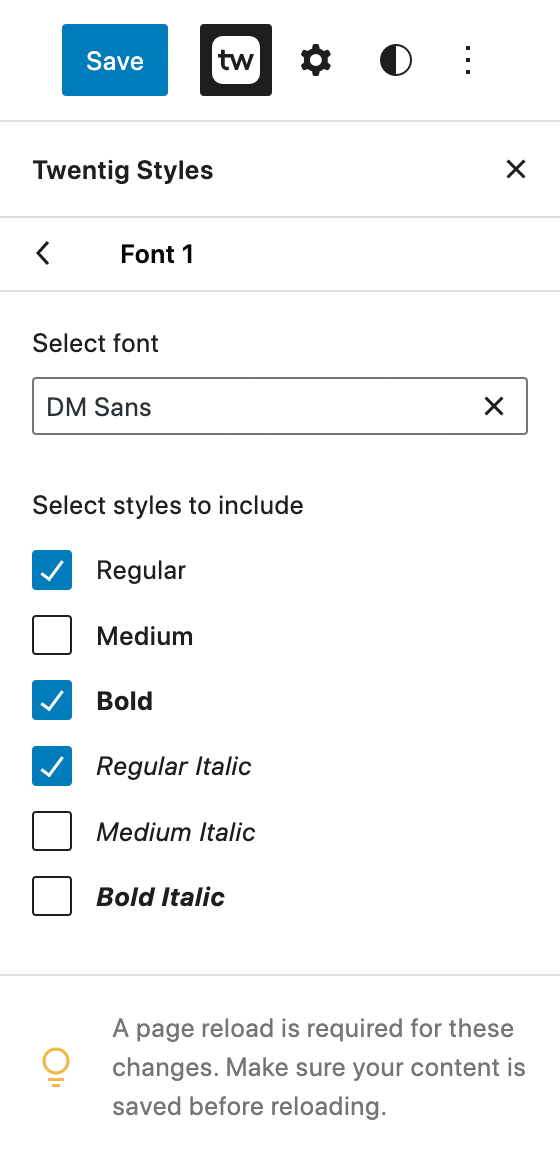
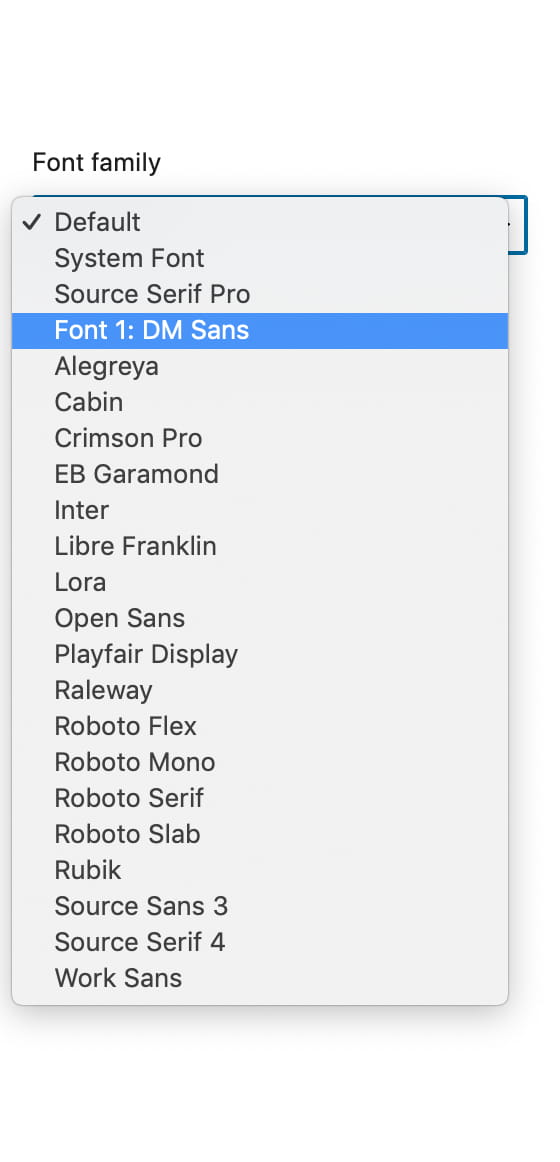
Can you share screenshots of your Twentig Styles > Typography > Font 1 and Twentig Styles > Typography > Font 2 panels, as well as a screenshot of the Font dropdown (similar to https://twentig.com/wp-content/uploads/2022/07/add-googlefonts-3.png and https://twentig.com/wp-content/uploads/2022/07/add-googlefonts-4.jpg ).
Thanks,
YannHi Annette,
The “Rounded” style you use is a WordPress core style, not a Twentig’s one. Changing the Rounded variation globally will automatically change all the images with the “Rounded” style. However, when you select an image block, you can set a custom border radius for the image and override the global style.
Does this make sense?
Yann
Hi Anette,
Thanks for the feedback! There is indeed a conflict with the z-index. Your solution works great for your case but might create conflicts in other cases. We’ll try to fix this in a future release.
Yann
Hi there,
On mobile, you can stack the columns or keep the same layouts as on the desktop. There’s no option to set a specific number. To keep the desktop’s layout on mobile, you need to turn off the “Stack on mobile” setting.

Hope that helps,
YannHi there,
The active state doesn’t work for custom URLs. Instead of using a custom URL for your homepage, you should use a page link. To do it, search by name and select your homepage.
Hope that helps,
YannThanks for the heads up. Would you mind leaving us a quick review on our plugin page? This allows us to continue providing great features and helps other users to find us. 🙂
Hi Benjamin,
It seems that the “Twentig – no title” page template is correctly applied on your homepage. Our template is used to prevent the page title from appearing on the pages. However, the Twenty Twenty-One theme automatically hides the homepage’s title, so you don’t need to use our template. You can use the default one instead. If I’m not mistaken, the “Sites” H1 heading on your homepage is entered inside the editor.
Please let me know if you need further help,
YannHi,
I’ve tried to replicate the issue on a fresh WordPress 6.3 install with Twenty Twenty Three, but it’s working for me. I correctly see the added fonts in the font dropdowns for the global styles and blocks.
Once you have selected your Font 1 and Font 2 in the Twentig Styles panel, did you click on the Save button and then refresh the page?
If that doesn’t work, could you please send screenshots of the Twentig Styles > Typography > Font 1 panel and the opened dropdown of Styles > Typography > Text?
Thanks,
YannThanks for the heads up!
Hi @ibfr
We’ve just released Twentig 1.6.2, which should resolve the compatibility issue you’ve experienced. If you continue to face any problems, please don’t hesitate to reach out.
Have a nice day.
Hi Peter, we’ve just released Twentig 1.6.2, which should resolve this issue. Please let me know if it works on your side.
Have a nice day.
Hi there, we’ve just released Twentig 1.6.2, which should resolve the compatibility issue you’ve experienced. If you continue to face any problems, please don’t hesitate to reach out.
Have a nice day.