Hello @digiblogger,
Yes for the radio buttons and checkbox fields, and not to the dropdown fields.
For the radio buttons and checkbox, enter the images tags as the texts of the choices, for example:
<img src="http://www.your-website-domain.com/path-to-the-image/image.jpg">
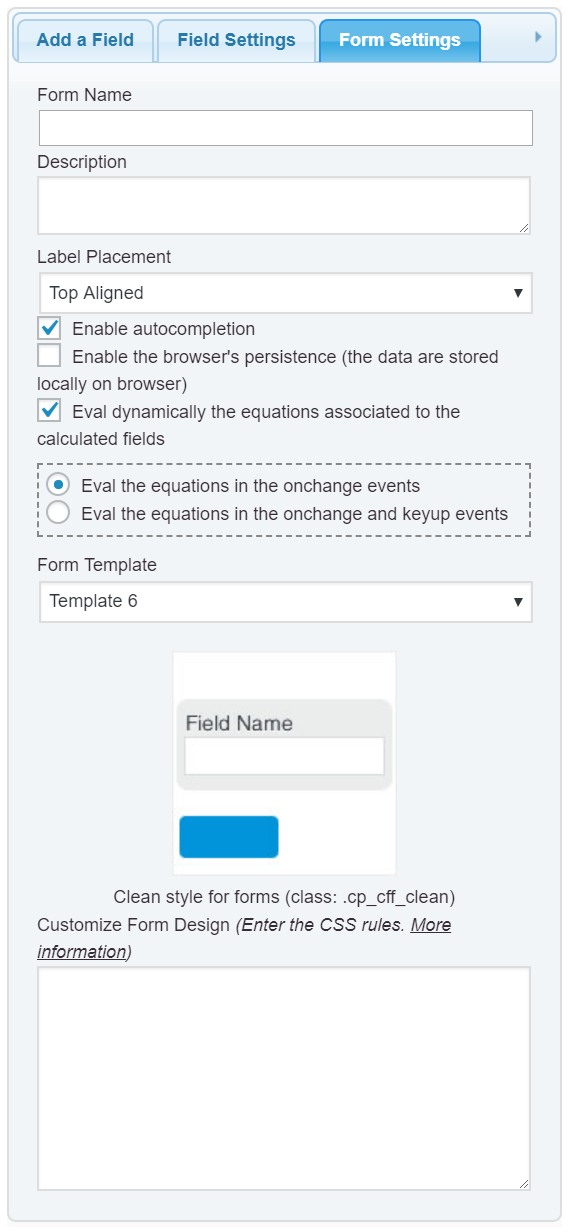
Enter the following style definition into the “Customize Form Design” attribute in the “Form Settings” tab (https://cff.dwbooster.com/images/documentation/form-settings-tab.png)
#fbuilder .cff-radiobutton-field input,
#fbuilder .cff-checkbox-field input{display:none;}
#fbuilder .cff-radiobutton-field input:checked+span img,
#fbuilder .cff-checkbox-field input:checked+span img{border: 1px solid red;}
and that’s all.
Best regards.
Hello @digiblogger,
Thank you very much for the review.
Best regards.