Media Library images appear cloudy
-
Lately, when uploading jpeg images into my Media Library for use in a MetaSlider slide show, they appear cloudy, as if the photo was taken on a foggy day. Details and colors are muted. They are much less enjoyable to look at. On the homepage of my website you can view the slideshow. Click the right arrow in the photos until you see “Course sweeping party” in the lower right corner. There are two different shots with that caption. Both were uploaded today, and both are cloudy. Any help would be greatly appreciated.
The page I need help with: [log in to see the link]

-
If the original JPEG looks fine before upload, then the “cloudy” result is usually caused by one of these:
- a resized image being stretched
- image compression/optimization
- slider settings or an overlay/effect
A good first check is:
- Open the uploaded image directly from the Media Library and compare it with the original file
- Check which exact image size MetaSlider is using
- Temporarily disable any image optimization / CDN / lazy-load features and test again
If the Media Library image itself already looks cloudy, the problem is likely happening during upload/compression.
If the Media Library image looks sharp but the slideshow looks cloudy, the issue is more likely the slider settings.Ravi, thanks for your quick reply. Strangely enough, the cloudy images are actually LARGER in the Media Library than the nice, bright, clear images that I uploaded previously. The cloudy ones are showing up in the library around 2200 to 2400 pixels wide, whereas the clearer ones I uploaded earlier are usually 1200 to 1500 wide. This problem has only been happening for the past couple months. I don’t think it’s a MetaSlider issues, because the images are already cloudy as soon as I upload them into the Media Library, although they are all still beautiful in the jpeg files on my computer, and have the same pixel counts as in the Media Library. Something in the uploading process is making them ugly without affecting the pixel sizes.
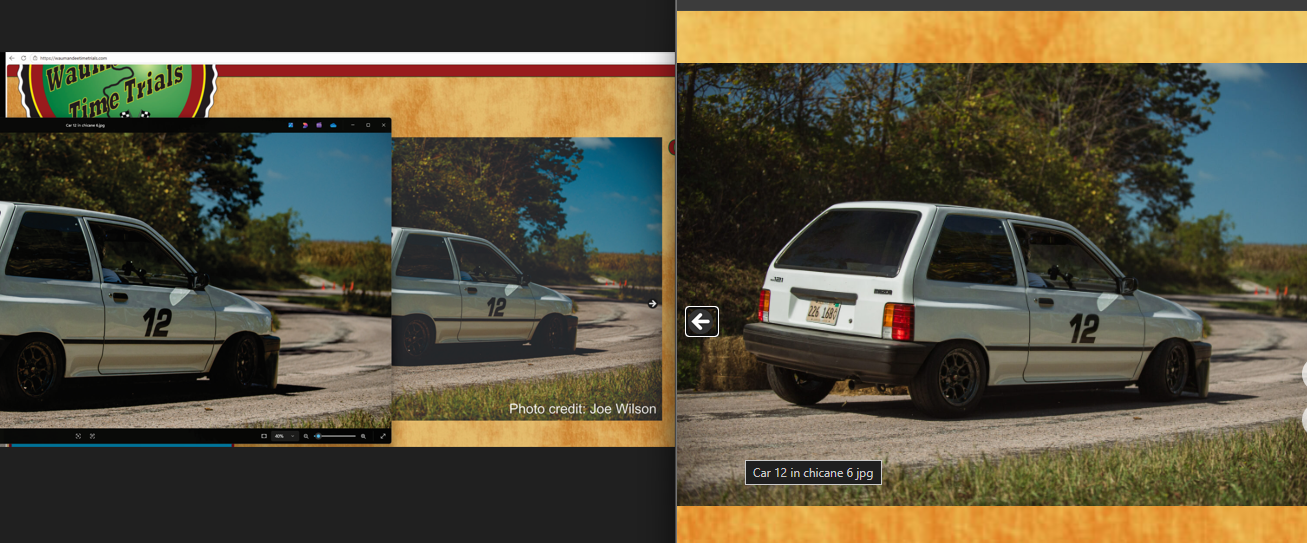
Here’s a link to a screen shot from my computer. https://drive.google.com/file/d/1YNGcHDGNRoXCLeZEZqa9L91bEi1KNaaQ/view?usp=drive_link The cloudy image on the right is from my WordPress website, and the image superimposed on the left shows the same image in a jpeg viewer. As you can see, the image on the right looks faded, washed out, and cloudy. The original on the left looks much better. What could be causing this? It’s not pixel compression. Both images have the same pixel counts.
Here’s another one: https://drive.google.com/file/d/1jgJ0aS3o-VPujyImJigrw2yRxR7xQ0rE/view?usp=drive_link Notice how the spokes on the wheels fade away when uploaded into WordPress Media Library, but are clearly visible in the original on the left. Both are 2560×1704 pixels
Okay, I just found one where the pixel size is slightly smaller than the original once it gets into the Media Library, but I don’t know how that would account for the darker shadows and overall cloudyness.
https://drive.google.com/file/d/11DsoAeglB95QEYhYulzsgYLyaIZyVsAq/view?usp=drive_link
Hi @tmhazen81,
Currently, from my end I am unable to view the images and access to them has been denied.
Could you please reshare the images and enable the “Anyone with the Link” access option? That should make it visible to everyone.
Cheers.
Sorry! I have just changed the permissions. You should now be able to see them.
Hi @tmhazen81,
I am sorry for the late reply. I took another look at your site, and I was not able to find some of the images shown in the screenshots, aside from this one. https://i.ibb.co/gMYgvRqc/cloudy-maybe.png
I see a slight difference in the image saturation (the wheels are much more visible now). Comparing it to the original, it doesn’t look cloudy. Were you able to fix the issue?
If not, we can troubleshoot further and find the cause the issue.
Hoping to hear from you.
Thank you for checking, r1k0. For the photo with the white 12 car, I was able to delete it from my media library, and then re-upload it, and now it comes up fine on my website. Unfortunately the same simple procedure did not help for the brown 13 car, so I removed them from my slideshow. I also removed the “Sweeping party” photos because they looked so bad. I don’t know why the white car uploaded correctly this time, or why the other ones didn’t. Were you able to see the screenshot comparisons I posted to my google drive (linked above) ?
Any advice you have would be greatly appreciated.
Hi @tmhazen81,
Yes, I was able to view all your screenshots. This issue is really interesting. I tried to upload one of the images on my test site (No. 12 car). Everything looks fine on my end.
Are all the images the same format? And have you tried uploading the blurry pictures in a different format?
Additionally, could you set up a staging site and test whether the issue occurs there, too? You should be able to do this from your hosting provider, and if you can’t, I suggest using the WP Staging plugin: https://wordpress.org/plugins/wp-staging/
Give these a try and let me know how it goes.
Hi @tmhazen81,
At this point, I think the best way to isolate the cause is to test the same image in a clean WordPress environment.
If possible, please do this on a staging copy of the site first:
- Temporarily switch to a default WordPress theme such as Twenty Twenty-Six
- Deactivate all plugins
- Upload one of the original images that previously appeared cloudy
- Check whether it already looks cloudy in the Media Library
Then:
- If the image still looks cloudy with a default theme and all plugins deactivated, the issue is probably not your active theme or MetaSlider, and is more likely related to the image file itself or server-side image processing.
- If the image looks normal in that clean setup, switch back to your normal theme and then reactivate plugins one by one, testing the same upload each time.
That should help identify whether the problem is caused by:
- the active theme
- a specific plugin
- or something outside the theme/plugin layer
First of all, thank you to everyone who has replied with suggestions. I managed to find a simple workaround that fixes the issue. Until today, I had only ever uploaded JPG files. So I tried converting some to PNG format, then uploading them into my media library, and into Metaslider. That worked! All images are now clear, bright, and beautiful.
I still don’t know why WordPress decided to stop liking my JPG images, but as long as it likes the PNG files, I will just upload them in that format from now on.
Thanks again to everyone who chimed in to help!
Hi @tmhazen81
Glad the PNG workaround solved it
Just a heads-up: PNGs have much larger file sizes than JPGs, so keep an eye on your page loading speed if you add a lot of them.
If you ever want to go back to using JPGs without WordPress compressing them, you can add this simple snippet to your theme’s
functions.phpfile (or use a Code Snippets plugin) to force 100% upload quality:PHP
add_filter( 'jpeg_quality', function( $arg ) {
    return 100;
} );
Feel free to mark this topic as resolved. Cheers!
Thanks again!
Ravi, for the concern about large file sizes with PNG files, do you recommend using Image Optimizer?
Hi @tmhazen81,
Yes, absolutely! If you use PNGs, optimizing them is highly recommended.
What I usually do is compress the images at https://tinypng.com/ before uploading them to the Media Library. It shrinks the file size dramatically but keeps the image crystal clear without that cloudy look.
Alternatively, you can use optimization plugins like Smush, EWWW, or the TinyPNG plugin to handle this automatically on your site. Many of these can also serve your images in WebP format, which gives you PNG quality at a fraction of the size.
Give it a try 😀


You must be logged in to reply to this topic.