I’m not quite sure what you mean by going from rows to columns with posted images…I’d have have to see a before and after screenshot or live examples. Also, when you say “posted images”, how were you posting them?
The thing though to keep in mind that themes in general will have different layouts and styles.
now: http://tunnel13.com/blog/images-from-my-1936-leica-iiia/ (page)
then: http://tunnel13.com/images/rows.jpg (screenshot)
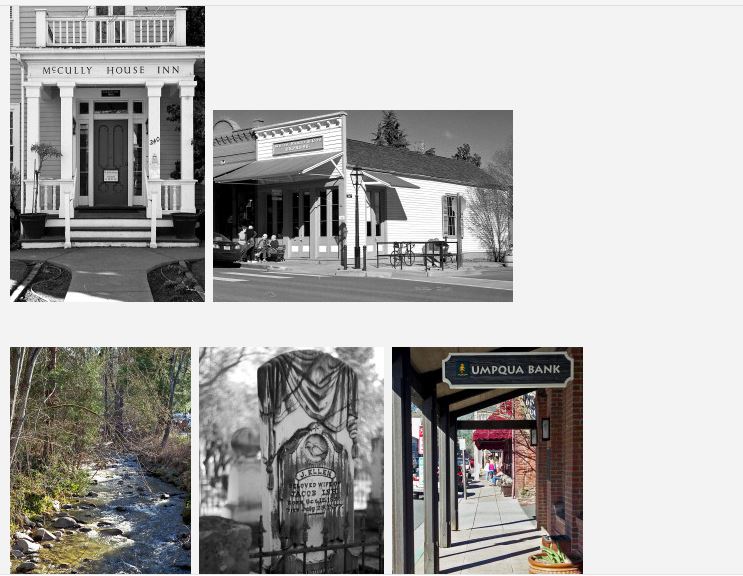
I originally have the images (lower on the page) in horizontal rows across with 2 or three images in a row, now they are in a long vertical single column. what is it in the code that determines this? how can I tweak it so my images are in rows across?
Thanks for the link and the screenshot…hard to tell from the screenshot, but I’m thinking the effect you see for Senses Lite is the image alignment styling. I looked at your source code and your images are using the “alignnone” class, but if you changed them to “alignleft”, that might work better for you.
Another option would be to create some custom CSS using a plugin that lets you modify CSS, such as Simple Custom CSS (or a child theme which it appears you are using).
Here is an example of what you can try with the alignnone class you have on your existing posted images:
.alignnone {
    display: inline-block;
}
That will apply that to all images globally throughout your site that uses the class “alignnone”.
That code above worked in my Child theme style sheet, thanks!