Database Update
-
Issue with WooCommerce backup. Plugin is version 10.3.3, but the backup is 9.7.1. Tried to update manually, but it’s not doing it. Have tried deleting WooCommerce and reinstalling but not changing anything. I think it might have something to do with the schedule. I have 37 past due, but when I click on them, it times out, so I have no idea what they are. Have installed WP crontrol but that also has not helped. Is there a way to knock WooCommerce completely out of the system and install a new one? Or any other suggestions appreciated. Been at this for two weeks now
The page I need help with: [log in to see the link]

-
Hi there!
Thank you for sharing the details. I understand how frustrating it must be to deal with this issue, especially after trying multiple troubleshooting steps.
To assist you further, could you please let us know if you received any error message when you tried to update the WooCommerce database manually?
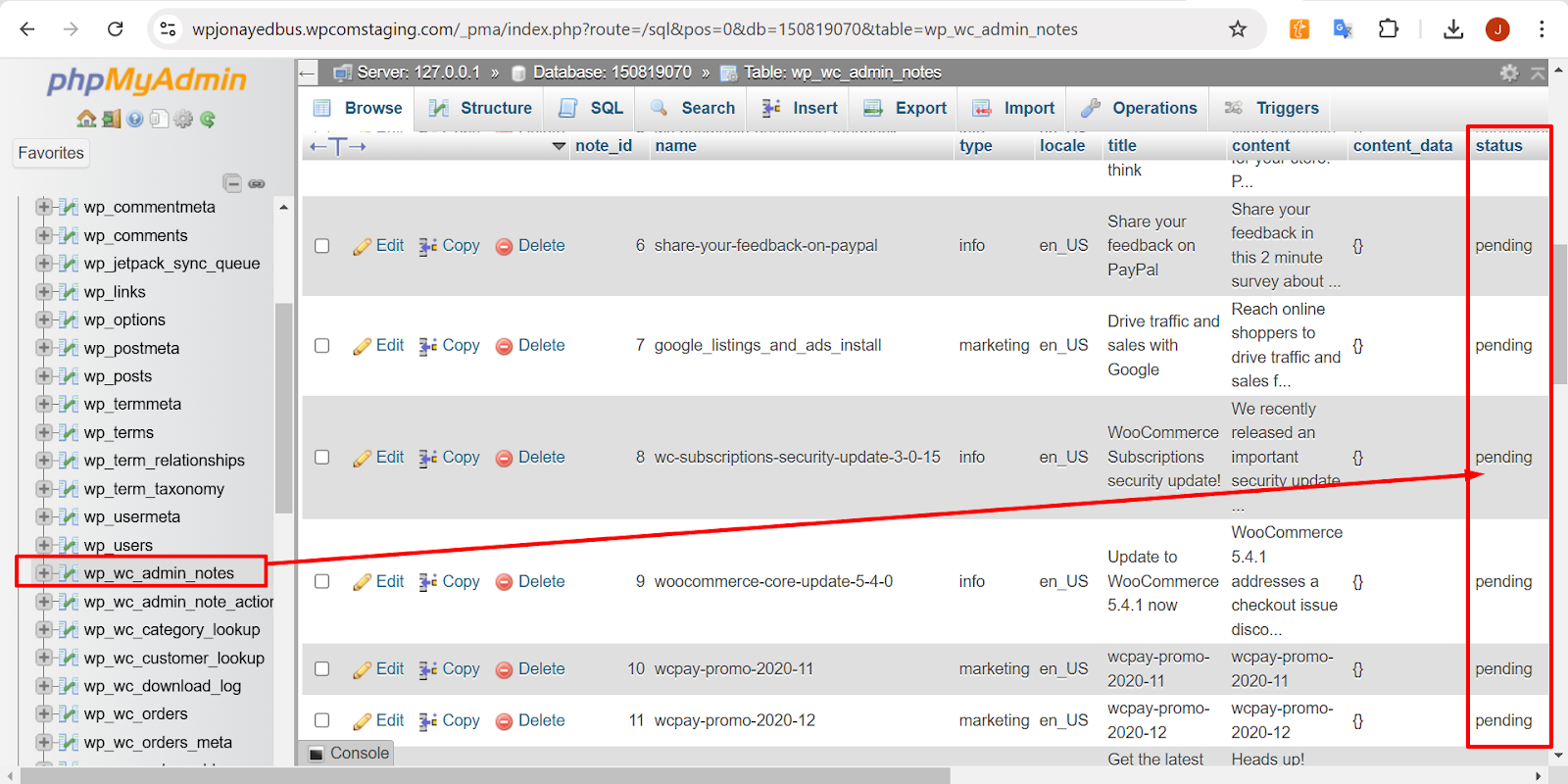
Also, Go to WooCommerce → Status → Scheduled Actions, and look for any “past due” or “failed” actions. Try running or deleting them manually if possible. After that please try updating the database manually again by following these steps:
- Go to your WP database and locate the
wp_wc_admin_notestable. - Look for any entries related to the database update and check if the status is set to Pending.
- If so, you can manually change the status to Actioned to see if this resolves the issue.
- The table structure should look something like this:
Please give this a try, and let me know if it makes a difference.
If you still face the same issue, I’d like to understand your site properly. Please share with us the necessary information below for us to investigate the issue further:- System Status Report which you can find via WooCommerce > Status
- Fatal error logs (if any) under WooCommerce > Status > Logs.
Please use https://pastebin.com/ or https://gist.github.com/ and share a link to that paste in reply here. Once we have more information, we’ll be able to assist you further.
Hi @davidmacnichol,
Thank you for sharing the report. After reviewing it, I noticed that your database is not fully up to date, even though your CRON job appears to be active. Could you please check with your hosting provider to confirm whether your hosting environment supports WP-CLI access?
Yes supports it
Hi there!
Great! Could you please try updating WooCommerce using the CLI? Here’s the command you can use to update WooCommerce via the command line:wp wc updateFor more details on how to use the CLI, you can refer to this guide.https://wp-cli.org/
Alternatively, you can contact your hosting provider and ask them to update the WooCommerce database using the CLI. Please let us know if that works for you.
Hi
Hosting won’t do it, and that’s beyond my capabilities. I would end up crashing the whole site.
Hi @davidmacnichol,
I understand how challenging this must feel, especially after trying several steps and wanting to avoid anything that might break your site. Since your hosting supports WP-CLI but they can’t run the command for you, there’s still a safe way forward.
If you’re not familiar with using the command line, you can access SSH or Terminal from your hosting control panel (if available) and run the command below:
wp wc updateThis command will only trigger WooCommerce’s internal database update process, it won’t overwrite or delete any of your data. You can review the WP-CLI documentation for more guidance here: https://wp-cli.org/
If that still feels risky, another option is to temporarily enable WP_DEBUG and check for any database or Action Scheduler errors that appear. Sharing those details here will help us pinpoint what’s blocking the update.
Once you’ve tried one of these approaches, please let me know how it goes. Let’s see how it goes!
This is what I see when I go into my hosting SSH. No idea where i put the command line
Tried to paste an image of SSH page, but didn’t work.
The SSH page is asking for a key and a handle. How do I get these, as I assume this is the first step in getting to the command line
Hi @davidmacnichol,
Thank you for getting back to us and for the clarification. However, I didn’t see any image attached. To share images with us, please upload them via snipboard.io and provide the link.
Let’s proceed this way instead. Don’t ask your host to run the code for you. Instead, ask them how you can access WP-CLI on their platform, as the method can vary depending on the hosting provider and the control panel they use.
This is orginal message they sent
WP-CLI comes preinstalled with every WordPress hosting package automatically.
Before obtaining access to WP-CLI, you will first need to connect to the hosting package via SSH.
To access this package via SSH, use the hostname and the username, both available in your web hosting control panel > SSH Access.
You must add the public key to your SSH page before connecting to our SSH server.Hi @davidmacnichol,
WP‑CLI is usually preinstalled on most WordPress hosting plans, but you need to connect via SSH to use it. You can log in to your hosting control panel and look for the SSH Access section to find your hostname and username, then connect using an SSH client and make sure your public key is added. Once connected, you can run
wpcommands directly on your server.For more detailed guidance on using WP CLI, including how to configure it and run specific commands, please review the following resources: the official WordPress documentation at https://developer.wordpress.org/cli/commands/, the WooCommerce CLI guide at https://woocommerce.com/document/woocommerce-cli/, this Hosting.com article on using SSH and WP CLI from the command line at https://kb.hosting.com/docs/how-to-use-ssh-and-wp-cli-from-the-command-line-on-hostingcom-managed-wordpress, and this Sucuri blog post on connecting to WordPress via SSH using WP CLI at https://blog.sucuri.net/2023/04/wp-cli-how-to-connect-to-wordpress-via-ssh.html. These resources provide step by step instructions so you can work through tasks using WP CLI such as the database update task.
Let me know if you have any further questions and I’ll be happy to assist.
Was working until i got to
- After the key pair is generated, to view and copy your public key type the following command:
more .ssh/id_rsa.pubYou will need the public key in the next procedure.
This is what i got
C:\Users\Owner>more .ssh/id_rsa.pub
Invalid parameter – /id_rsa.pubSuggestions?
- Go to your WP database and locate the



The topic ‘Database Update’ is closed to new replies.

