
Description
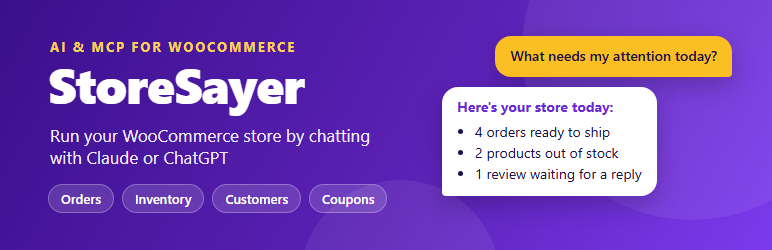
StoreSayer turns your WooCommerce store into a Model Context Protocol (MCP) server. Connect an AI assistant such as Claude or ChatGPT, then ask questions and run store tasks in plain language. You don’t need to write any code.
Your store data stays on your server. The AI assistant reads it through a secure, token-protected endpoint on your own site, and you choose what each connection may do.
What you can ask
- “What needs my attention today?”
- “Show me all pending orders from Germany.”
- “How did we do this month compared with last month?”
- “Which products are out of stock? Add 20 units to each.”
- “Which customers haven’t ordered in 90 days?”
- “Create a 15% off coupon that expires this Sunday.”
- “Reply to the latest 1-star review and keep it on hold.”
- “Approve all pending 5-star reviews.”
38 tools across 9 modules
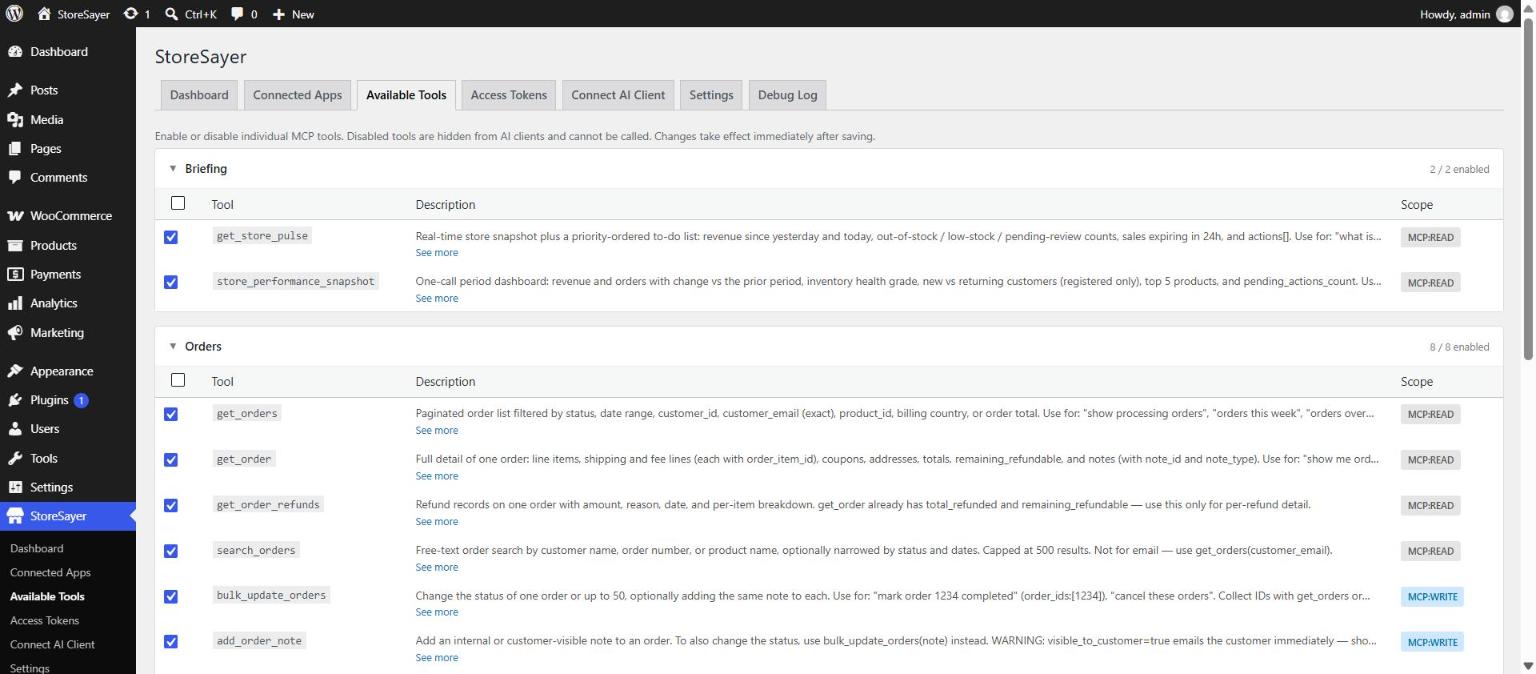
- Briefing — store pulse: today’s revenue, stock and review counts, and a priority-ordered to-do list; a 7, 30 or 90-day performance snapshot compared with the previous period.
- Orders — list, search and view orders and their refunds; update status (one at a time or in bulk); edit order details; add order notes; issue full or partial refunds.
- Inventory — inventory health score with stock value, and bulk stock updates with a preview step.
- Products — list and view products (including low-stock products); create products; bulk update prices, sale dates, status, categories, tags, images, attributes and variations.
- Catalog — list, create and update categories and tags; list and save global product attributes and their terms.
- Reviews — list and view reviews, approve, hold, spam or trash them (one at a time or in bulk), and post replies.
- Customers — customer profiles, search, customer lists with campaign filters (win-back, VIP, high spenders, new buyers), and create or update customers.
- Coupons — create, update, view and list coupons.
- Store — read store settings (general, shipping, tax, payment methods) and a system status report. The system status tool can return log lines, so you can turn it off under Available Tools.
Works with
- Claude (claude.ai, Claude Desktop and Claude Code)
- ChatGPT (developer mode connectors)
- Cursor, Windsurf and any other client that supports remote MCP servers over HTTP
Security and control
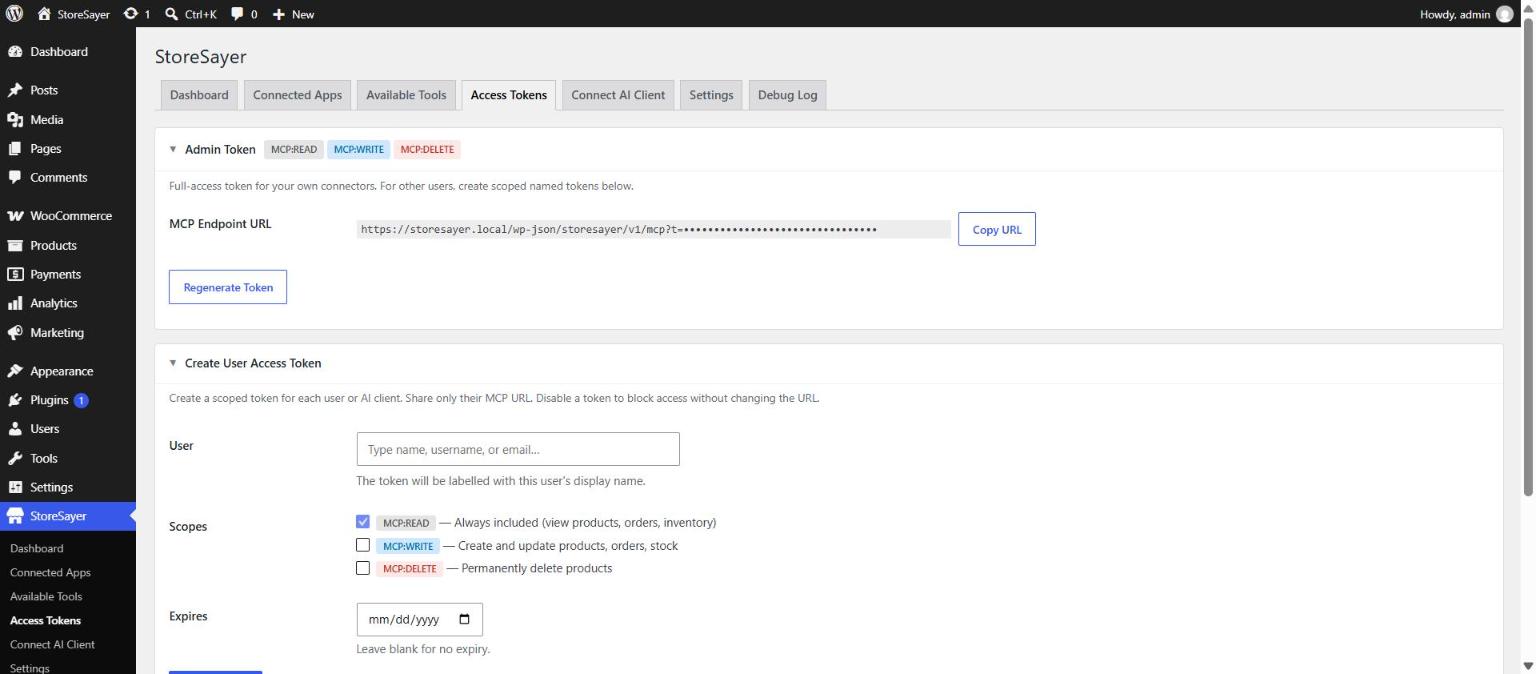
- Three ways to connect: a site admin token, named access tokens linked to a WordPress user, or OAuth 2.1 sign-in.
- OAuth 2.1 with PKCE and Dynamic Client Registration. Claude and ChatGPT can connect by signing in to your site, with no token to copy. Only roles you allow (Administrators and Shop Managers by default) can approve an OAuth connection.
- Scopes: each named token gets
mcp:read,mcp:writeand/ormcp:delete, so a token can be read-only. - Tool control: turn individual tools on or off.
- Role access: choose which WordPress roles may connect an AI client, and whether each role gets read, write or full access.
- Force draft: optionally save every product an AI assistant creates as a draft for you to review.
- Read-only mode: one switch blocks every create, update and delete action for every connection, including the admin token.
- Kill switch: turn the MCP endpoint off without deactivating the plugin.
- Rate limiting: 60 requests per minute per token by default (adjustable from 1 to 600).
- Hashed tokens: named and OAuth tokens are stored only as SHA-256 hashes, and a new named token is shown only once.
- Debug log: an optional daily log of connections and tool calls, which you can view in WP Admin. Direct web access to the log folder is blocked on Apache servers.
- HPOS ready: order queries work with both High-Performance Order Storage and classic post storage.
External services
StoreSayer makes no outgoing HTTP requests and sends no data to any service on its own. It adds an MCP endpoint to your site that an AI assistant you connect can call.
When you connect an AI assistant, that assistant’s provider receives the store data returned by each tool the assistant calls (for example order, product, customer or coupon details), at the moment the call is made. Which data is shared depends on the tools you enable and the scopes you grant.
- Claude (Anthropic) — Terms of Service, Privacy Policy
- ChatGPT (OpenAI) — Terms of Use, Privacy Policy
- Any other MCP client you connect is governed by its own provider’s terms and privacy policy.
The Connect AI Client page links to claude.ai and chatgpt.com so you can open their connector settings; nothing is sent until you add the connector there.
Screenshots



Installation
- In WP Admin, go to Plugins Add New, search for “StoreSayer”, then install and activate it. You can also upload the
storesayerfolder to/wp-content/plugins/. - Make sure WooCommerce is installed and active.
- Go to WP Admin StoreSayer.
- Open StoreSayer Connect AI Client and follow the guide for your AI assistant.
The StoreSayer menu has seven pages:
- Dashboard — endpoint status, today’s requests and tool calls, and a connection test.
- Connected Apps — OAuth endpoints, the OAuth connect URL and the AI apps connected through OAuth.
- Available Tools — turn individual tools on or off, grouped by module.
- Access Tokens — the admin token (copy or regenerate it) and named tokens with their own scopes and expiry dates.
- Connect AI Client — step-by-step guides for Claude and ChatGPT.
- Debug Log — view or delete the daily log files.
- Settings — MCP endpoint switch, rate limit, read-only mode, force draft, OAuth 2.1, roles that can connect, and debug logging.
Your endpoint
The MCP endpoint is:
https://yoursite.com/wp-json/storesayer/v1/mcp
If your host’s firewall blocks /wp-json/ requests, use the alias URL instead: https://yoursite.com/storesayer-mcp. The alias needs pretty permalinks.
Connect Claude (claude.ai or Claude Desktop)
Option A — token URL
- In WP Admin, go to StoreSayer Access Tokens and copy the MCP URL. It ends with
?t=YOUR_TOKEN. - In Claude, open Settings Connectors Add custom connector.
- Paste the URL and save.
Option B — OAuth 2.1
- Check that OAuth 2.1 is on in StoreSayer Settings. It is on by default.
- In Claude, add a custom connector with the endpoint URL. Leave out the token.
- Claude sends you to your site. Log in as an Administrator or Shop Manager and click Authorize Access.
Connect ChatGPT
- In ChatGPT, turn on developer mode in Settings Apps Advanced settings.
- Create a new app or connector.
- Paste your token URL, or, with OAuth turned on, paste the endpoint URL and choose OAuth. ChatGPT registers itself automatically.
Connect Claude Code
claude mcp add --transport http storesayer "https://yoursite.com/wp-json/storesayer/v1/mcp?t=YOUR_TOKEN"
Connect Cursor, Windsurf and other clients
Add StoreSayer as a remote (HTTP) MCP server in the client’s MCP settings and use your token URL as the server URL.
FAQ
-
Does StoreSayer need WooCommerce?
-
Yes. StoreSayer reads and manages WooCommerce data, so WooCommerce must be installed and active.
-
Is my store data sent to a third party?
-
StoreSayer itself does not send data to any external service, and it makes no outgoing requests. Data leaves your site only when an AI assistant that you connected calls a tool. That assistant then processes the data under its provider’s own terms and privacy policy, for example Anthropic for Claude or OpenAI for ChatGPT. Read those policies before you connect, and use scopes and read-only mode to limit access.
-
Can I give an AI assistant read-only access?
-
Yes. Create a named access token with only the
mcp:readscope, or turn on read-only mode in Settings to block writes for every connection. -
What happens if I lose a token?
-
Named tokens are shown only once and can’t be recovered. Delete the old token and create a new one. You can regenerate the admin token at any time in Access Tokens. Any connector that uses the old URL then stops working.
-
Who can approve an OAuth connection?
-
Administrators always can. By default Shop Managers can too; you choose which other roles may connect, and at what access level, in Settings Roles that can connect. Other users see an access-denied screen. If a user loses access, their OAuth connection stops working on the next request.
-
How do I disconnect an AI assistant?
-
For a token: disable or delete it in Access Tokens. For OAuth: disable, delete or revoke its sessions in Connected Apps. To cut off every connection at once, turn off the MCP endpoint in Settings.
-
OAuth isn’t working on my host. What can I check?
-
- Your site uses HTTPS.
- Pretty permalinks are turned on. OAuth discovery uses
/.well-known/URLs, and the alias URLs use rewrite rules. - Your server passes the
Authorizationheader to PHP. On some Apache setups you need to add a rewrite rule to.htaccess. - With debug logging on (Settings), the Debug Log page shows each request and why it was rejected.
If OAuth still fails, use the token URL. It works on almost every host.
-
Is it compatible with HPOS?
-
Yes. Order queries detect whether High-Performance Order Storage is active and use the right tables.
-
Does it work with WooCommerce Subscriptions, Bookings or other extensions?
-
StoreSayer works with core WooCommerce orders, products, customers, coupons and reviews. It doesn’t expose data that extensions keep in their own custom tables.
-
How many AI assistants can I connect?
-
There’s no fixed limit. We recommend one named token per assistant or person, so you can disable each one separately.
-
Does StoreSayer need an API key?
-
No. You only need an account with the AI assistant you want to use.
Reviews
There are no reviews for this plugin.
Contributors & Developers
“StoreSayer — AI Store Manager & MCP Server for WooCommerce” is open source software. The following people have contributed to this plugin.
Contributors
Translate “StoreSayer — AI Store Manager & MCP Server for WooCommerce” into your language.
Interested in development?
Browse the code, check out the SVN repository, or subscribe to the development log by RSS.
Changelog
1.0.0
- Initial release.