

Description
Are your WordPress emails landing in spam, or not arriving at all? Most of the time that’s because WordPress sends mail with PHP’s mail() function, which many hosts don’t handle well. SMTP Connector fixes this. Password resets, WooCommerce orders, contact form messages and every other email your site sends go through a real SMTP server from your email provider.
It’s free, lightweight and has no upsells. Setting it up takes a couple of minutes: pick your provider, enter your login, send a test email, and you’re done.
What you get
- One-click quick setup for Gmail and Google Workspace, Zoho Mail, Amazon SES, Brevo (formerly Sendinblue), Mailgun and SendGrid. It fills in the server details for you.
- Works with any SMTP server, including local relays that don’t need a login.
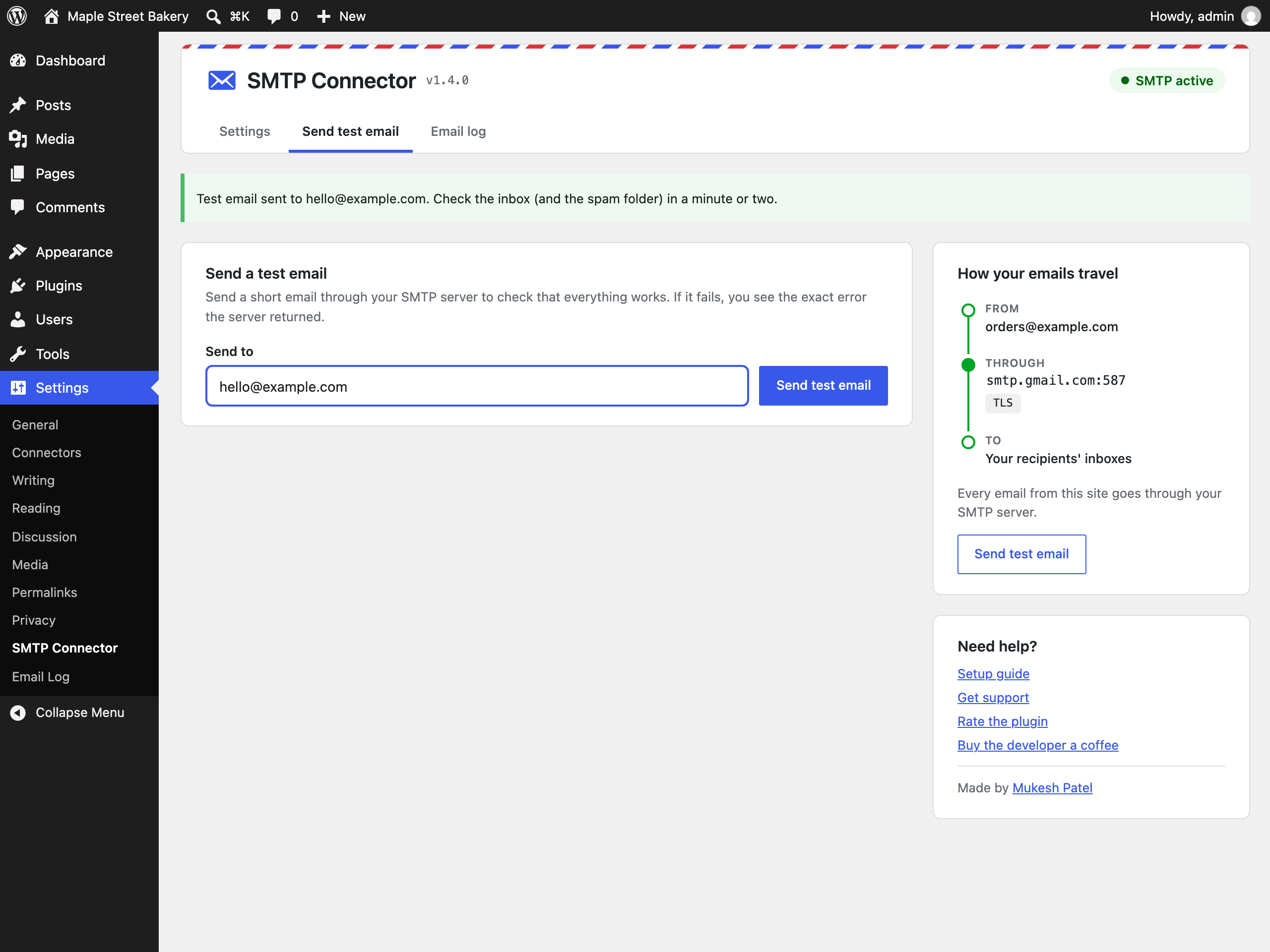
- Test email: send yourself a message from the settings screen. If something is wrong, you see the exact error your SMTP server returned, not a vague “it failed”.
- Email log: see which emails your site sent, when, to whom, and whether your SMTP server accepted them. Open any email in a safe preview. Choose how many days logs are kept, or turn the log off.
- Secure password storage: your SMTP password is encrypted with your site’s own security keys and is never shown again. A copy of your database alone can’t reveal it.
- Safe by default: until SMTP is configured, WordPress keeps sending emails the way it always did. Nothing breaks when you activate the plugin.
- A clean, modern settings screen that also works on your phone.
- Multisite ready, translation ready, no tracking, and no calls to outside services.
What’s new in 1.4.0
1.4.0 is the biggest update so far:
- It fixes a bug that sent every email twice.
- Saving your SMTP password is now reliable.
- The settings screen is redesigned, with one-click provider setup and a status card that shows how your emails travel.
- Failed emails now show the exact error in the email log.
The full list of changes is on the Development tab of this page.
Works with
Anything that sends email through WordPress’s wp_mail() function, which is almost everything: WooCommerce, Contact Form 7, WPForms, Gravity Forms, Elementor forms, membership and LMS plugins, and WordPress itself (password resets, new user emails, comment notifications).
Privacy
SMTP Connector doesn’t track you and doesn’t contact any outside service. Your emails go only to the SMTP server you configure. When the email log is on, copies of sent emails are stored in your own WordPress database and deleted automatically after the number of days you choose. A suggested privacy policy text is added under Settings > Privacy.
About the developer
SMTP Connector is built and maintained by Mukesh Patel. Found a bug or have an idea? Get in touch. I read every message. If the plugin saves you time, a review or a coffee is always appreciated.
Screenshots




Installation
Automatic installation (easiest)
- In your WordPress dashboard, go to Plugins > Add New Plugin.
- Search for SMTP Connector.
- Click Install Now, then Activate.
Upload the zip file
- Download the plugin zip from this page (the Download button).
- In your dashboard, go to Plugins > Add New Plugin > Upload Plugin.
- Choose the zip file, click Install Now, then Activate.
If an older version of SMTP Connector is already installed, WordPress asks whether you want to replace it. Choose Replace current with uploaded. Your settings, password and email log are kept.
Manual installation (FTP or file manager)
- Download the plugin zip and unzip it on your computer.
- Upload the
smtp-connectorfolder to the/wp-content/plugins/folder on your server. - In your dashboard, go to Plugins and activate SMTP Connector.
Setting it up
- Go to Settings > SMTP Connector.
- Under Quick setup, click your email provider. If your provider isn’t listed, enter the SMTP host, encryption and port your provider gives you.
- Enter your SMTP username and password. Gmail and Zoho need an app password instead of your normal password.
- Fill in the From email and From name, then click Save settings.
- Open the Send test email tab and send yourself a message. That’s it!
FAQ
-
Which email providers does it work with?
-
Any provider that offers SMTP. Quick setup covers Gmail and Google Workspace, Zoho Mail, Amazon SES, Brevo, Mailgun and SendGrid. For others (your web host’s mail server, Elastic Email, Yahoo, and so on), enter the SMTP host, port and encryption from your provider’s help pages.
-
Which encryption and port should I use?
-
For most providers, TLS with port 587. SSL normally uses port 465. Choose “None” only for a server inside your own network, because the password and emails are then sent unencrypted. The settings screen warns you if the port doesn’t match the encryption.
-
Gmail or Zoho says my username or password is wrong
-
Gmail and Zoho don’t accept your normal password for SMTP when two-step verification is on. Create an app password in your Google or Zoho account and use it as the SMTP password.
-
Do I have to type my password every time I save the settings?
-
No. Leave the password field empty and the saved password is kept.
-
Where can I see the emails my site sent?
-
Go to Settings > Email Log and click an email’s subject to open it. Failed emails show the error returned by your SMTP server. On multisite, only network administrators can see the email log.
-
How long are email logs kept?
-
30 days by default. You can change the number of days, or turn the email log off, in Settings > SMTP Connector.
-
Emails stopped working after I moved my site or changed the security keys
-
Your SMTP password is encrypted with the security keys in
wp-config.php, which are unique to every site. If those keys change, the saved password can no longer be read. SMTP Connector then pauses sending and shows a warning until you enter the password again in Settings > SMTP Connector. -
Will updating from an older version keep my settings?
-
Yes. Your settings, password and email log are kept. Passwords saved by older versions are converted to the new encryption automatically.
-
Does it work with WooCommerce and contact form plugins?
-
Yes. Every plugin that sends email with WordPress’s
wp_mail()function goes through your SMTP server. That covers WooCommerce, Contact Form 7, WPForms, Gravity Forms and most others. -
Does it work on multisite?
-
Yes. Every site in the network has its own SMTP settings and email log.
-
Where can I find the changelog?
-
On the Development tab of this plugin page on WordPress.org.
-
I’m still having trouble sending emails. What should I do?
-
Send a test email from Settings > SMTP Connector > Send test email and read the error message. It usually tells you exactly what’s wrong (wrong password, wrong port, blocked connection). Double-check the details with your email provider, and if you’re still stuck, contact me.
Reviews

Contributors & Developers
“SMTP Connector – Free SMTP & Email Log” is open source software. The following people have contributed to this plugin.
Contributors
Translate “SMTP Connector – Free SMTP & Email Log” into your language.
Interested in development?
Browse the code, check out the SVN repository, or subscribe to the development log by RSS.
Changelog
1.4.0
This is the biggest update since SMTP Connector started. I went through the whole plugin, fixed every problem I could find, and gave the settings screen a proper redesign. Thank you to everyone who reported issues and kept using the plugin!
- Fixed: Since 1.3.0, every email was sent twice. If your customers received double emails, this was the reason. Sorry about that, it’s fixed now.
- Fixed: The first time you saved your SMTP password (and right after “Reset Settings”), it was stored incorrectly, and login failed until you saved again. Passwords affected by this are repaired automatically.
- Fixed: “Leave blank to keep the existing password” finally works. You don’t have to type your password every time you change a setting.
- Fixed: All emails stopped while the plugin wasn’t configured yet, or after a reset. WordPress now keeps sending normally until SMTP is set up.
- Fixed: Sites running on localhost or an intranet address couldn’t send any email.
- Fixed: On sites without SECURE_AUTH_KEY in wp-config.php, the whole site showed only “Encryption key is missing.” The plugin now uses WordPress’s own fallback key.
- Fixed: The email log showed wrong recipient addresses and wrong statuses, and some emails stayed at “Pending” forever. Emails with long recipient lists are logged too.
- Fixed: Old logs were never cleaned up on sites that updated from 1.2.x, or on multisite subsites.
- Fixed: Log clean-up used the database server’s clock instead of your site’s timezone.
- Fixed: Translations never loaded because of a wrong text domain.
- Fixed: Deleting the plugin now removes all of its data, on every site of a multisite network.
- New: A redesigned, mobile-friendly settings screen with one-click setup for Gmail, Zoho, Amazon SES, Brevo, Mailgun and SendGrid.
- New: A status card that shows how your emails travel and whether SMTP is active.
- New: Failed emails show the exact SMTP error, both in the email log and when you send a test email.
- New: A “None” encryption option, and a switch to turn SMTP login off for local or relay servers.
- New: Turn the email log on or off, and choose how many days logs are kept.
- New: A warning when the port doesn’t match the encryption (for example TLS with port 465).
- New: Suggested text for your privacy policy.
- Security: Your SMTP password is now stored with stronger, authenticated encryption, based on your site’s security keys. If those keys ever change, the plugin pauses sending and asks you to enter the password again, instead of failing silently.
- Security: Extra permission checks on every action. Email previews open in a sandboxed frame that blocks scripts and tracking images.
- Security: On multisite, only network administrators can see the email log, because it can contain password reset links.
- Improved: A wrong or unreachable SMTP server no longer freezes the page for minutes.
- Improved: “Reset Settings” keeps your email log settings and logs.
- Improved: An empty From name now uses your site title.
- Changed: SMTP Connector now needs WordPress 5.9 or newer and PHP 7.2 or newer.
1.3.2
- Checked and confirmed compatibility with the latest WordPress version.
1.3.1
- Fixed an error when saving email details to the log, caused by an undefined function.
1.3.0
- New: Email log, so you can see the emails your site sends.
- Improved security.
- The password is no longer shown on the settings page.
- Better error handling.
- Fixed: The encryption key is checked before the password is encrypted or decrypted.
1.2.3
- New: A reset button to remove all plugin settings.
- New: A notice when the plugin isn’t configured properly.
- Improved: Uninstalling the plugin removes all of its settings and data.
- Improved: The SMTP test moved to Settings > SMTP Connector > SMTP Test.
- Small code improvements.
1.2.2
- Tested with the latest version of WordPress.
1.2.1
- New: “From Email” option.
- Fixed: Sending through Elastic Email failed because the From email was missing.
1.2.0
- New: Send a test email from the settings page. Thanks to danilo-tecnosys for the idea!
1.1.2
- Fixed: Emails failed because of a wrong function name when the password was decrypted.
1.1.1
- Improved security and fixed a few small bugs.
1.1.0
- New: The SMTP password is now stored encrypted.
- New: Developer support link.
- Fixed: The settings page loads only in the admin.
- Fixed: Missing PHP opening tag in empty index.php files (thanks @rrikesh).
1.0.1
- Fixed a few minor code issues.
1.0.0
- First release.