
Description
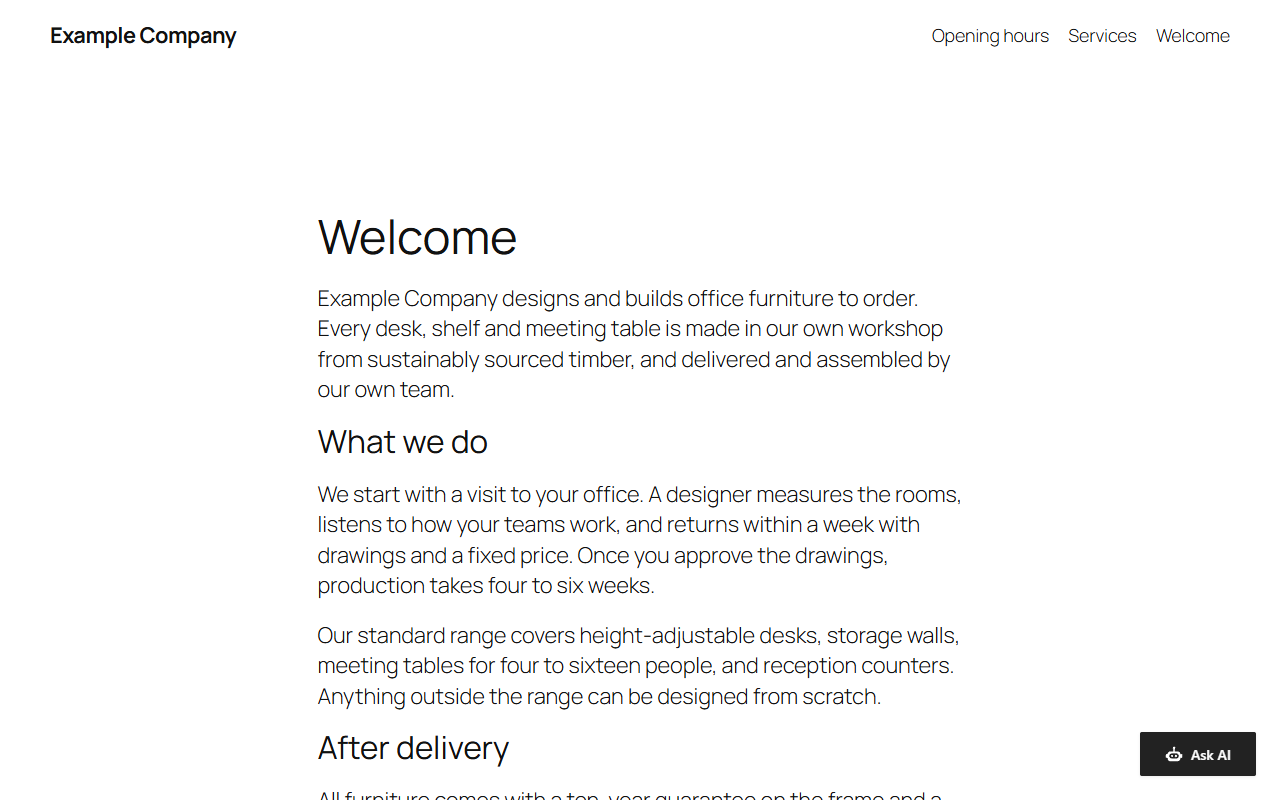
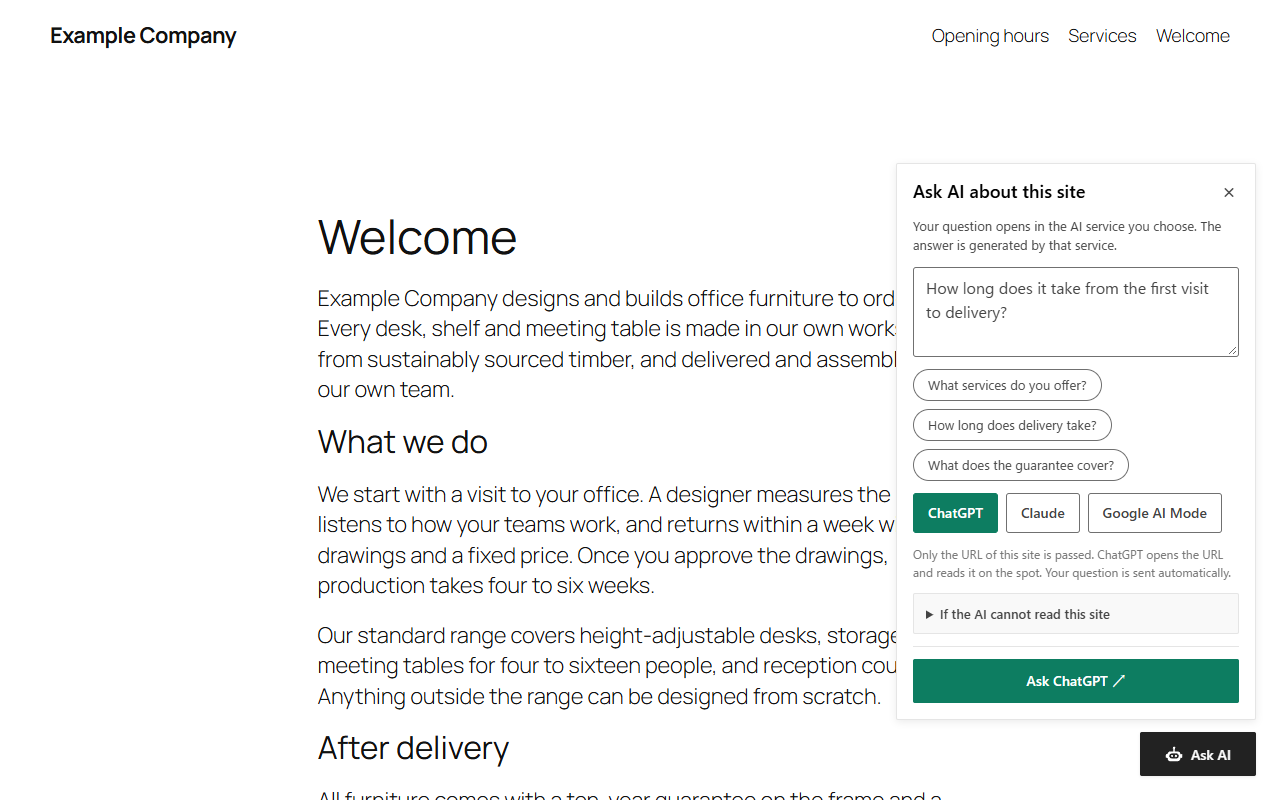
This plugin adds a small button to the corner of your site. A visitor types a question, picks an AI service, and that service opens in a new browser tab with the question and the address of your site already filled in.
What it does not do:
- It calls no AI API and needs no API key.
- It makes no requests to anyone outside your site, neither from your server nor from the visitor’s browser.
- It never stores, sends or measures the question. The visitor’s browser keeps one thing: the last choice of AI service, in local storage.
- It sets no cookies.
After activation the button appears on the public pages of the site. It is not shown in the admin area, in previews, on 404 pages, on attachment pages, or on posts that are password protected or not published.
Settings
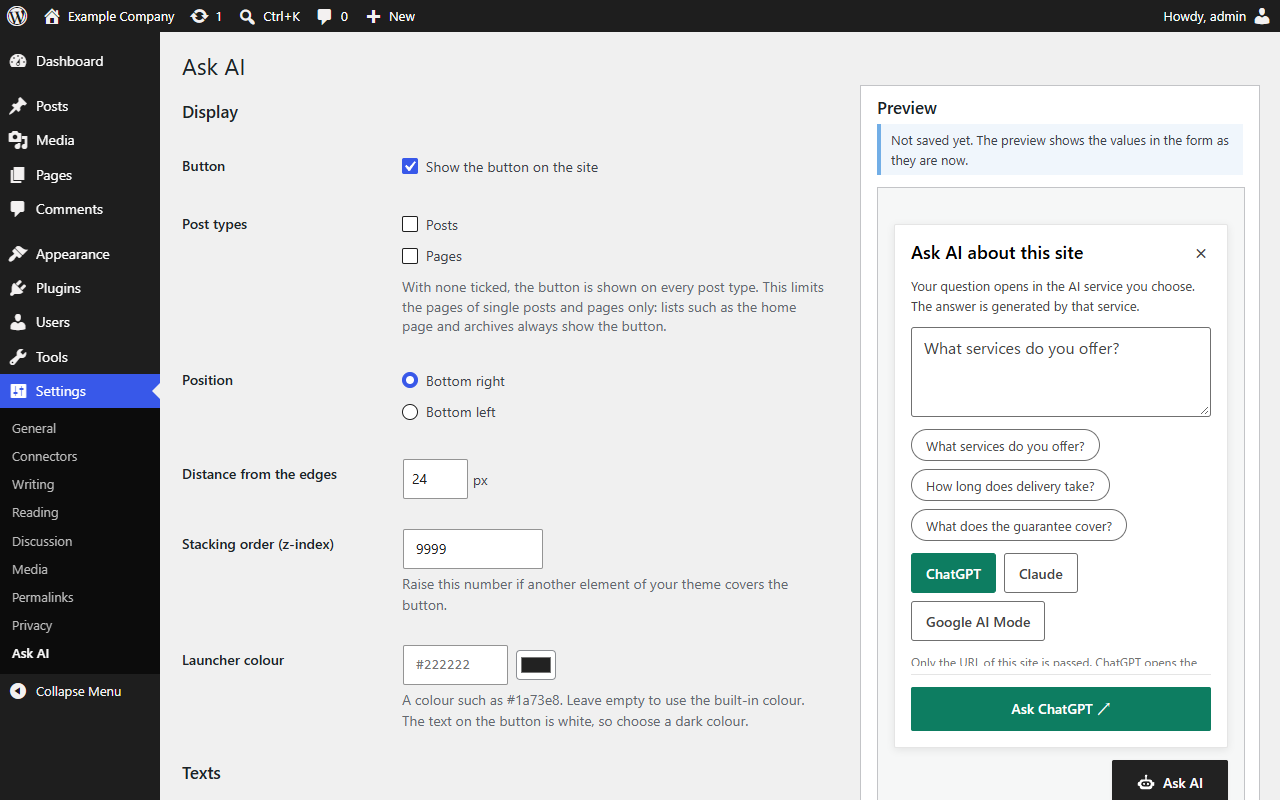
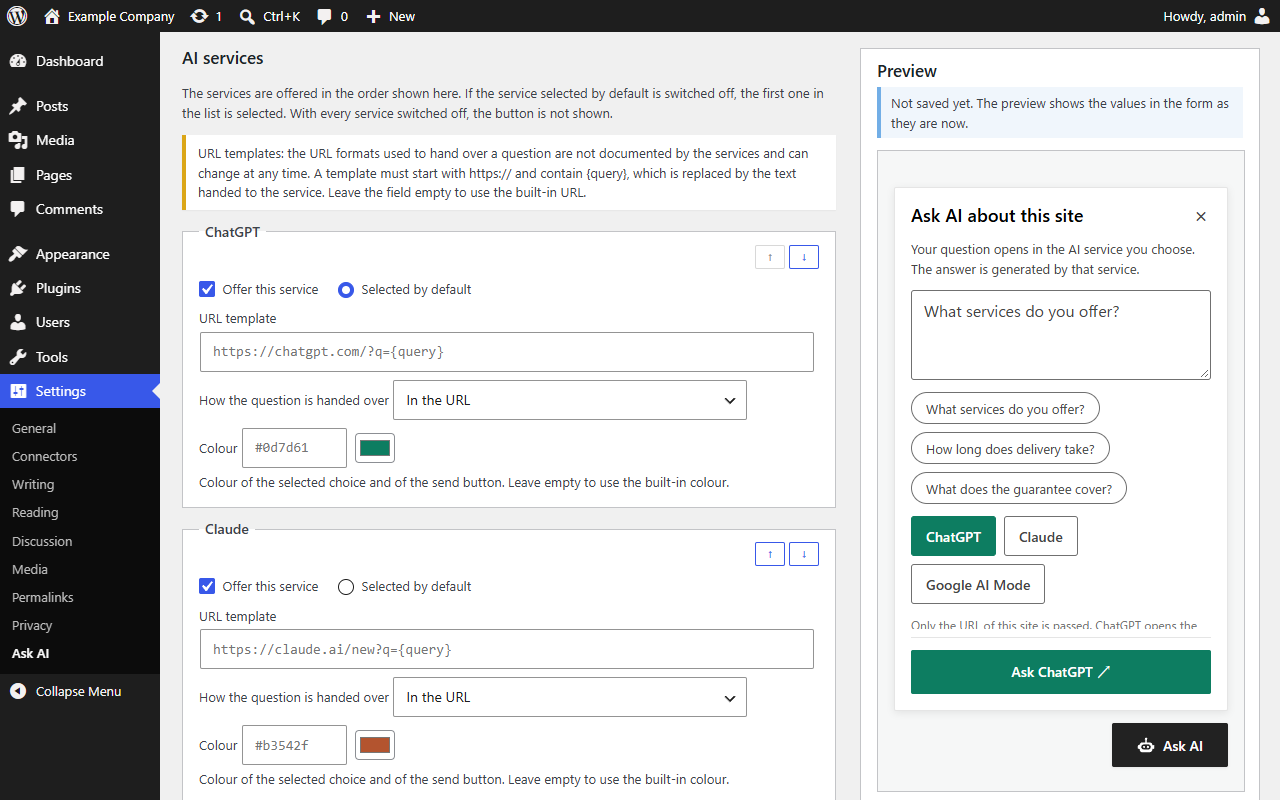
Everything is set on one screen, Settings > Ask AI:
- Display: switch the button on or off, limit it to some post types, choose the corner, the distance from the edges and the colour.
- Texts: the label of the button and the texts of the panel. A field left empty uses the built-in wording in the language of the page.
- Preset questions: up to six example questions a visitor can tap.
- AI services: which are offered, their order and default, and for each one the colour, the hand-over (in the URL, or copied to the clipboard) and the URL template. A template must start with
https://and contain{query}; an empty field means the built-in URL. - Query: the template of the text handed to the AI service, and the maximum length of a question.
A preview shows the button and the panel before the settings are saved.
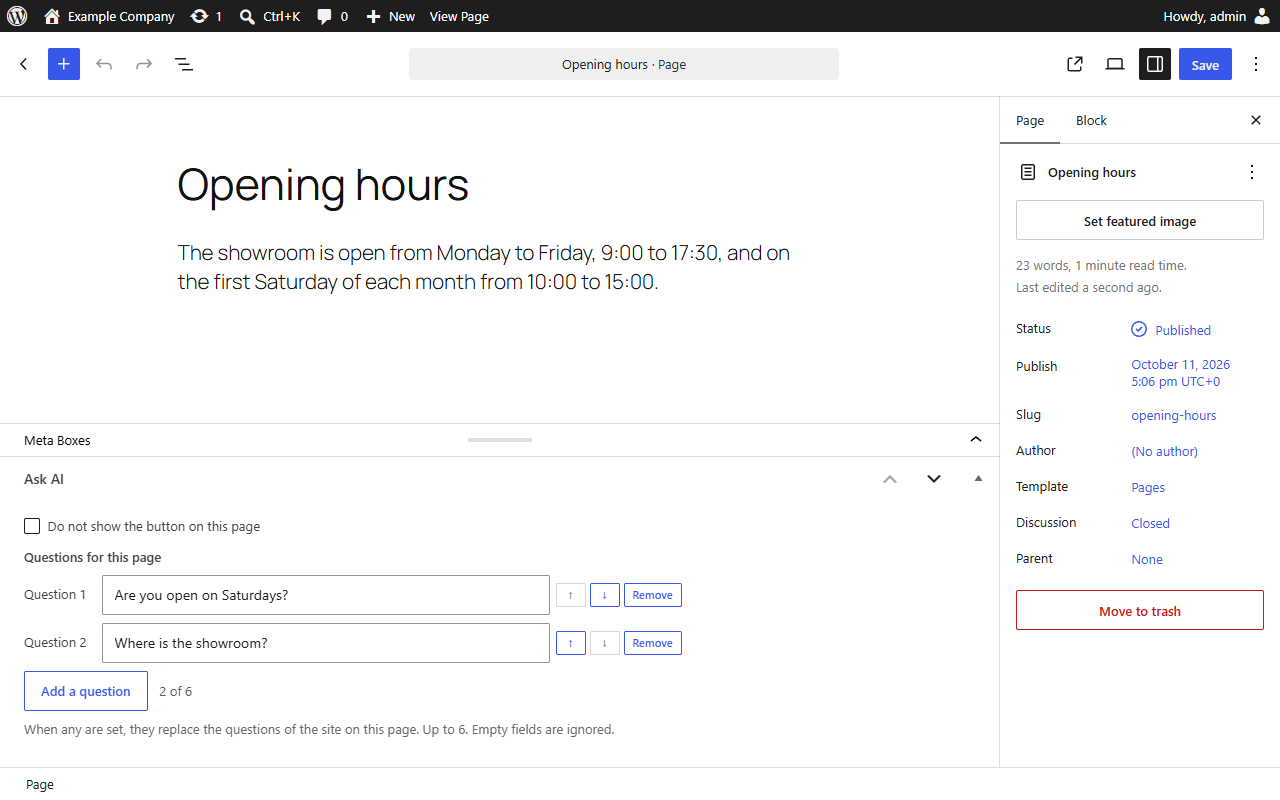
The edit screen of posts and pages has an “Ask AI” box: “Do not show the button on this page”, and up to six “Questions for this page”, which replace the questions of the site there.
Usage counts (optional)
Off by default. With “Count how often the button and each AI service are used” ticked, the plugin keeps monthly totals in the database of your own site: how often the button opened the panel, and how often a question was sent to each AI service. For each such click the visitor’s browser sends one request to your site, naming the kind of click and the service. Nothing goes to anyone else, and the question, the page, IP addresses, cookies or anything else about the visitor are never stored. The numbers are approximate: bots and repeated clicks are counted; clicks of logged-in users who can edit posts are not. The totals are shown on the settings screen, with a CSV download and a reset.
Languages and multilingual sites
The button is displayed in the language of the page. Japanese and English are built in; other languages fall back to English. The settings screen is in English and Japanese.
With Polylang, or WPML with its String Translation add-on, the texts you typed yourself appear on the string translation screen of that plugin, in the group “Elephancube Ask AI Button”. Neither plugin is required. Polylang has been checked on a live site; the WPML integration follows the hooks that WPML documents and has not yet been run on a WPML installation.
The details, and the filters for developers (prefix askai_), are in the documentation.
Source code
The file assets/askai-button.min.js is minified. It is built from the public TypeScript sources of the askai-button library, which are in one repository with this plugin: github.com/elephancube/askai-button. The library is in the folder packages/core, this plugin in wordpress/elephancube-ask-ai-button.
To build it you need Node.js with npm. In a copy of the repository, run npm ci and npm run build: this compiles the library with Vite into packages/core/dist/askai-button.min.js and copies it to wordpress/elephancube-ask-ai-button/assets/. npm run zip:plugin packs the plugin as distributed. Nothing else in the plugin is compiled or minified; assets/counter.js and assets/admin.js are written by hand.
External services
The plugin itself contacts no external service: neither your server nor its scripts in the visitor’s browser make a request to anyone outside your site. The optional usage counts stay on your own site.
When a visitor presses the send button in the panel, their browser opens the AI service they chose in a new tab. This is the only moment at which data leaves your site, and it happens only on that action of the visitor.
What is transmitted: the address that is opened contains the text for the AI. With the default settings this text consists of the question the visitor typed, one fixed sentence, and the address of your site. If you change the query template, it contains what your template says, which can include the address and the title of the current page and the name of the site. As with any link, the service also receives what a browser sends with every page request, such as the visitor’s IP address and the cookies of that service. For a service set to “Copied to the clipboard”, the text is copied to the visitor’s clipboard and the service is opened without it.
The services, and the addresses opened by default:
- ChatGPT (
https://chatgpt.com/), provided by OpenAI: terms of use, privacy policy - Claude (
https://claude.ai/), provided by Anthropic: terms of service, privacy policy - Google Search in AI Mode (
https://www.google.com/), provided by Google: terms of service, privacy policy
Each service can be switched off in the settings. What a service does with the question is governed by its own terms.
The URL parameters used to hand the question to these services are not documented by their providers. They may change or stop working at any time, and a service may behave differently depending on the visitor’s region, account or device.
Trademarks and license
ChatGPT, Claude and Google are trademarks of their respective owners. This plugin is not affiliated with, sponsored by or endorsed by OpenAI, Anthropic or Google. No logos of these services are included.
The plugin is licensed under the GNU General Public License, version 2 or any later version; the full text is in the file LICENSE. The bundled script assets/askai-button.min.js is the askai-button library, Copyright (c) 2026 Elephancube Inc., released under the GPL-compatible MIT License. The file carries that notice.
Screenshots
Installation
- Upload the
elephancube-ask-ai-buttonfolder to/wp-content/plugins/, or upload the zip file under Plugins > Add New Plugin > Upload Plugin. - Activate the plugin on the Plugins screen.
- Optionally, adjust the button under Settings > Ask AI.
FAQ
-
Does the plugin call an AI API? Do I need an API key or an account?
-
No. The plugin opens the public web page of the AI service the visitor chose, in the visitor’s browser. There is no API call, no key and no cost on your side. Whether the visitor needs an account is up to the service.
-
What is sent, and to whom?
-
Nothing is sent until the visitor presses the send button. Then the visitor’s browser opens the chosen AI service, and the address that is opened contains the text for the AI: the question, one sentence asking the AI to refer to your site, and the address of your site. Your server sends nothing, and receives nothing unless you switched on the usage counts. See “External services” below.
-
What if the AI cannot read my site?
-
The plugin only passes an address. Whether and how a service opens it is up to the service, and a site that blocks AI crawlers, requires a login or is not reachable from the internet cannot be read. For that case the panel has a section “If the AI cannot read this site” with a button that copies the question and the address, so the visitor can paste them into the AI service by hand.
-
Can I change the URL the AI gets?
-
Yes. By default it is the address of the front page of your site. The query template decides what is handed over: use
{url}for the address of the page the visitor is on instead of{site_url}, or write any other text. The variables are{question},{site_url},{url},{title}and{site_name}. -
Does it work on a multilingual site?
-
Yes. The built-in texts follow the language of each page, and texts you typed yourself can be translated with Polylang or WPML. The address handed to the AI service is the front page of the default language; a setting under Display passes the front page of the language being viewed instead.
-
Yes. Tick “Do not show the button on this page” in the “Ask AI” box of the edit screen, or limit the button to some post types.
-
What is removed when I delete the plugin?
-
Its settings, the two values it stores per post, and the usage counts. Translations entered in Polylang or WPML are stored by those plugins and stay there.
Reviews
There are no reviews for this plugin.
Contributors & Developers
“Elephancube Ask AI Button” is open source software. The following people have contributed to this plugin.
Contributors
Translate “Elephancube Ask AI Button” into your language.
Interested in development?
Browse the code, check out the SVN repository, or subscribe to the development log by RSS.
Changelog
0.1.0
- First version.