The Breadcrumbs block shows visitors where they are on your website by displaying a trail of links from the homepage to the current page. This makes it easy for people to understand the site structure and move back to higher‑level pages without using the browser’s back button.
You can add the Breadcrumbs block to an individual post or page, or place it in a template using the Site Editor so it automatically appears across your site.
How breadcrumbs work on pages and posts
Breadcrumbs on Pages
For pages that are part of a hierarchy, the breadcrumb trail follows the page structure. For example:
Home / Services / Web Design / Portfolio
If a page has a parent page, that parent will appear in the breadcrumb trail.
Breadcrumbs on Posts
Posts don’t have parent pages, so breadcrumbs use categories or tags instead. For example:
Home / Technology / Your Post Title
If a post belongs to more than one category or tag, only one term is displayed in the breadcrumbs for each level in the parent‑child structure. When multiple categories are at the same level in the parent‑child structure, the one that appears first in the list is shown.

Other types of template-driven pages
The Breadcrumbs block also works on other common pages, including:
- Category, tag, author, and date archives
- Search results pages
- 404 (page not found) pages
- Custom Post Types, where the post type archive is included in the trail
Add a Breadcrumbs block
To add a Breadcrumbs block, open the Block Inserter tool by clicking the Block Inserter + icon in the top toolbar. Look for the Breadcrumbs block by using the search bar to find the right block to add. Then, click the icon to insert the Breadcrumbs block into the editor.
Alternatively, click the Block Inserter (+) icon in the editor, then choose the Breadcrumbs block after searching for it in the pop-up window.
You can also use a (/) slash command by typing /breadcrumbs in the editor.

Read detailed instructions on adding blocks.
Add a Breadcrumbs block to a template or template part
The Breadcrumbs block can be added to an individual post or page or by using the Site Editor to edit a template or template part used throughout the site.
Learn more about the Site Editor.
Block toolbar
Each block has its own block-specific controls that allow you to manipulate the block right in the editor. If you hover over the buttons, tooltips will tell you what is behind the buttons.

Transform to

Click on the Transform button to convert the Breadcrumbs block into a Columns, Details, or Group block.
Block moving tools

The block-moving tools allow you to move the block in the editor. Use the six dots icon to drag and drop the block and place it anywhere on the page. Alternatively, click on the up and down arrows to move the block up or down.
Get more information about moving a block within the editor.
Align
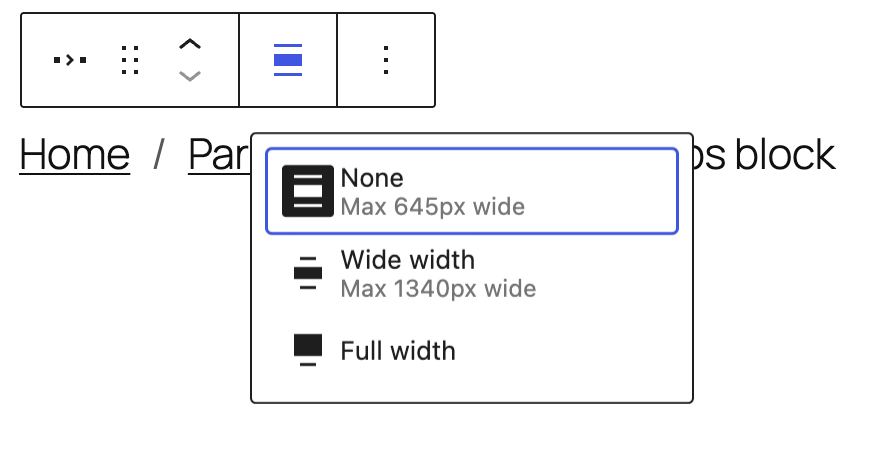
Use the change alignment tool to align the breadcrumbs block. Choose one of the following options:
- None – leaves the block the current size.
- Wide width – increase the width of the block beyond the content size.
- Full width – extend the block to cover the full width of the screen.
The Wide width and Full width alignment settings must be enabled by your WordPress theme.
More options
The More options menu (three dots) provides additional features to customize the block, like the ability to duplicate, copy, rename, hide, and more.
Read about these and other settings.
Block settings

Every block has specific options in the editor sidebar in addition to the options found in the block toolbar. If you do not see the sidebar, click on the Settings button next to the Save/Publish button.
Breadcrumbs settings

The toggle for Show home breadcrumb will allow you to turn the link to the home page on or off for the breadcrumb.
The toggle for Show current breadcrumb will add or remove the unlinked title of the current page from the breadcrumb.
You can change the Separator character that appears between breadcrumbs from the default slash ( / ). Common character choices include a pipe ( | ) or a dash ( - ).
Advanced
The Breadcrumbs block provides the following Advanced settings options: HTML Anchor, Additional CSS Class(es), Additional CSS, Show on homepage, Prefer taxonomy terms, and Styles.
The Show on homepage checkbox can be used if your Breadcrumbs block appears in a template or template part that’s shown on the homepage, enable this option to display the breadcrumb trail. Otherwise, this setting has no effect.
The Prefer taxonomy terms checkbox can be used in the specific case of a hierarchical post type with taxonomies, the breadcrumbs can either reflect its post hierarchy (default) or the hierarchy of its assigned taxonomy terms. This can be helpful because the exact type of breadcrumbs shown will vary automatically depending on the page in which this block is displayed.
Learn more about advanced settings
Color
The Breadcrumbs block provides Color settings options to change the text and background colors.
See this guide for more information about changing colors
Typography
The Breadcrumbs block provides typography settings to change the font family, size, appearance, line height, letter case, letter spacing, and decoration.
Get more details about changing typography settings
Dimensions
The Breadcrumbs block provides dimension settings options to change padding and margin size.
Learn more about dimension controls
Border
The Breadcrumbs block provides border settings options to add border color, width, and radius.
Learn more about border settings
Changelog
- Created 2026-05-20
Was this article helpful? How could it be improved?
Log in to submit feedback. If you need support with something that wasn't covered by this article, please post your question in the support forums.