Hey,
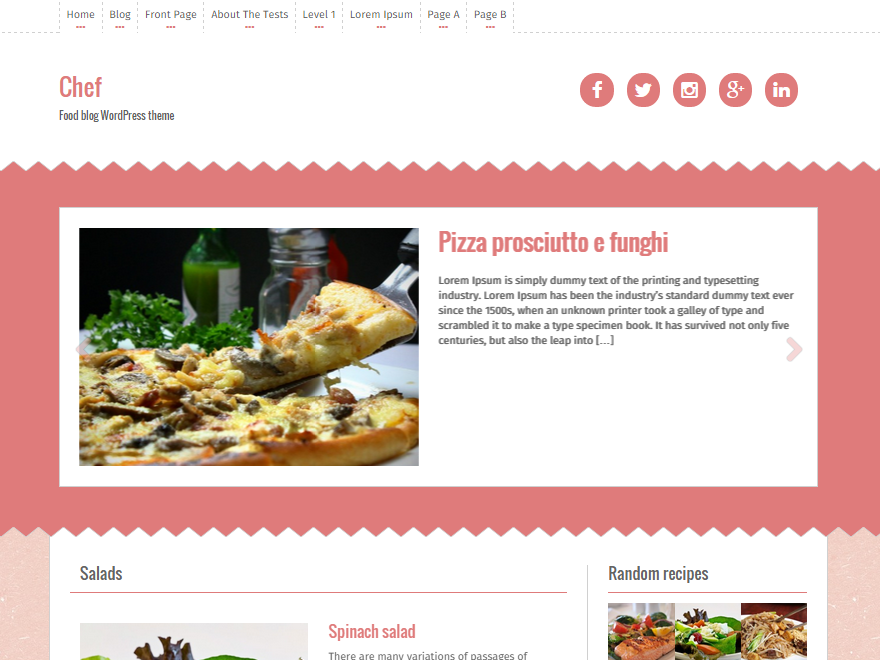
This would do it and also center the image:
.entry-thumb,
.single-thumb {
     max-width: 70%;
     margin: 0 auto 30px;
}
But really the best way would be just to add smaller images if you don’t want them this big. This way you can also control them on a post by post basis.
Thread Starter
 DazyJo
(@dazyjo)
yeah, I tried making them smaller. whatever gets put in as the ‘featured image’ automatically goes to full width (now 70% with that css, thanks).
If you look at the home page again, all those images were put in at different sizes- a couple were big, like 1300px or so width, and the other two were pretty small around 400 & 600 pixels.
In fact, the one of the vase I had to crop short because the original pic at 400 x 500px was taking up the entire screen. so, for things like that it would be nice to have more control, but I can deal with it this way for now, thanks so much for your help :O)
Yeah, I’m not really sure what you mean. All your images are at least 800px in width at the moment. The vase image is 800x515px.
Also, there is absolutely no way that a featured image will go full width if it’s smaller than 750px. But feel free to set a small image as featured, remove the code I gave you and send me an email at flyfreemedia[at]yahoo.com so I can have a quick look and see why it would go full width.