Hi jvdm,
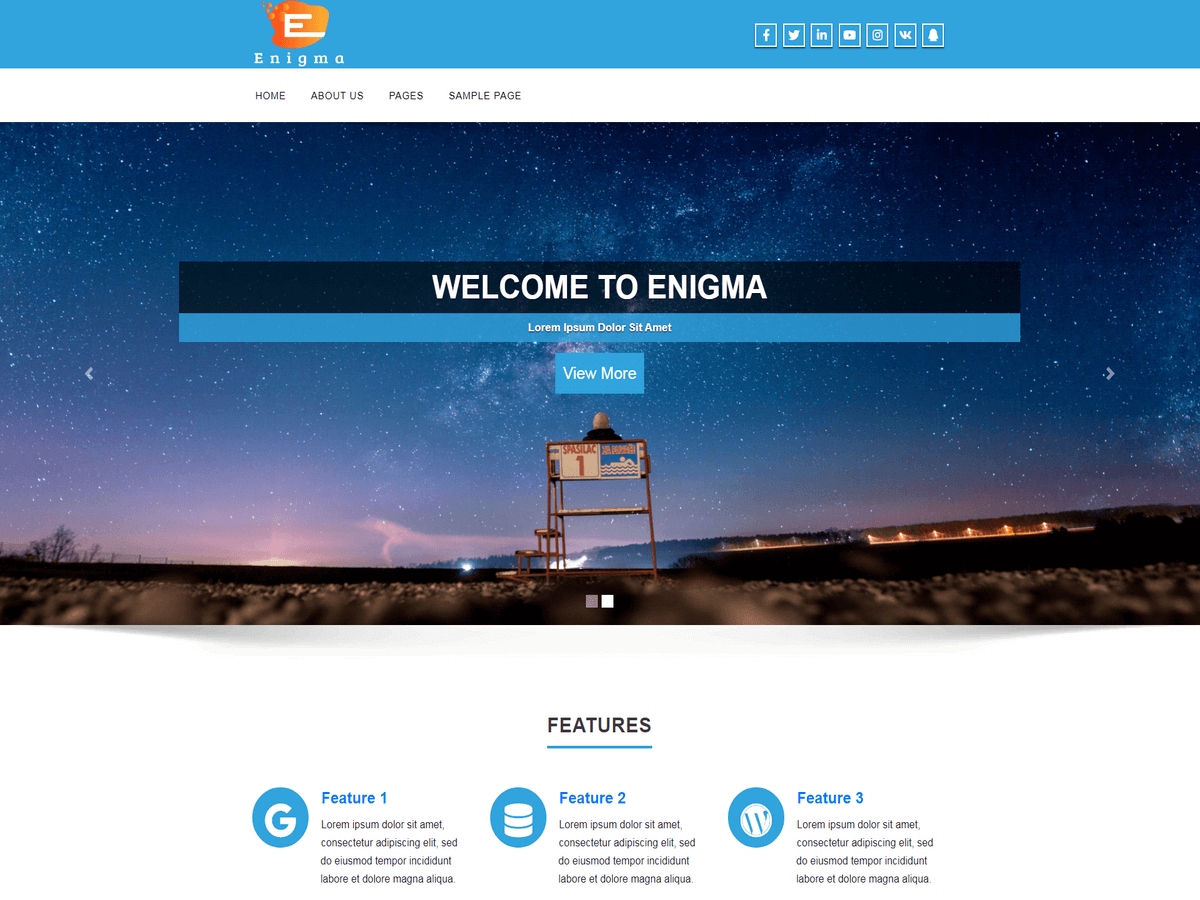
Sorry to hear you are going through that way, my little advice is that don’t use Enigma or any theme from weblizar all their themes are useless when it comes for Development. Some many themes to start with out there theme like vantage is very flexible to start with then you will see yourself becoming a pro shortly.
Please you can use Vantage with a pagebuilder from siteorigin.
Enigma theme are design to be use like template you just change pictures and text which is not what any developer want to do.
I’ve use Enigma premium for a client that wanted me to use it at the end it was nightmare for me not support from Weblizar or tutorial until I decided to change the theme at the end I used Vantage and plugins I achieved what the client wanted.
I’m sorry again if I’m off you topic.
Thank you.
Hello jvdm,
I just tried the Cista theme with Zedity and everything works fine in both editing and displaying the contents.
From your description of the problem it looks like you have the “Visual editor” disabled in your WordPress settings (not related to Zedity).
To ensure you have the visual editor enabled in your profile:
From the WordPress Dashboard, from the menu on the left choose “People->Your Profile”. At the top of the settings page, “Personal options” section, there is a checkbox “Visual Editor: Disable the visual editor when writing”. This must be unchecked, so that the visual editor is available.
Hi @jvdm,
Please try the instruction give by ZedityStaff.
If theme still have some issue, let us know, we try to resolve it.
Thanks.
Thanks @zeditystaff for help.
Thread Starter
 jvdm
jvdm
(@jvdm)
Dear Weblizar_support,
Thanx for your advise, super! that was the missing link tot the visual tab.
(strange WordPress seemed to installed default with this option checked)
Dear Zedity Staff,
I have tried Zedity again but it seems not to work with existing pages, is this correct? When I select the Zedity button while adjusting a existing page, a empty Zedity page appears!
Hello jvdm,
When you click on the “Z” Zedity button and the cursor in the visual editor is outside an existing Zedity content, a new Zedity content is created: that’s why the Zedity editor is empty.
If you want to edit an existing Zedity content, just click on that content and a green overlay will appear with buttons to edit/copy/delete it.
Please note that, thanks to this, in the same post/page you can add more than one Zedity content and even mix them with normal WordPress text.
If you need further help on Zedity, you can ask for assistance to our support team here: https://zedity.com/support
Thank you.