Mobile Theme from browsers on desktop
-
I’ve tried changing the theme, removing plugins, everything – am suspicious of Jetpack tbh, but could use a second set of eyes here…
Could someone fluent in WP and able to converse with a non programmer possibly be willing to help?

-
Are you using any sort of caching plugin, or do you see a “Clear/Purge Cache” button in your Dashboard or admin bar? If so, would you please try clearing the cache?
Note: You do not need to install a caching plugin at this point just to clear a cache you don’t have. If you don’t have a caching plugin or a way to clear a server-level cache, just say so. 🙂
I used to have one, but deleted it as a suspect plugin (W3C Total Cache)…
I am down to minimal plugins, and have even switched back to the Twenty-14, Twenty-13, and Twenty-12 themes to see if I can get the desktop version to load by default with no results.
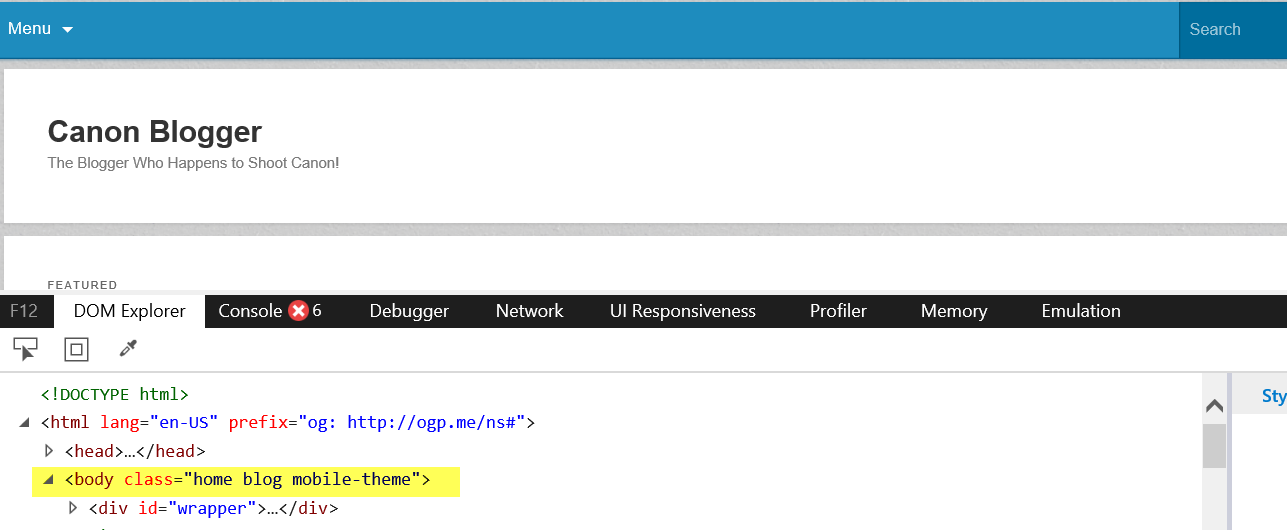
I also am noticing in IE that it is loading a mobile theme from using the Developer Tools:
<img src=”http://www.canonblogger.com/wp-content/uploads/2015/12/mobile-theme.png” />
By the way, thanks in advance for offering to assist, I am very appreciative of anything you can do to assist! 🙂
FWIW, if you need a set of credentials, we could even take this off the forums and you are welcome to dive in behind the scenes if you can help…
I only do private support for hire, and am not available for that at the moment, so please don’t do that. 🙂
Did you properly uninstall W3 Total Cache, by removing the caching directory, which (I think) is in
/wp-content/somewhere, and thedefine( 'WP_CACHE', true );line fromwp-config.php?Heh, ok, just sayin’, that would be an option! LOL
Yessir, I did delete the directory. Let me check the wp-config.php file though – one moment, please.
Update: The wp-config.php had the W3TC line at the top – it is now deleted, I cleared the cache in IE, and reloaded the browser (and on mobile devices) but no luck…
Any other ideas?
At the moment, I see an internal server error (error 500) there.
Internal server errors (error 500) are often caused by plugin or theme function conflicts, so if you have access to your admin panel, try deactivating all plugins. If you don’t have access to your admin panel, try manually resetting your plugins (no Dashboard access required). If that resolves the issue, reactivate each one individually until you find the cause.
If that does not resolve the issue, try switching to the Twenty Fifteen theme to rule-out a theme-specific issue. If you don’t have access to your admin panel, access your server via FTP or SFTP, navigate to
/wp-content/themes/and rename the directory of your currently active theme. This will force the default theme to activate and hopefully rule-out a theme-specific issue.If that does not resolve the issue, it’s possible that a
.htaccessrule could be the source of the problem. To check for this, access your server via FTP or SFTP and rename the.htaccessfile. If you can’t find a.htaccessfile, make sure that you have set your FTP or SFTP client to view invisible files.If you weren’t able to resolve the issue by either resetting your plugins and theme or renaming your .htaccess file, we may be able to help, but we’ll need a more detailed error message. Internal server errors are usually described in more detail in the server error log. If you have access to your server error log, generate the error again, note the date and time, then immediately check your server error log for any errors that occurred during that time period. If you don’t have access to your server error log, ask your hosting provider to look for you.
The 500 error is likely because I found another cache folder that is quite huge, so am going through a shell using WinSCP to delete any folders that might be causing the cached pages to load instead of a live version.
Not sure why deleting cached folders would have this impact, but once all that gobbeldygook is cleaned up, I’ll re-post back in here.
Well crap – after deleting the cache folder, the website hasn’t come back up since.
I followed the steps provided with the exception of manually re-setting the plugins because a friend hosts the content and I don’t have a psswd for the phpmyadmin to gain access at that level.
So, I re-named the theme folder, and when that didn’t work, renamed the .htaccess file
I don’t have access to the server for error logs though…suggestions?
Deleted cache folder
Site not back online
cannot get into phpmyadmin
Renamed theme folder
Site not back online
Renamed .htaccess file
Site not back onlineDon’t have access to server logs, friend maintains server and is out of town
Next steps?
Ok, cache folder cleared
site not back
renamed theme folder
site not back
renamed .htaccess file
site not backI fear now I was a bit over-zealous in my cleansing…suggestions on restoring access?
I don’t have access to the phpmyadmin console nor to the server error logs as I do not own the parent server – a friend does and I’ve not been able to connect with him yet.
Try re-adding the wp_cache define to wp-config.php
If that doesn’t work, try making a new wp-config.php from the wp-config-sample.php file.
DOH – In my cleanup, I removed too much from the wp-config.php file. Noticed from another website, the sample file always starts with:
<?php
/**Mine only had:
<?php
Goes to show ya why I’m not a big WordPress guru kinda person! LOL
Ok, so site is accessible again, and it seems my purging efforts for whatever reason of various w3tc and cache folders has done the trick as the correct version is displaying across all browsers again!
the second line of code in the wp-config was missing (over-deleted lol)
Also in deleting the cache files, it seems the legacy problem of the mobile theme issue has also resolved of its own accord.
Thanks for the assist and walking me through a bit of it…goes to show why I am NOT all that great with WP! LOL
You’re welcome!

The topic ‘Mobile Theme from browsers on desktop’ is closed to new replies.