Hi! Those are two great suggestions. I’ve just released version 2.1.2 with these updates:
- Default Marker Style: You can now set a global color, size, and a custom icon in the settings, so you don’t have to adjust markers individually.
- Auto-fit Map: I added a new block option “Auto-fit Map” (disabled by default). This gives you full manual control over the initial zoom and position (e.g., focusing on Europe). The map will only auto-zoom to fit all markers if you explicitly enable this option.
Please update the plugin and let me know if it works for you!
Thanks for your response. I’m curious about the update. Where can I find it? I don’t see it listed under plugins in my WordPress admin environment.
You should see it right there, like any other plugin update, unless you enabled the automatic updates and you already have the latest version. (2.1.2)
That’s it: I already have version 2.1.2 🙂 Thanks!
For some reason I can’t find the Auto-fit Map option?!
Allow me to make a few more suggestions:
(1) On my laptop, I cannot zoom in or out on the map using either my mousepad or my mouse through pinching in/pinching out. I have to click on the plus or minus sign for this. On my mobile it does work by pinching in/pinching out. Could this also be enabled for laptop/desktop?
(2) I would like to manually adjust the size of the map (this can vary per map). Can this function be added?
(3) It would be fantastic if you could also display the title/name of the pin with a mouse-over on a laptop/desktop.
Hi, thanks. However, I don’t seem to have “block settings” nor an “auto-fit map” option.
In the right sidebar I only have a Publish block and a Geolocation block…
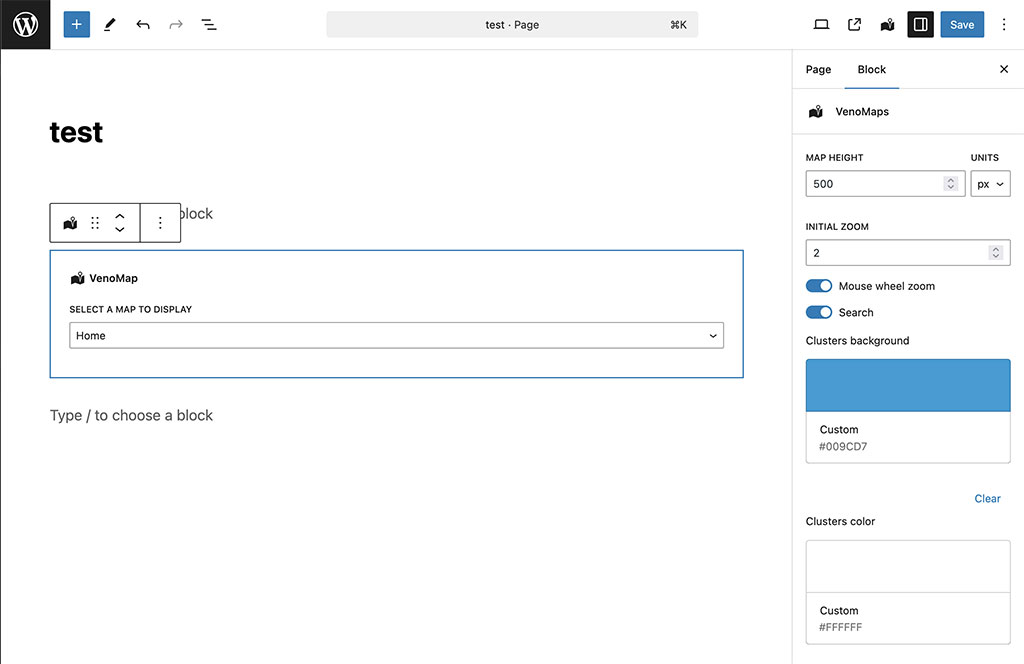
The block editor (inside of posts or pages, were you actually put the map), not the map editor:
https://ps.w.org/venomaps/assets/screenshot-5.jpg?rev=3257413
I may have found a solution… Not sure how to remove this message …
-
This reply was modified 3 weeks, 1 day ago by
 grijsopreis.
To get the exact configuration for your shortcode:
1. Create a draft page using the Block Editor (Gutenberg, the current WordPress default editor).
2. Insert the VenoMaps block and configure the styles/settings.
3. Click the three dots (options) on the block and select “Edit as HTML”.
4. Copy the generated shortcode (e.g., [venomap id="..." height="500px" cluster_bg="#..." cluster_color="#..." zoom="4" zoom_markers="1" scroll="1" search="0"]) and paste it into your Editor.
For your reference:
Auto-fit option is zoom_markers="1"
Mouse-wheel zoom is scroll="1"
Yes, this is the work-around I just discovered. Thanks for the big help though!
-
This reply was modified 3 weeks, 1 day ago by grijsopreis.