Getting locked out happens to the best of us! Here are the ways to unblock yourself, ordered from easiest to most technical.
Option 1: Wait (If it’s a temporary block) If you were blocked by a failed login or a 404 error threshold, the block is temporary. Wait for the duration you set (default is usually 60 minutes) and try again.
Option 2: Change your IP Address (The Quickest) If you are on a mobile phone or home connection with a dynamic IP:
Turn off your Wi-Fi and use mobile data (4G/5G).
Or restart your router to get a new IP. Once you have a new IP, you can log in. Then, go to Security > Dashboard > System Status and whitelist your new IP to prevent this from happening again.
Option 3: Using FTP / File Manager (The Guaranteed Way) If you are permanently blocked or cannot change your IP, you need to disable the plugin manually:
Log in to your hosting panel (cPanel, Plesk) or use an FTP client (FileZilla).
Navigate to /wp-content/plugins/.
Rename the folder advanced-ip-blocker to advanced-ip-blocker-disabled.
This will instantly disable the plugin. You can now log in to WordPress.
Once logged in, rename the folder back to advanced-ip-blocker and reactivate it.
Go to Security > IP Management > Blocked IPs and unblock your IP.
Option 4: WP-CLI (For Advanced Users) If you have SSH access to your server: wp advaipbl unblock <your-ip-address>
I hope this helps you get back in quickly!
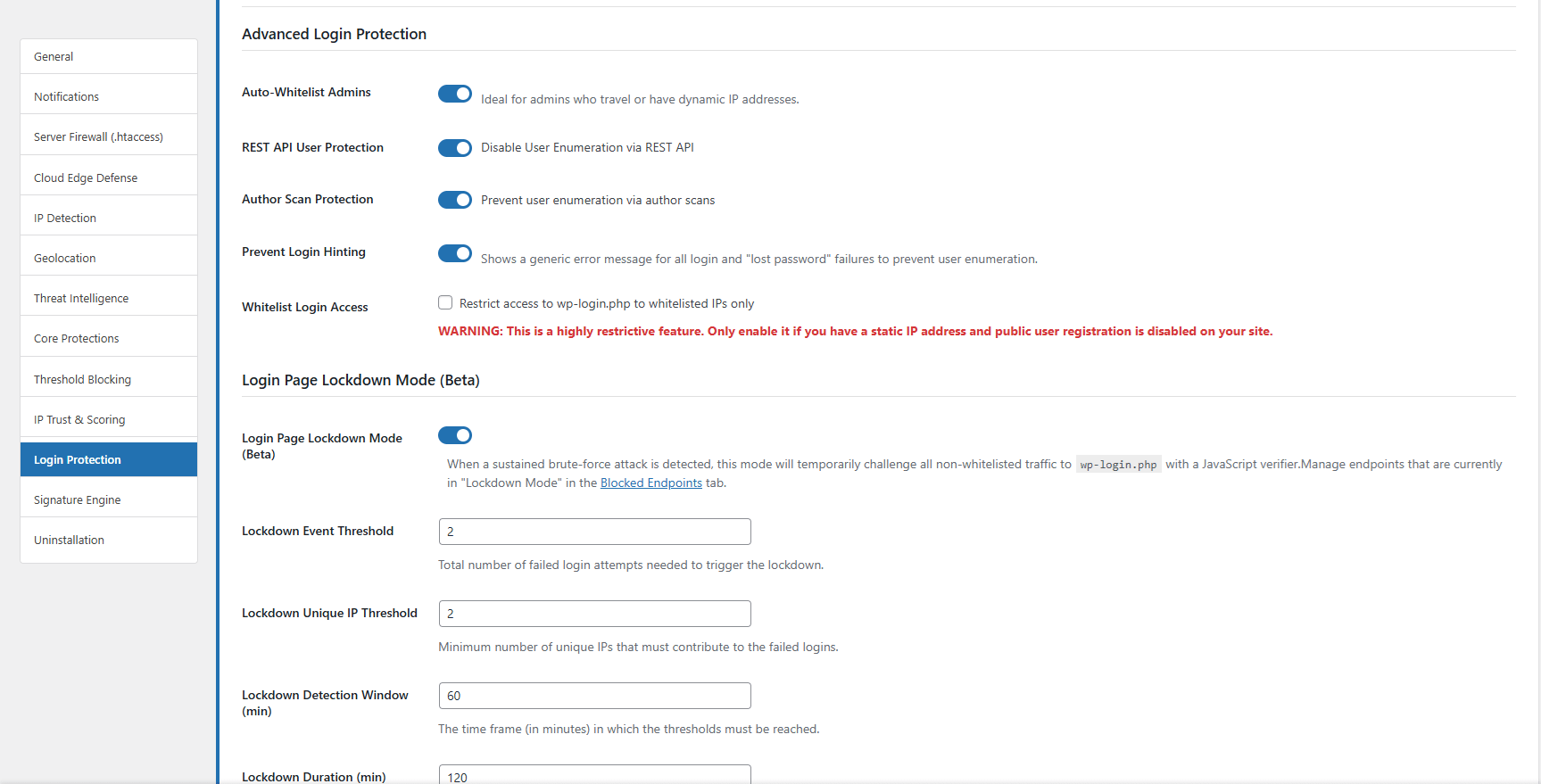
Pro Tip to prevent this in the future: Once you are back in, go to Security > Settings > Login Protection and:
Enable “Auto-Whitelist Admins”: This automatically whitelists your IP every time you log in successfully, which is perfect if you travel or have a dynamic IP.
Uncheck “Whitelist Login Access”: Unless you have a static IP, this option is risky and can easily lock you out.