• Resolved dandelion89

    (@dandelion89)


    I’m trying to connect PayPal to my website for the first time. I’m going through the setup steps, and when I click the Connect PayPal button at another one step, a pop-up window opens asking me to log into my PayPal account. I confirm everything, receive a successful connection message, and a “Back to WordPress site” button. When I return to my website, I’m back at the setup step “Complete Your Payment Setup” where I need to connect my PayPal account, and it all starts over again. I’ve tried several times over the past few days and still haven’t had any success. I’ve seen in other threads on this forum that you can manually connect a PayPal account, but I don’t see this option in the payment system settings.

Viewing 5 replies - 1 through 5 (of 5 total)
  • Plugin Support Krystian Syde

    (@inpsydekrystian)

    Hello @dandelion89

    Thanks for creating thread as suggested.

    Let’s start by reviewing your site environment to check for any known conflicts (like LiteSpeed or certain caching layers). Please follow these steps to share your system status report with us:

    1. Navigate to the WooCommerce → Status section in your site’s admin panel.
    2. Click on the Get system report button and then click Copy for support.
    3. Paste the report into our PrivateBin.
    4. After uploading, share the link here so we can review it.

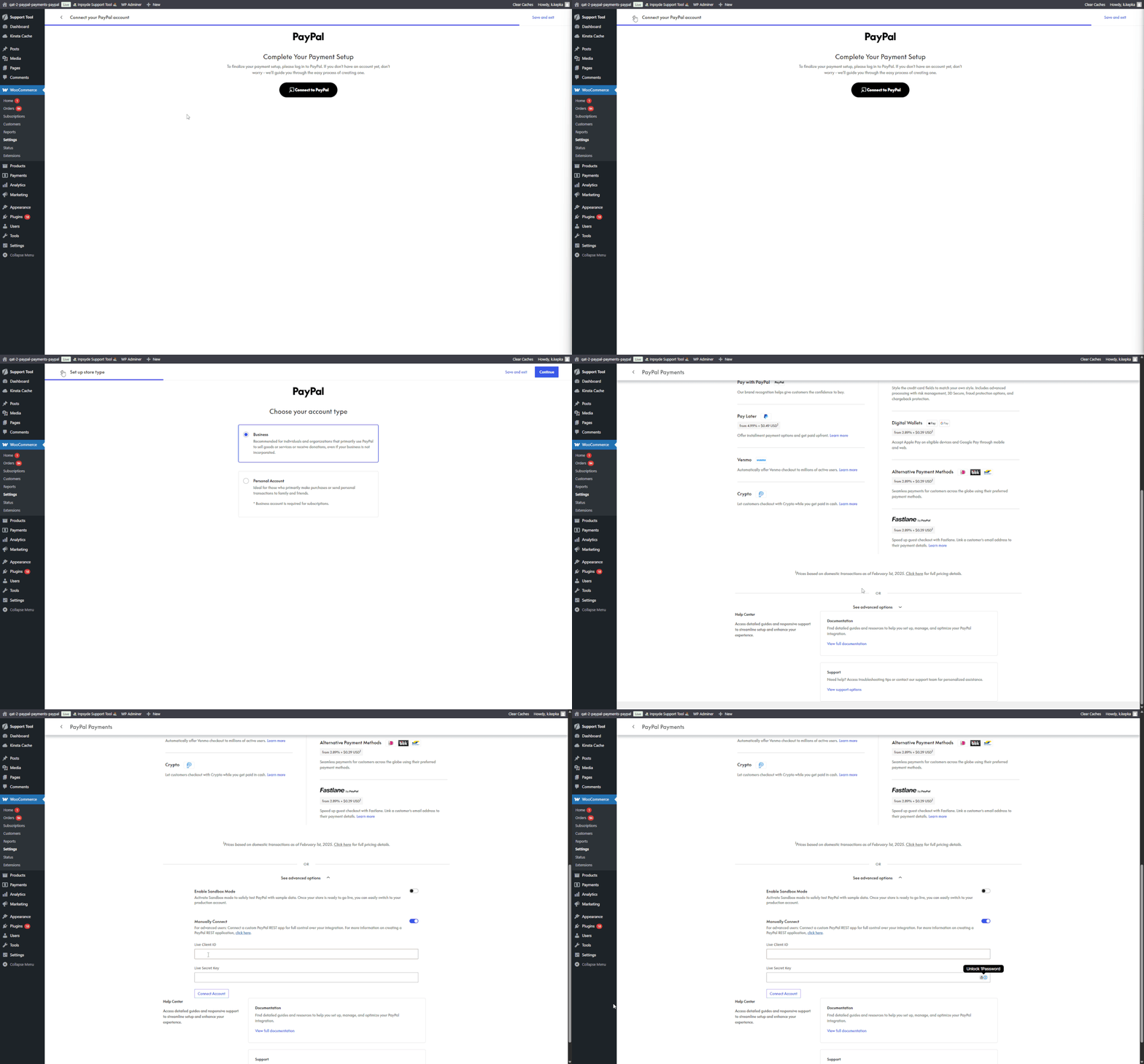
    Beyond that, the issue is usually easy to work around. Just go back to the page with the “Activate PayPal Payments” button, scroll down, and use the manual login option instead, as shown in the GIF below: direct link for better visibility: https://i.postimg.cc/tJjXyvmk/chrome-2Fjcw3kinz.gif

    Here’s how to do that:

    1. Scroll to the bottom of the page.
    2. Click on “Manually Connect”.
    3. Enter your Client ID and Secret, which you can generate from your PayPal Developer Dashboard.

    You can also follow the full setup guide here for reference:
    https://woocommerce.com/document/woocommerce-paypal-payments/paypal-payments-startup-guide/

    If this still doesn’t work, feel free to open a direct support ticket with us:
    Request Support and make sure to include the link to this thread in your request.

    Looking forward to your system report so we can dig deeper if needed.

    Kind Regards,
    Krystian

    Thread Starter dandelion89

    (@dandelion89)

    Plugin Support Krystian Syde

    (@inpsydekrystian)

    Hello @dandelion89

    Thank you for sharing your system report, there is no caching plugins at all so technically should work.

    Can you please confirm if the manual onboarding method worked for you? If it did not resolve the issue, please reach out to us directly at request Support so we can review the connection in detail and help you get it working properly.

    Kind Regards,
    Krystian

    Thread Starter dandelion89

    (@dandelion89)

    hi, manual connection helped me and solved the problem. Thank you!

    Plugin Support Krystian Syde

    (@inpsydekrystian)

    Hello @dandelion89

    Glad it worked. In case of any further problems feel free to let us know!

    If this solution helped and you’re happy with the support, feel free to leave a quick review on WordPress — it means a lot to us and shows that we are needed.

    Kind regards,
    Krystian

Viewing 5 replies - 1 through 5 (of 5 total)

You must be logged in to reply to this topic.