Hello there,
The most effective approach for this would be to translate those string directly from the database. However if you are not able to find them in your database it means TP is unable to detect them and we would need to use another method. I will leave you below the steps to the first method and let me know if it works.
You can also translate your strings directly from the backend using the WP Data Access plugin https://wordpress.org/plugins/wp-data-access/
Let’s say for example that your default site’s language is English (United States) and that you want to translate a string to Spanish.
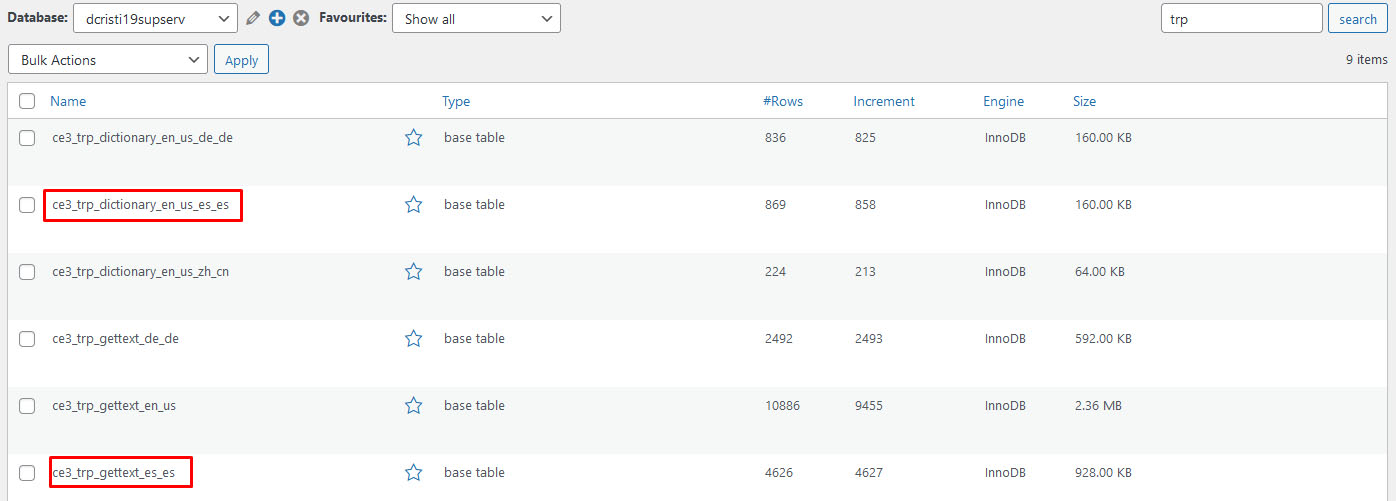
Using WP Data Access, you will have to search for that string either in the wp_trp_dictionary_en_us_es_es table or in the wp_trp_gettext_es_es table.
The gettext table contains all the strings related to plugins or themes, while the dictionary table contains the strings related to your site’s content.
Here is an image of how WP Data Access looks when you search for the trp tables: https://www.cozmoslabs.com/wp-content/uploads/2021/05/wp_data_access_search_for_table.jpg
You can never be too sure in which table a string will be, so the best practice is to search for it in both tables. Start with one table and if you are not able to find it there, search for it in the other table.
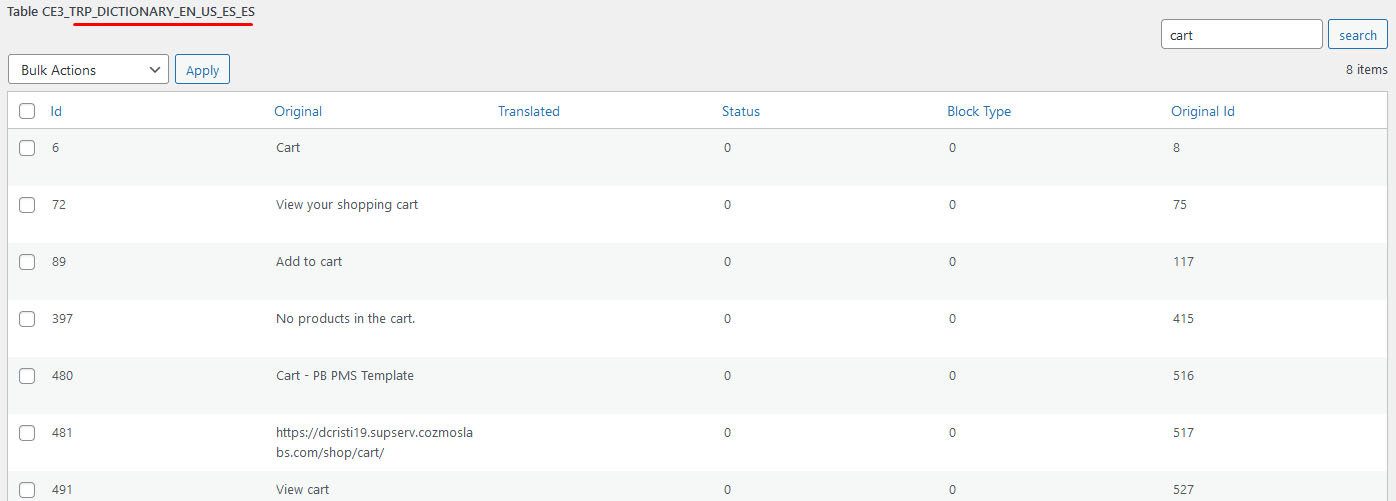
Here is an image of how I was able to search for all strings that contain “cart” in the wp_trp_dictionary_en_us_es_es table: https://www.cozmoslabs.com/wp-content/uploads/2021/05/wp_data_access_search_for_string.jpg
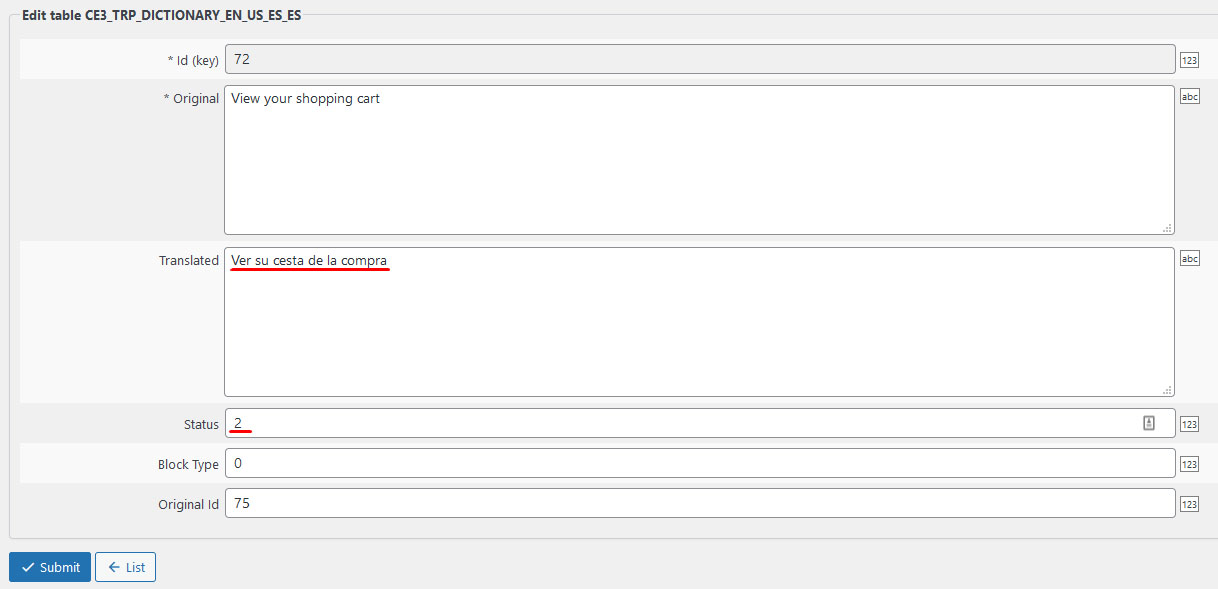
After you find the string that you want to edit, all you have to do is to edit the row and to add the translation in the Translated column. It is also important to add 2 in the Status column (0 – not translated; 1 – automatic translated; 2 – manually translated).
Here is an image of how to do the translation: https://www.cozmoslabs.com/wp-content/uploads/2021/05/wp_data_access_translate_string.jpg
After you have filled the Translation and Status columns, press the Submit button and the translation is going to be saved.
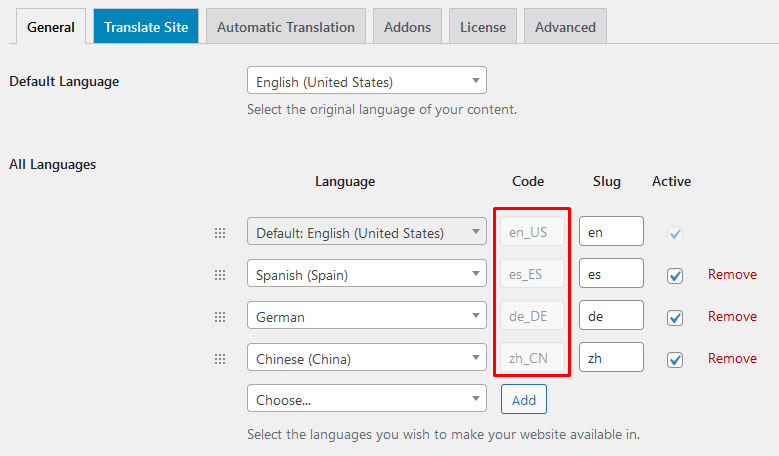
In the example I gave above, I used English and Spanish, you can do the same for all languages, just make sure to replace the en_us and es_es language codes with the ones that you are using. You can find the codes for your languages by going to: Settings –> TranslatePress –> General tab https://www.cozmoslabs.com/wp-content/uploads/2021/05/general_langauge_code.jpg
Regards