Hey @omerrob13,
Do you want the image to start parallel to Get Exclusive SEO Tips…?
@prabhatrai
Hey, pretty much – but its more about how to do it than just this one little instance.
To further explain the situation – I created a more detailed example –
I had created a 2 column layout – 1 text column, 1 image column.
The image is set to 100%, and its 2000 px 2000px. At first, it takes 100% of its container, but when I add more content to the second column (and therefore – expanding the height) – The image does not take the full height and width of its container.
How can I make the image take the full height and width although I added to content in the left column?
I attach an image – to show my example.
My example here
*Both of the columns are in the same container/section.
First example – Image is taking 100% of its container.
Second example – Adding more content to the next column – making it higher :
The image remains the same height.
How can I fix it, making the image take 100% of its container even If I adding more content?
Thanks ! hope you have a great day!
-
This reply was modified 5 years, 6 months ago by
 omerrob13.
Hey @omerrob13,
Your website uses bootstrap for designing purposes meaning the images in the website by default (if not altered) load according to its resolution, that is if the width of the container is decreased then automatically the height of the image will also decrease.
First example – Image is taking 100% of its container.
The image is taking 100% height of its container since the proportional height of the image is equal to the height of the column with text.
Second example – Adding more content to the next column – making it higher
Here, the height of the text section gets greater than the proportional height of the image.
The image is taking the height as per the requirement, resulting in white spaces at the top and bottom of the image, meaning that the height of the image in the column is equal to its proportional height.
If you want the image to take 100% height of the column then you need to add an image with a higher resolution.
Try adding an image with a height greater than the width.
Hope that was not too complicated…
Here’s a simple example:
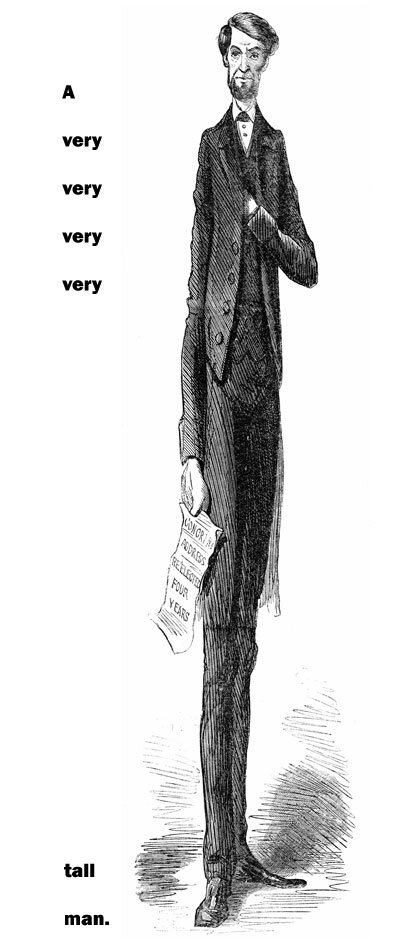
Just for testing, replace the image in the website with the image in the below link:
https://media.npr.org/programs/atc/features/2009/may/short/abetall3-0483922b5fb40887fc9fbe20a606e256cbbd10ee-s800-c85.jpg
The image will exceed the height of the text column on the left.
Meaning, you need to add an image with more height and less width to reflect the desired output.
@prabhatrai
Hi, thanks for your response.
It was a little bit complicated for me – at least the proportion idea.
As you described, if I added a picture with more height and less width ( I mean, height > width dimension)- Than as you described, the image was taking more of the space.
But I don’t understand why it happened.
Because If I added an image with greater width and height – but the width was bigger than the height (width > height), so there was white space created.
So if width > height and the other column is greater, then a white space created.
if height < width and the other column is smaller than the height, then it will be ok.
So my question is- if you can simplify :
1. Why does it happen?
why when the height “has more px than the width”, its resulted in no white space?
although even when I add an image which the width > height but the height is still big enough to cover all the container – it does not take the full height.
2. Any code I can add in order to “stretch” out the image and make it to the fullest?
-
This reply was modified 5 years, 6 months ago by omerrob13.
Hey @omerrob13,
Whenever an image is kept inside a container, the image adjusts itself according to the width of the container.
If the image is of dimension 1000px * 1000px and the container is 500px * 1000px then the image will leave white space at the bottom since image adjusts it’s size in proportional value of width and height i.e., if width decreases then height will also decrease.
But if the height of the image is greater then it’s width then the image will take the width of the container and depending upon the height of the container, the image will set it’s height, leaving no white space mostly the height of a container it is set to auto i.e., height adjusts according to it’s contents.
Adding additional CSS will disturb elements all across the website since there are common selectors of Elementor throughout your website.
I suggest you add an image that has a greater height than its width.
Note: The image you are using currently has a margin on its top, you should consider cropping the image.