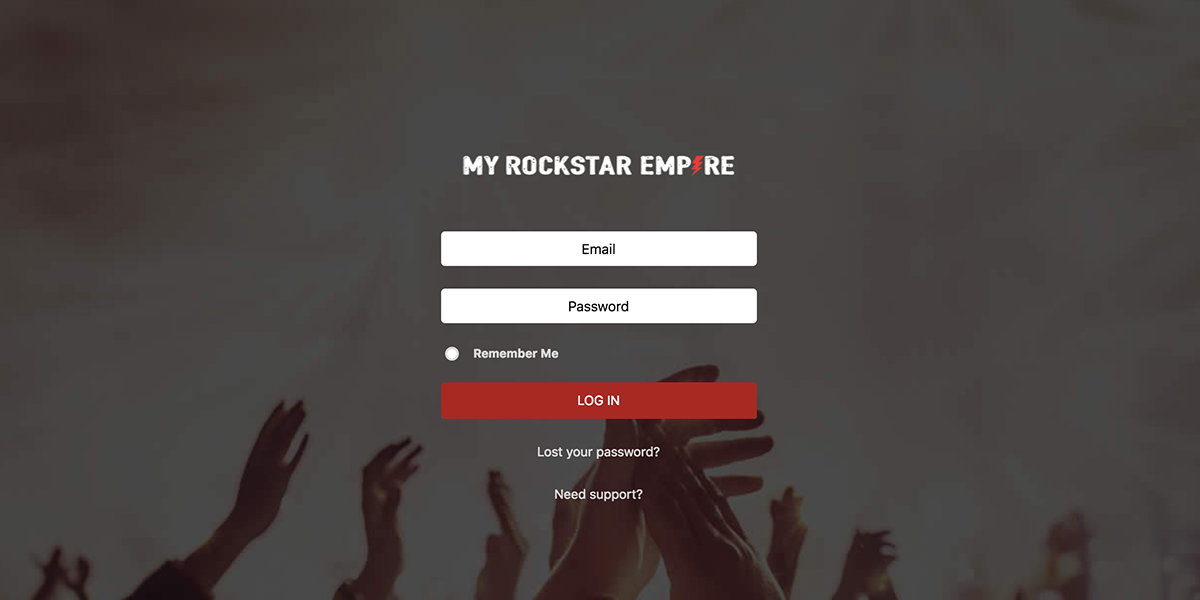
I’ve managed it at a super basic level, but obviously things like placeholders is not “CSS native”
Hi Will,
You could try adding this to the custom css:
background-image: url(‘../images/login-bg1.jpg’);
background-repeat: no-repeat;
background-attachment: fixed;
background-position: center;
This will probably work.
Thanks
Hey @videousermanuals
Where is login-bg1.jpg coming from? That’s not a file/folder I personally have?
Furthermore, having a background image wouldn’t resolve the issue of either having labels, or placeholders.
The problem is, the standard wp-login form is formatted as follows
<label>
    <input>
</label>
So if you then display: none; the form label, that also removes the input box.
I’ve hacked around this with some CSS to remove the labels, however there are no placeholder‘s as part of the standard wp-login form. Even if I used a background-image, that wouldn’t resolve the issue as when a user types in the input box, the “placeholder” would still be there as it’s part of the background, NOT an actual placeholder?
See: https://willstocks.co.uk/ as an example.
Thanks @videousermanuals! No time wasted – a good learning curve for me 🙂
I worked out the JS and CSS I need in my case:
document.getElementById('user_login').placeholder='username';
document.getElementById('user_pass').placeholder='password';
input#user_login,
input#user_pass {
    text-align: center;
}

::-webkit-input-placeholder {
   text-align: center;
   vertical-align: middle;
   opacity: .2;
}

:-moz-placeholder {
   text-align: center;
   vertical-align: middle;
   opacity: .5;
}

::-moz-placeholder {
   text-align: center;
   vertical-align: middle;
   opacity: .5;
}

:-ms-input-placeholder {
   text-align: center;
   vertical-align: middle;
   opacity: .5;
}
Now I just need to work out how to apply it to the wp-login page only and I’m all good 😀
-
This reply was modified 7 years, 3 months ago by
 Will Stocks.
Hi Will,
Hopefully, this javascript will help you out:
https://slack-files.com/T02CBCA9G-FGQKE67LY-34f66dc087
Thanks
All sorted – thanks guys! In the end I went with:
add_action('login_head', 'wpws_custom_login_scripts', 1);
function wpws_custom_login_scripts()
{
    echo '<style>
        input#user_login,
	input#user_pass {
	    text-align: center;
	}

	::-webkit-input-placeholder {
            text-align: center;
            vertical-align: middle;
            opacity: .2;
	}

	:-moz-placeholder {
            text-align: center;
            vertical-align: middle;
            opacity: .2;
	}

	::-moz-placeholder {
            text-align: center;
            vertical-align: middle;
            opacity: .2;
	}

	:-ms-input-placeholder {
            text-align: center;
            vertical-align: middle;
            opacity: .2;
	}
	</style>
	<script>
            document.addEventListener("DOMContentLoaded", function(event) {
                document.getElementById("user_login").placeholder="username";
                document.getElementById("user_pass").placeholder="password";
            })
        </script>';
}
Quick and dirty, but does the trick – thanks for all your help! 😀
Hi Will,
Thanks for sharing this with everyone, hopefully, other people find it helpful.
Cheers