Hello @mjunes,
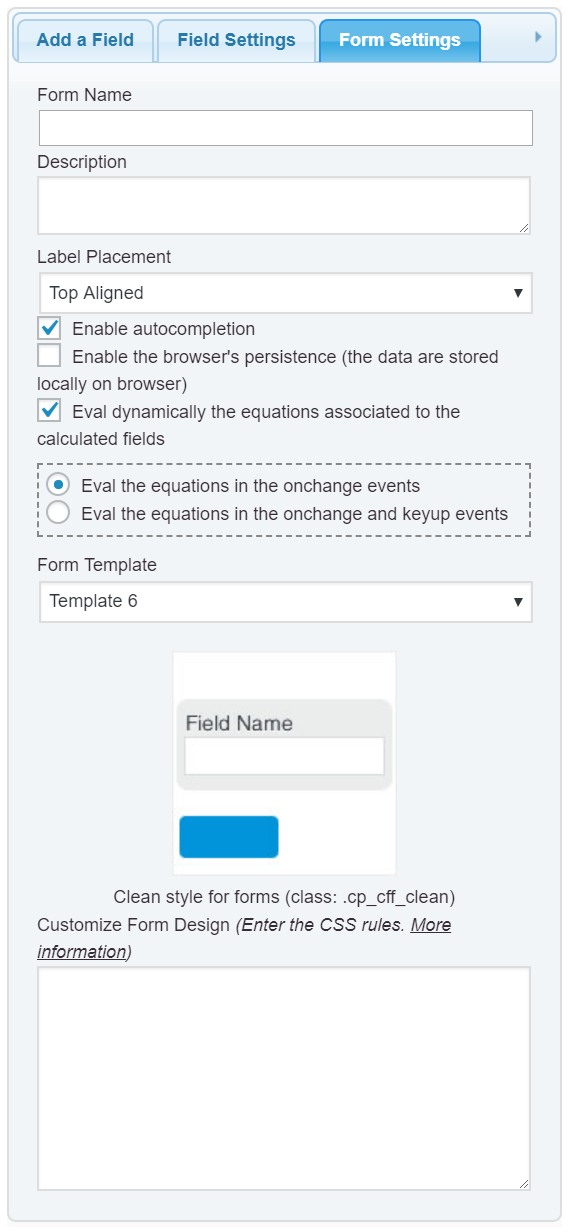
The alternative would be use Flex. Please, enter the following style definition into the “Customize Form Design” attribute in the “Form Settings” tab:
#fbuilder .fields{display:flex;}
#fbuilder label{display:inline-flex;align-items:center;}
Best regards.
Thread Starter
 mjunes
(@mjunes)
Hello,
Thanks for the solution but using this solution makes the labels to ignore text-align: right; property. They get left aligned. Is there anyway I can right align the labels horizontally while still having them center aligned vertically?
It also makes all the slider controls to shrink to the left.
Hello @mjunes,
Could you send me the URL to the webpage, please? Because there are multiple alternatives, but the solution to use depend of the case.
Best regards.
Thread Starter
mjunes
(@mjunes)
Unfortunately I cannot share the url. Please let me know a general solution and I’ll work from there. Thanks for the help.
Hello @mjunes,
There are multiple alternatives, but as you can understand, I cannot customize your form appearance as part of the support service, and even worst, without see your form.
Please, try the following alternative, but if it is not sufficient to your project, I recommend you request a custom coding service from my private website (https://cff.dwbooster.com/customization)
– Assign a custom class name to the field whose label you want centering at middle, for example: centering-label
Note the class names are assigned to the fields through their attributes: “Add CSS Layout Keywords”
– and then define the new style through the “Customize Form Design” attribute in the “Form Settings” tab (https://cff.dwbooster.com/images/documentation/form-settings-tab.png), similar to:
@media screen and (min-width:710px) {
#fbuilder .centering-label>label{line-height: 4em;}
}
Best regards.
Thread Starter
mjunes
(@mjunes)
Thank you. I have achieved it by applying line-height: 4em; to all labels.