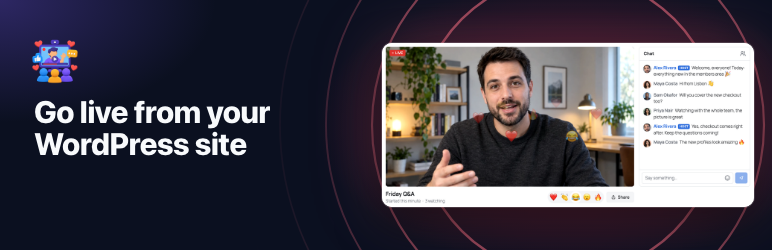

Description
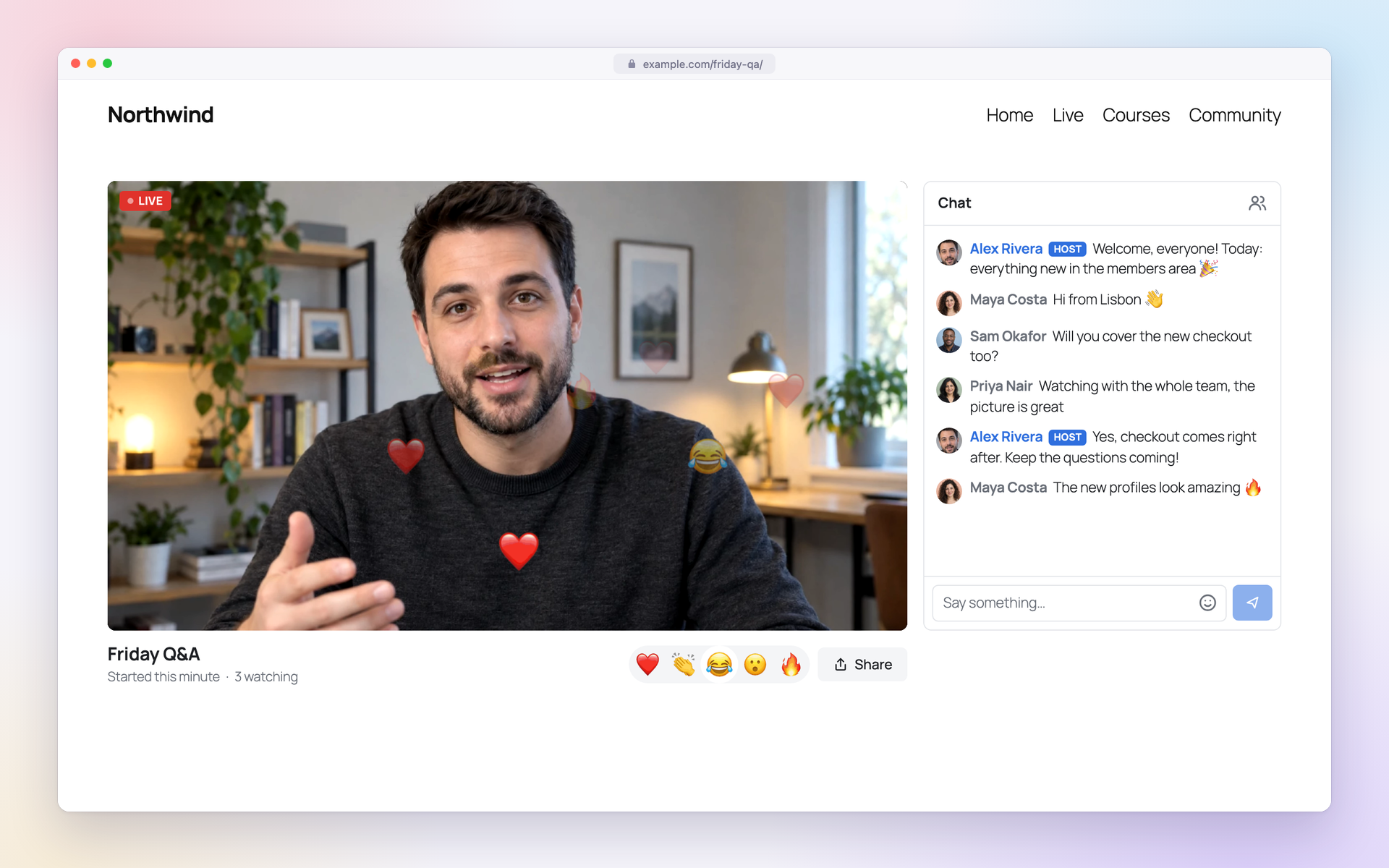
WordPlus Live Stream is a low latency live streaming plugin for WordPress. Go live from your browser with a camera or a shared screen, or stream from OBS, and your audience watches on your own pages about a second behind you, where most streaming services run many seconds late. Close enough for a live Q&A, a class or an auction, with chat and reactions beside the video. Viewers need no app: they watch in the browser, on a computer or a phone.
Use it for live classes and coaching, webinars, events and launches, a weekly show, or streams for members only. The video goes over WebRTC through the servers of WordPlus Cloud, so a stream puts no load on your web server and works with page caching.
Watch the live demo | Documentation | Website
Free to set up, a subscription to go live
Everything on your site works without a licence: streams and their pages, the blocks, the look of the player, and your camera, microphone and screen in the studio. Before you subscribe, start a test stream in the studio and watch it on its page in another tab, as your viewers will. Only you see it, and nothing of it leaves your computer.
Streaming to an audience needs a WordPlus Cloud subscription with live streaming:
- 50 viewers at once on each site are unmetered, however long they watch.
- Above 50, each extra viewer takes one credit a minute. Each WordPress site adds 5,000 credits a month to its WordPlus Cloud account, and more can be bought.
- No stream has a viewer limit.
Viewers and credits explains how they count.
Go live from the browser or OBS
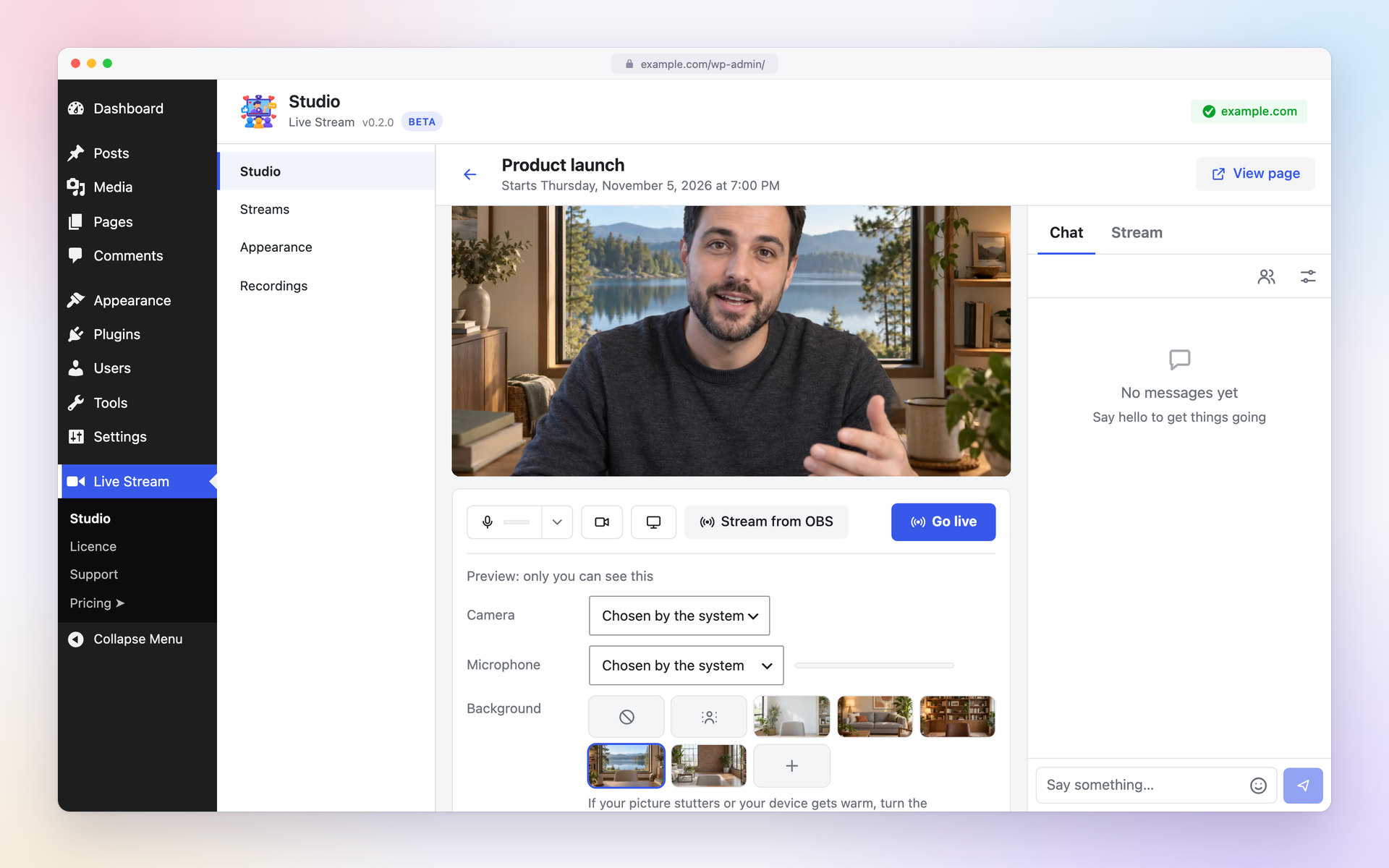
- The studio in your dashboard: choose your camera, microphone and speakers, share your screen with your camera in a corner, turn a phone camera around, and count down 3, 2, 1 before going live.
- Studio effects for hosts: blur the room behind you or put a picture there (one the site offers, or your own where it allows), and take typing and fan noise out of your microphone with AI noise removal. Viewers see and hear the result. It all runs in your own browser, from files an administrator downloads to the site once.
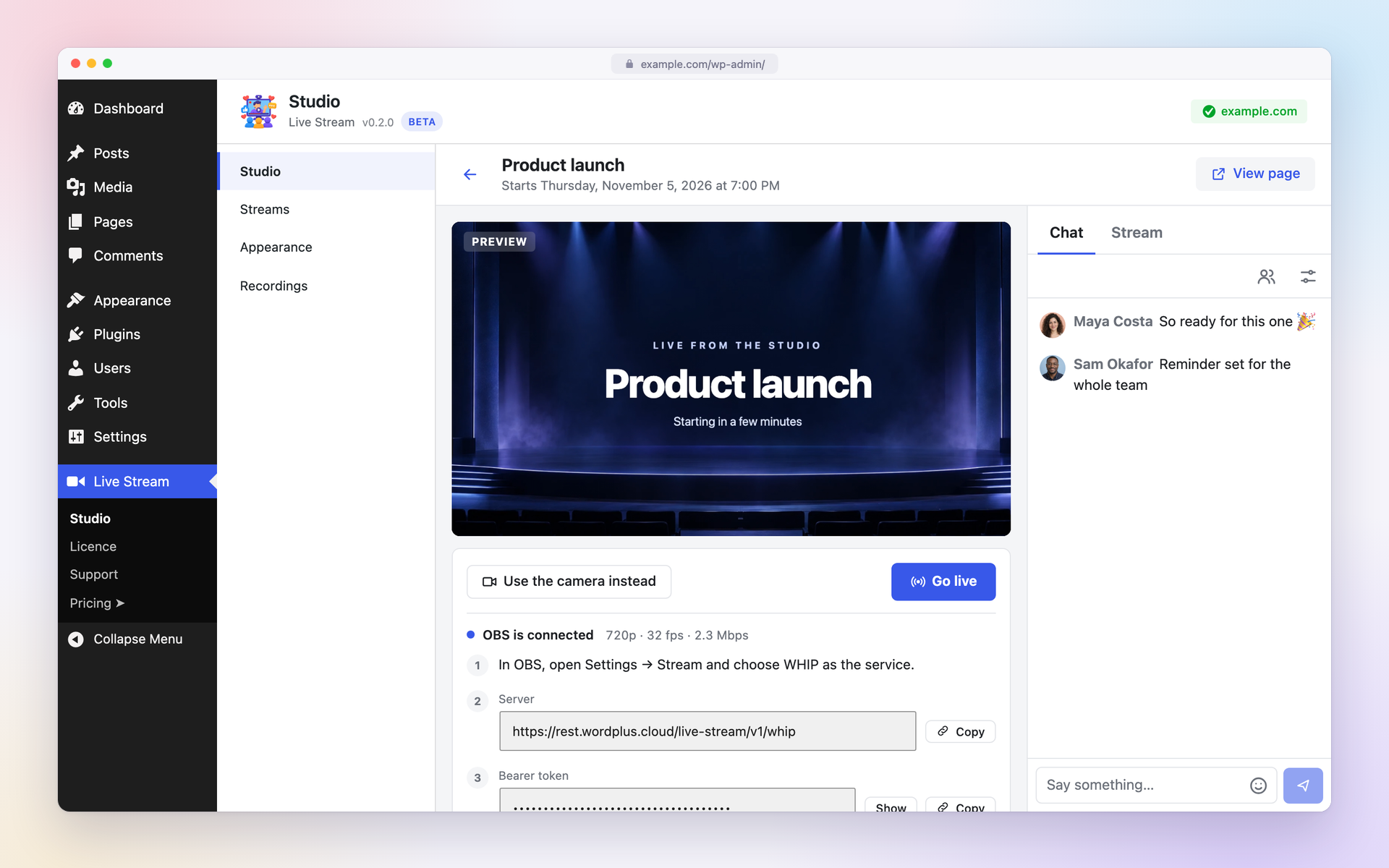
- OBS and other WHIP encoders: enter the server address and stream key from the studio in OBS 30 or later. A stream can go live by itself the moment OBS connects.
- While you are live: time on air, how many people watch and how your video goes out, then a summary when you end. Original sound for music, with no echo or noise removal.
- Scheduled and recurring streams: a countdown and Add to calendar before the start, and a schedule for a weekly show that keeps one page, one OBS key and one chat.
- Recording and replays: record a stream from the studio, or every time it goes live, for a credit a minute. After it ends its page plays the recording, with captions and a transcript.
A player your viewers will enjoy
- About a second of delay. On a weak connection the player buffers a little more so the picture does not freeze.
- Quality that fits each viewer: several sizes up to Full HD, each player taking what its screen and connection can show, or the size its viewer chooses.
- Picture in picture, full screen with the chat, keyboard shortcuts, and announcements for screen readers.
- Made for phones: an upright player for streams from a phone, and full screen with the chat on iPhone and Android.
- It keeps going: it reconnects by itself after a drop, and keeps the sound when a connection is too slow for the picture.
Live chat and reactions
- A light chat for the moment, not saved: names, avatars and roles, emoji, links that open safely, mentions, and visitors writing in it if you allow.
- Or a Better Messages chat room, kept on your site with its history and export, files, GIFs, stickers, moderation and notifications.
- Emoji reactions, any emoji you choose, on or off at any moment, live too.
- Moderation: delete messages, pin one over the chat, slow the chat down, mute, remove or ban someone, and clear the chat. Hosts, moderators and the roles you choose moderate.
- Who is here: the logged-in viewers with their names and avatars, and how many guests.
On any page, in any layout
- The Live stream block shows a stream in a ready layout: the chat beside or below the player, a vertical video, or the player alone. Or place its parts (player, chat, details, studio) in columns, a sidebar or a widget.
- Shortcodes for page builders, such as
[wordplus_stream id="12"]. - What you see in the editor is what visitors get: each block is drawn by the player itself, at every moment of the stream.
- A page in one click for any stream, and block patterns for a live event, a webinar or a vertical stream.
- Live now lists the streams live and coming up, as a list, cards or a small Live badge for your header, updated the moment one goes live or ends.
Your look and your audience
- Your style: a light, dark or automatic theme, your accent colour, font and corners, your logo over the video, a cover before and after, and the reactions you offer, with a live preview.
- Your words: what viewers read before a stream starts, while they wait for the host and after it ends.
- Who watches: everyone, logged-in users only, or the roles you choose. Membership plugins can decide through a filter.
- Your language: every word is translatable.
Live in Better Messages chat rooms
With Better Messages 3.1 or later and its WebSocket version, a stream shows in its chat room like a group video call: viewers watch beside the messages, and hosts go live from the room.
For developers
Let members go live, give groups, courses or events a stream each, and act when streams go live and end, with the PHP functions, hooks, REST routes and JavaScript API of the developer docs.
Learn more
- Getting started
- Streaming from OBS
- Background blur, backgrounds and noise removal
- Recording and replays
- Guides to live streaming on WordPress
Live Stream is in beta: it works, and it still changes. Tell us what you think from Live Stream Support.
External services
Live Stream is the WordPress side of a service: WordPlus Cloud, run by WordPlus, carries the live video, the chat and the reactions. Without it nothing can be streamed or watched. Its terms of service: https://www.wordplus.cloud/terms, its privacy policy: https://www.wordplus.cloud/privacy
From the browsers of the people on a stream
- Opening a stream (a page with any of its blocks or shortcodes, or its studio): the browser sends WordPlus Cloud (rest.wordplus.cloud) a grant your site signed. It holds the IDs of your site and the stream, the role of the person and what they may do in the stream, and the address of your site as the page origin. For a logged-in person it also holds their user ID on your site, their display name and their avatar URL, so they can be shown in the chat, and the language of their WordPress profile. The browser then connects to the chat servers of the cloud (ws.wordplus.cloud) and, once there is video, to its media servers (rtc.wordplus.cloud).
- Taking part: the chat messages and reactions a person sends, and for hosts the video and sound they broadcast (camera, microphone or screen). The cloud passes them on to the other viewers of the stream.
- How the stream plays: each player reports how the stream plays for that person, such as when the picture froze, the video lost on the way and how long the player waits. The cloud keeps these reports a week, to find why a stream stutters.
- The Live now list (the Live now block or
[wordplus_stream_live]): the browser of anyone who opens a page showing it asks the cloud for the live streams of your site, sending the ID of your site, and stays connected to hear when one goes live or ends. - As with any web service, the cloud also sees the IP address and browser of everyone who connects to it.
Nothing is sent for visitors of pages that show neither a stream nor the Live now list.
From the encoder of a host
- Streaming from OBS: the encoder sends its video and sound to the cloud (rest.wordplus.cloud) with the key of the stream, which the studio shows to hosts only.
From your site, for plugins built on Live Stream
- Where a plugin asks which streams are live, or listens for streams going live and ending, your site asks the cloud for its live streams, sending the ID of your site, at most every 15 seconds, and once a minute while a plugin listens.
- The cloud tells your site the moment a stream goes live or ends, at the address of your site (the route of the WordPlus SDK, signed with the key of your site), with the ID of the stream, when it went live and ended, and how many watched it.
- Where a plugin listens for who watched, the grants of logged-in people ask the cloud to tell your site, the same way, when each of them starts and stops watching a live stream, with their user ID on your site and how long they watched. Nothing is told of visitors who are not logged in.
From your site, when an administrator acts, or on a schedule for a site with a licence (WordPlus Cloud, api.wordplus.cloud and rest.wordplus.cloud)
- Streaming check: when an administrator opens a screen of Live Stream, or chooses Check again on its licence label, the site asks WordPlus Cloud (rest.wordplus.cloud) whether it may stream, at which quality, and the credits left. It sends a grant naming the site by its ID, signed with its secret and valid for a minute, nothing about people. A site with no licence sends nothing. While credits are used up, WP-Cron asks again a minute later, then hourly, until they are back (a week at most). The build from WordPlus Cloud asks through the WordPlus SDK (/wordplus/realtime/usage), signed with the site key.
- Activating the licence: when an administrator enters the key on Live Stream Licence, the site sends it with the site address, the plugin name and version and a random site identifier, and gets back a site key and secret, which sign the grants above.
- Licence check: once a licence is saved, the site checks it daily, sending its site key (or, before it has one, the licence key and site address) and the plugin version.
- Pricing: when an administrator opens Live Stream Pricing, the site asks WordPlus Cloud for its plans and prices in the language of the admin, sending the plugin name and that language, and keeps them an hour.
- Contact form: Live Stream Support sends what the administrator writes, any files they attach, and the site details listed on the form (WordPress, PHP and plugin versions, the theme, the active plugins), only when they press Send.
- Usage data, only if an administrator opts in: nothing is sent before Allow & Continue. Then it sends WordPlus Cloud (api.wordplus.cloud) their name and email (for update emails once confirmed, news only if ticked), a random site identifier, the site address, title, language, time zone and WordPress, PHP and plugin versions, and its plugins and themes unless unticked: weekly, on each change and on deactivation or deletion. Opt out on Live Stream Licence.
- Deactivation feedback: deactivating may ask why. Skip & Deactivate sends nothing. Submit & Deactivate sends the reason, anything written, the plugin version and whether it was installed in the last three days, without name or email unless usage data is shared and Anonymous feedback unticked.
- Emoji styles: the Appearance tab of Live Stream Studio shows a sample of each emoji style from WordPlus Cloud (cdn.wordplus.cloud). The images of a style other than the native one are downloaded to the site once, when an administrator chooses it, and visitors then load them from the site itself. Nothing about the site or its visitors is sent.
- Studio effects: their files come from WordPlus Cloud (api.wordplus.cloud, through its CDN at cdn.wordplus.cloud) only when an administrator presses Download under Live Stream Appearance Studio effects, never by themselves. The background effects are about 5.4 MB (a JavaScript engine, the WebAssembly runtime of Google MediaPipe and two person segmentation models), AI noise removal about 12.1 MB (a JavaScript engine, the WebAssembly runtimes of DeepFilterNet3 and GTCRN and the DeepFilterNet3 model). Each download is checked against the SHA-256 checksum this version names and unpacked into the uploads folder, which serves the files to hosts. Once the background effects are here, that section reads the list of built-in pictures from there, and each one comes only when an administrator picks it, checked the same way. After an update that needs newer files, the administrator is asked to download them again. Only the requests for these files are sent, no personal data.
- Recordings, where WordPlus Cloud offers recording to the site and a host records a stream: the cloud records the stream as viewers see it, with a transcript in the language of the profile of each speaker, and the site fetches the files into its uploads or its storage. The start sends the ID of the stream, the recording settings, the accent colour and logo URL of the player and the names and avatar URLs of the hosts. The cloud keeps its copies seven days at most.
- Cloud storage, only when an administrator connects one (Cloudflare R2, Bunny.net, Amazon S3 or S3-compatible): the site keeps and deletes recordings in that account, and they are watched from there through links that expire. Its own terms apply.
Like every request WordPress makes, those from your site carry its address.
Add to calendar
Before a scheduled stream, a visitor may add it to their calendar. Choosing Google Calendar opens a Google page with the title of the stream, its time and its link. Choosing the other option saves a calendar file made in the browser, which sends nothing. Terms of Google: https://policies.google.com/terms, its privacy policy: https://policies.google.com/privacy
Screenshots

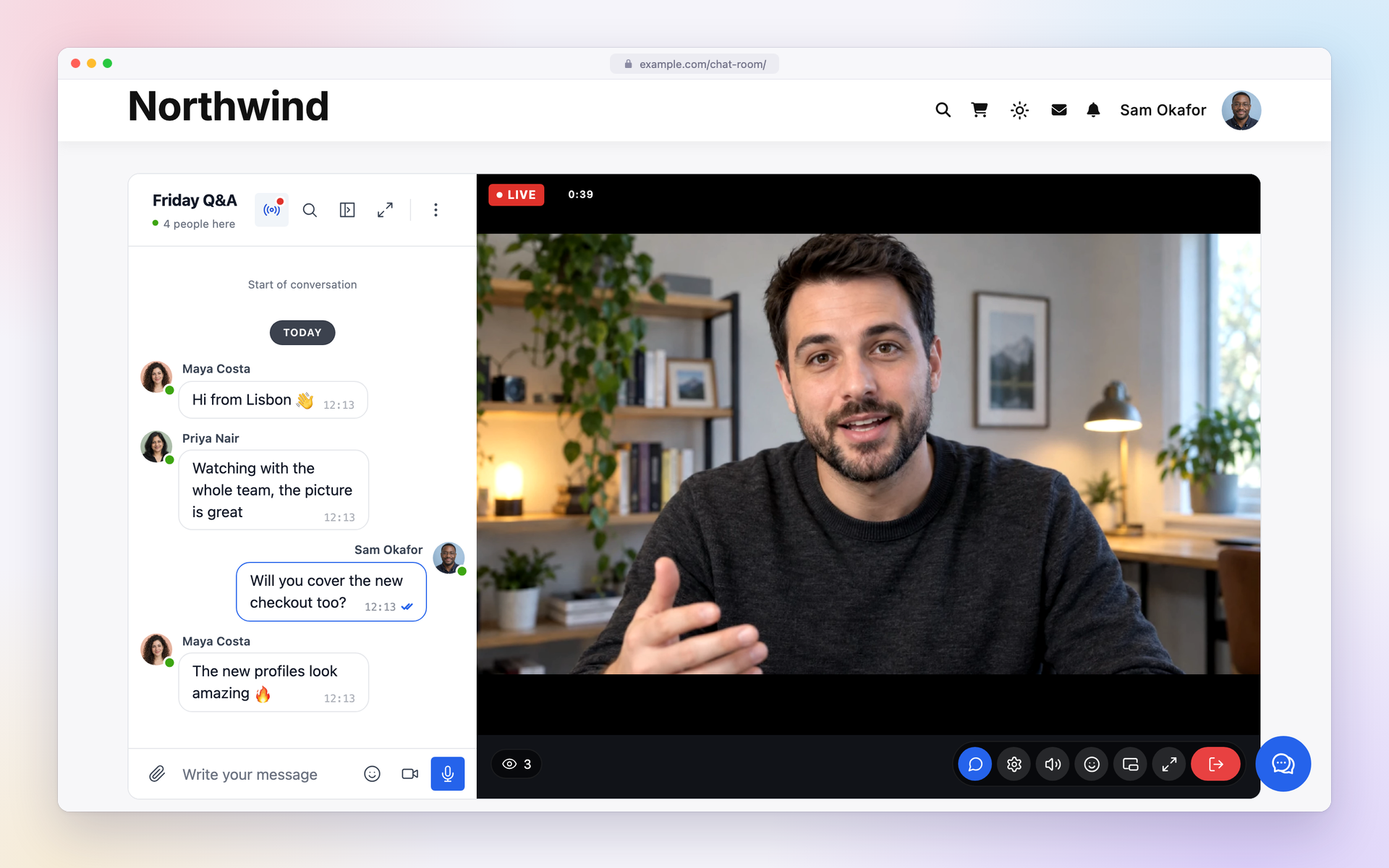
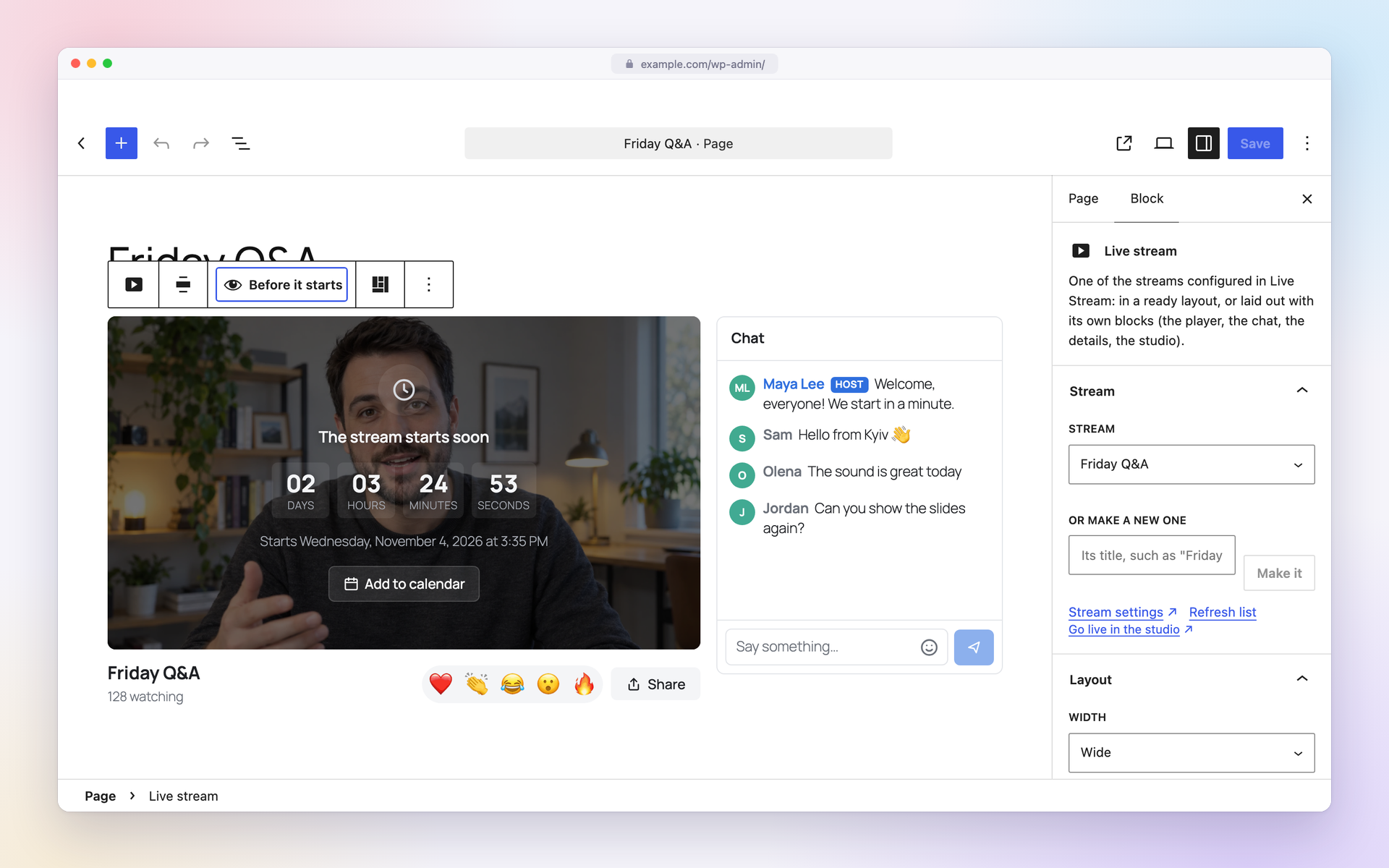
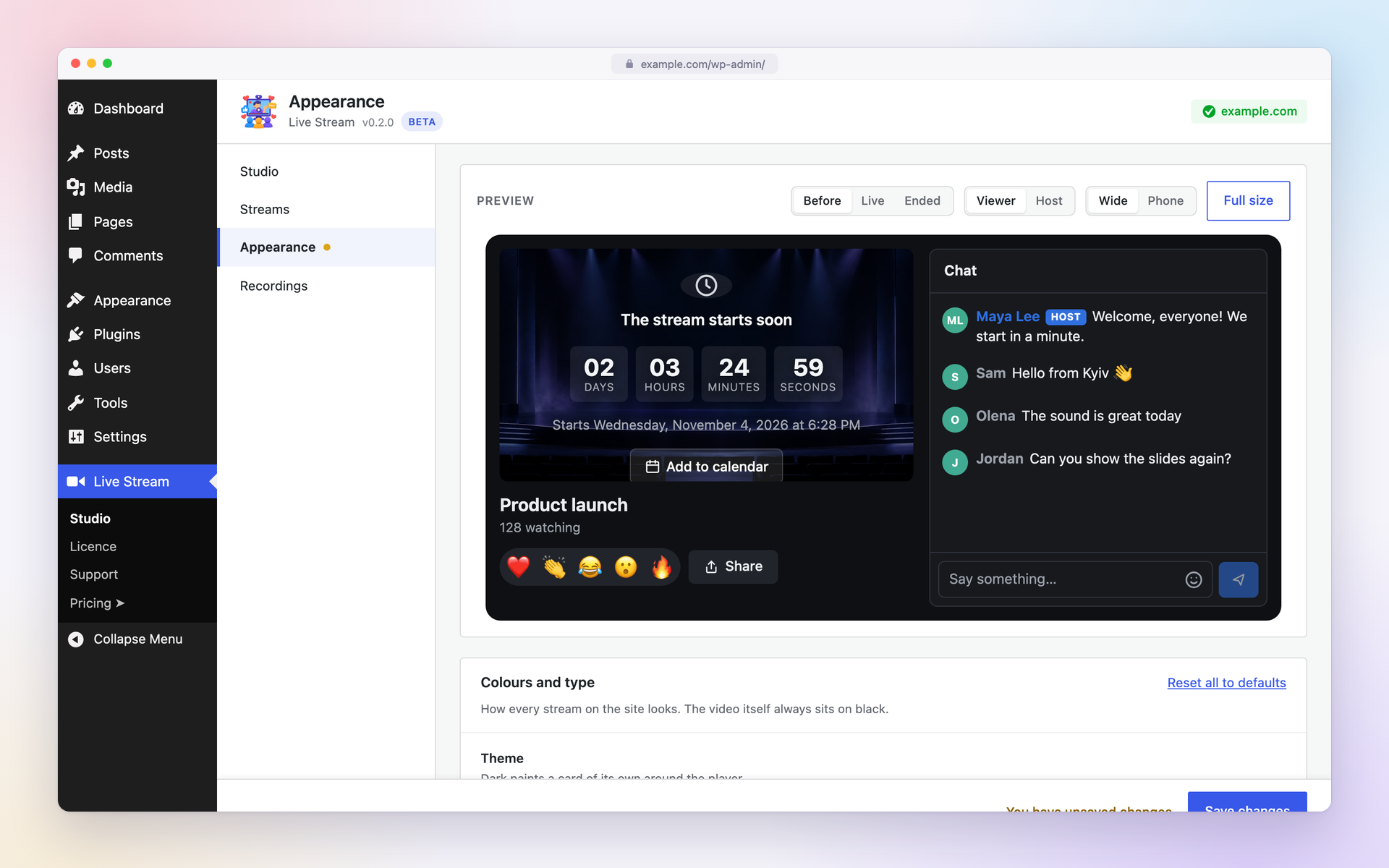

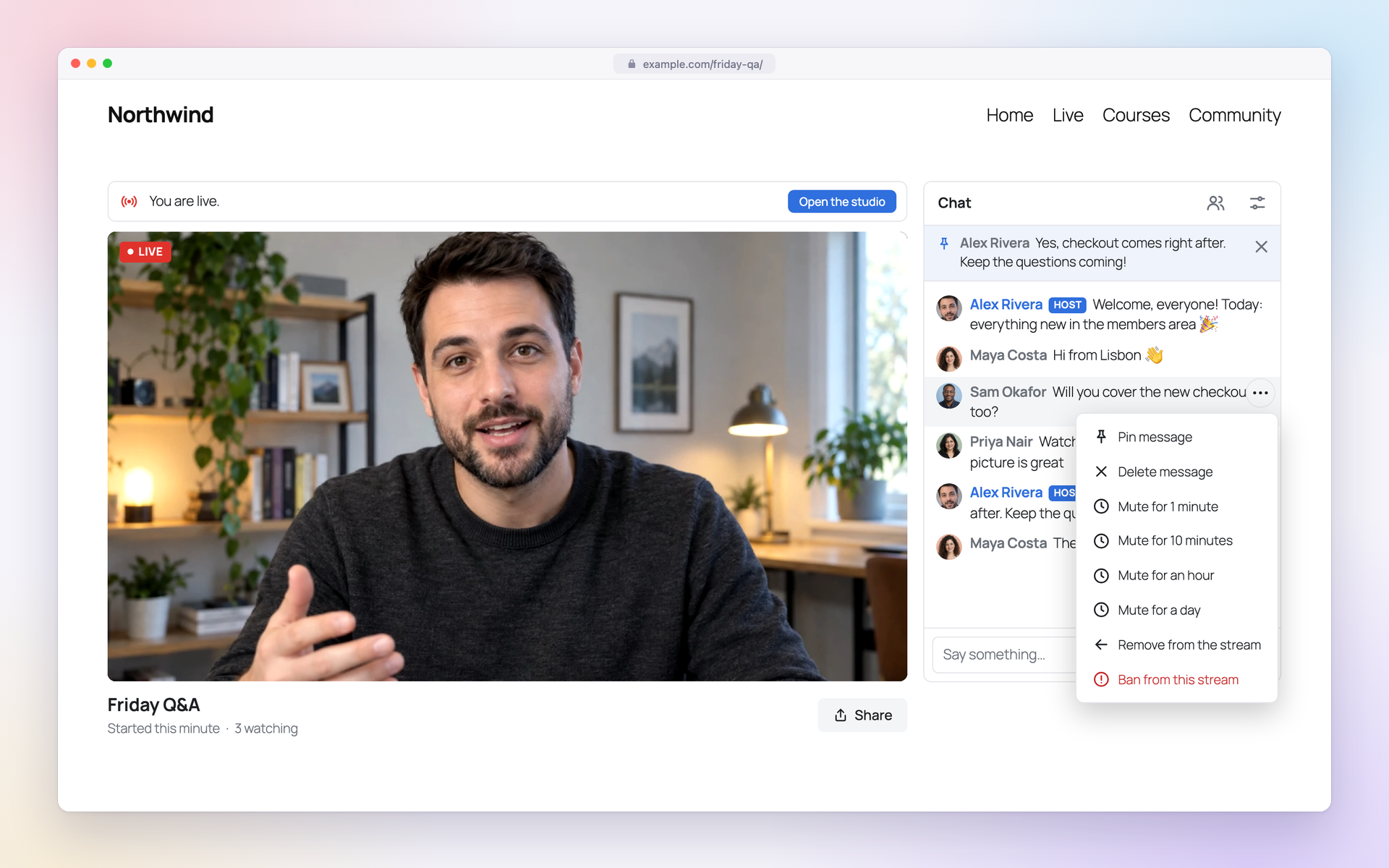
Blocks
This plugin provides 6 blocks.
- Stream chat The chat of the stream, with its moderation. As tall as the player beside it, or as tall as you set.
- Live now The streams of the site that are live right now, and those coming up, each linking to the page that shows it. As a list, as cards, or as a small Live badge for a header or a menu.
- Stream studio The controls for going live from this page: camera, microphone, screen, OBS and guests. Only the hosts of the stream see it.
- Stream details The title of the stream, when it started and how many watch, with reactions, sharing and asking to join the stage.
- Stream player The picture of the stream with its controls, the countdown before it starts and the screen after it ends.
- Live stream One of the streams configured in Live Stream: in a ready layout, or laid out with its own blocks (the player, the chat, the details, the studio).
Installation
- In your WordPress admin, go to Plugins Add New Plugin, search for “WordPlus Live Stream”, then install and activate it.
- Go to Live Stream Licence and enter your WordPlus Cloud licence key, or see the plans under Live Stream Pricing. A site that already runs another WordPlus plugin on the subscription, such as Better Messages, is connected already.
- In Live Stream Studio, open the Streams tab, create a stream, and choose who watches and its chat.
- Choose “Create a page” beside the stream, or add the Live stream block to any page and choose the stream in it.
- Open the stream in Live Stream Studio and press Go live, or choose Stream from OBS.
The getting started guide walks through each step.
FAQ
-
How do I live stream on my WordPress site?
-
Install WordPlus Live Stream, connect your WordPlus Cloud licence under Live Stream Licence, and create a stream on the Streams tab of Live Stream Studio. Choose “Create a page” beside it, or add the Live stream block to a page of your own. Then open the stream in the studio and press Go live. The getting started guide shows each step.
-
Can I stream from OBS? Does it take RTMP?
-
Yes to OBS, from OBS 30 or later, and from any encoder that streams over WHIP. In the studio, choose “Stream from OBS”. It gives a server address and a key to enter in OBS, under Settings Stream with the service “WHIP”. Start streaming in OBS, check the picture in the studio, then go live. Only the hosts of the stream see its key, and making a new one cuts off an encoder using the old one. RTMP is not supported yet. See Streaming from OBS for the best OBS settings.
-
How many viewers can watch, and what does it cost?
-
The plugin is free. Streaming to an audience needs a WordPlus Cloud subscription with live streaming. Each site streams to 50 viewers at once unmetered, however long they watch. Each viewer above that takes one credit a minute, and each site adds 5,000 credits a month to its account. For example, a one-hour stream with 100 viewers at once takes 3,000 credits: 50 viewers above the unmetered 50, for 60 minutes. Hosts are not counted, and a stream has no viewer limit. See the plans and pricing.
-
Can I try live streaming before I subscribe?
-
Yes. Everything on your site works without a subscription. In Live Stream Studio, turn on your camera and choose Start a test stream, then Watch it as viewers do. The page of the stream opens in another tab of the same browser and shows your stream as your viewers will see it, with its chat. Only you can see a test stream, and nothing of it leaves your computer. To go live for everyone, connect the site to WordPlus Cloud.
-
How much delay is there?
-
About a second on a good connection. Live Stream uses WebRTC, the technology of video calls, rather than the HLS of most streaming services, which runs many seconds behind. On a connection that loses some video, the player holds up to three seconds so the picture does not freeze, and comes back down once the connection is steady. The sound stays with the picture, and the chat and reactions arrive at once.
-
Can viewers watch on phones? Can I go live from a phone?
-
Yes to both. Viewers watch in the browser on phones and tablets, with full screen and the chat. Hosts can go live from the studio in a phone browser too, and turn the camera around. For a stream from a phone, choose the vertical layout.
-
Will streaming slow down my site? Where does the video go?
-
No. The video, the chat and the reactions travel between the browsers and the servers of WordPlus Cloud, never through your web server. Your site serves the page and signs who may join. The live video is not stored on your site.
-
Does it work with page caching?
-
Yes. The page of a public stream carries everything a viewer needs to join, so a cached page works and does not call WordPress for every viewer.
-
Can I make a stream for members only?
-
Yes. Each stream chooses who watches: everyone, logged-in users only, or the roles you choose. A membership plugin that gives its members a role works with that, and any plugin can decide through the
wordplus_stream_can_watchfilter. -
Is there a live chat? Can I moderate it?
-
Yes. Each stream chooses its chat: a light chat for the moment, a Better Messages chat room that keeps its history, or none. Hosts and moderators delete messages, pin one, slow the chat down, mute, remove or ban someone, and clear the chat. Visitors who are not logged in read it, and write in it if you allow.
-
Does it work with Better Messages?
-
Yes. A stream can use a Better Messages chat room as its chat, beside the stream and in the studio. With Better Messages 3.1 or later and its WebSocket version, the stream also shows in that room the way a group video call does, opening by itself while it is live, and hosts go live and end it from the room. The room editor of Better Messages starts and stops the stream of a room.
-
Can I record a stream?
-
Yes. A host records a stream from the studio, or has it record every time it goes live, for a credit a minute. The recording shows the stream as its audience saw it, and only the hosts see REC while it records. After the stream ends, Watch the recording on its page plays it with captions and a transcript, to those the site lets see recordings. Administrators find every recording on the Recordings tab of Live Stream Studio, where recordings can also go to cloud storage of your own, and the recordings of each stream on its page in the Streams tab. See Recording and replays.
-
Yes. The Stream chat block, or
[wordplus_stream_chat id="12"], goes anywhere, a sidebar or a widget too. Every block has a shortcode:[wordplus_stream id="12"]takes alayout(side,below,playerorvertical), and the parts are[wordplus_stream_player],[wordplus_stream_chat],[wordplus_stream_details]and[wordplus_stream_studio], each with theidof the stream. They work in page builders, widgets and templates, and the parts on one page share one connection. -
How do I show which streams are live?
-
Add the Live now block, or the
[wordplus_stream_live]shortcode. It lists the streams live right now, each with how many watch and a link to its page, and changes the moment one goes live or ends. Withshow="upcoming"orshow="both"it lists the streams coming up too, withdisplay="cards"as cards with their covers, and withdisplay="badge"as a small Live badge for a header. -
Who can go live? Can my members go live?
-
Administrators host every stream, from Live Stream Studio, or from the stream page with the Stream studio block or
[wordplus_stream_studio id="12"], which only they see. Another plugin can let its members go live in streams of their own, from its own pages, as the developer docs describe. -
Only what a stream needs: who may join and what they may do, and for logged-in people their display name and avatar, to show them in the chat. WordPlus Cloud sees the IP address and browser of everyone who connects, as any web service does, and keeps the reports of how a stream plays for a week. Every detail is under External services below, and in the WordPlus Cloud privacy policy.
-
Can I translate it?
-
Yes. Every word of the plugin is translatable with WordPress translations, on translate.wordpress.org or with a translation plugin. Its text domain is
wordplus-live-stream. -
Can my plugin give its groups, courses or events a live stream?
-
Yes, the way Better Messages shows a stream in its chat rooms.
wordplus_streams()->create()makes a stream for a member or for something of your plugin, andrender()shows it, or a part of it, on your pages. Thewordplus_stream_can_host,wordplus_stream_can_watch,wordplus_stream_can_chatandwordplus_stream_can_moderatefilters decide who does what, and thewordplus_stream_liveandwordplus_stream_endedactions tell you when a stream goes live and ends. In the browser,wordplusStreamsshows streams and makes one from a Go live button. These names stay whatever the plugin is called. The developer docs describe each, with two complete example plugins.
Reviews
There are no reviews for this plugin.
Contributors & Developers
“WordPlus Live Stream – Low Latency Streaming” is open source software. The following people have contributed to this plugin.
Contributors
Translate “WordPlus Live Stream – Low Latency Streaming” into your language.
Interested in development?
Browse the code, check out the SVN repository, or subscribe to the development log by RSS.
Changelog
The versions up to 0.1.9 were betas, offered from WordPlus Cloud before Live Stream came to WordPress.org. The newest are below, and every change of the betas is on the full changelog.
0.2.0
- The first version on WordPress.org.
- A test stream without a subscription. Start it in the studio and watch it on the page of the stream in another tab of the same browser, as your viewers will see it. Only you can see it, and nothing of it leaves your computer.
- Background blur, background pictures and AI noise removal for hosts, in the studio and in a Better Messages chat room. An administrator downloads them under Appearance Studio effects.
- Recording and replays: record a stream from the studio, or every time it goes live, for a credit a minute. The recording shows the stream as its audience saw it, only its hosts see REC, and its page plays it with captions and a transcript after it ends. Administrators find every recording on the Recordings tab of Live Stream Studio, where cloud storage can keep them, and the recordings of a stream on its page in the Streams tab.
- While the credits of your account are used up, a notice says so on the Dashboard, the Plugins screen and the screens of Live Stream, until they are back.
- The build from WordPress.org and the build from WordPlus Cloud can both be installed on one site. The second stays inactive and says which one runs, and deleting one keeps the streams and settings for the other.
- The CSS classes of the player, the chat and the studio start with
wplus-live-stream-in place ofestream-. Check any CSS of your own that styles them. - The licences of the code a script bundles are at the top of that script.
- For developers:
wordplus_streams()->config()gives the hosts of a stream its config on a site without a licence too, for a test stream.
0.1.9
- Every picture a host sends goes out in several sizes, so each viewer gets the size their connection can take. As the stream goes live, the camera is checked and sends in H.264 when the computer keeps up with it, then VP9, then VP8.
- On a good connection a viewer waits one second for the picture, and on a connection that loses video on the way up to three seconds, so the picture freezes less. It comes back down after five minutes without trouble, and the sound stays with the picture. The player Statistics show each change as Buffer.
- The player tells WordPlus Cloud how the stream plays for each viewer, so a stream that stutters can be traced to the host, the servers or the viewer.
- The round trip in the player Statistics is that of the connection the player is using.
- The words of the player, the admin and the blocks are translated with each word written out in the PHP of the plugin, as WordPress.org asks.
0.1.8
- Viewers who come back to a stream from another tab or a minimized window see the picture move at once, not a few seconds later. While the page is hidden, a computer keeps receiving the picture at its smallest size, and it is sharp again within seconds of coming back. A phone or tablet, a stream with 50 viewers or more, and a picture sent without a small size, such as one from OBS, pause it as before. WordPlus Cloud sets the number of viewers, and pages already open follow it.
0.1.7
- The Pricing page buys the plan at the checkout of Live Stream, not of Better Messages.
- On the Pricing page, the number of viewers has an icon of its own.
0.1.6
- Full screen on a computer fills the browser window, not the whole screen. Escape or the button leaves it.
- On an iPhone, Full screen fills the window with the player controls and the chat, not the iPhone video player with the picture alone.
- On a phone in full screen, the picture takes the whole width, with the chat under it when held upright and beside it when held sideways. Hide chat gives the picture the whole screen.
- Hide chat and Show chat on the player also work for a Chat block of its own, on the page and in full screen. In a Row, the player then takes the whole width.
- After a stream ends in full screen, Exit full screen stays on the screen.
- A Better Messages chat room beside the stream opens and closes again on a phone.
0.1.5
- A schedule for a stream that goes live again and again, like a weekly show. Plan its times, each with a title of its own if you like, add a time a day after the last, or repeat them weekly. It keeps one page, one OBS key and one chat. Viewers see the countdown to the next time with its title, and after a time ends, the thanks with the next time under them.
- An automation can plan the times of a stream over REST, signed in with an application password.
- The logo keeps its place and size on the picture in every player, at any size and in full screen. Before going live, drag and size it over your own camera or screen in the studio. Check the place of your logo after updating.
- An ended stream no longer hides a start planned after it.
- The studio says when OBS stopped sending, and that the stream ends by itself after 5 minutes unless OBS comes back.
- On Auto, a viewer of OBS sending two layers gets the layer their player needs, not always the largest.
- A viewer whose connection is too slow for the picture keeps clear sound. The player says so over the last picture and tries the picture again by itself, or at once with Try again.
- Without a licence, everything on the site works. The studio sets up the camera, microphone and screen, with Connect to go live in place of Go live.
- An Upgrade page with the plans of WordPlus Cloud.
- The admin works on a phone, and a player and chat side by side wrap on a phone.
- A Better Messages chat room beside the stream is as tall as the picture in full screen.
- Named WordPlus Live Stream.