Description
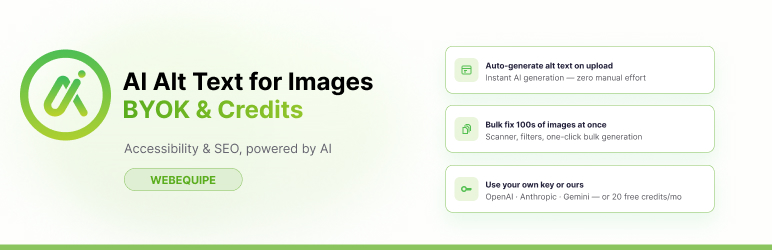
WebEquipe AI Alt Text for Images – BYOK & Credits connects your WordPress media library to leading AI vision models to generate accurate, WCAG-friendly alt text for your images automatically.
Key features:
- Two generation modes: Bring Your Own Key (BYOK) or WebEquipe Credits
- Supports OpenAI (GPT-4o, GPT-4o-mini), Anthropic (Claude), and Google Gemini
- WebEquipe Credits — generate without an AI provider key using your monthly credit balance
- Background queue processing — never blocks your admin
- Bulk generation with credit cost preview for your entire media library
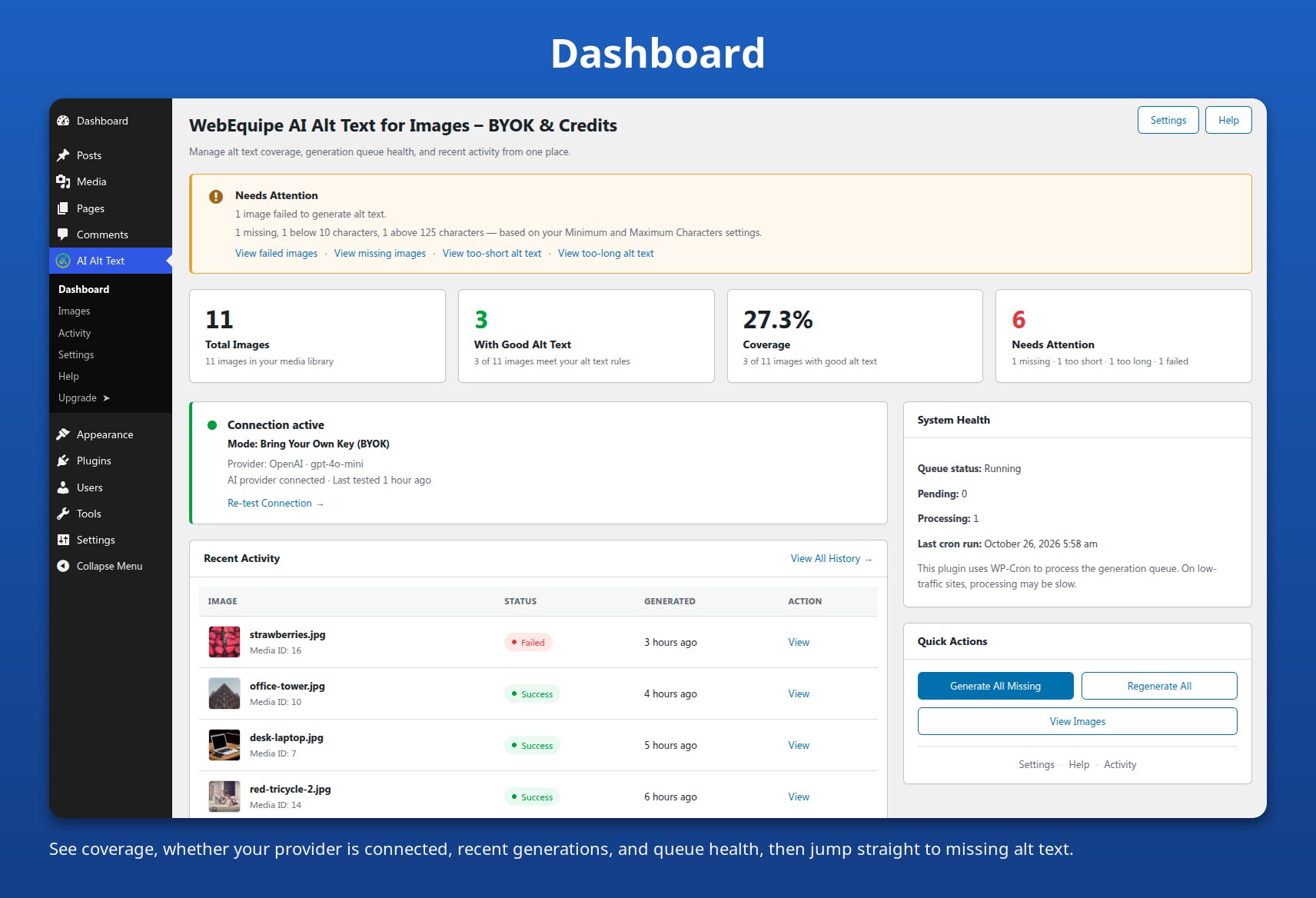
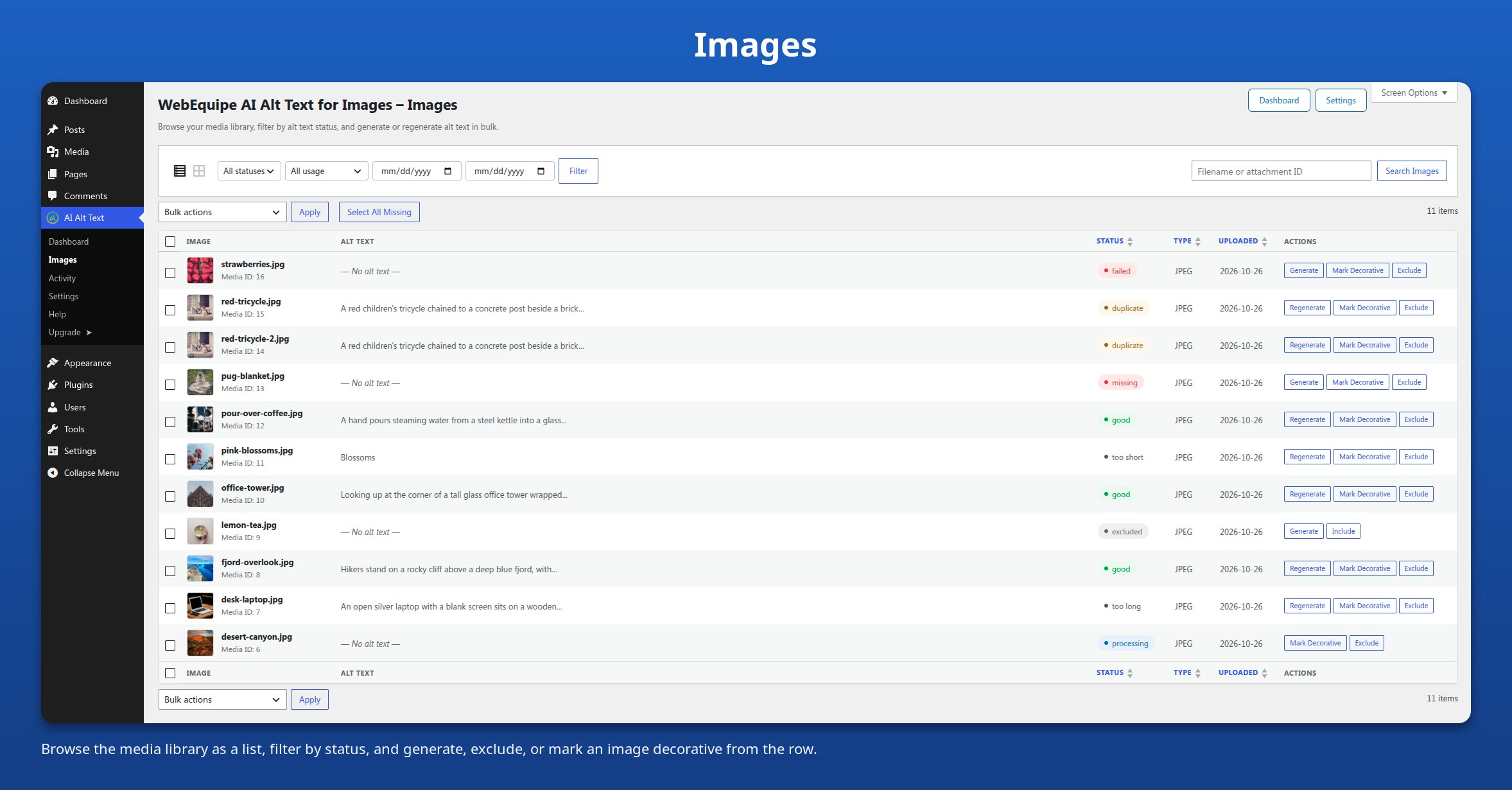
- Status tracking — Missing, Too Short, Too Long, Duplicate, Good, Failed, Excluded
- Auto-generate on upload
- Skip patterns to exclude specific image types
- Undo support — restore previous alt text instantly
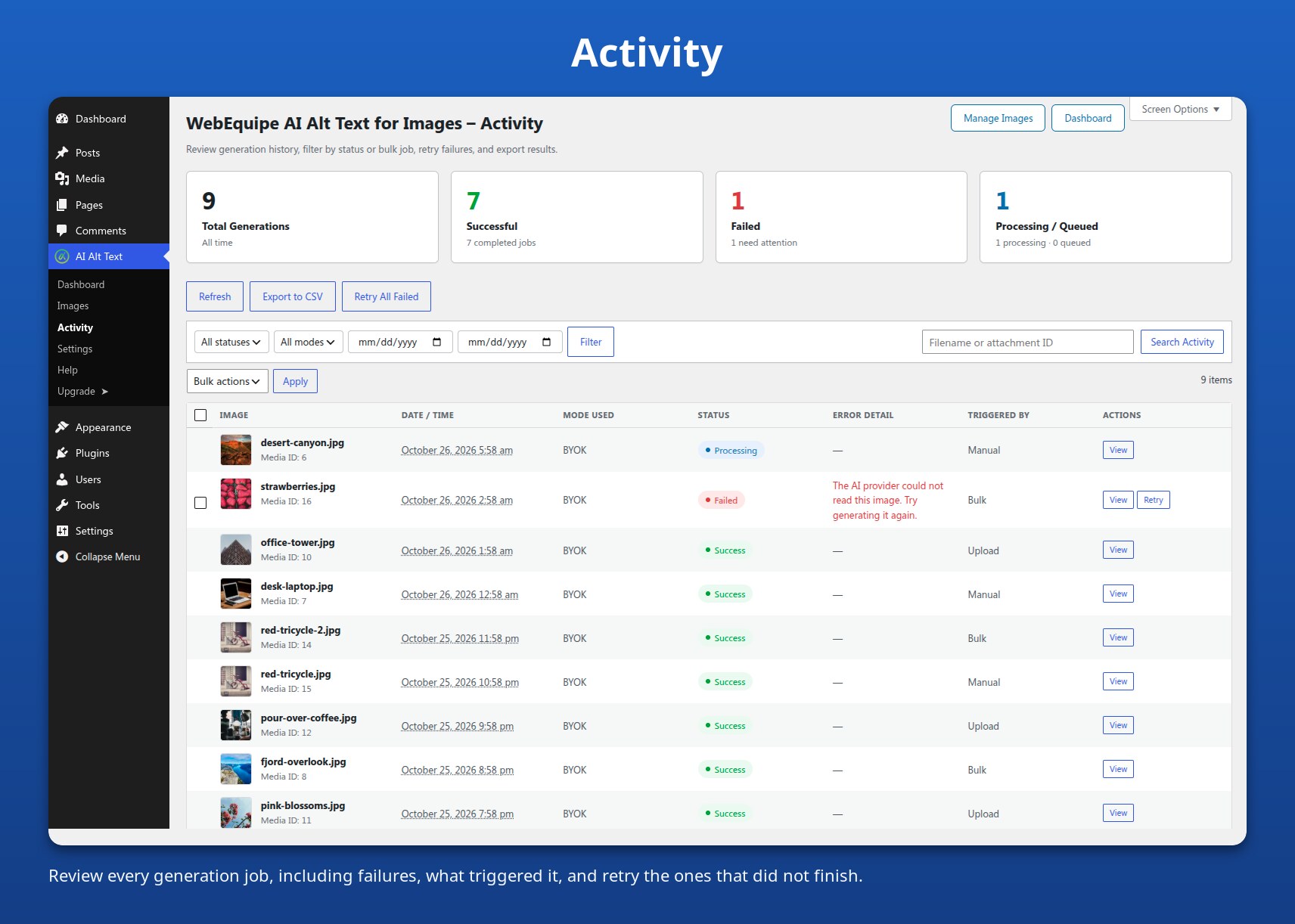
- Activity log — full history of all generation jobs
Getting Started
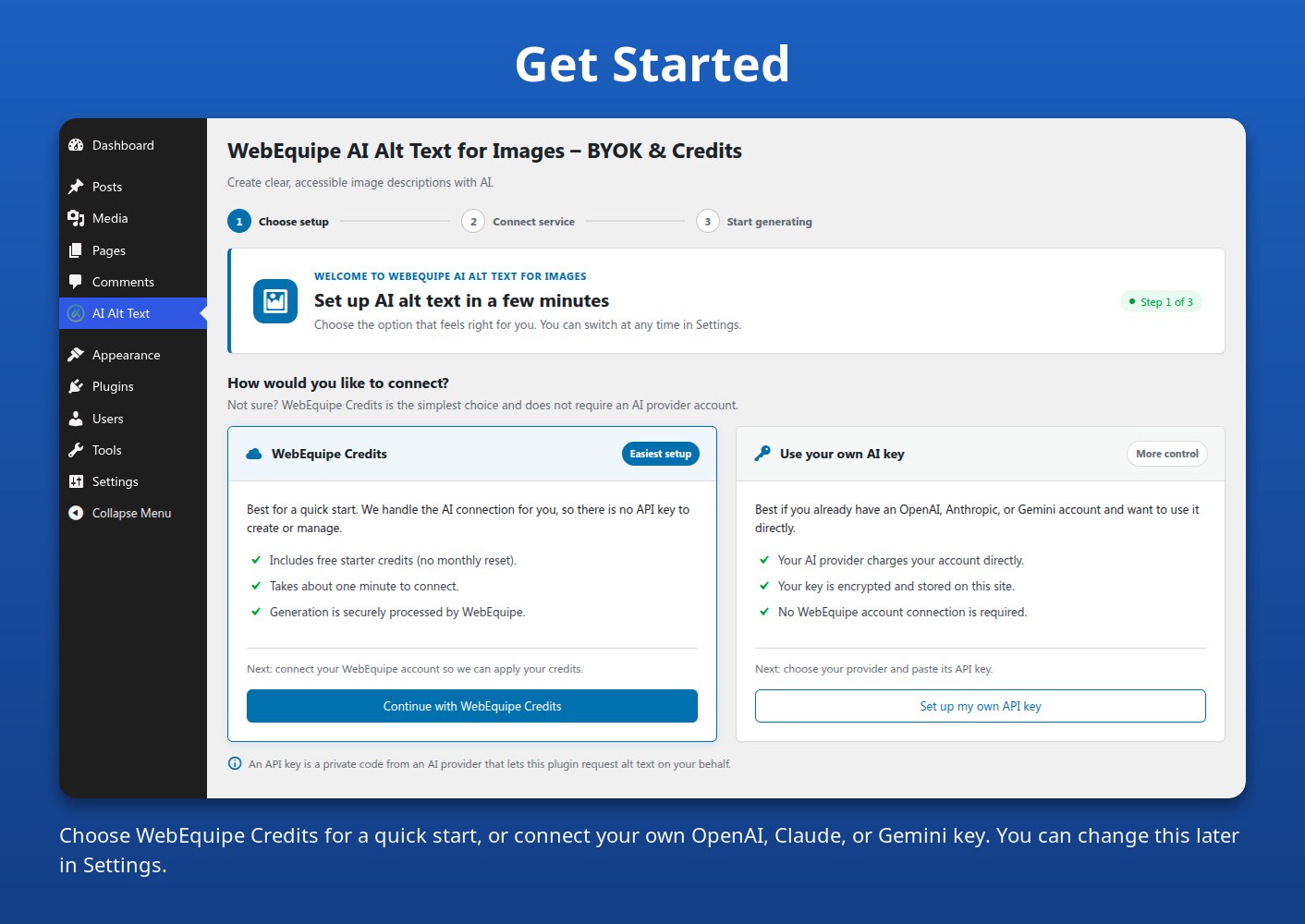
- After activation you land on the Dashboard mode chooser.
- Pick BYOK or WebEquipe Credits.
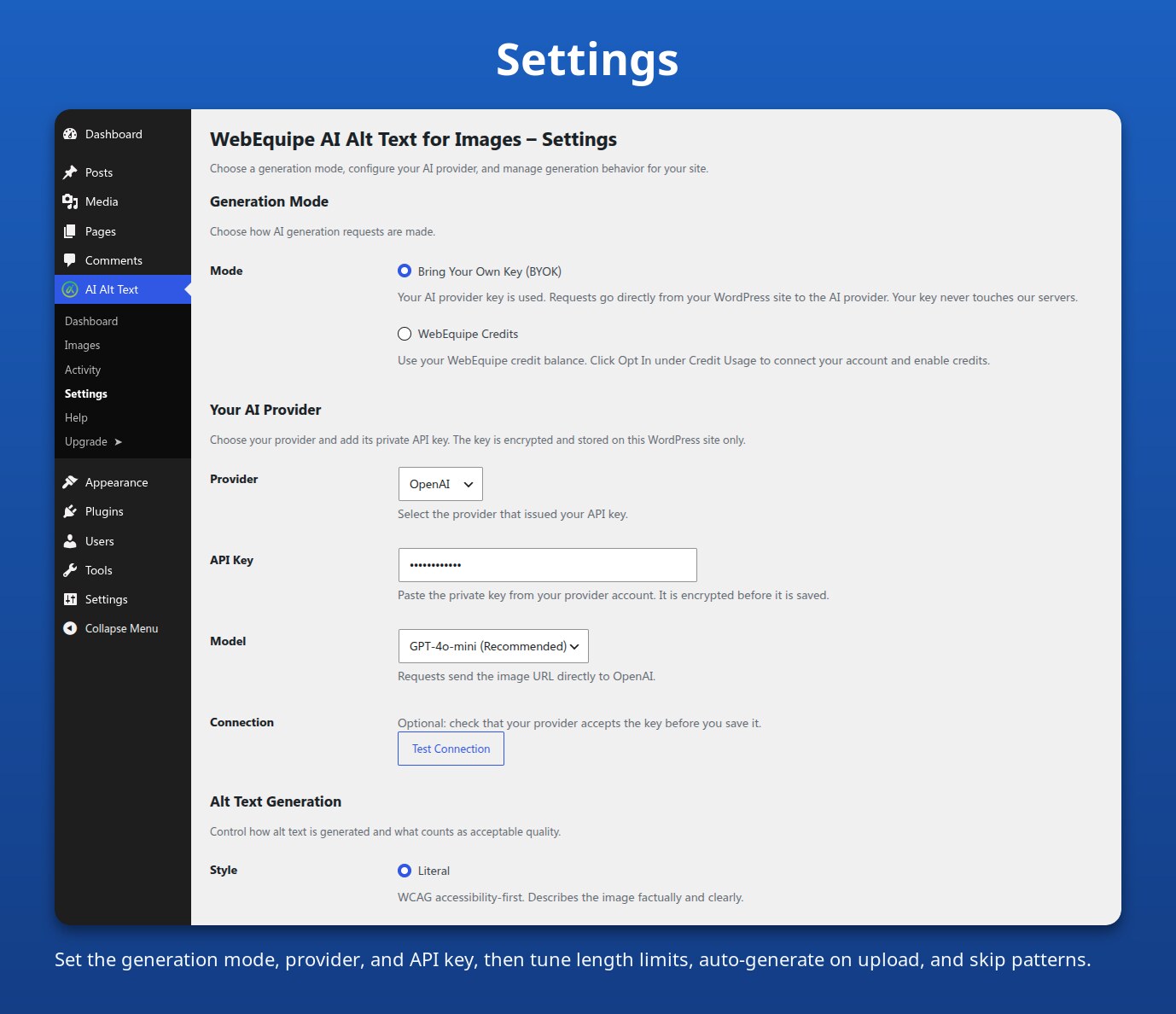
- Open AI Alt Text Settings and finish provider/account setup.
- Open AI Alt Text Images, select images, and queue generation.
- Watch progress on AI Alt Text Activity.
Typical first setup takes under two minutes once you have an AI provider key or a WebEquipe account.
Admin Configuration
Settings Generation mode
- BYOK — choose OpenAI, Anthropic, or Gemini, enter your API key, optionally click Test Connection, then Save.
- WebEquipe Credits — connect/activate your WebEquipe account from the plugin Upgrade/Account screens, select Credits mode, then Refresh to sync balance.
Useful options
- Auto-generate on upload
- Overwrite existing alt text
- Min/max alt length and skip filename patterns
- Optional debug logging (writes a redacted log to
uploads/webequipe-ai-alt-text/debug.log)
Troubleshooting
- Queue stuck / not processing — WP-Cron must be able to run. Use Dashboard Process Queue Now when development mode is enabled, or visit the site to trigger WP-Cron.
- Credits mode fails to complete — confirm the site is publicly reachable over HTTPS so the WebEquipe callback can POST results.
- BYOK connection fails — re-check provider, model, and API key; confirm the provider can fetch your image URLs.
- Nothing queued — images may already be Good, Excluded, decorative, or matched by skip patterns.
Privacy
The plugin stores generation job history and settings in your WordPress database (custom tables and options). BYOK API keys and Credits tokens are encrypted at rest using WordPress salts.
Optional debug logging writes redacted diagnostic lines to uploads/webequipe-ai-alt-text/debug.log only when enabled in Settings. The plugin adds a directory index file and an Apache deny rule for that folder.
No analytics cookies are set by this plugin. Freemius account/checkout flows may process account data according to Freemius and WebEquipe privacy policies when you opt in or purchase credits.
External services
This plugin connects to the third-party services below. Nothing is sent to any of them until you choose a generation mode and queue images for alt text (or, for Freemius, until you opt in or open checkout). All requests use the WordPress HTTP API. The plugin has no analytics or telemetry of its own and sets no tracking cookies.
OpenAI API
Used in Bring Your Own Key mode only, when you select OpenAI and enter your own API key. It generates alt text from an image with a vision model (api.openai.com/v1/chat/completions).
- Data sent: the public URL of the image, a fixed instruction prompt that includes the maximum alt text length, the chosen model name, and your API key in the
Authorizationheader. The “Test connection” button sends a one-pixel test image instead of one of your images. - When: each time an image is processed from the queue (manual, bulk, or auto-generate on upload if enabled), and when you click “Test connection”.
- Terms of Use: https://openai.com/policies/terms-of-use
- Privacy Policy: https://openai.com/policies/privacy-policy
Anthropic API
Used in Bring Your Own Key mode only, when you select Anthropic (Claude) and enter your own API key. It generates alt text from an image (api.anthropic.com/v1/messages).
- Data sent: the public URL of the image, a fixed instruction prompt that includes the maximum alt text length, the chosen model name, and your API key in the
x-api-keyheader. - When: each time an image is processed from the queue, and when you click “Test connection” (a text-only request).
- Terms: https://www.anthropic.com/legal/commercial-terms
- Privacy Policy: https://www.anthropic.com/legal/privacy
Google Gemini API
Used in Bring Your Own Key mode only, when you select Google Gemini and enter your own API key. It generates alt text from an image (generativelanguage.googleapis.com).
- Data sent: the image itself, base64-encoded (your server downloads it from your own media library and forwards it), a fixed instruction prompt that includes the maximum alt text length, the chosen model name in the request path, and your API key in the
x-goog-api-keyheader. - When: each time an image is processed from the queue, and when you click “Test connection” (a text-only request).
- Terms: https://ai.google.dev/gemini-api/terms
- Privacy Policy: https://policies.google.com/privacy
WebEquipe Credits API
Used in WebEquipe Credits mode only. It is the hosted service that generates alt text from your credit balance without needing your own AI key (https://aialttext.webequipe.com). It also calls back into your site at /wp-json/weaialttxt/v1/result to deliver each result; those callbacks are signed with a per-site secret (HMAC-SHA256) that the plugin generates and sends to the service when a job is submitted.
- Data sent: the public URL of the image and its attachment ID, the image caption and description (used as context), the chosen style and alt text length limits, your site’s callback URL and callback secret, your site domain, your WebEquipe/Freemius install and license IDs, and your account API token in the
X-Api-Keyheader. Account status and credit balance requests send only the token and site domain. - When: when an image is processed from the queue in Credits mode, when credits or license status are refreshed in the plugin screens, and when the plugin exchanges your Freemius license for an API token.
- Terms of Service: https://webequipe.com/terms-conditions/
- Privacy Policy: https://webequipe.com/privacy-policy/
Freemius
Used for account connection, licensing, and checkout of paid credit packs in Credits mode (the Freemius SDK is bundled). The plugin works fully in Bring Your Own Key mode without connecting a Freemius account. Freemius opt-in is never required, and usage data is only shared if you explicitly opt in.
- Data sent: if you opt in, your WordPress and site details, email address and plugin version are sent to Freemius; during checkout, the payment and billing details you enter are handled by Freemius.
- When: only after you choose Credits mode and opt in, or open the pricing/checkout/account screens.
- Terms: https://freemius.com/terms/
- Privacy Policy: https://freemius.com/privacy/
Source Files
Admin JavaScript and CSS are shipped unminified (js/admin.js, js/block-editor.js, css/admin.css). No separate minified build is required.
Third-Party Libraries
- Freemius WordPress SDK (GPL-compatible) — bundled via Composer for licensing/checkout.
Screenshots
Installation
- Upload the
webequipe-ai-alt-textfolder to/wp-content/plugins/ - Activate the plugin through the Plugins menu in WordPress
- Open AI Alt Text Dashboard and choose a generation mode
- Complete the short setup steps below
FAQ
-
Is this plugin free?
-
Yes. The plugin is free. In BYOK mode you pay your AI provider directly for API usage (typically fractions of a cent per image). In WebEquipe Credits mode you use your monthly credit balance included with your WebEquipe account.
-
Do I need a WebEquipe account?
-
Only if you use WebEquipe Credits mode. Credits mode requires a connected account and active license to use your monthly balance. In BYOK mode, no WebEquipe account is needed — add your AI provider API key in Settings to unlock the full plugin.
-
Does my API key leave my server?
-
In BYOK mode, your key is sent directly to your chosen AI provider (OpenAI, Anthropic, or Google). It does not pass through WebEquipe’s servers. In WebEquipe Credits mode, the public URL of each image (plus its caption and description as context) is sent to WebEquipe’s backend for processing — image files are not uploaded. See the External services section for details.
-
What AI providers are supported?
-
OpenAI (GPT-4o, GPT-4o-mini), Anthropic (Claude Sonnet 4.5, Claude Haiku 4.5), and Google Gemini (1.5 Pro, 1.5 Flash).
-
Does it work on local or staging sites?
-
The AI provider must be able to access your image URLs. Local sites not exposed to the internet cannot use BYOK mode. WebEquipe Credits mode also requires your site to receive callbacks from the WebEquipe backend over HTTPS.
-
Are there shortcodes or blocks?
-
No shortcodes. The plugin works from the admin media library, plugin screens, attachment editor, and the block editor image sidebar actions.
Reviews
There are no reviews for this plugin.
Contributors & Developers
“WebEquipe AI Alt Text for Images – BYOK & Credits” is open source software. The following people have contributed to this plugin.
Contributors
Translate “WebEquipe AI Alt Text for Images – BYOK & Credits” into your language.
Interested in development?
Browse the code, check out the SVN repository, or subscribe to the development log by RSS.
Changelog
1.0.0
- Initial release
- BYOK mode with OpenAI, Anthropic, and Gemini support
- WebEquipe Credits mode with monthly credit balance
- Freemius account activation and licensing
- Background queue processing
- Full media library management
- Activity log with CSV export