
Description
Wajub is the official payment plugin for WordPress sites that need Mobile Money and card checkout without custom code.
You need a Wajub merchant account to take payments: create one in the Wajub Dashboard. Until you connect the plugin to it, the plugin contacts no Wajub server and loads nothing from Wajub in your visitors’ browsers.
Set up in minutes
- A setup assistant connects your site to your Wajub account, registers the webhook for you, and walks you through your first test payment and going live.
- “Connect with Wajub”: approve your site in the Wajub Dashboard and Wajub creates its key, with nothing to copy. Before a key it got this way expires, the site warns you in the admin and by e-mail. You can still paste your keys instead.
- Sandbox and Live are always visible: the environment on every Wajub screen, and a “Wajub · Sandbox” badge in the admin bar while Sandbox is in use. Each environment pays with its own key only: Sandbox without a sandbox key takes no payment, and a red notice in the admin says so.
- Keys are masked once saved, checked before they are kept, and never printed back into the page.
A checkout payers trust
- Payment method logos in the WooCommerce checkout (classic and Blocks). A “Secured by Wajub” line (plain text, no link) under the Wajub methods and the pay buttons is off by default: turn it on in Wajub Settings (“Show “Secured by Wajub” to customers”).
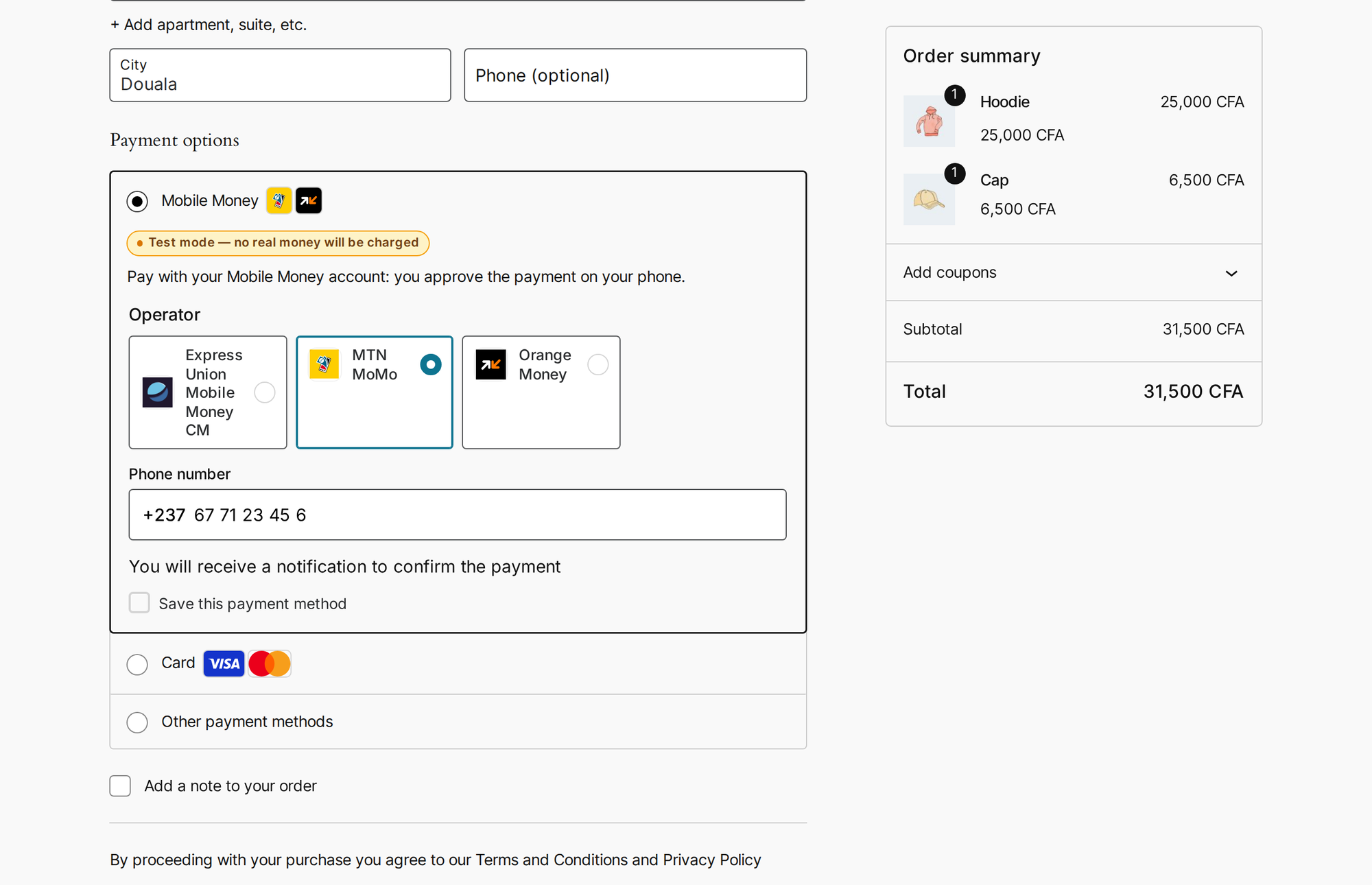
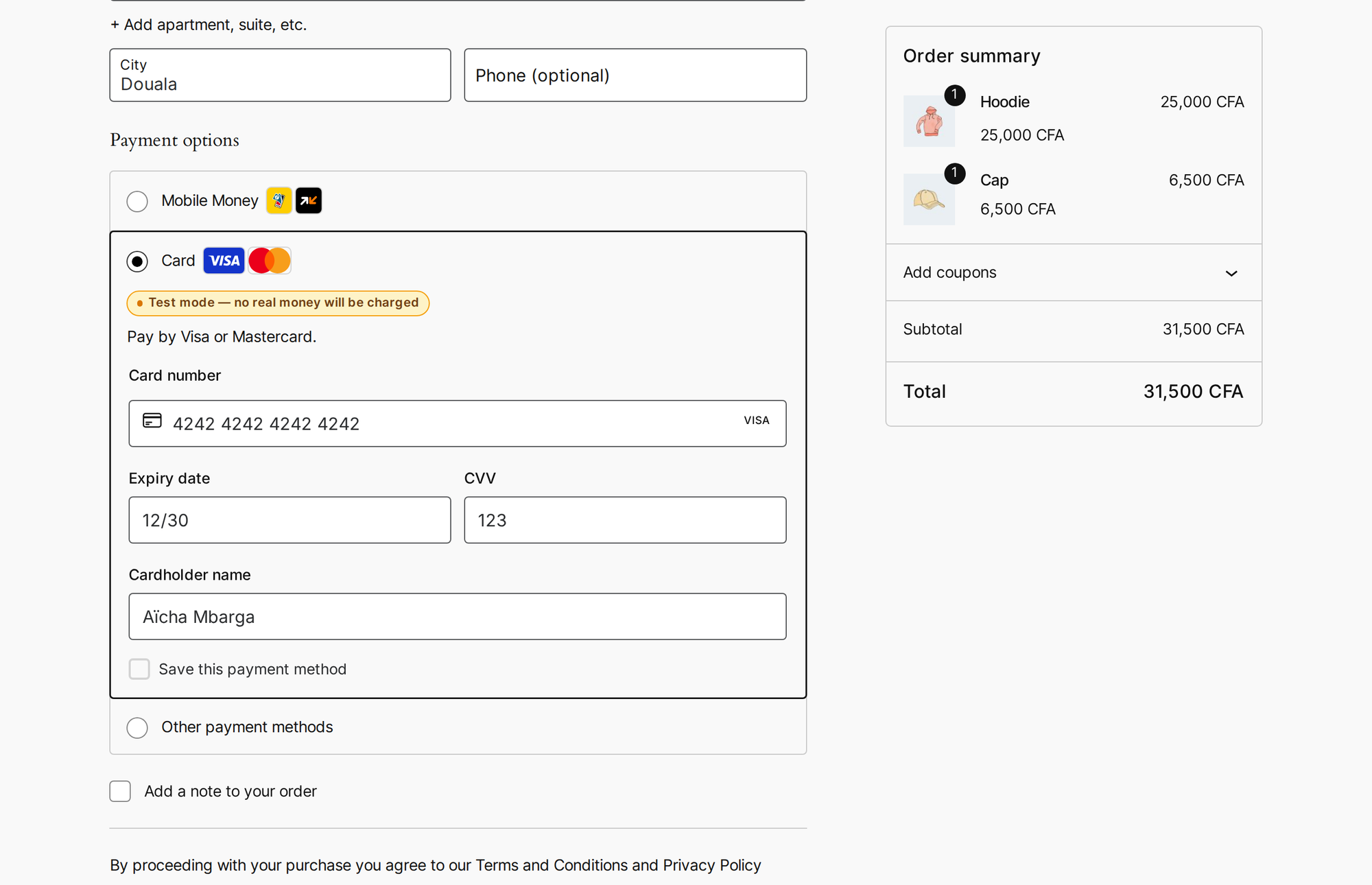
- “Mobile Money” and “Card” can be payment methods of their own, each with Wajub’s payment form inside your WooCommerce checkout (classic and Blocks): payers enter their Mobile Money number or their card without leaving your store. They are off until you turn them on.
- Inline and overlay checkout stay on your checkout page. A payer who closes the payment window or chooses another method keeps their order, and the order page keeps checking until Wajub confirms the payment. In redirect mode, the order page tells a Mobile Money payer what to do on their phone while the payment waits for approval.
- Clear messages when something goes wrong, in words the payer can act on. The technical reason is never shown to the payer: WooCommerce keeps it in a private order note, and with “Log Wajub requests and webhook events” turned on in Wajub Settings (or
WP_DEBUG), it goes to your logs (WooCommerce Status Logs, sourcewajub). - Amounts are shown the way your visitors read them: “25 000 FCFA”, “12,50 €”.
Everything in one place
- Wajub Overview: what you collected, success rate, refunds, payment methods and recent payments, by period and environment, plus the health of your connection and webhooks.
- Wajub Transactions: search, filter by status, source, environment and date, open any payment, and export to CSV.
- On each WooCommerce order, a “Wajub payment” box shows the payment, its method and environment, with a link to the Wajub Dashboard.
Supported integrations
- WooCommerce — redirect, inline, or overlay checkout, or separate Mobile Money and Card methods with the payment form in the checkout; Blocks; refunds
- GiveWP — donations (redirect)
- Easy Digital Downloads — digital products
- Charitable — fundraising
- Tutor LMS, LifterLMS, LearnDash — course payments
- MemberPress — one-time membership payments
- Gravity Forms — form payments, with Gravity Forms’ “Payment Completed” and “Payment Refunded” notifications
- Shortcodes —
[wajub_pay],[wajub_pay_content],[wajub_pay_message]
Other form, booking and event plugins have no direct integration: a [wajub_pay] button can take a payment on their pages, but the payment is not recorded in them. Crowdfunding plugins built on WooCommerce pay through the WooCommerce integration.
Checkout modes
- Redirect — customer pays on Wajub hosted checkout
- Inline — checkout embedded directly on the WooCommerce checkout page, no navigation away
- Overlay — modal checkout opened directly on the WooCommerce checkout page, no navigation away
- Separate methods — “Mobile Money” and “Card” are WooCommerce payment methods of their own, each with Wajub’s payment form inside its payment box, no navigation away. Each takes payments of its own kind only, and shows only when your Wajub account offers it for the order. The Wajub method, kept on beside them, becomes “Other payment methods”: it offers only the other ways to pay your account has (PayPal, wallets…), and shows only when there is one.
If Wajub.js cannot load in the payer’s browser, inline and overlay checkouts fall back to the hosted payment page. So do the separate methods, which also use it on the order’s payment page and when their form cannot load; the page then offers that method only.
Shortcodes
[wajub_pay amount="5000" currency="XAF" description="" mode="redirect|inline|overlay" button_text="" class=""]— a pay button (redirect by default).product_id="123"charges a WooCommerce product’s price;type="donation"turns it into a donation form, andamounts="1000,2500,5000"gives that form preset amounts.[wajub_pay_content content_id="premium" amount="2500" currency="XAF" description="" mode="overlay" button_text="" class=""]…[/wajub_pay_content]— content shown once paid (overlay by default).[wajub_pay_message type="success|failure|processing"]— the message of a return page, checked with Wajub.
Default button labels are “Pay %s”, “Donate” and “Unlock for %s”. The pay buttons use your theme’s button styles; the colours can be adjusted with the CSS custom properties listed at the top of assets/css/frontend.css.
For developers
The actions and filters the plugin offers are listed in the FAQ.
External services
This plugin connects to Wajub, a payment service, to take payments. It cannot work without it.
- Wajub API (
https://api.wajub.com). Every request is made with your API key. When a payment starts, the plugin sends the amount, the currency, a description, your order reference and metadata (the plugin, and the order, donation, entry or product the payment is for; for paid content and courses, the ID of the WordPress account that pays, the price, and an identifier of the browser that pays, taken from thewajub_buyercookie described under Privacy), the return URLs, and the payer’s name, email address and phone number when they are known. It reads payments to confirm them, and a payment’s refunds before it counts toward an order, cancels a payment left open when the payer starts another one for the same order, cancels the payment of an order that is cancelled when nobody started paying it, closes an instalment payment the payer can no longer finish (keeping what it collected), and sends refunds you start from WordPress. Checking a key reads the name of your Wajub business. When the setup assistant registers the webhook, it sends your site’s webhook URL, the events it listens to and the description “WordPress: “. - Wajub API, for the Mobile Money and Card methods. The plugin prepares a payment as soon as one of these methods is selected at checkout (it may be selected when the page opens), before the order exists: it sends the amount, the currency, a reference, the description “Order at “, the kind of method (Mobile Money or card) and metadata, and nothing about the payer. It sends the new total when the cart changes, and asks Wajub to keep the payment open longer while the visitor stays on the checkout. When the order is placed, it activates the payment with the payer’s name, email address and phone number, the return URL, the order’s reference and number (“Order #123”) and the order’s ID. A prepared payment that is never activated is charged to no one and expires on its own.
- Wajub API, at checkout and from the admin. When Mobile Money or Card is offered as a payment method of its own, the checkout and the cart ask which kinds of payment methods your account offers for the cart’s currency and total (the currency and amount only). The setup assistant’s checkout step asks the same for your store’s currency, with an example amount. When “Connect with Wajub” replaces a key it gave earlier, the plugin asks Wajub, with that earlier key, to delete it, unless the site is a copy (see the FAQ). Nothing about your customers is sent.
- Wajub.js (
https://js.wajub.com), Wajub’s checkout script, once a key is saved. The visitor’s browser loads it as soon as the page opens, before the visitor chooses how to pay: on the WooCommerce checkout and order payment pages (classic or Blocks), the Cart block page and the mini-cart once opened (WooCommerce loads the payment methods’ scripts there), when the Wajub method uses inline or overlay mode or the Mobile Money or Card method is on; and on any page whose pay button ([wajub_pay],[wajub_pay_content]or a course button) opens the payment in the page. This shows Wajub the visitor’s IP address, browser details and the address of the page. Wajub.js shows the payment form fromhttps://pay.wajub.com. - Wajub’s payment page (
https://pay.wajub.com). In redirect mode, whenever Wajub.js cannot load, and when the Mobile Money or Card form cannot be used (on the order’s payment page, or when the form does not load), the payer goes to the payment page Wajub gives for the payment, opened in your site’s language when Wajub’s checkout has it (French, English, Spanish, Portuguese or Arabic). What the payer types in Wajub’s payment form, on that page or inside your checkout (their card or Mobile Money number), goes straight to Wajub, never through your site, with basic information about their device and browser, which Wajub uses to prevent fraud. - Wajub Dashboard (
https://dashboard.wajub.com), for “Connect with Wajub” only, and only when an administrator clicks one of its buttons: in the setup assistant, in Wajub Settings, or in the admin notice shown when the key it created expires within 14 days or has expired. The site asks the Dashboard for a connection request and sends your site’s name and domain, the environment asked for (Sandbox or Live), the kind of client, a hash of your site’s address, the permissions the plugin needs, and, when the site has a publichttps://address, the setup assistant’s address to come back to. While the request waits for your approval (15 minutes at most), it asks the Dashboard every few seconds whether you approved it, while an admin page that shows the request is open. On approval, it receives the new key, its environment, its type and permissions, the date it expires (or that it does not), and the name of your Wajub business. The Dashboard sees your server’s IP address, and the administrator’s browser opens the Dashboard’s approval page in a new tab.
All of the services above are provided by Wajub. Wajub’s Merchant Terms, End User Terms (for payers) and Privacy Policy apply.
Privacy
- The plugin keeps a record of each payment and refund in its own table (
wp_wajub_transactions, with your table prefix): reference, Wajub id, amount, status, payment method, environment, date, the payer’s email address, the metadata sent with the payment and the last payment details Wajub sent. - Tools Export Personal Data includes these payments (“Wajub payments”) and the content an account paid to open (“Access paid with Wajub”). Tools Erase Personal Data removes the payer’s email address and the stored payment details, and keeps the amount, status, method, date and references, which you need for your accounts. Access to paid content is kept, so the payer does not lose what they paid for.
- Settings Privacy offers suggested text for your privacy policy.
- With the Mobile Money or Card method, the payment prepared for a visitor’s checkout (its Wajub ID and payment token, nothing about the visitor) is kept for that visitor’s WooCommerce session, as a temporary entry of its own (a WordPress transient), until the order is placed, the cart is emptied or two days have passed. For a visitor who has no WooCommerce session cookie yet, the plugin asks WooCommerce to set it, so that the payment is still there when they place the order.
- When someone starts a payment for locked content (
[wajub_pay_content]) or for a LearnDash, LifterLMS or Tutor LMS course with the Wajub button, the plugin sets thewajub_buyercookie in their browser: a random identifier, kept 30 days, so that what they paid for opens in that browser once paid, with or without an account. The plugin sets no other cookie of its own.
Uninstall
Deleting the plugin removes what it stored, on every site of a network: its settings (those of the Mobile Money and Card methods included), keys and secrets, the record of which keys “Connect with Wajub” gave (their fingerprint, business and dates, never the key), the record of which of its updates ran, its payments table, its temporary data, the expiry e-mails it scheduled for those keys, the Gravity Forms feeds that use Wajub, its users’ screen preferences, and the record of which accounts paid for locked content and LearnDash courses (LearnDash keeps the enrolments themselves; a reinstall does not bring the record back). The return pages it created are moved to the trash if you never edited them. Orders, donations, entries and transactions keep their Wajub details (the _wajub_* meta, wajub_* on Gravity Forms entries and MemberPress transactions, and their notes): they are your sales history. The webhook endpoints registered in your Wajub account stay, and so do the API keys “Connect with Wajub” created: delete them in the Wajub Dashboard (Settings Developers API keys). The Wajub settings that other plugins keep among their own (the payment method enabled in Easy Digital Downloads, GiveWP, Charitable, MemberPress or Tutor LMS) and WooCommerce’s log files for the wajub source stay with those plugins.
Screenshots


Installation
- Upload the plugin to
/wp-content/plugins/wajuband activate it. The setup assistant opens. - Click “Connect with Wajub (Sandbox)”. The Wajub Dashboard opens in a new tab: check that it shows the code your site shows, choose the environment, the access (“Restricted”, with the permissions the plugin needs, or “Full access”) and how long the key lasts, then click “Authorize” (the owner, an administrator or a developer of your Wajub account approves, with a security code). Wajub creates the key, and your site saves it and registers its webhook. Do the same with “Connect Live” when you are ready to take real payments.
- Or open “Paste keys instead” and paste your API keys from the Wajub Dashboard (Settings Developers API keys). Sandbox keys start with
sk_test., live keys withsk.(rk_test.andrk.for restricted keys). Then let the assistant register the webhook for each environment you added a key for. - A live webhook needs an
https://address. Wajub cannot reach a site on a local or private address: the assistant registers the webhook once the site is online. To test from your computer, runwajub listen --forward-towith the Wajub CLI, followed by your site’s address and/wp-json/wajub/v1/webhook(for examplewajub listen --forward-to https://shop.test/wp-json/wajub/v1/webhook, and--insecure-tlsif the site uses a self-signed certificate). It forwards your account’s events to your site, with no public address needed. Paste the signing secret it shows into the assistant (“Set it up by hand instead”). - Choose the checkout experience (Redirect, Overlay, Inline, or Separate methods for Mobile Money and Card), make a test payment in Sandbox, then switch to Live.
Until your keys are saved, the assistant is under Wajub Setup. Afterwards, Wajub Settings links to it (“Run the setup assistant again”), and offers “Connect” or “Reconnect” for each environment.
FAQ
-
What is the difference between Sandbox and Live?
-
Sandbox takes test payments with your
sk_test.key: no real money moves. Live takes real payments with yoursk.key. Each environment uses its own key only: Sandbox without a sandbox key takes no payment at all, even with a live key saved. Wajub is then hidden at WooCommerce checkout, the other integrations and the pay buttons refuse to start a payment, and a red notice in the admin says so, until you add a sandbox key or switch to Live. The plugin refuses to switch to Live without a live key, asks you to confirm before it does, and keeps Live when you switch back to Sandbox without a sandbox key.While Sandbox is in use, updates from Live still settle the Live orders placed before you switched, except on a copy of the site whose
WP_ENVIRONMENT_TYPEislocal,developmentorstaging. An update from Sandbox never changes an order while Live is in use. -
Do I need to set up webhooks?
-
Yes: webhooks tell your site when a payment succeeds, even if the payer closes the page. The setup assistant registers them for you. Wajub Settings shows when the last one arrived and what to do if one was refused.
-
What are the separate Mobile Money and Card methods?
-
Two WooCommerce payment methods, “Mobile Money” and “Card”, each with Wajub’s payment form inside its payment box, in the classic and Blocks checkouts. A Mobile Money payer types the number to pay with (the billing phone is not copied into the form) and approves the payment on their phone; a card payer enters their card. Each method takes payments of its own kind only, and shows only when your Wajub account offers it for the order. A Mobile Money payer chooses their operator from a list with each one’s logo, the operator of their number already selected (a setting finds it from the number instead). They are off until you turn them on, in the setup assistant’s checkout step (“Separate methods”) or in WooCommerce Settings Payments (“Wajub Mobile Money”, “Wajub Card”). If your account takes other ways to pay, such as PayPal or wallets, the Wajub method, kept on beside them (“Also offer the other methods your Wajub account has”), offers only those, as “Other payment methods”.
The form opens in the language set for the Wajub method and takes your checkout’s own font, sizes, colours and rounding; “Payment form colours” set to Light or Dark forces that look, and “System” follows your site. Without JavaScript, on the order’s payment page, or when the form cannot load, the payer pays on Wajub’s payment page instead, which then offers that method only. If you restricted where Wajub can be embedded (Wajub Dashboard, Branding), add your store’s address there, or the form cannot load. In Live, serve your store over HTTPS: a payer whose card provider or operator takes over the whole page can only be brought back to an
https://store, and the setup assistant and Settings warn you otherwise.In the Wajub Dashboard, a payment made in the form carries the order’s reference (
wc_<order>_<time>) and reads “Order #123”, as with the Wajub method, with the order’s ID in its metadata (order_id). Before the order is placed, it reads “Order at ” with awcf_…reference. A payment made on Wajub’s payment page reads “Order #123”. -
How does “Connect with Wajub” work, and what are its limits?
-
In the setup assistant, click “Connect with Wajub (Sandbox)” or “Connect Live” (in Wajub Settings, “Connect” or “Reconnect” for each environment). In the Wajub tab that opens, check that the code is the one your site shows. The approval page starts on Sandbox whichever button you clicked: choose the environment there, “Restricted” or “Full access”, and how long the key lasts (“90 days” or “No expiry”), then click “Authorize”. Wajub creates a key for the business the Dashboard has open and hands it to your site once: the site saves it with the same checks as a pasted key, never shows it, and registers the webhook. Only WordPress administrators see these buttons, and you can always paste your keys instead (“Paste keys instead”).
What to know:
- Only the owner, an administrator or a developer of your Wajub account can approve, after entering a security code, and Wajub e-mails the owner and the administrators about every key created this way. Approve only a code your site shows you.
- A request waits 15 minutes for approval. Keep the page that started it open: the site must collect the key within 15 minutes of the approval, or Wajub deletes the key and you start again. A request started in another tab or window replaces the first, and the first page says so.
- A key that lasts 90 days stops working on its date. Settings, the setup assistant and the Overview show that date. From 14 days before it, the site’s administration e-mail address gets one e-mail per key, Sandbox or Live, and a notice in the admin offers to connect again in one click for the key of the environment in use. Choose “No expiry” for a store whose checkout must not stop.
- The approval page starts on a restricted key with the permissions the plugin needs ticked: payments, refunds and webhooks, read and write. Choose “Full access” to give the key every permission instead. The site warns you when a restricted key may lack one the plugin needs.
- Reconnecting replaces the key. The plugin asks Wajub to delete the key a previous connection gave, and says so when Wajub refuses: delete that key in the Wajub Dashboard (Settings Developers API keys). A copy of the site never asks: one whose
WP_ENVIRONMENT_TYPEis notproduction, or that runs at another address than the site that connected, such as a staging copy of your store. The store may still use that key, so the copy tells you to delete it yourself if nothing does. A key you pasted is never deleted, and deleting the plugin deletes no key.
-
What if a customer pays only part of an order?
-
That happens when you close an instalment payment early in the Wajub Dashboard, or edit an order after its payment started. In WooCommerce, what Wajub collected counts toward the order, which stays pending with a note of what is left. The customer pays the rest from the order’s payment page (send it with “Send order details to customer”), and the order is paid once its payments cover its total. Until then, WooCommerce’s unpaid-order cleanup leaves it alone, and the order cannot be paid with another method. In the other integrations, the purchase stays pending with a note, except in MemberPress and Tutor LMS, where only the plugin’s debug log says so.
-
Does this support subscription renewals?
-
No. WooCommerce Subscriptions, MemberPress recurring billing, and GiveWP recurring donations are not supported. Only one-time payments are supported everywhere in this plugin.
-
Can I use inline checkout with GiveWP?
-
GiveWP uses redirect checkout. A
[wajub_pay]button (type="donation",mode="inline"ormode="overlay") takes the payment in the page, but it is not a GiveWP donation: GiveWP does not record it, and it shows only in Wajub Transactions. -
Which actions and filters does the plugin offer?
-
- Actions:
wajub_payment_completeandwajub_payment_failed($reference,$payment,$source,$sourceId);wajub_refund_succeeded($paymentReference,$refund,$source,$sourceId, fired once per refund made in the Wajub Dashboard or in WordPress);wajub_refund_complete(WooCommerce orders only, same arguments);wajub_dispute_receivedandwajub_webhook_received($eventType,$data);wajub_webhook_invalid_signatureandwajub_webhook_missing_secret($reason, and$environment, the environment the refused delivery claims:live,testor empty; never its body, which nobody verified). A delivery the site does not act on, such as one for the environment not in use or a repeat of a delivery already handled, runs none of them.wajub_payment_failedalso fires for cancelled, abandoned and expired payments.$sourceand$sourceIdcome from the payment’s metadata, which whoever creates a payment can set: check the payment against your own records before acting on it. - Filters:
wajub_webhook_events(the events the webhook subscribes to),wajub_return_retry_url($url,$status),wajub_return_notice_in_content(false),wajub_default_phone_country_code('237', put before a nine-digit phone number),wajub_fields_prepare_limits(['ip' => 10, 'site' => 30]: how many times a minute the Mobile Money and Card payment box may ask for its payment, per visitor address and for the whole site),wajub_pairing_enabled(true;falsehides “Connect with Wajub”, and keys are then pasted),wajub_show_secured_line(the “Secured by Wajub” setting;falsehides the line),wajub_send_dispute_email(true,$eventType,$data;falsesends no dispute e-mail),wajub_charitable_gateway_name(the gateway’s name in Charitable’s settings,'Wajub'). - WooCommerce: the separate methods are the gateways
wajub_mobile_moneyandwajub_card, besidewajub.
- Actions:
-
Does the plugin send e-mails?
-
The plugin itself writes only to your site’s administration e-mail address, never to your customers: one e-mail per key “Connect with Wajub” gave, 14 days before it expires, and one when Wajub reports a dispute on a payment (opened, won or lost). The
wajub_send_dispute_emailfilter (returnfalse) turns the dispute e-mails off. The e-mails your shop, donation or membership plugin sends when a payment completes are its own.
Reviews
There are no reviews for this plugin.
Contributors & Developers
“Wajub” is open source software. The following people have contributed to this plugin.
Contributors
Translate “Wajub” into your language.
Interested in development?
Browse the code, check out the SVN repository, or subscribe to the development log by RSS.
Changelog
1.4.1
With the separate Mobile Money and Card methods, an order is no longer refused with “Your payment details were refreshed” at the first “Place order”.
1.4.0
Separate Mobile Money and Card methods in the WooCommerce checkout, payments of cancelled orders cancelled with Wajub, refunds caught up, and admin notices shown only where payments are managed. Every release is described in changelog.txt.