
Description
Vachr Web Search Connector for DeepSeek connects WordPress to DeepSeek’s Anthropic-compatible Messages API. It can perform real web searches through DeepSeek’s hosted search tool, then use the results to answer questions. Web Search is enabled by default and can be disabled for an individual request. The plugin also provides an optional visitor chat, a protected server-side REST API, and a PHP helper for other plugins and themes. Your DeepSeek API key stays on the WordPress server and is never exposed to visitors or external applications.
All requests use the WordPress AI Client and the centrally configured DeepSeek connector. When Web Search is enabled, the DeepSeek provider adapter sends the provider-specific server-tool request through the AI Client’s authenticated transport.
What it does
- Adds the
[deepseek_chat]shortcode for an optional visitor chat. - Adds a protected
POST /wp-json/ai-deepseek/v1/chatendpoint for external applications. - Provides
ai_deepseek_connector_websearch_query()for other plugins and themes on the same site. - Uses the WordPress AI Client for chat and provider-hosted Web Search, with one key managed in Settings > Connectors.
- Pass
web_search: falseto disable provider-hosted Web Search for one request. - Returns generated text, provider-returned source links when available, and token-usage data.
- Registers DeepSeek in the native Connectors screen.
How Web Search works
Web Search is performed by DeepSeek’s server-side tool, not by WordPress and not by a crawler included in this plugin. It is enabled by default for the visitor chat, REST API, and PHP helper.
To disable it for one request, set web_search: false in a REST request, clear the chat checkbox, or pass false as the third PHP-helper argument.
Chat and search use the same DeepSeek API key from Settings > Connectors; the AI Client supplies the key to the provider adapter without the plugin reading it. DeepSeek may send the question to its search infrastructure and can make an additional model request to turn tool results into a final response. This can increase latency and API cost. Source links are returned only when the provider includes them.
External service and privacy
This plugin sends the following data to DeepSeek through the WordPress AI Client: the question, selected model, system instructions, and whether Web Search was requested. Web Search can cause DeepSeek to process the question through its search service. The DeepSeek API key is sent only from the WordPress server to DeepSeek; it is never exposed to visitors or REST clients.
The plugin does not store questions, responses, source links, or conversations in the WordPress database. It does not use analytics or tracking.
If the site owner explicitly enables the WordPress AI feature AI Request Logging, requests made through this connector are added to its central AI Request Logs screen. That feature can retain request and response previews, model, token usage, duration, and errors according to its own settings. No connector request is added there while the feature is disabled.
Before enabling public chat, inform visitors about the data transfer and establish a lawful basis appropriate to your jurisdiction. Do not submit sensitive personal data. Review the DeepSeek Privacy Policy and applicable DeepSeek terms.
Security
The external REST endpoint requires an integration bearer token, generated on activation and visible only to WordPress administrators. Treat it as a password and replace it immediately if it may have been exposed. Browser chat requests use a WordPress REST nonce, and public chat is disabled by default. Public browser requests are limited to 12 per five minutes per IP address.
Developer usage
REST API
Send a JSON request to your own WordPress site. Never place the integration token in browser JavaScript.
POST https://your-site.example/wp-json/ai-deepseek/v1/chat
Headers:
Authorization: Bearer YOUR_INTEGRATION_TOKEN

Content-Type: application/json
Example request:
curl -X POST https://your-site.example/wp-json/ai-deepseek/v1/chat -H "Authorization: Bearer YOUR_INTEGRATION_TOKEN" -H "Content-Type: application/json" -d '{"message":"What changed in WordPress this week?","web_search":true}'
Request fields:
message(string, required): question, up to 12,000 characters.web_search(boolean, optional): use DeepSeek’s web-search tool; defaults totrue. Set it tofalseto use standard text generation instead.
Successful response fields:
text(string): generated final answer.sources(array): links returned by DeepSeek, when available.usage(object): provider token-usage object.
Errors use normal WordPress REST error objects and appropriate HTTP status codes, including 400 for invalid messages, 403 for authentication or disabled chat, 429 for the public-chat rate limit, and 502 for upstream failures.
PHP API
Other code running on the same WordPress site can call:
$result = ai_deepseek_connector_websearch_query( 'What is the latest WordPress release?', 'deepseek-flash' );
Supported model IDs are deepseek-flash and deepseek-v4-pro. For compatibility, the aliases deepseek-v4-flash and deepseek-v4.1-flash are normalized to deepseek-flash. Web Search is enabled by default. Pass false as the third argument to disable it: $result = ai_deepseek_connector_websearch_query( 'Summarize this text', 'deepseek-flash', false );. The helper returns the same text, sources, and usage array as the REST endpoint, or a WP_Error. Check errors before accessing the response:
if ( is_wp_error( $result ) ) { /* handle $result->get_error_message() */ }
Screenshots
Installation
- Install and activate the plugin on WordPress 7.0 or newer.
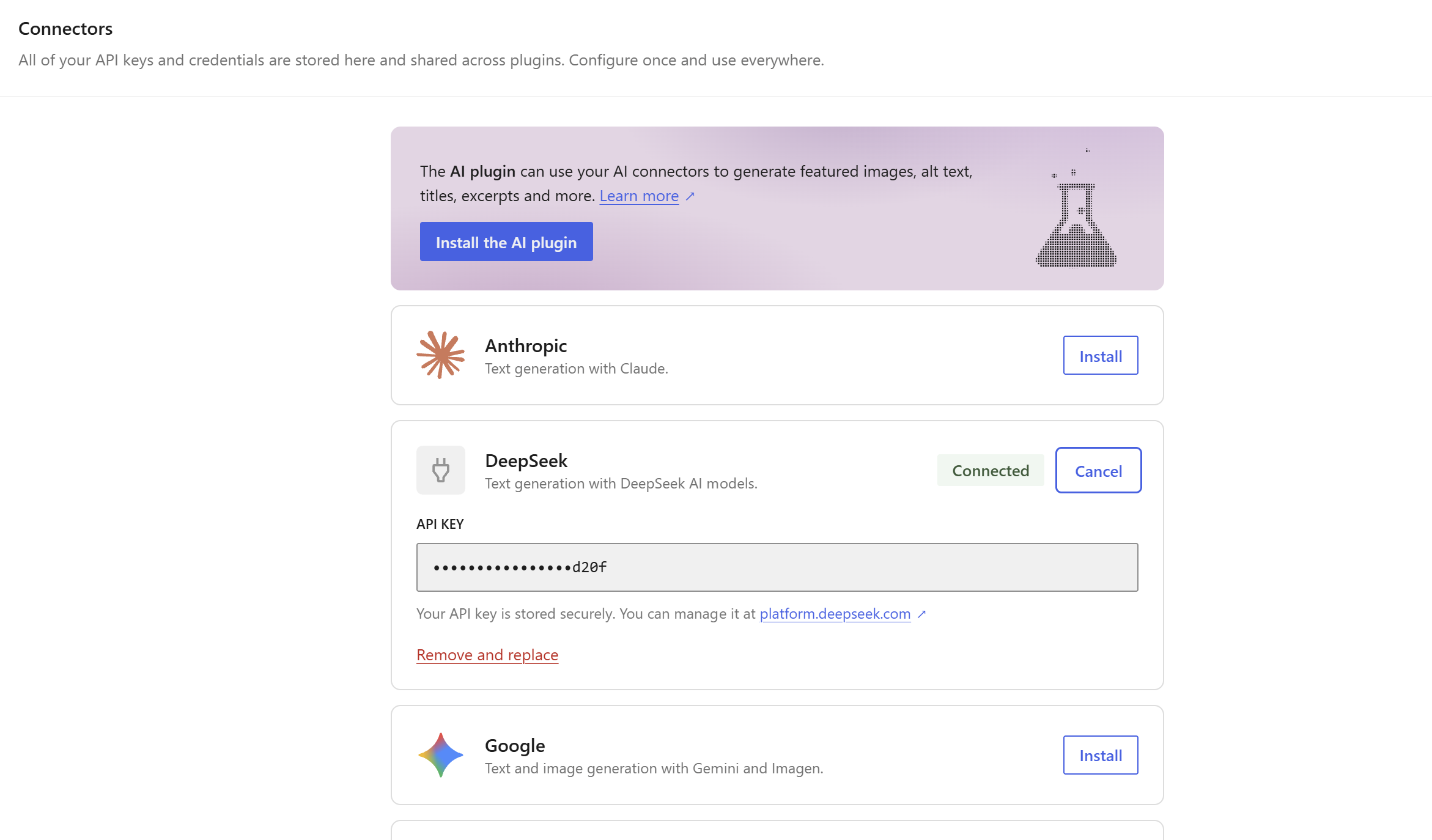
- Go to Settings > Connectors and add your DeepSeek API key. The same key is used for chat and Web Search.
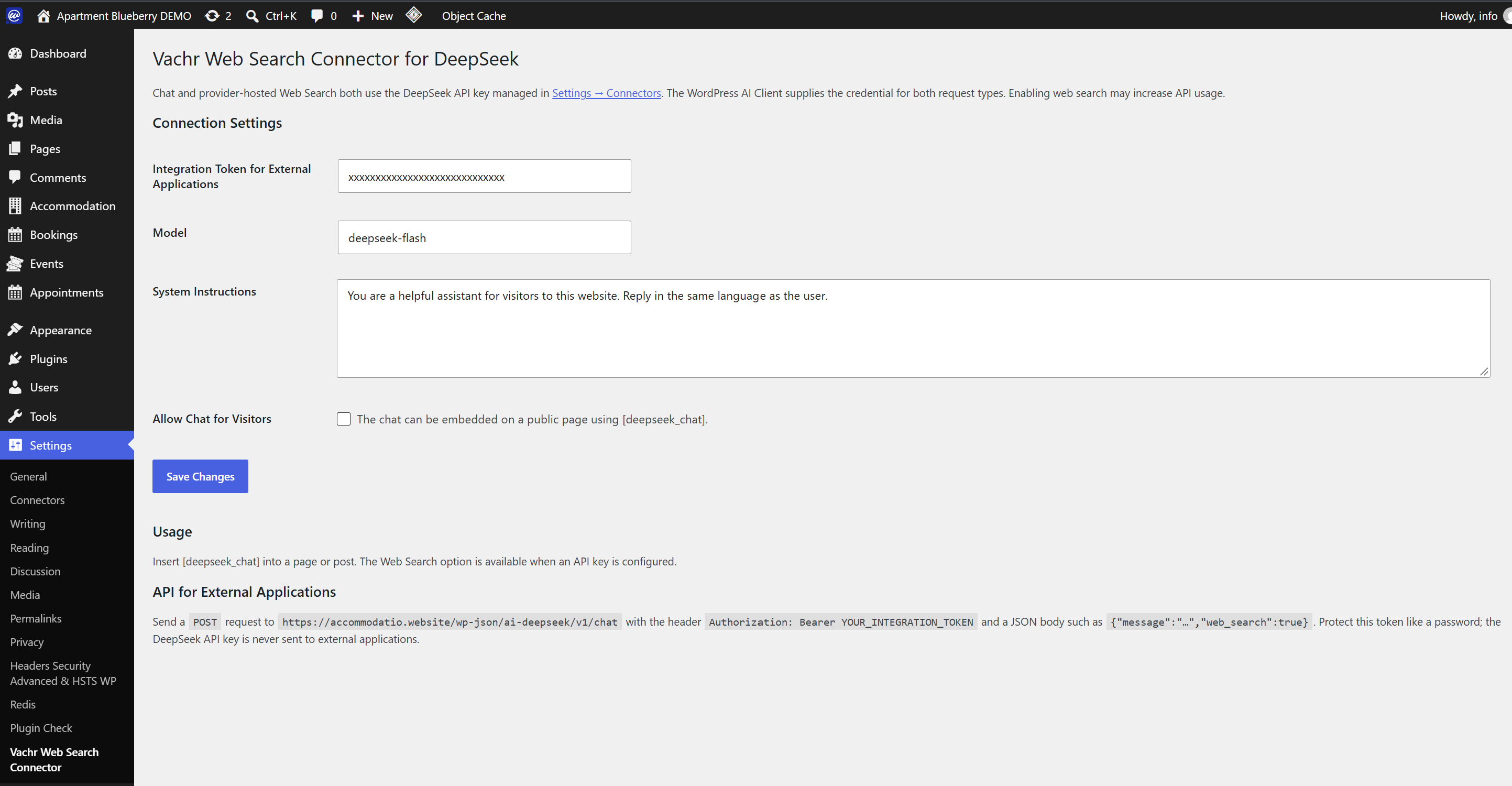
- Go to Settings > Vachr Web Search Connector, choose a DeepSeek model, and save.
- To show the visitor chat, enable “Allow Chat for Visitors” and add
[deepseek_chat]to a page or post. - For an external integration, copy the Integration Token from the same settings screen and store it in that application’s secret manager.
FAQ
-
Where do I get a DeepSeek API key?
-
Create one in your DeepSeek platform account and save it in Settings > Connectors. The plugin and its Web Search provider use the same centrally managed key. Do not put it in page content, JavaScript, or an external client.
-
Does Web Search always return citations?
-
No. Citations depend on what DeepSeek returns for the request. The plugin displays and returns source links when they are present.
-
Does the plugin save conversations or AI requests?
-
No. The connector has no conversation database or diagnostic archive. However, when the site owner explicitly enables WordPress AI’s AI Request Logging feature, the connector writes compatible request records to its central AI Request Logs screen.
-
How do I enable debugging?
-
Use WordPress’s standard debugging configuration in
wp-config.php; this plugin has no separate logging switch.
Reviews
There are no reviews for this plugin.
Contributors & Developers
“Vachr Web Search Connector for DeepSeek” is open source software. The following people have contributed to this plugin.
Contributors
Translate “Vachr Web Search Connector for DeepSeek” into your language.
Interested in development?
Browse the code, check out the SVN repository, or subscribe to the development log by RSS.
Changelog
1.0.10
- Use the WordPress AI Client for configured DeepSeek credentials.
- Match the plugin text domain to its WordPress.org slug.
1.0.9
- Add support for the
deepseek-v4-promodel. - Normalize
deepseek-v4.1-flashand the previousdeepseek-v4-flashsetting to the API’sdeepseek-flashmodel ID.
1.0.8
- Raise the standard DeepSeek AI Client request timeout to ten minutes for long generations.
- Add the
aidsw_deepseek_request_timeoutfilter for site-specific timeout configuration.
1.0.7
- Restore compatibility with WordPress 6.4+ while retaining WordPress AI Client support when available.
- Remove production debug-log writes.
- Escape the public-chat setting description consistently.
1.0.6
- Add Web Search adapter requests to WordPress AI Request Logs when that WordPress AI feature is enabled.
1.0.5
- Enable Web Search by default; disable it per REST or PHP request when needed.
1.0.4
- Route ordinary text generation through the standard WordPress AI Client on WordPress 7.0+.
- Keep DeepSeek’s Anthropic adapter only for provider-specific Web Search requests.
1.0.3
- Removed prompt and response diagnostic storage.
- Use WordPress debug logging only for minimal, non-sensitive technical errors.
- Expanded privacy, Web Search, REST API, and PHP API documentation.
- Improved translation readiness and synchronized release metadata.
1.0.0
- Initial public release.