
Description
TrackIt for WooCommerce connects your store to TrackIt for Business (https://trackit.international), an online service that tracks parcels for you and your customers.
The plugin does three things:
- Tracking passes. When you mark an order completed with a tracking number, the plugin sends it to TrackIt as a shipment. If you have automatic emails turned on in TrackIt, your customer gets a link to add a live tracking pass to Apple Wallet or Google Wallet.
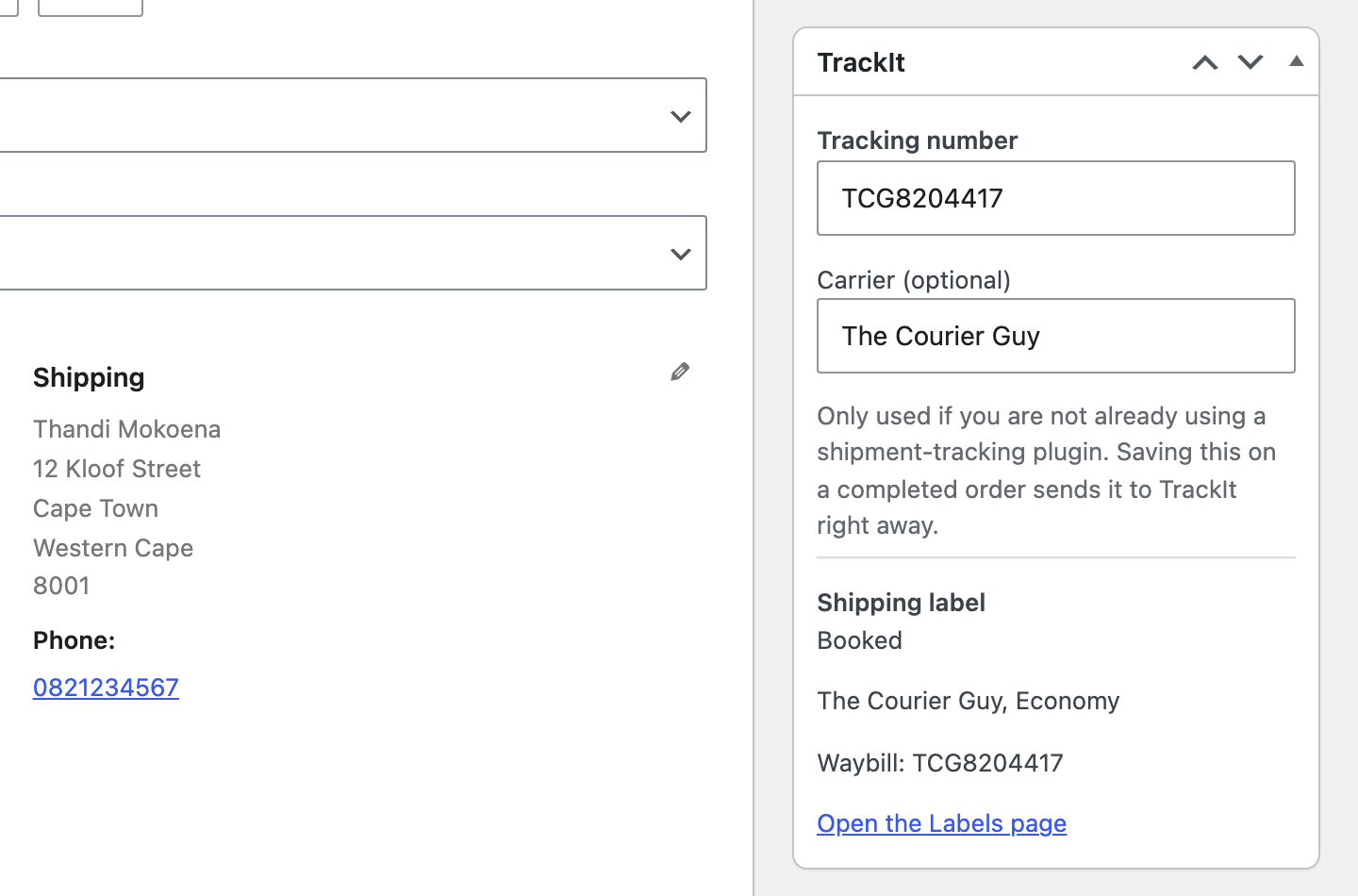
- Shipping labels. If you turn on “Send paid orders to TrackIt for shipping labels”, each paid order (status Processing) is sent to TrackIt’s Labels page. From there TrackIt gets courier rates, books the collection and gives you a label to print. The courier’s waybill number shows in the order’s TrackIt box in WooCommerce.
- Shipping at checkout. Add the “TrackIt shipping” method to a South African shipping zone and shoppers choose from the shipping options you set up on TrackIt’s Labels page (for example cheapest, fastest or a named courier service), at live prices for their cart and address. The option they pick is the courier TrackIt books when the label is made. Options, couriers, boxes and prices are all managed in TrackIt, not in WordPress.
Tracking numbers are read from the WooCommerce Shipment Tracking or Advanced Shipment Tracking plugin if you use one. Otherwise, type a tracking number and carrier into the TrackIt box on the order screen.
Orders are sent in the background with Action Scheduler (part of WooCommerce), failed sends are retried a few times, and everything is written to WooCommerce > Status > Logs under “trackit”. Orders that could not be sent are listed in a notice on the Orders screen.
What you need
The plugin itself is free. It does nothing on its own: it needs a TrackIt for Business account, which you sign up for and manage on trackit.international, not inside WordPress. TrackIt charges for its service there (tracking passes are charged per package, and labels are charged per label at the courier’s rate plus TrackIt’s fee). Pricing is shown on trackit.international before you pay anything.
External services
This plugin connects to TrackIt for Business, a service run by TrackIt at https://trackit.international. It is needed for everything the plugin does. Nothing is sent until you save an API key.
All requests go to https://trackit.international (or to a different TrackIt address only if you change “API base URL (advanced)”). Each request carries your API key, your store’s address (home URL) and your site name, so TrackIt can show which store is connected.
- Test connection, and saving a new key: sends only the above, to check the key works.
- When an order is marked completed with a tracking number, or you choose “Send tracking to TrackIt” on an order: sends the tracking number, carrier, order number, and the customer’s name, email address and phone number. TrackIt uses these to track the parcel and, if you have automatic emails turned on, to email the customer their wallet tracking pass.
- When an order becomes Processing (paid), only if you turned on “Send paid orders to TrackIt for shipping labels”: sends the order number, the customer’s name, email address and phone number, the delivery address, customer note, the item names, quantities and SKUs, and the order value excluding shipping. TrackIt uses these to quote and book a courier and print the label.
- While a shopper is at checkout, only if you added “TrackIt shipping” to a shipping zone: sends the shopper’s delivery address (street, suburb, city, province, postcode and country), the total weight of the cart and the cart subtotal. No name, email address or phone number is sent. TrackIt uses these to price your shipping options for that address. The answer is cached on your site for 10 minutes. The “Test rates” button sends the same details for your store’s own address.
- When an order becomes Processing (paid), if the shopper chose a TrackIt shipping option: the label request above also carries the chosen option and the order’s weight, so TrackIt books that courier.
- When you open an order that was sent for a label: asks TrackIt for the booking status and the courier’s waybill number, at most every two minutes per order.
TrackIt terms of service: https://trackit.international/terms
TrackIt privacy policy: https://trackit.international/privacy
Screenshots
Installation
- Install and activate the plugin. WooCommerce must be active.
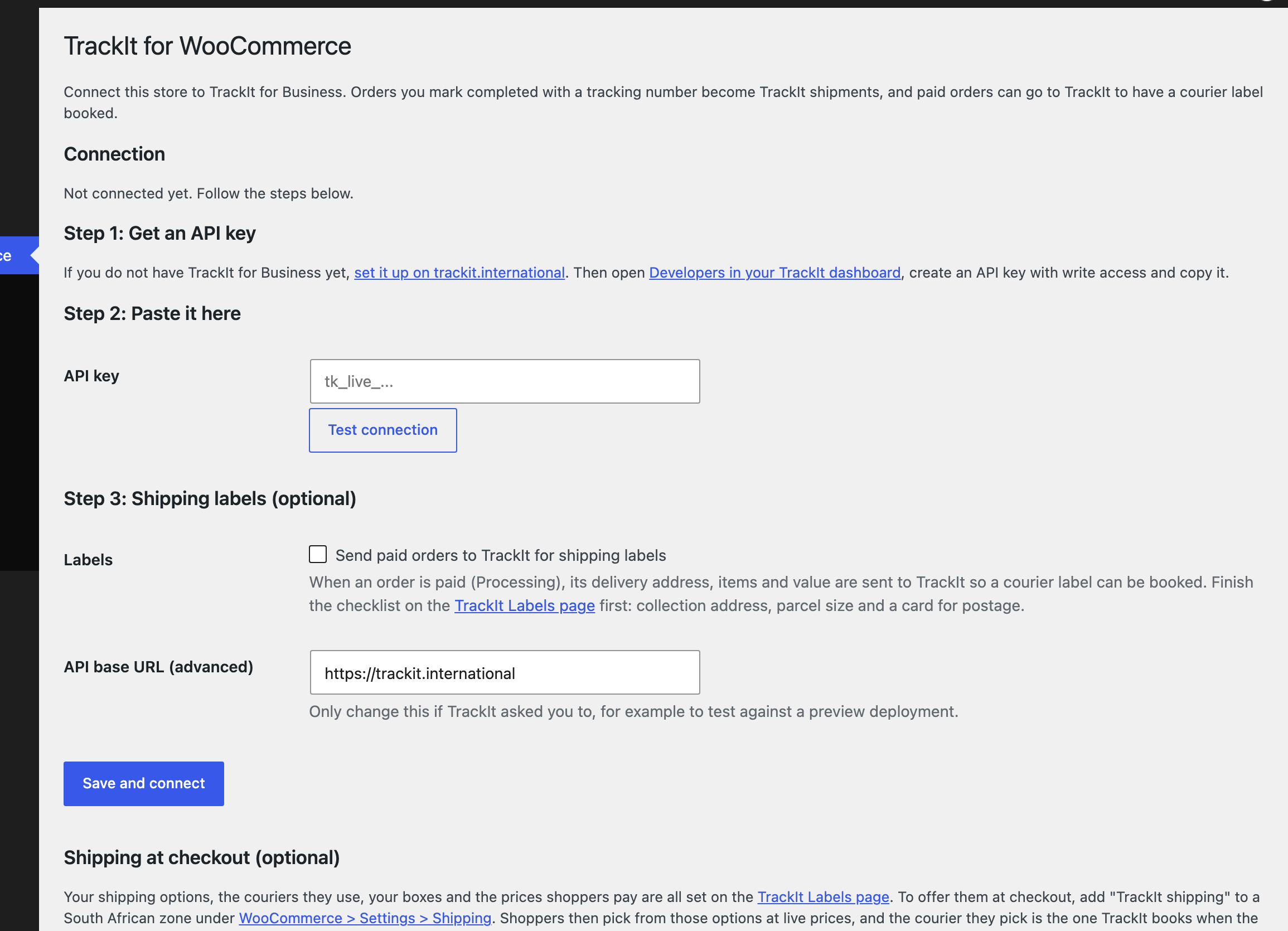
- Go to WooCommerce > TrackIt. The setup screen walks you through the rest.
- Step 1: if you do not have TrackIt for Business yet, follow the link to set it up. Then open Developers in your TrackIt dashboard and create an API key with write access.
- Step 2: paste the key and click Test connection, then Save and connect. The screen shows “Connected to” and your organisation’s name when it works.
- Step 3 (optional): turn on “Send paid orders to TrackIt for shipping labels” once you have finished the checklist on TrackIt’s Labels page (collection address, default parcel size and a card for postage).
- Optional: set up your shipping options on TrackIt’s Labels page, then add “TrackIt shipping” to a South African zone under WooCommerce > Settings > Shipping. “Test rates” on WooCommerce > TrackIt shows what a parcel to your store’s own address would cost. The store currency must be South African rand.
FAQ
-
Do I need a TrackIt account?
-
Yes. The plugin connects your store to TrackIt for Business, so you need an account and an API key from trackit.international.
-
Which couriers do labels support?
-
Labels are booked through TrackIt’s courier partners in South Africa. TrackIt shows the couriers and prices available for each parcel on its Labels page.
-
Will a TrackIt outage break my checkout?
-
No. Orders are queued and sent after checkout, and a failure is only logged and retried. If you use TrackIt shipping, rates are fetched while the shopper is at checkout, but the request gives up after 8 seconds and a failure only means the TrackIt options are not shown (it is logged). Rates are cached for 10 minutes per cart and address, so refreshing checkout does not ask TrackIt again.
-
Where is my API key stored?
-
In your WordPress options table. It is only shown masked on the setup screen, and it is only sent to TrackIt.
Reviews
There are no reviews for this plugin.
Contributors & Developers
“TrackIt for WooCommerce” is open source software. The following people have contributed to this plugin.
Contributors
Translate “TrackIt for WooCommerce” into your language.
Interested in development?
Browse the code, check out the SVN repository, or subscribe to the development log by RSS.
Changelog
1.4.0
- New: “TrackIt shipping” method. Shoppers choose from the shipping options set up on TrackIt’s Labels page, at live prices, and TrackIt books the courier they chose.
- New: “Test rates” on the setup screen quotes a parcel to the store’s own address.
- Changed: orders sent for labels include the chosen shipping option and the order’s weight.
1.3.0
- New: send paid orders to TrackIt for shipping labels, with the booking status and waybill shown on the order.
- New: a setup screen that walks through getting an API key, shows whether the store is connected and links to the Labels checklist.
- Changed: the plugin is now free on WordPress.org. Billing stays on trackit.international.
- Changed: the setup screen’s script is a proper enqueued file, and deleting the plugin removes its settings.
1.2.0
- The settings screen links to TrackIt for Business sign-up for stores that have no API key yet.
- The readme describes what is sent to TrackIt.
1.1.0
- Test connection now warns when automatic wallet emails are off in TrackIt.
- A WordPress notice lists orders that could not be sent, with links to resend.
- A successful resend no longer keeps the old error code.
1.0.0
- Initial release.