

Description
Show visitors whether your service is up, degraded, or down, and what has happened recently, on any WordPress page.
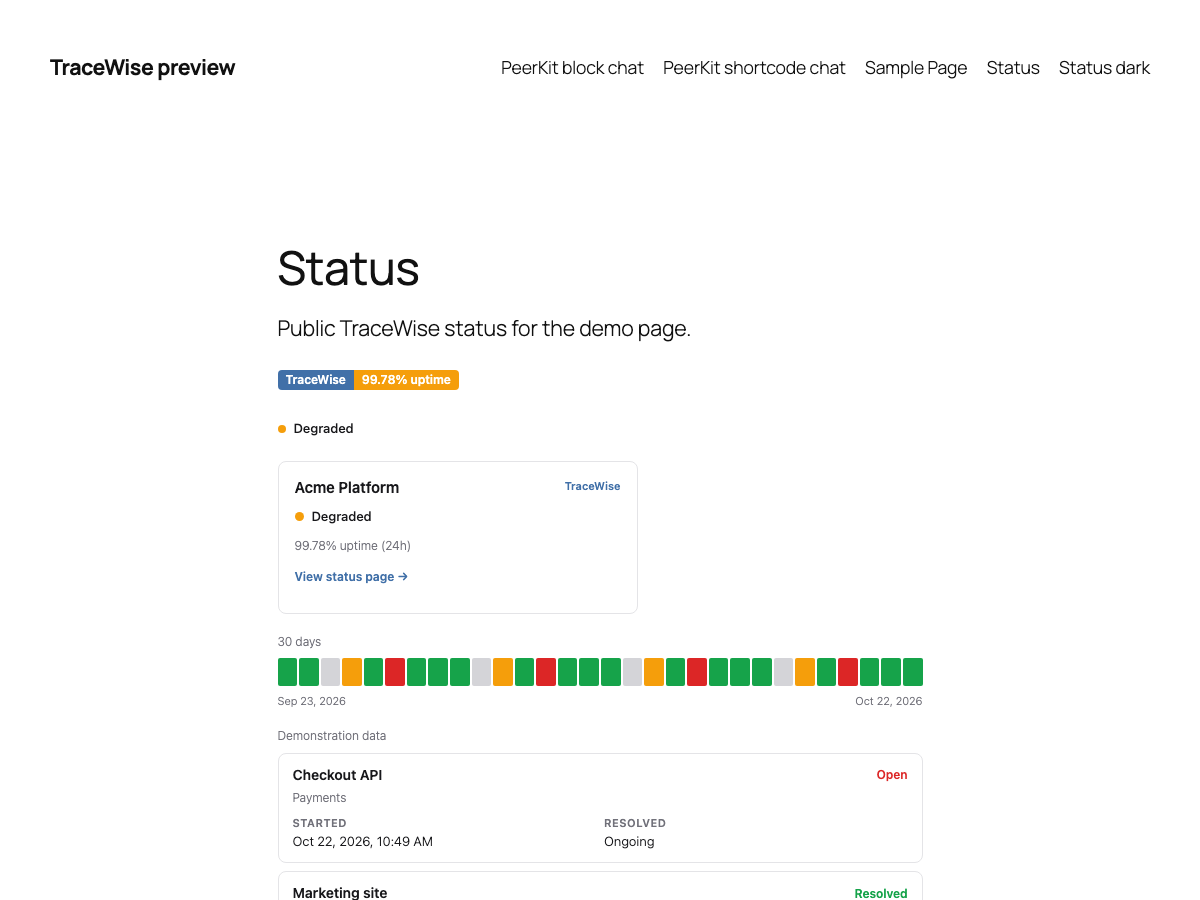
TraceWise is a hosted uptime and status service from RazorSoft, Inc. This plugin places a published TraceWise status page on your site as five widgets. Visitors see the current status, recent uptime, and incidents. You add them from the WordPress editor.
Public widgets work without a TraceWise account and without an API key. They read a status page that is already public, including the demo page. Publishing your own status page is done in TraceWise, on the plan you choose there. This plugin does not include paid TraceWise features for free.
- Status Badge shows the overall status. Uptime is optional.
- Status Indicator shows a status dot and label. The label can be hidden.
- Status Card shows a short summary and a link to the full status page.
- Uptime History shows daily reliability for 7, 30, or 90 days.
- Incident List shows 5, 10, or 20 recent incidents. Resolved incidents can be hidden.
Use them as Gutenberg blocks or as shortcodes: [tracewise_status], [tracewise_indicator], [tracewise_card], [tracewise_history], and [tracewise_incidents]. Gutenberg, the Site Editor, the Classic Editor, and builders that run shortcodes all work. A Custom HTML block does not run shortcodes.
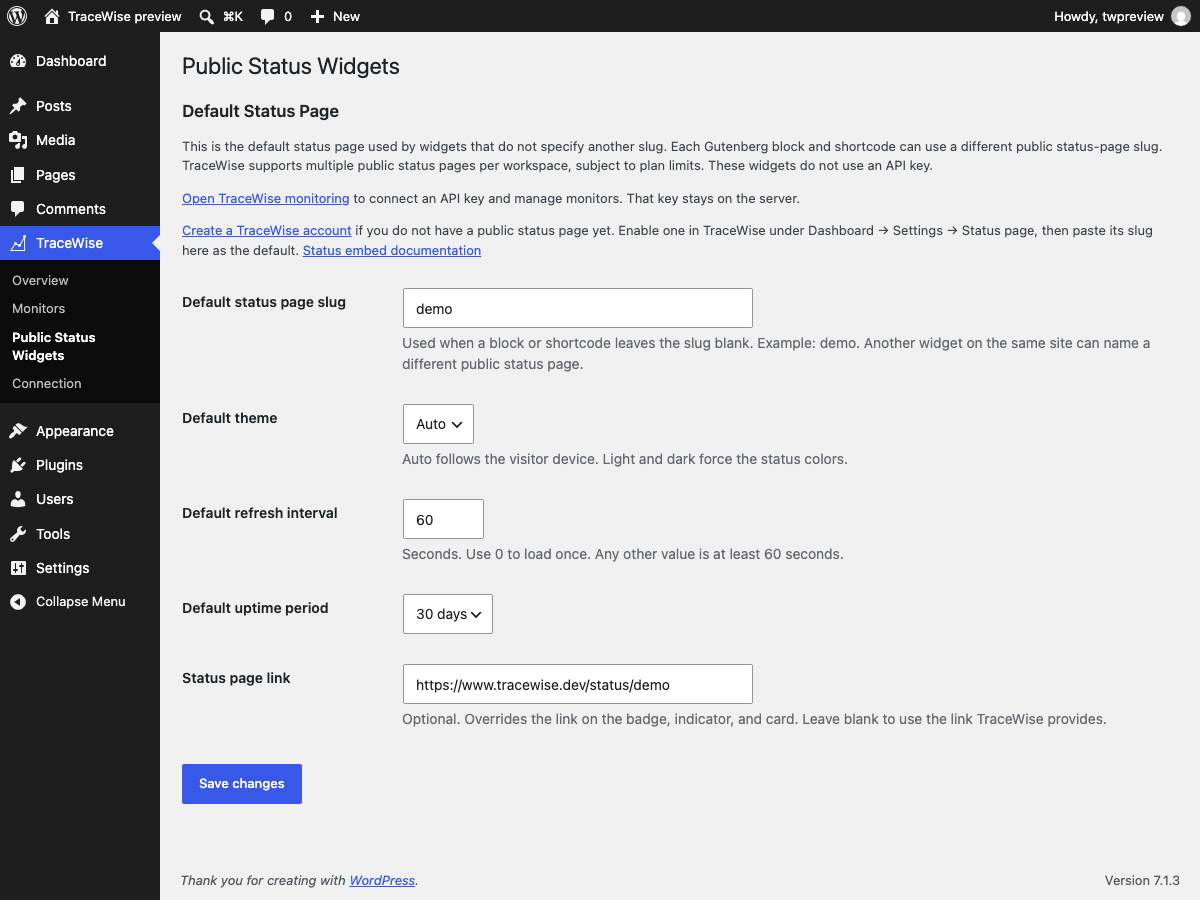
Save the status page you use most often under TraceWise Public Status Widgets. Widgets that leave the slug blank use that page. A block or shortcode can name a different public status page. How many public status pages a workspace can publish depends on the TraceWise plan.
An API key is optional. Paste one under TraceWise Connection when you want to view or manage monitors from WordPress. The TraceWise menu also includes Overview and Monitors, and administrators see a Dashboard widget for overall health. Those screens use the key. The key is encrypted in WordPress and is used only for server-side requests. It is not added to pages, blocks, JavaScript, or REST responses. Public widgets keep working if you never connect a key.
TraceWise plan limits still apply. Those limits include how many monitors a workspace can create, the shortest check interval, how many public status pages it can publish, and the API rate limit. This plugin shows those limits when TraceWise returns them. It does not raise them or change TraceWise prices.
Get started
- Install and activate TraceWise Status & Monitoring.
- Open TraceWise Public Status Widgets. Save
demoto preview, or paste the slug of a published status page. - Edit a page, insert a TraceWise block, or add a shortcode such as
[tracewise_status]. - Optional: create an API key in TraceWise and paste it under TraceWise Connection to view or manage monitors.
Display options
Each block and shortcode can set slug, theme, show_uptime, show_label, period, limit, show_resolved, and refresh. Leave slug off to use the default status page.
auto follows the visitor's color scheme. `light` and `dark` set the status colors. Leave `refresh` empty to use the saved setting, use `0` to load once, and use at least `60` to poll. To match a theme, add CSS variables such as `--tw-status-operational` and `--tw-status-surface` on a parent. See the [component documentation](https://www.tracewise.dev/docs/components).
External service and privacy
TraceWise Status & Monitoring contacts https://www.tracewise.dev, an external service operated by RazorSoft, Inc.
- Public widgets send the status-page slug to the hosted embed,
https://www.tracewise.dev/embed/status.js, in the visitor’s browser. The embed then requests the published status page. No API key is included. Visitors of a page that contains a widget also receive that script from TraceWise. A page with no TraceWise widget does not load it. Several widgets on one page still load it once. The block editor loads it so the preview can run. The plugin does not accept a custom API URL. - Optional monitoring management sends the API key from the WordPress server to
https://www.tracewise.dev/api/v1. The browser does not receive the key. Responses used on the admin screens are cached briefly in WordPress. A key that can only read monitors can still open the monitor list. Create, edit, and delete stay hidden until TraceWise confirmsmonitors:write. Manual checks stay hidden until TraceWise confirmschecks:run. - The plugin stores the public widget settings and the encrypted API key in WordPress options. It does not send WordPress user accounts, comments, or post content to TraceWise.
- Uninstall deletes the plugin settings, the encrypted key, and cached monitor views. It does not delete WordPress content and it does not delete the TraceWise account. Deactivation leaves the settings and the key in place.
- Terms of Service: https://www.tracewise.dev/terms
- Privacy Policy: https://www.tracewise.dev/privacy
Translations
The text domain is tracewise-status-monitoring. PHP, block metadata, and the block editor scripts use that domain. The plugin directory, option names, block names, and shortcodes stay tracewise-status so existing sites keep working. The plugin does not ship translation files.
Screenshots


Blocks
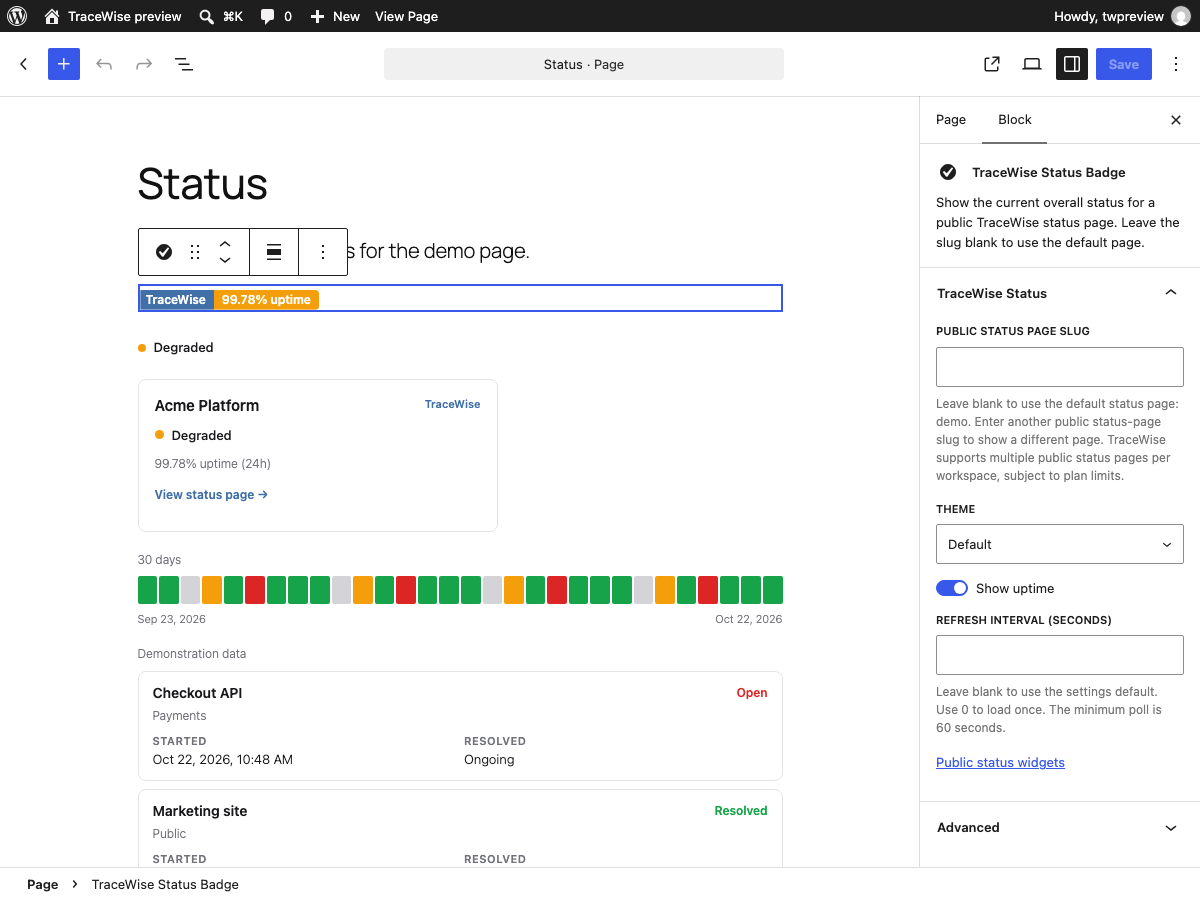
This plugin provides 5 blocks.
- TraceWise Status Indicator Show a status dot and label for a public TraceWise status page. Leave the slug blank to use the default page.
- TraceWise Uptime History Show daily uptime for a public TraceWise status page. Leave the slug blank to use the default page.
- TraceWise Status Badge Show the current overall status for a public TraceWise status page. Leave the slug blank to use the default page.
- TraceWise Incident List Show recent incidents for a public TraceWise status page. Leave the slug blank to use the default page.
- TraceWise Status Card Show a status card for a public TraceWise status page. Leave the slug blank to use the default page.
Installation
- Upload the
tracewise-statusfolder to/wp-content/plugins/, or installtracewise-status-monitoring-1.1.0.zipthrough Plugins Add New Upload Plugin. The zip containstracewise-status/tracewise-status.php. - Activate TraceWise Status & Monitoring on the Plugins screen. Updating from 1.0.0 keeps the same plugin, the saved settings, and the stored API key.
- Open TraceWise Public Status Widgets and save the default status-page slug. Widgets that leave the slug blank use that page. A block or shortcode can name another public status page.
- Edit a page, insert a TraceWise Status block, or add a shortcode such as
[tracewise_status]. - Optional: open TraceWise Connection and paste an API key to view or manage monitors.
No Docker, Node.js, or Composer is required on the WordPress site. The block editor source is included in src/. Node.js and npm run build are only needed to rebuild the files in build/.
WordPress.com sites need a plan that allows uploaded plugins, such as Business or Commerce. The plugin uses the WordPress options and HTTP APIs. It does not create custom database tables. The plugin needs WordPress 6.7 or newer and PHP 7.4 or newer.
FAQ
-
Is an API key required?
-
No. Public status widgets read a published status page and do not use an API key.
An API key is only for optional monitoring management. Create one in TraceWise and paste it under TraceWise Connection. WordPress encrypts it and does not show it again. Disconnect removes it. Public widgets stay the same.
-
What features are free?
-
The plugin is free. Showing a public status badge, indicator, card, uptime history, or incident list does not require an API key or a paid plugin upgrade.
TraceWise is a separate hosted service with its own plans. Monitor limits, the shortest check interval, how many public status pages you can publish, and API rate limits come from that plan. Connecting a key does not add paid TraceWise capacity, and this plugin does not include paid TraceWise features for free.
-
How do I display a status widget?
-
Open TraceWise Public Status Widgets and save a default status-page slug. Edit a page and insert a TraceWise block, or paste a shortcode:
[tracewise_status]for the badge[tracewise_indicator]for the indicator[tracewise_card]for the card[tracewise_history]for uptime history[tracewise_incidents]for the incident list
Leave the slug blank to use the default status page. If you do not have a public status page yet, create one at https://www.tracewise.dev/sign-up and enable it under Dashboard Settings Status page. The public
demoslug previews the widgets before that. -
Can I use different status pages?
-
Yes. Save the page you use most often as the default. Set the slug on a block or shortcode when that widget should show a different public status page. How many public status pages a workspace can publish depends on the TraceWise plan. This plugin does not add a WordPress setting for every status page.
-
Does it work with Gutenberg and shortcodes?
-
Yes. Gutenberg and the Site Editor use the blocks. The Classic Editor, a Text widget, and builders that run shortcodes, including the Elementor Shortcode widget, use the shortcodes. A Custom HTML block does not run shortcodes. Paste a shortcode into a Shortcode or Text element instead.
The plugin needs WordPress 6.7 or newer and PHP 7.4 or newer. WordPress.com sites need a plan that allows uploaded plugins, such as Business or Commerce.
-
How do I connect monitoring management?
-
Open TraceWise Connection and paste an API key from your TraceWise workspace. Only an administrator with
manage_optionscan open or save that screen.A key that views monitors needs
monitors:readandincidents:read. Creating, editing, and deleting monitors also needsmonitors:write. Manual checks needchecks:run. If a scope is missing, WordPress hides those actions and explains why. A key that can only read monitors can still open the monitor list. Test the connection again after you add a scope in TraceWise. The plugin does not treat a successful monitor list as permission to change monitors.The key is sent only from the WordPress server to
https://www.tracewise.dev/api/v1. It is not placed in page HTML, blocks, or browser JavaScript. WordPress stores it encrypted and shows only the last four characters. -
What data is sent to TraceWise?
-
Public widgets send the status-page slug from the visitor’s browser to
https://www.tracewise.dev/embed/status.js. That script then requests the published status page. No API key is included. A page with no TraceWise widget does not load the script.If you connect an API key, WordPress sends that key from the server to
https://www.tracewise.dev/api/v1. The browser does not receive the key. The plugin does not send WordPress user accounts, comments, or post content.Terms of Service: https://www.tracewise.dev/terms
Privacy Policy: https://www.tracewise.dev/privacy -
What happens when I uninstall?
-
Uninstall deletes the widget settings, the encrypted API key, and cached monitor views. It does not delete your pages or posts, and it does not delete the TraceWise account. Deactivating the plugin leaves the settings and the key in place.
-
Do TraceWise plan limits still apply?
-
Yes. TraceWise enforces monitor caps, minimum check intervals, duplicate URLs, how many public status pages a workspace can publish, and API rate limits. This plugin shows those errors. It does not raise the limits or change subscription prices.
-
How do I match my theme?
-
Choose Auto, Light, or Dark. Auto follows the visitor’s color scheme. A block or shortcode can override the default. For brand colors, add the
--tw-status-*variables in Additional CSS or the theme stylesheet. The widgets use normal document flow and shrink to the content width. See the component documentation. -
Does an update keep my settings?
-
Yes. Version 1.1.0 uses the same plugin file, options, blocks, and shortcodes as 1.0.0. An existing API key stays in place. You do not need to paste the key again unless WordPress can no longer decrypt it.
Reviews
There are no reviews for this plugin.
Contributors & Developers
“TraceWise Status & Monitoring” is open source software. The following people have contributed to this plugin.
Contributors
Translate “TraceWise Status & Monitoring” into your language.
Interested in development?
Browse the code, check out the SVN repository, or subscribe to the development log by RSS.
Changelog
1.1.0
- Show the plugin as TraceWise Status & Monitoring. The text domain is tracewise-status-monitoring. The install path, options, blocks, and shortcodes stay tracewise-status.
- Encrypt API keys with AES-256-GCM. Keys stored by 1.0.0 keep working and are rewritten on the next read.
- Hide create, edit, and delete when TraceWise says the key lacks monitors:write. Hide manual checks when it lacks checks:run.
- Document the external TraceWise service, public status requests, and the server-side API key.
- Describe the saved slug as the default status page. Blocks and shortcodes can name another public status page.
- Name the install archive tracewise-status-monitoring-1.1.0.zip. The plugin directory inside it remains tracewise-status.
1.0.0
- Add TraceWise Public Status Widgets for the public slug, theme, refresh interval, uptime period, and optional status page link.
- Add five blocks and five shortcodes that render through the public TraceWise embed. Each one can target a different public status page, and a page loads the embed script once.
- Add a TraceWise menu for public widgets, connection, monitor health, uptime, incidents, diagnostics, and monitor create, edit, check, and delete.
- Add a WordPress Dashboard widget for administrators.
- Store the API key encrypted on the server. Public widgets remain usable without a key.