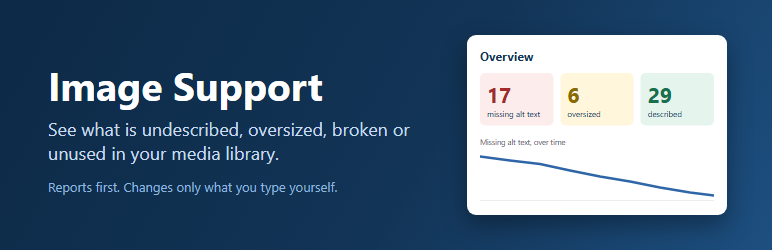

Description
Most WordPress image libraries were not built in one sitting. They accumulate, often across several people and several years, and at some point somebody has to answer questions about one: how much of it is missing alt text, how much of it is far larger than the site can use, how much of it is broken, and how much of it does anything still refer to.
WordPress does not answer any of those. This does.
It is a reporting tool. It reads your library, tells you what it found, and says plainly what it could not determine. The only content it ever changes is alt text, and only when you type it. Nothing is renamed, resized, converted, moved or deleted, which means you can install it on a site you have just inherited and look around without risking anything.
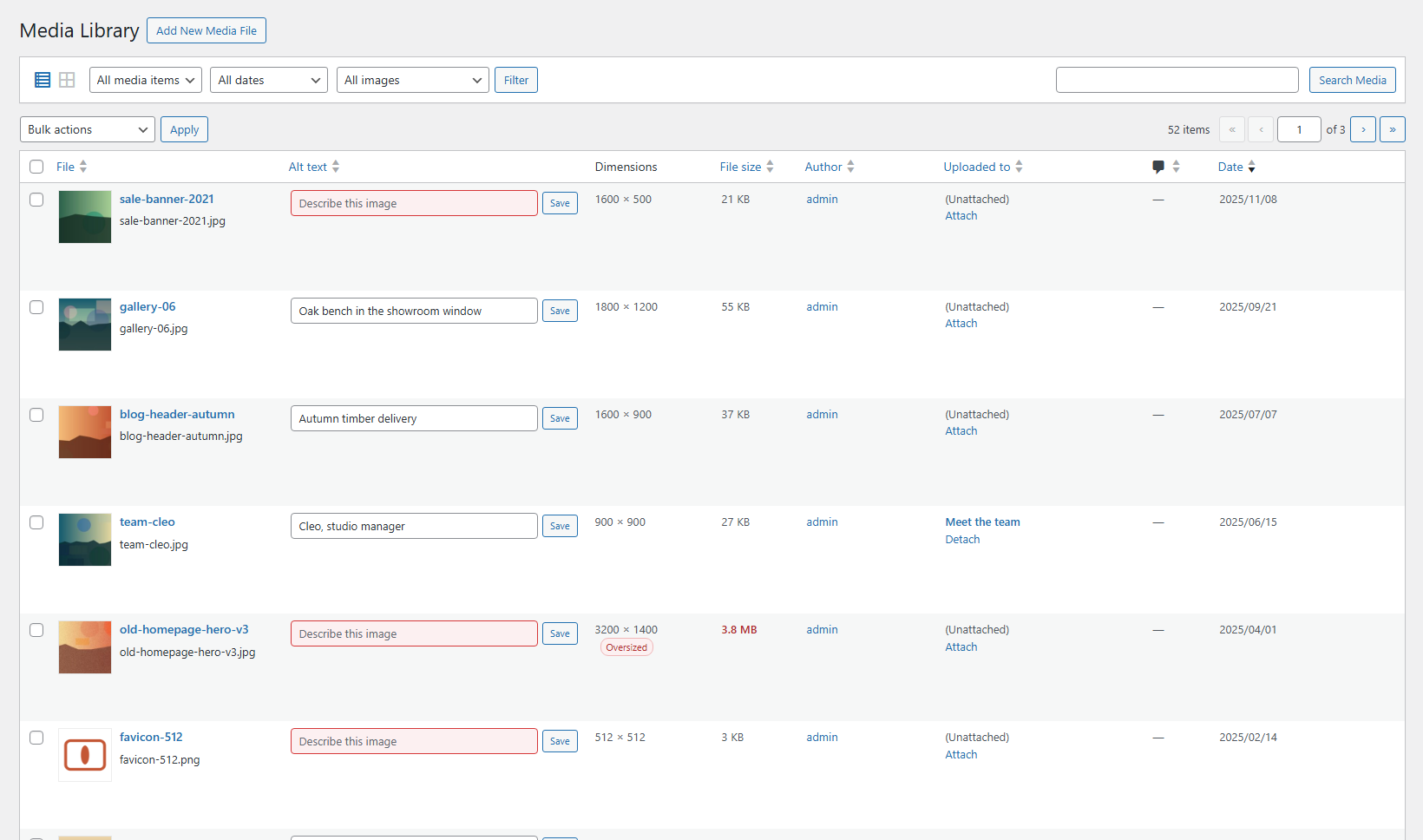
Alt text, editable in place. A column showing each image’s alt text as an editable field. Type, press Enter or click away, and it saves. Working through two hundred images stops being two hundred page loads.
A filter for the images that need work. Narrow the list to images missing alt text, images that have it, oversized originals, large files, or files that have gone missing. “We should sort out our alt text” becomes a list you can finish.
Images whose file has vanished. An attachment can outlive its file: an image gets replaced and the old entry is left behind, a cleanup removes files but not the entries, a site moves and the uploads folder does not come with it. WordPress carries on listing those as though they were there. They are the broken thumbnails in your library, and until now nothing pointed them out.
Dimensions and file size, sortable. Sort by file size and the six megabyte photo somebody dropped into a post in 2019 comes straight to the top.
An oversized flag. WordPress scales big uploads down on arrival, but images that predate that behaviour, or that were imported straight onto disk, escaped it entirely. Those are the enormous originals quietly filling your uploads folder and every backup you take. They get flagged.
Search that includes alt text. WordPress already searches image titles, captions, descriptions and filenames. It does not search alt text, which is often the only place the subject of a photograph is written down. In the list view, searching “harbour” now finds the harbour photo even when the file is called IMG_4821.jpg.
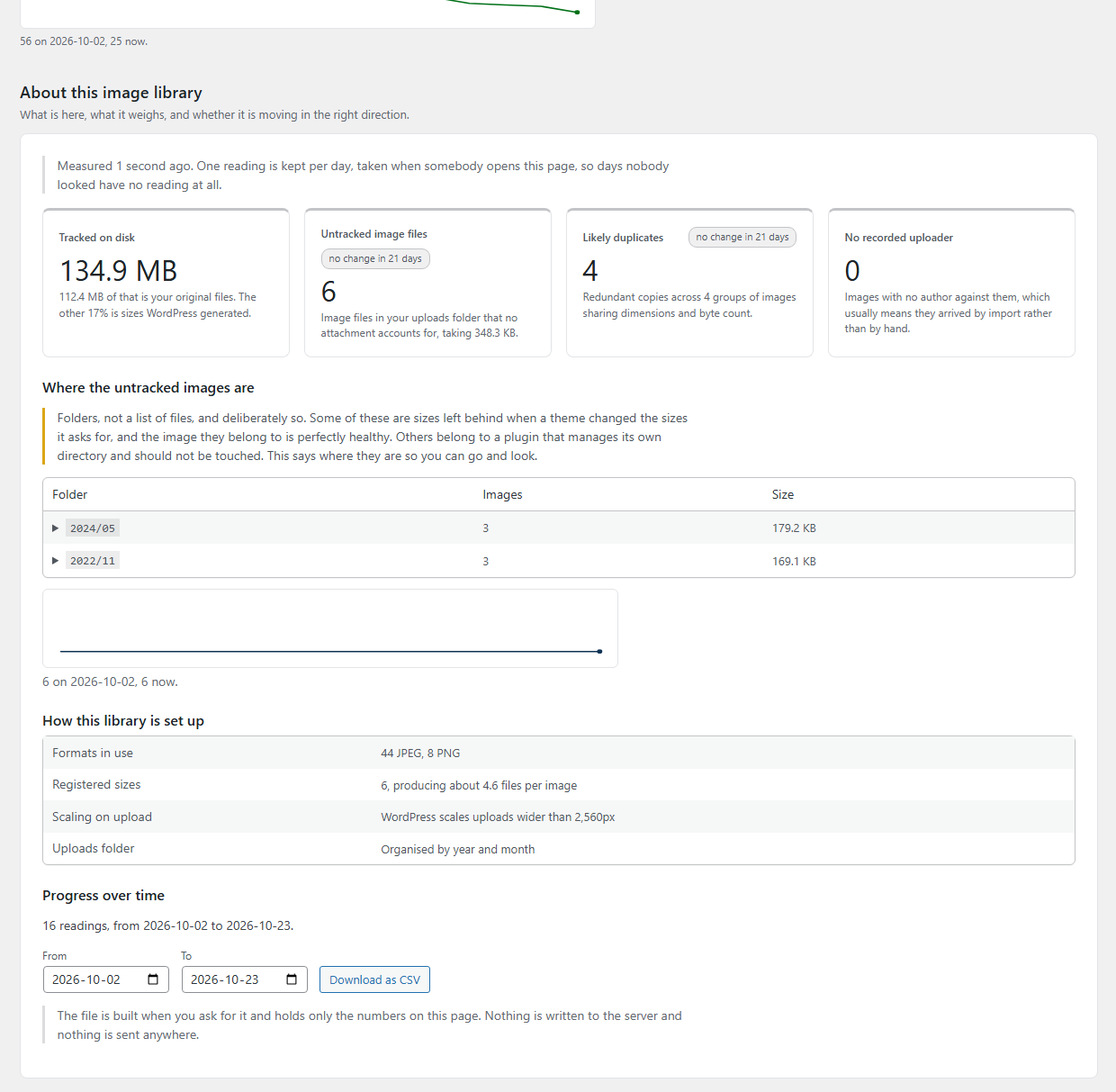
A dated picture of the whole library. Media > Image Support opens on what is actually here: how much space it takes, how much of that is sizes WordPress generated rather than files you uploaded, how many image files are sitting in your uploads folder that no attachment accounts for, likely duplicates, and how many images arrived with no uploader recorded. A reading is kept for each day the page is opened, so the numbers can be compared over time, and the whole history downloads as a CSV for whatever date range you ask for.
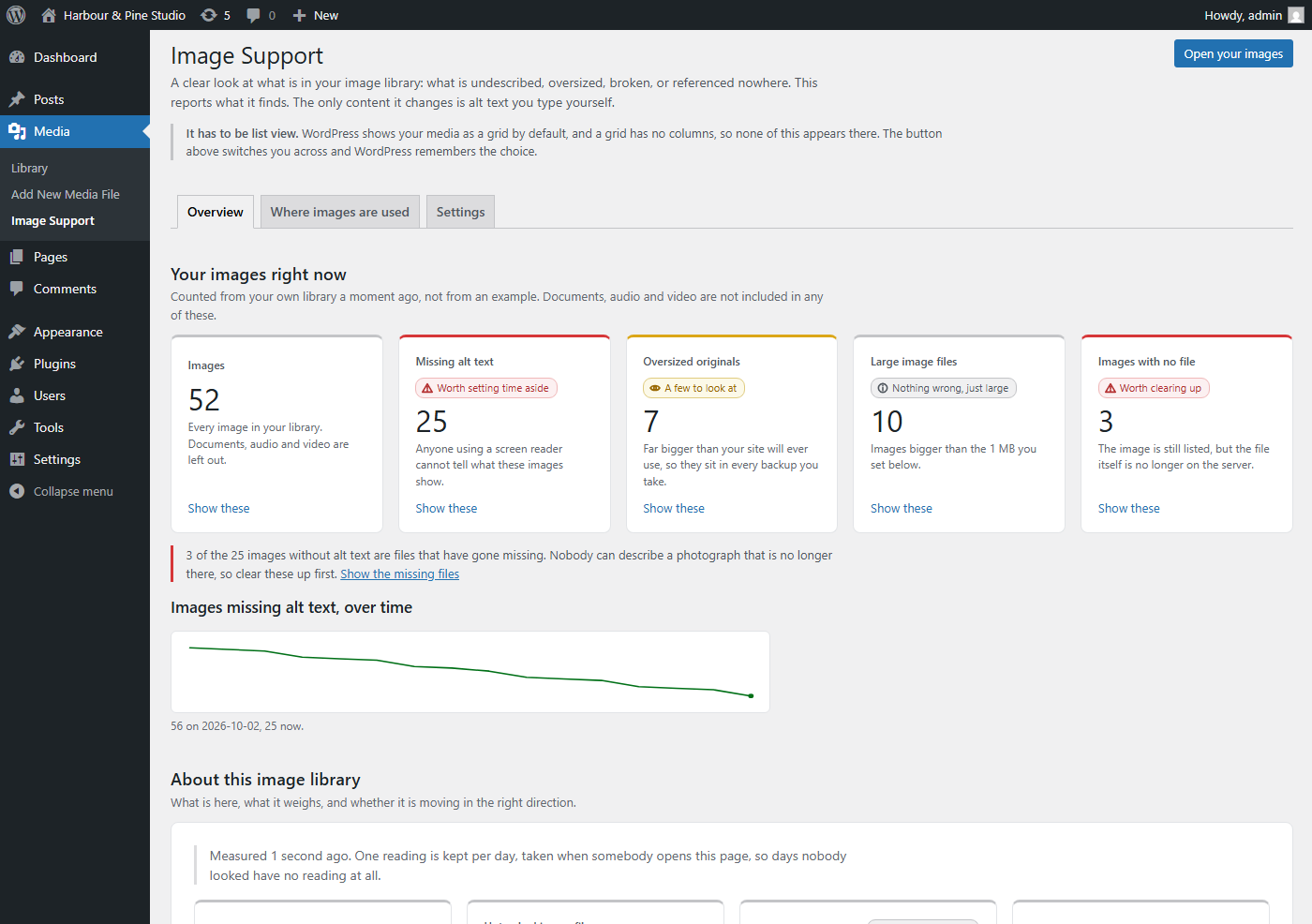
A page that explains itself. Media > Image Support has three tabs: an overview of what needs attention with a link straight into each set, a list of where every image is used, and the settings. Everything on it is drawn from your own library rather than described in the abstract.
What this plugin does not do
- It does not touch the front end. Everything happens inside wp-admin.
- It does not change, move, rename, compress or convert a single image file. It reads your library and lets you edit alt text. It also stores a file size number against each image, a daily reading of its own numbers so progress can be compared over time, and short-lived copies of its results. Uninstalling removes all of it.
- It makes no external network requests of any kind. Nothing is sent anywhere.
- It only concerns itself with images. Documents, audio and video are left alone.
A note on alt text
Alt text describes an image for people using a screen reader, and for anyone whose image fails to load. A good description says what the image shows and why it is there, in a sentence.
A word on decorative images. Some images carry no meaning and should be silent to a screen reader, and the correct markup for those is an empty alt attribute. WordPress does not record why an alt is empty, though: a blank field looks exactly the same whether somebody decided the image was decorative or simply never got to it. So this plugin does not guess. Anything without alt text is listed as missing, including images you have deliberately left blank. If that means a handful of genuinely decorative images stay on your list, that seems better than telling you a job is done when the data cannot actually say so.
For developers
Filters: timu_image_support_mime_types, timu_image_support_widest_width, timu_image_support_oversize_threshold, timu_image_support_heavy_bytes, timu_image_support_attention_floor, timu_image_support_alt_suggestions, timu_image_support_index_backfill_limit, timu_image_support_oversize_scan_limit, timu_image_support_library_scan_limit, timu_image_support_untracked_scan_limit, timu_image_support_untracked_skip_folders, timu_image_support_reference_scan_limit, timu_image_support_reference_row_limit and timu_image_support_reference_file_limit.
Actions: timu_image_support_before_write and timu_image_support_after_write, fired around every alt-text change with the previous and new values.
Images only, on purpose
This release is deliberately about images. Documents and video raise different questions and deserve their own tools rather than a single screen trying to serve everything at once.
Screenshots
Installation
- Install and activate the plugin.
- Go to Media > Image Support. It explains what the plugin does, reports what it found in your library, and has a button through to your images.
- That button opens Media in list view, which matters: WordPress shows the Media screen as a grid by default, and a grid has no columns, so none of this appears there.
- Use the filter dropdown above the list to find images missing alt text.
FAQ
-
I activated the plugin and cannot see anything. Where is it?
-
Two things are probably going on. There is no top-level menu: the plugin adds columns to the Media list and one page under Media. And WordPress shows the Media screen as a grid by default, where there is no table and therefore nothing to add columns to.
Go to Media > Image Support and use the button there, or click “Your images” on the Plugins screen. Either one opens the list view and WordPress remembers the choice.
-
Where are the new columns?
-
On the Media list view, just after the file name. If you are looking at the grid, switch to the list using the two small buttons at the top left of the Media screen.
-
What does “files that have gone missing” mean?
-
The image is still listed in your library, with a name and a size, but the file itself is no longer on the server. You usually notice these as broken thumbnails.
It matters more than tidiness. A missing file still counts as an image without alt text, so it shows up as work to do, and nobody can describe a photograph that is not there. The overview page says how many of your undescribed images are actually missing files, so the number you are working from is honest.
This plugin only reports them. Deleting an entry is your call, and worth checking first, because a post may still be pointing at it.
-
Where are my images actually used?
-
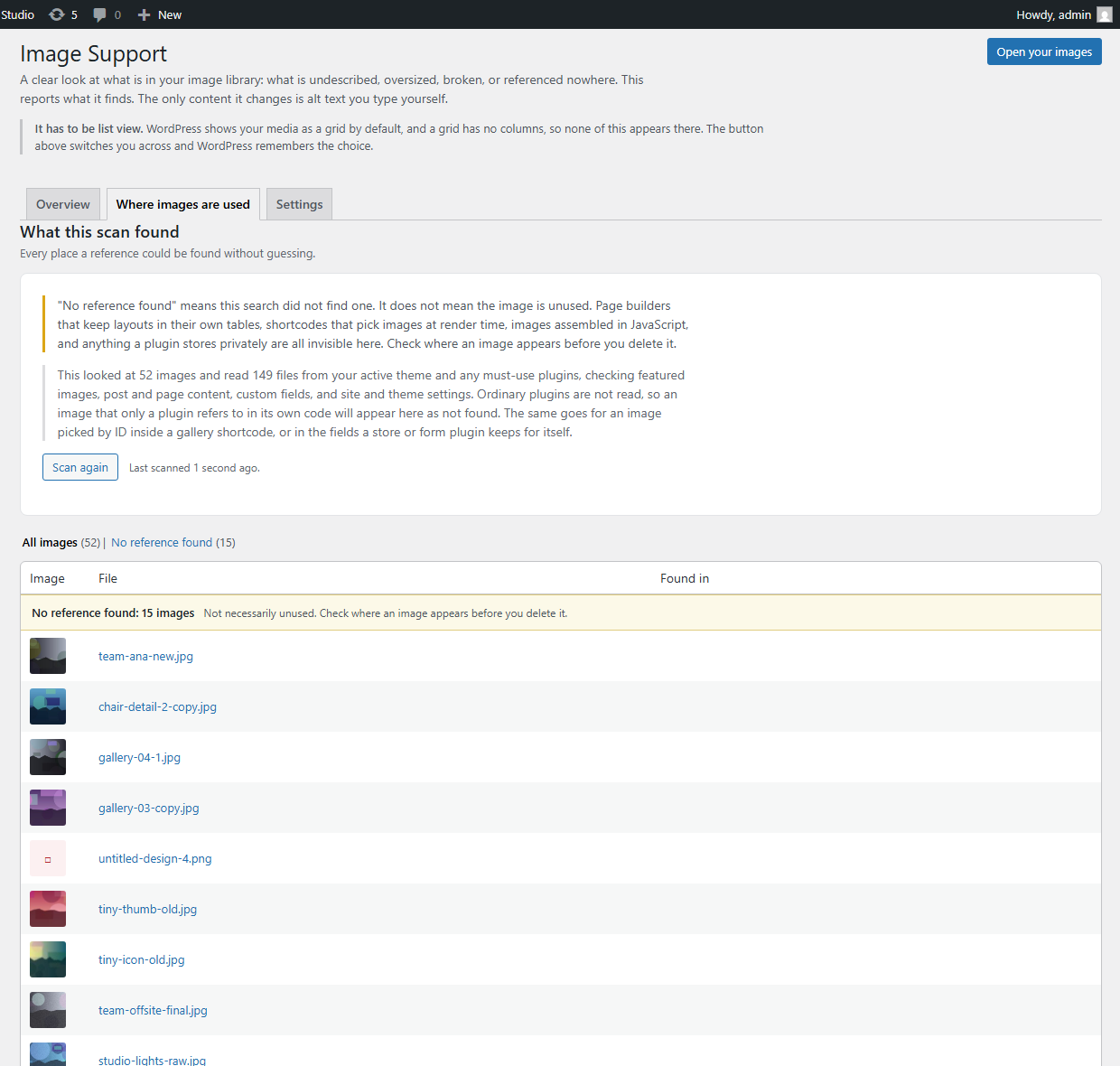
Media > Image Support has a second tab, “Where images are used”, listing every image twenty at a time with the places a reference was found: as a featured image, in post or page content, in a custom field, in a site or theme setting, or in a theme or plugin file.
It exists because WordPress’s own “Unattached” filter answers a different question.
post_parentrecords how a file was uploaded, not how it is used. Measured on a real 766-image library, nearly a quarter of “unattached” images were live on the site, and 86 attached images were absent from the post they were attached to.“No reference found” means this search did not find one. It does not mean the image is unused. The site icon and the custom logo are recognised, but an image picked by ID inside a gallery shortcode, or in a store or form plugin’s own fields, is not. Page builders that keep layouts in their own tables, shortcodes that pick images at render time, and anything a plugin stores privately are all invisible to it. Check where an image appears before deleting it. The plugin only reports; it never deletes anything.
-
What does this plugin store, and does it send anything anywhere?
-
It sends nothing anywhere. There are no external requests of any kind, no analytics, no telemetry, no licence checks, and no calls home. The plugin will work with the server disconnected from the internet.
What it stores on your own site, all of it removed when you uninstall:
- A number against each image, being the file size, so the Media list can sort by it.
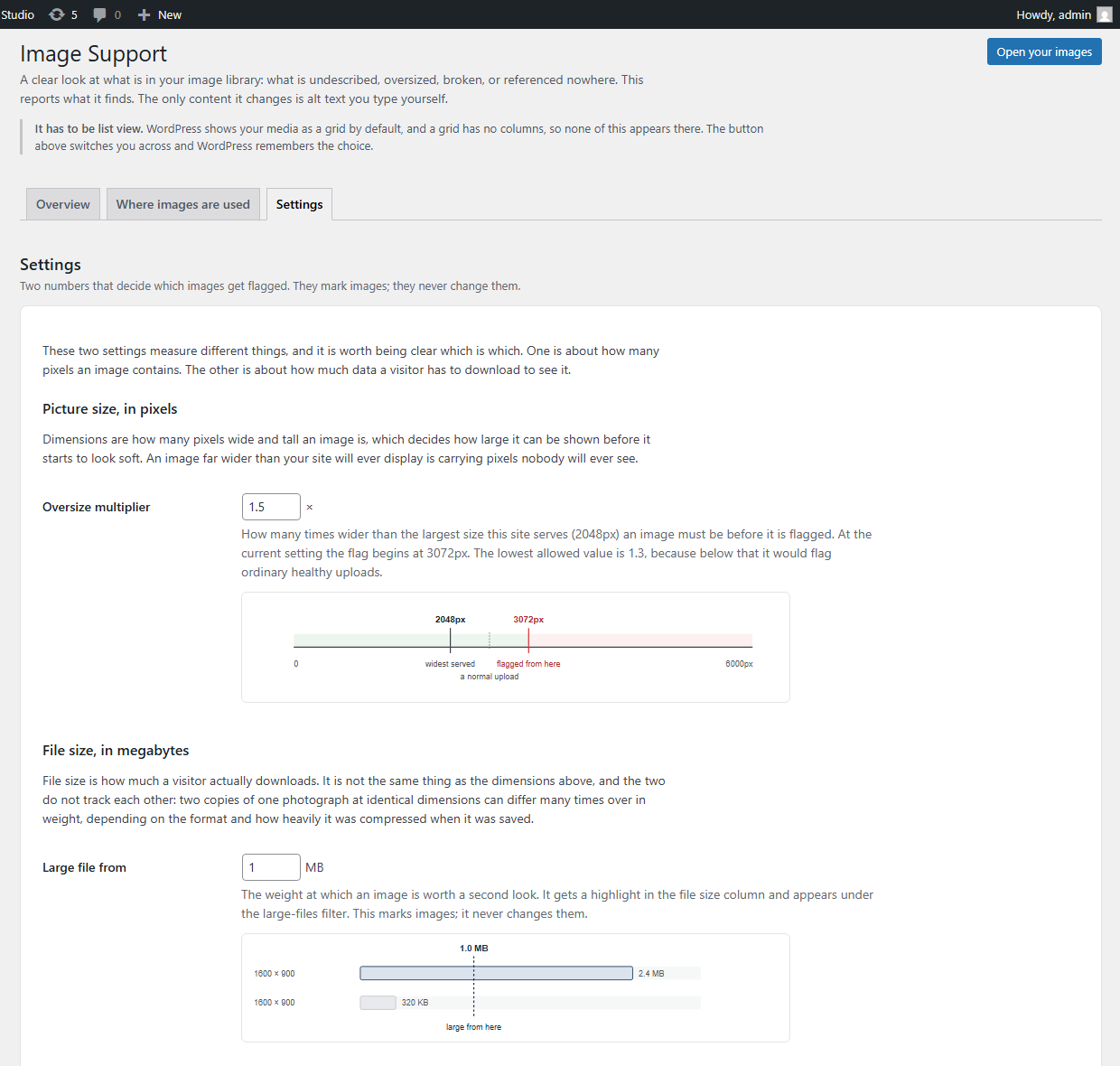
- Two settings: the oversize multiplier and the large-file threshold.
- One reading a day of its own counts, kept for a year, so progress can be compared.
- Short-lived caches of what its scans found, so a page load does not repeat the work.
None of that is personal data. The daily readings are counts, not lists. The scans read your posts, custom fields, settings and theme files looking for file names, but they keep only which category a name was found in, never the content they searched.
Your alt text is the exception, and it is not really this plugin’s data: it goes into the field WordPress has always used, so it stays exactly where it is when the plugin is removed.
-
What is on the About this image library page?
-
Facts rather than faults. The size of the library and how much of it is generated thumbnails, image files in the uploads folder that no attachment accounts for, likely duplicates, images with no recorded uploader, the formats in use, how many sizes your site registers, whether upload scaling is switched on, and whether uploads are organised by year and month.
None of it is a problem list. It is the set of things somebody taking over a site would otherwise have to work out by hand.
-
How does the progress-over-time part work?
-
One reading is kept per day, taken when somebody opens the page. There is no scheduled task and nothing runs in the background, which means days when nobody looked have no reading at all. That is worth knowing before you read the trend.
Readings are kept for a year and can be downloaded as a CSV for any date range. The file is built when you ask for it, holds only the numbers shown on the page, is never written to the server, and is not sent anywhere.
-
Why are untracked files shown by folder instead of as a list?
-
Because a list of file names invites deleting them, and a good proportion of them should not be deleted. Some are sizes left behind when a theme changed the sizes it asks for, and the image they belong to is perfectly healthy. Others belong to a plugin that manages its own directory. Showing the folders tells you where to go and look without implying that everything listed is rubbish. Administrators can open each folder to see the files inside it, linked so you can see what one actually is. Anyone else sees only how many there are. Folders that form and store plugins use for private files are left out of the scan, and so are other sites’ uploads on the main site of a network.
-
What can I configure?
-
Two numbers, on the Settings tab of Media > Image Support, both requiring an administrator: the oversize multiplier, which decides how much wider than your largest served size an image has to be before it is flagged, and the large-file threshold in megabytes. Everything else is a developer filter, because it is either derived from your site’s own registered sizes or not a decision a site owner has a reason to make. Changing either number only changes which images get marked; it never changes an image.
-
Does this change my images?
-
No. Nothing about your image files is altered, moved or re-saved. The only content this plugin changes is alt text, and only when you type it.
-
What happens to my alt text if I delete the plugin?
-
It stays. Alt text is stored in WordPress’s own field, exactly where the attachment editor and every other plugin looks for it. Uninstalling removes the file-size index this plugin builds for sorting, the daily readings, the saved results and the two settings above, on every site of a network. Nothing else is touched.
-
Why can I not sort by dimensions?
-
Because it would be a lie. Width and height are stored inside a serialized blob that the database cannot sort on, and offering a sort control that quietly did nothing would be worse than not offering it. File size is sortable because this plugin maintains a separate numeric index for it.
-
What counts as “oversized”?
-
An image more than one and a half times wider than the largest size your site will ever serve, which on a default install is 2048 pixels.
That number comes from measuring rather than guessing. Since WordPress 5.3, uploads are scaled down to 2560 pixels automatically, so an ordinary photo you upload today sits at about 1.25 times the yardstick and is perfectly healthy. Anything much past that did not come through the normal upload path: it predates the scaling, it was imported directly onto disk, or the scaling was switched off. Those files are often several thousand pixels wide and nothing in WordPress points them out.
The multiplier is a setting on Media > Image Support, where the page also shows you the resulting pixel width so the number means something. It will not go below 1.3, because below that it would start flagging ordinary healthy uploads. Developers can override it with the
timu_image_support_oversize_thresholdfilter, and change the yardstick itself withtimu_image_support_widest_width. A filter always wins over the setting. The full list is under “For developers” below.Seeing none at all is the normal result on a well-kept library, and it is worth knowing that rather than wondering whether the feature works.
-
Does it work with a very large media library?
-
The columns, the alt filters and the library measurement scale fine. The measurement reads attachments in batches, up to 50,000 of them, and holds a short file name for each file it finds, so memory use grows with the library at roughly 100 bytes a file. Past that limit the page says so and leaves the untracked-file count out rather than guess. Two checks have to read each file or its metadata, so they look at the newest 2,000 images: oversized originals and images with no file. On a library larger than that the page says so, and those two numbers are a minimum. The “where images are used” scan examines the newest 5,000 images, reads your content in pages, and says so when part of your site could not be read, because “no reference found” is not worth much then. Results are kept for an hour, and every limit can be changed with a filter.
-
Can I edit alt text if I did not upload the image?
-
Only if your role lets you edit that attachment. The check is per image, not a blanket permission, so contributors do not gain the ability to edit other people’s uploads.
Reviews
There are no reviews for this plugin.
Contributors & Developers
“Thisismyurl Image Support” is open source software. The following people have contributed to this plugin.
Contributors
Translate “Thisismyurl Image Support” into your language.
Interested in development?
Browse the code, check out the SVN repository, or subscribe to the development log by RSS.
Changelog
1.6297
The Media list was hard to read on laptop-width screens: the File column was squeezed to a sliver and filenames wrapped one letter per line. That is fixed.
- Fixed: the File column on the Media list is no longer squeezed by the added Alt text, Dimensions and File size columns. The list now sizes its columns to their content, and on narrower desktop windows the Author, Uploaded to, Comments and Date columns step aside (Screen Options turns them back on).
1.6291
A review of 1.6229 turned up problems in how the scans behave on large and unusual sites, and in what this page said about itself. All of them are fixed.
- Fixed: the Image Support page stopped working when the uploads folder, or a theme or must-use plugin folder, held a subfolder PHP could not read. Backup and security plugins often create these. Unreadable folders are now skipped.
- Fixed: Authors, who can open the page, could see the names of untracked image files and link to them, including files in folders that form and store plugins keep private. Folder names and links are now shown to administrators only, other roles see a count, and those plugins’ folders are not scanned.
- Fixed: the library measurement loaded every image, with several disk checks each, in one request, and the reference scan loaded every post and custom field into memory at once. Both now read in batches, so memory grows with the number of files rather than with every row loaded at once, and the library measurement no longer touches the disk per image.
- Fixed: a reference scan whose text search failed would report “no reference found” for every image. It now says the scan was incomplete.
- Fixed: the untracked-files figure counted attached SVGs, PDF previews, edited-image backups and private attachments as untracked, and linked lowercased file names that do not exist on case-sensitive servers.
- Fixed: oversized and no-file counts silently covered only the newest 2,000 images. The page now says when that applies.
- Fixed: a PHP deprecation notice for an Author viewing an image they cannot edit.
- Fixed: the file size index and cached results did not update when media was changed through the REST API, WP-CLI or a scheduled job.
- Fixed: the Media search no longer replaces another plugin’s GROUP BY clause.
- Fixed: on a network, uninstalling now removes the plugin’s data from every site, not only the current one.
- Fixed: file-size units in the settings field are now taken from WordPress, so the label no longer changes by itself in other languages.
- Changed: the plugin description, the “leaves alone” list and the uninstall note now say what the plugin stores. Several of them said it changed nothing or stored less than it does.
- Changed: every class is now named after the plugin, so another plugin cannot declare one with the same name.
- Fixed: the site icon and custom logo, which are stored as IDs, were reported as having no reference. File names with accented letters, percent-encoding or extra dots are now matched.
- Fixed: when a library is larger than the measurement covers, the page no longer shows a zero or a trend for untracked files and duplicates. It says they were not counted, and no history reading is written.
- Fixed: on the main site of a network, other sites’ uploads are not scanned or listed.
- Documented every developer filter. There are fourteen, and the readme listed two.
1.6229
- Added Media > Image Support: a page explaining what the plugin does, reporting how many images in your library are missing alt text or larger than they need to be, linking straight to each of those sets, and holding the settings.
- Added two settings, previously developer-only filters: the oversize multiplier and the large-file threshold. A filter still overrides either one, so a site configured in code keeps behaving that way.
- Added “How it works” and “Your images” links on the Plugins screen. Without them, activating the plugin and going looking produced nothing at all, because the columns live on an existing screen that WordPress shows as a grid by default.
- Fixed: the description of alt-text search did not say it applies to the list view. It does not work in the grid, where the search runs a different query.
1.6226
- First release of the Media list screen tools: alt text column with inline editing, dimensions and file size columns, a filter for images needing attention, an oversized-image flag, and alt text included in Media search.