

Description
TechnologyWisdom Upload Guard gives administrators fine-grained control over media uploads in WordPress by enforcing restrictions based on user roles.
You can define:
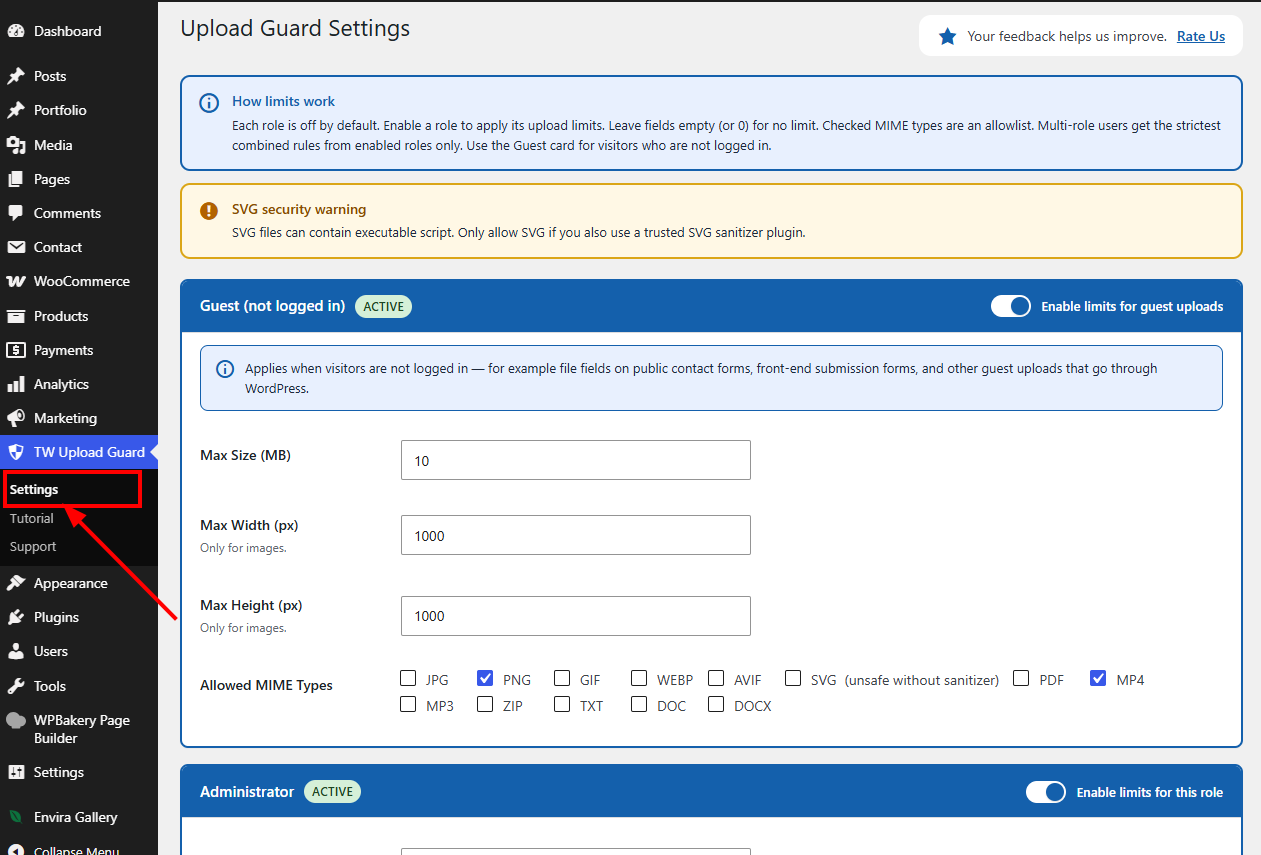
– Maximum upload file size (in MB)
– Maximum image width and height (in pixels)
– Allowed MIME types (JPG, PNG, WEBP, GIF, AVIF, PDF, MP4, and more)
All rules are applied before the file is uploaded, preventing unwanted or oversized files from entering your media library.
Users with multiple roles receive the strictest combined limits. MIME types are validated with WordPress filetype checks (not only the browser-reported type). A dedicated Guest setting applies to visitors who are not logged in, for example file upload fields on public forms. Upload Guard rules override supported form upload restrictions, ensuring your configured file type, size, and image dimension rules are always enforced.
Key Features
- Role-based upload restrictions with per-role enable/disable toggle
- Guest (not logged in) upload limits for public form uploads
- Upload rules enforced across Media Library uploads and supported frontend forms
- File size limits per role
- Image dimension validation (width and/or height)
- MIME type allowlist with WordPress filetype detection
- In-plugin support form and Technology Wisdom support portal integration with site owner consent
- Settings removed on uninstall
Note:
Allowing SVG is optional and risky unless you also use a trusted SVG sanitizer.
If you upload a plugin ZIP via Plugins Add New, that ZIP is blocked unless ZIP is allowed for your admin role in Upload Guard settings.
Upgrade to TW Security Toolkit
Need more advanced WordPress file protection and security monitoring features?
TW Upload Guard is also available as part of the premium TW Security Toolkit. The Security Toolkit brings login hardening, content workflow controls, file protection, and security monitoring into one admin menu — all without custom development.
Premium Features Include
- Secure Login Path with a custom login URL
- Upload Guard with role-based file size, type, and dimension limits
- Login Alert & Tracker with last-login tracking and email alerts
- Disable File Editor to block theme and plugin editors
- Post Modifier Tracker showing who last edited content
- Link Expiration by date and/or click count
- CPT Revisions control per custom post type
- Post Approval Notifier with optional draft hold-for-approval
- Security Dashboard with recent activity overview
- Complete Audit Log with CSV/PDF export
- Failed Login Monitoring & Brute Force Protection
- IP Blacklist to block unwanted visitors
- Two-Factor Authentication (email OTP) and role policies
- Login History by User with advanced filters
- Email, Slack & Discord security notifications
- Scheduled Security Reports (daily, weekly, or monthly)
- Suspicious Activity Detection & Alerts
- Security Health Check with recommendations
- File Change Detection for important WordPress files
Whether you are hardening login access, protecting uploads and file editors, managing content approvals, or monitoring suspicious activity, TW Security Toolkit provides the tools needed to secure and oversee your WordPress site from a single plugin.
Upgrade to TW Security Toolkit and unlock a complete set of WordPress security features designed for growing websites and teams.
For full Premium details, pricing, and feature comparison, visit the TW Security Toolkit.
Privacy / External Service
This plugin can optionally connect to an external support service operated by Technology Wisdom.
Service: https://pluginsupport.technologywisdom.com
Terms of Use: https://pluginsupport.technologywisdom.com/terms-of-use/
Privacy Policy: https://pluginsupport.technologywisdom.com/privacy-policy/
The service is used to provide in-plugin support messaging, feedback forwarding, announcements, and connection status for opted-in sites.
Opt-in consent (required before any connection):
When you activate the plugin, an admin notice asks whether you want to allow the support connection. You can choose Allow Support Connection or No Thanks.
- If you allow the connection, the plugin may send: site URL, site name, admin email, plugin name/version, WordPress version, and PHP version. Support requests and review/feedback details are sent only when you submit those forms. The plugin may also check weekly for announcements from Technology Wisdom.
- While the connection is enabled, the plugin may also report a connection status to the portal so we can tell whether the site is Active, Deactivated, Disconnected, or Deleted. Status is only sent after you opt in.
- If you decline (or never accept), that data is not sent to the support portal. The plugin’s core feature continues to work normally without the connection.
- You are never required to allow the connection to use the plugin.
- You can disconnect the support connection at any time from the plugin’s Support page by choosing Disable priority support. After you disconnect, the plugin stops sending status updates, support traffic, and announcement checks.
Support and rating forms also include their own consent checkboxes before site information is included with a submission.
Please review the service Terms of Use and Privacy Policy before enabling the connection.
License
This plugin is licensed under the GPL-2.0+ License.
You may use, modify, and distribute it freely under the license terms.
Full license: https://opensource.org/licenses/GPL-2.0
Screenshots
Installation
- Upload the plugin folder to
/wp-content/plugins/technologywisdom-upload-guard/ - Activate the plugin through the Plugins menu in WordPress
- Go to TechnologyWisdom Upload Guard in the admin menu
- Enable a role and configure its upload rules
- Save changes
FAQ
-
Does this affect existing media files?
-
No. The plugin only validates new uploads.
-
Does it work with the Media Library and post uploads?
-
Yes. Upload Guard checks files uploaded through the WordPress Media Library and anywhere else WordPress accepts file uploads, including posts and pages.
-
Does Upload Guard override form upload restrictions?
-
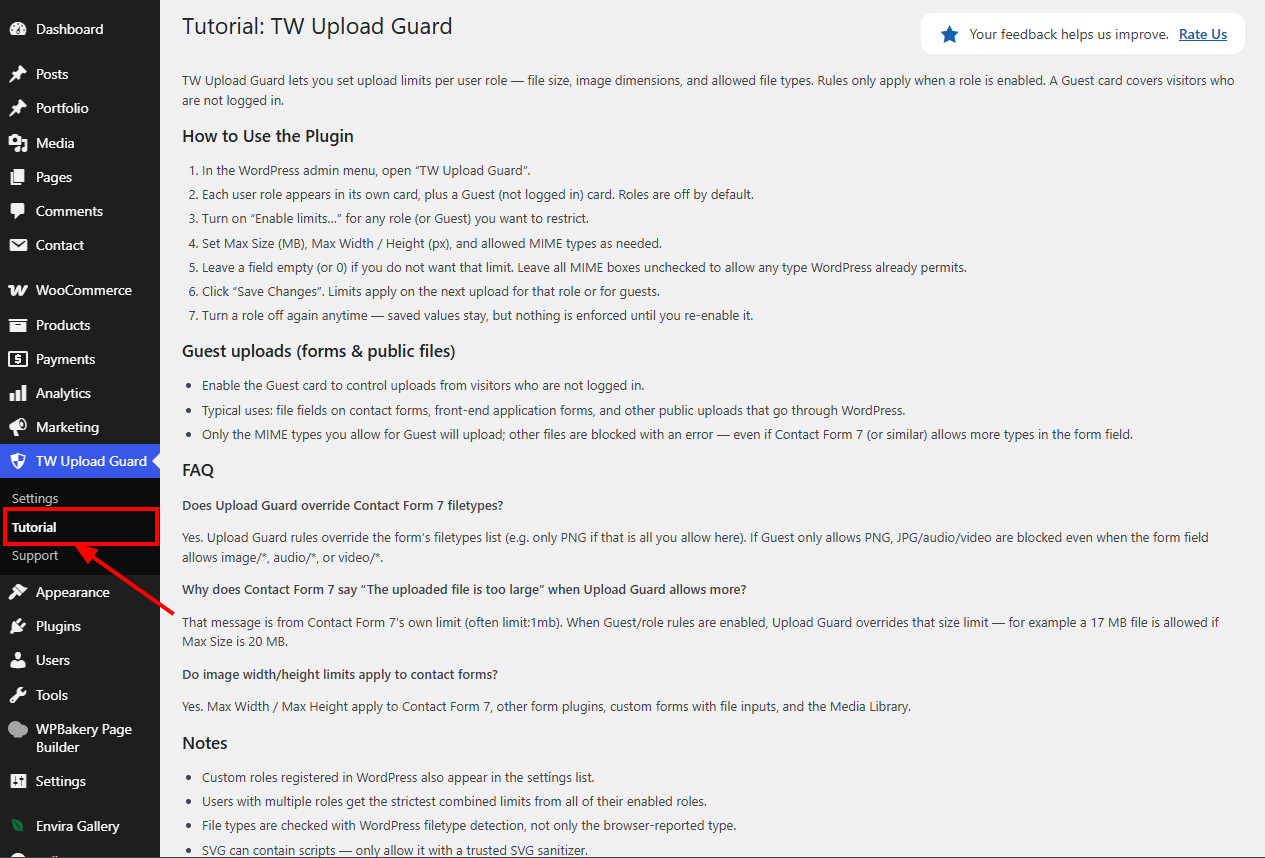
Yes. Upload Guard rules override supported form upload restrictions. Even if a form allows broad file types such as
audio/*,video/*, orimage/*, only the file types allowed in Upload Guard settings can be uploaded. -
Do image width/height limits apply to form uploads?
-
Yes. Maximum image width and height limits are enforced for Media Library uploads as well as uploads submitted through supported front end forms and custom upload fields.
-
Can I restrict uploads for guests and public forms?
-
Yes. Enable the Guest (not logged in) card in settings. Only the file types, file size, and image dimensions you allow there can be uploaded by visitors using public file upload forms. Upload Guard rules override supported form upload restrictions where applicable.
-
Can I restrict uploads for specific roles only?
-
Yes. Each role has its own configurable rules. Leave fields empty to apply no restriction.
-
Why can’t I upload a plugin ZIP from the admin?
-
If Upload Guard is enabled for your role and ZIP is not in the allowed MIME list, WordPress will block the ZIP. Allow ZIP for the Administrator role, or temporarily disable that role’s limits, before installing plugins via ZIP upload.
-
What happens if a user uploads a restricted file?
-
The upload is blocked and a clear error message is shown.
-
Does it support SVG uploads?
-
Yes, if SVG is allowed in the role’s MIME settings. SVG files can contain scripts, so only enable SVG together with a trusted SVG sanitizer plugin.
Reviews
There are no reviews for this plugin.
Contributors & Developers
“TechnologyWisdom Upload Guard” is open source software. The following people have contributed to this plugin.
Contributors
Translate “TechnologyWisdom Upload Guard” into your language.
Interested in development?
Browse the code, check out the SVN repository, or subscribe to the development log by RSS.
Changelog
1.2.1
- Content and UI improvements
1.2.0
- Added Upgrade to Pro option
1.1.0
- Major Plugin Support Portal enhancement: more reliable connection.
1.0.2
- WordPress 7.1 compatibility check
- Bug Fixes
1.0.1
- Added info tooltips for Max Size, Max Width, and Max Height fields.
1.0.0
- Initial release
- Role-based upload restrictions (file size, image dimensions, MIME types)
- Guest upload limits for logged-out visitors and public form uploads
- Top-level admin menu with Settings, Tutorial, and Support
- In-plugin support form and rating feedback options