
Description
You hand a finished Elementor site to a client. A week later they fix a typo, drag a section, change a colour and edit the global font. Now you have an “I broke my site” ticket.
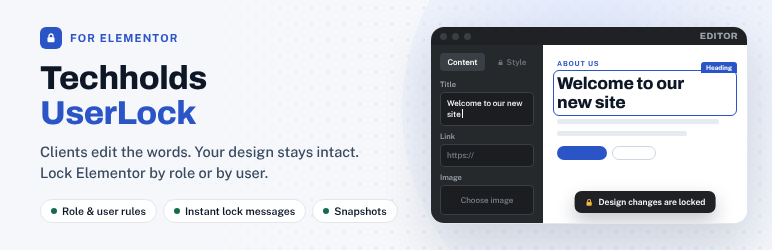
Techholds UserLock for Elementor gives restricted users a calm, simplified editor. They change the words, images and links you want them to change. Everything that controls the design stays locked, both in the editor and on the server.
Product page | Documentation | Support
How it works
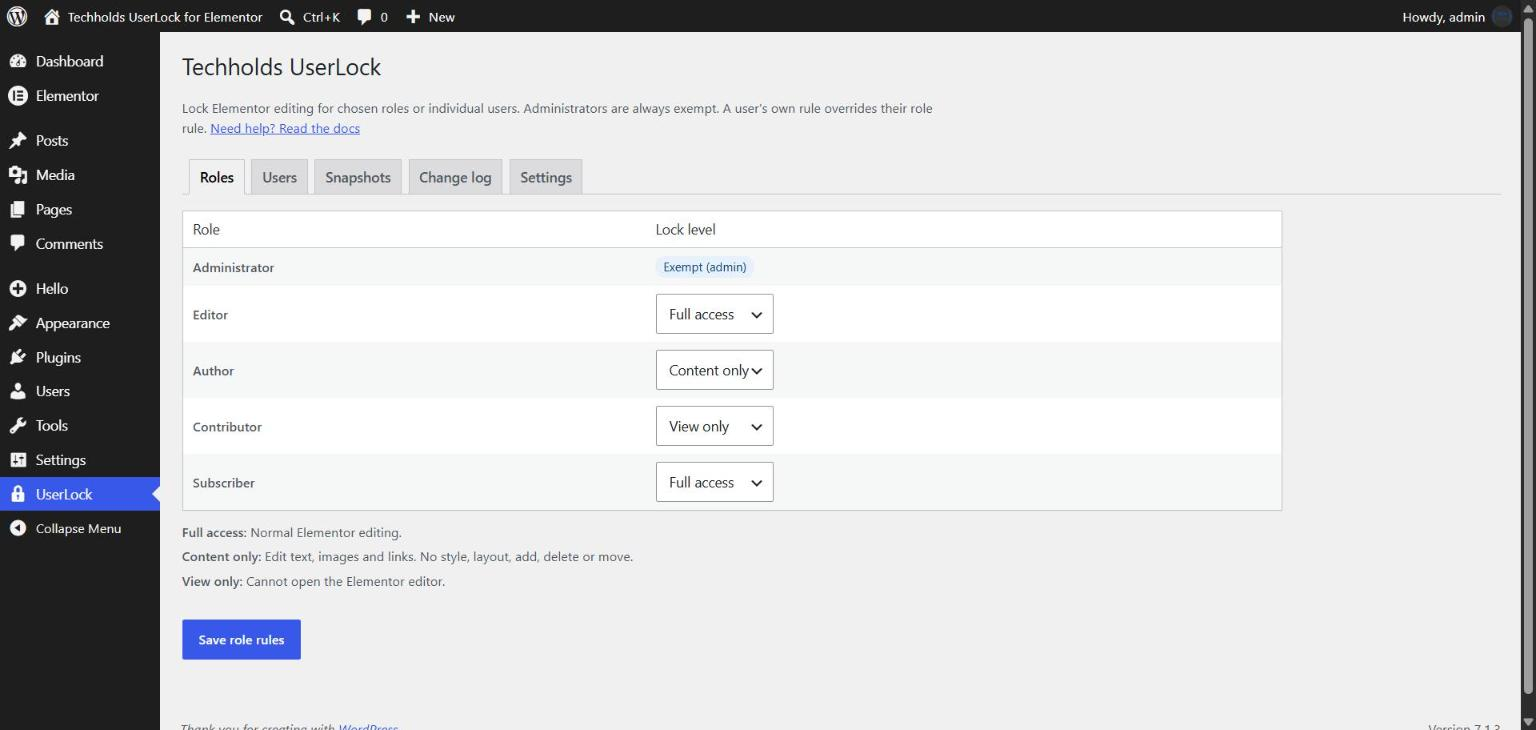
- Go to UserLock > Permissions and pick a lock level for each role.
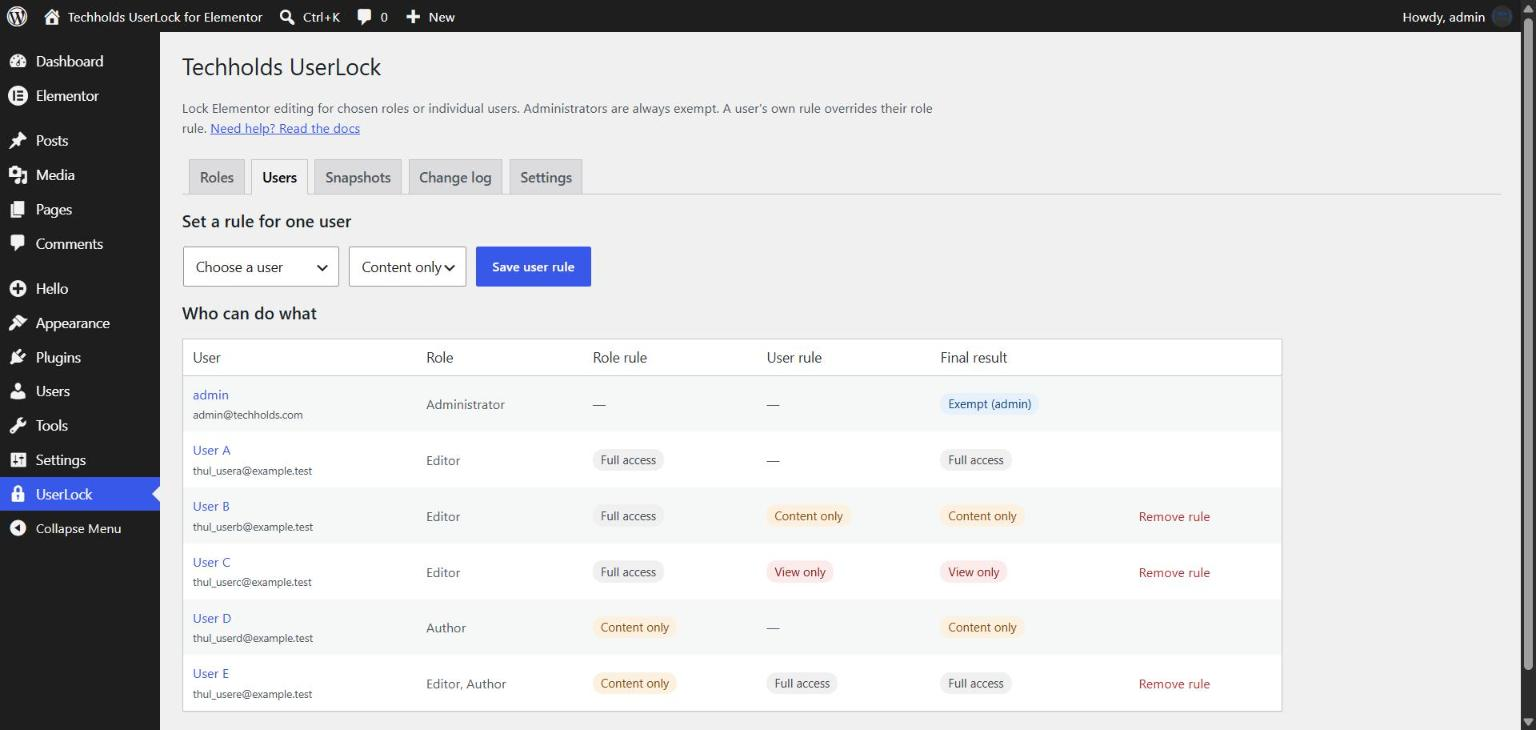
- Optional: give one person their own rule. Lock User B while Users A and C keep full access.
- Hand the site over. Every save is checked and a snapshot of the previous version is kept.
No new roles, no setup wizard, no retraining.
Lock levels
- Full access – normal Elementor editing.
- Content only – edit text, images and links. No style, layout, adding, deleting or moving.
- View only – cannot open the Elementor editor.
Features
- Lock by role or by user. Add rules for as many users as you need. A user’s own rule overrides their role rule. If someone has several roles, the strictest one wins.
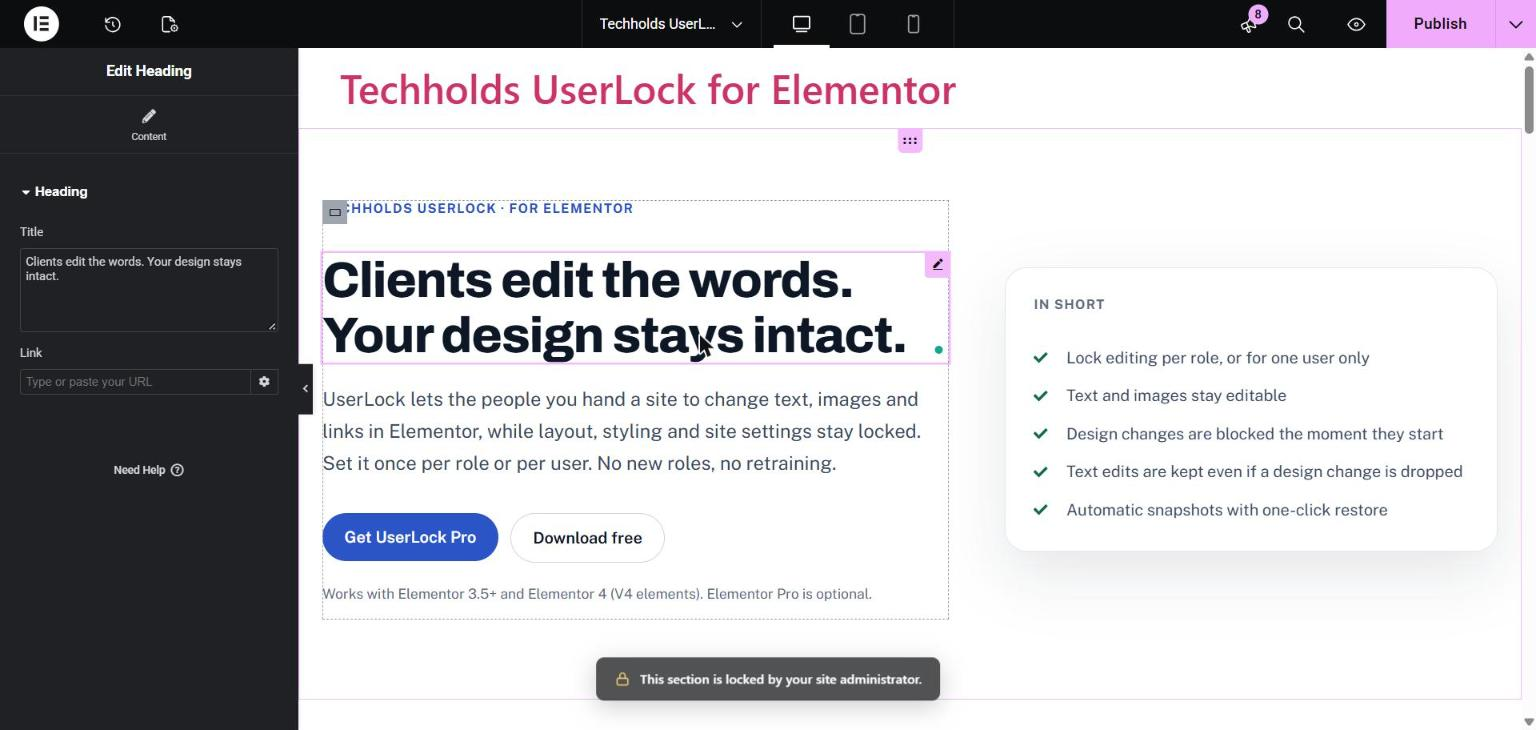
- Instant lock message. When a restricted user tries a locked action (style, drag, delete, duplicate, paste, add), it is stopped right away with a short message. Nothing they typed is lost.
- Text edits are never lost. If a locked change still reaches the save, only that change is dropped. Text, image and link changes are kept.
- Server-side save guard. Even if the editor is bypassed, the server restores locked settings and tells the user what was not applied.
- No code in text fields. Style tags, scripts and inline styling typed into text are removed, with a warning while typing.
- Site-wide design protection. Site Settings, global colours and fonts, global classes and variables are locked for restricted users, including through the REST API.
- Elementor 4 ready. Works with classic widgets and the new V4 (atomic) elements.
- Automatic snapshots. The previous version of a page is saved on every Elementor save. Restore it in one click.
- Change log. See who saved what, and what was blocked.
- Administrators are always exempt. You can never lock yourself out.
- Lightweight. Runs only in the Elementor editor and on save. Nothing extra loads for visitors.
Free vs Pro
The free plugin is complete on its own and covers a safe client handoff with no limits. UserLock Pro is a separate add-on plugin that adds extra features for agencies and larger sites.
- Role rules: Free – all roles | Pro – all roles
- User rules: Free – unlimited | Pro – unlimited
- Lock levels: Free – Full access, Content only, View only | Pro – adds Text only
- Instant lock messages and save guard: Free – yes | Pro – yes
- Code removed from text fields: Free – yes | Pro – yes
- Site-wide design protection: Free – yes | Pro – yes
- Snapshots: Free – automatic, one-click restore, you choose how many to keep | Pro – adds side-by-side compare, labels and favorite versions
- Change log: Free – yes, you choose how long to keep it | Pro – adds filters, CSV export and email alerts
- Per-page rules: Pro only
- Widget allowlist and per-element locks: Pro only
- Theme Builder, popups and WooCommerce templates: Pro only
- Custom lock message and branding: Pro only
- Import and export rule presets: Pro only
Privacy
UserLock makes no external requests and sends no data anywhere. Rules, snapshots and the change log are stored in your own database. The change log records the user ID, page and time of saves by restricted users. By default log entries are kept until you delete them; you can set them to be removed automatically after a number of days under UserLock > Permissions > Settings.
Screenshots


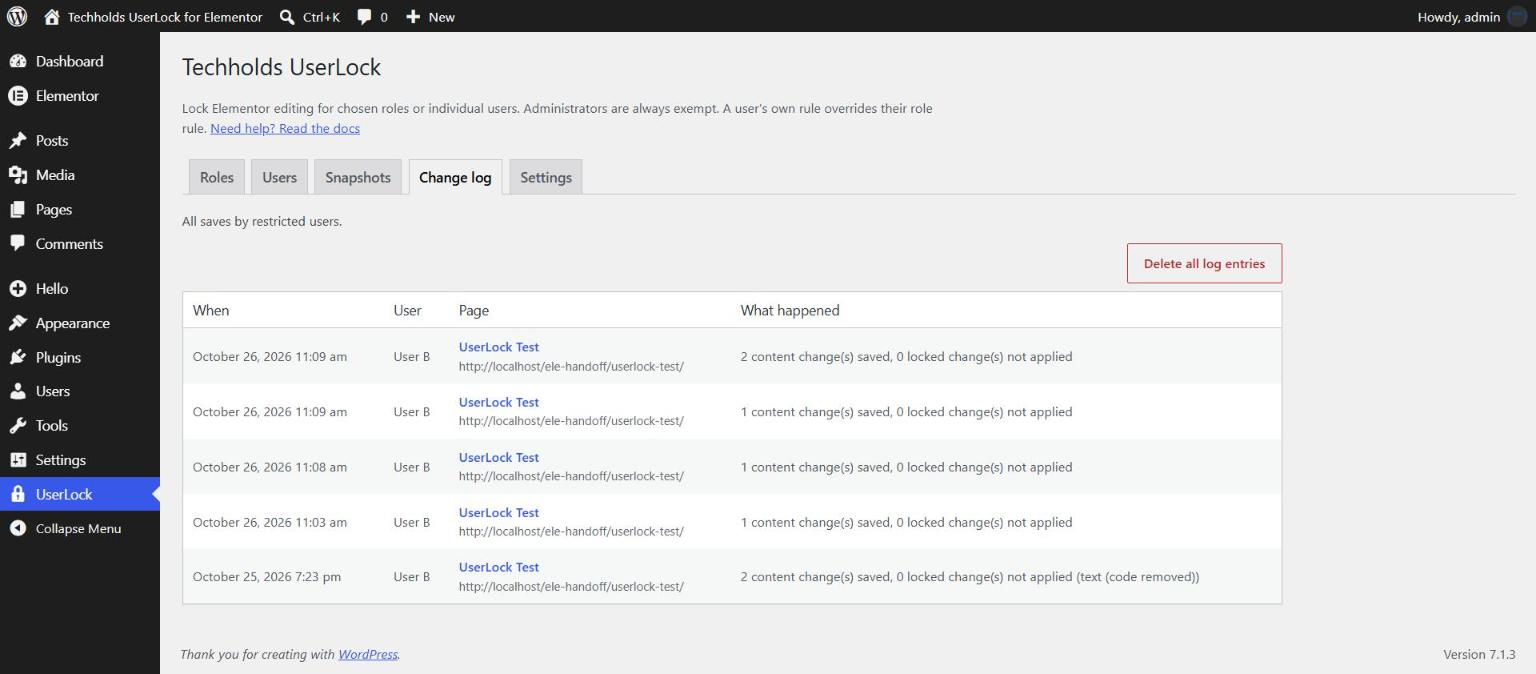
Installation
- Make sure Elementor 3.5 or newer is installed and active.
- In your dashboard go to Plugins > Add New, search for Techholds UserLock and click Install Now, then Activate.
- Go to UserLock > Permissions and set a lock level for a role, or add a rule for one user.
- Log in as a restricted user (or ask your client to) and open a page with Elementor to see the simplified editor.
The documentation covers every setting with examples.
FAQ
-
Does it create new user roles?
-
No. UserLock works with the roles and users you already have.
-
Can I restrict one user but not others with the same role?
-
Yes. Leave the role on Full access and add a user rule for that person. A user rule always overrides the role rule.
-
Can an administrator be locked?
-
No. Anyone who can manage options (and super admins on multisite) always has full access.
-
What happens if a restricted user edits text and also tries to change the design?
-
The design change is stopped the moment they try it, with a short message. Their text edit saves normally.
-
Do I need Elementor Pro?
-
No. UserLock needs Elementor 3.5 or newer. Elementor Pro is optional.
-
Does it work with Elementor 4 and V4 elements?
-
Yes. Text, link and image fields stay editable. Style, classes, attributes and interactions are locked.
-
Can I undo a restricted user’s changes?
-
Yes. Go to UserLock > Permissions > Snapshots and click Restore next to the version you want. The current version is saved as a snapshot first, so a restore can be undone too.
-
Will it slow down my site?
-
No. UserLock only runs in the Elementor editor and when a page is saved.
-
Does it work on multisite?
-
Yes. Rules are set per site. Super admins are always exempt.
-
What happens to my data if I delete the plugin?
-
Nothing is deleted unless you tick Remove all UserLock rules, snapshots and logs when the plugin is deleted under UserLock > Permissions > Settings.
-
Where can I get help?
-
Read the documentation or post in the support forum.
Reviews
There are no reviews for this plugin.
Contributors & Developers
“Techholds UserLock for Elementor” is open source software. The following people have contributed to this plugin.
Contributors
Translate “Techholds UserLock for Elementor” into your language.
Interested in development?
Browse the code, check out the SVN repository, or subscribe to the development log by RSS.
Changelog
1.0.0
- First release.