
Description
Tagloom prints product and order labels from wp-admin directly to a Bluetooth
thermal label printer. The browser talks to the printer, so there is no driver
to install, no print dialog to fight, and no cloud print service to pay for.
Use desktop Chrome or Edge, over HTTPS, with Bluetooth enabled. Tagloom
checks whether this browser exposes Web Bluetooth before allowing connection.
Safari, Firefox, iPhone and iPad are not supported for this release.
What it does today
This is a pre-release build. These workflows are implemented; physical printer
and scanner verification is still required:
- Barcodes — Code 128 and EAN-13, drawn at exact printer dots and refused
rather than squeezed when they will not fit. - Print from an order, or from many orders at once, with a record of what
each label said kept against the order. - Product data on your labels. Bind a text element to a product’s name, SKU,
price, brand, or any custom field, and preview it against real products from
your catalogue before you print anything. - A visual label designer. Drag text, boxes, lines and barcodes onto a canvas
with millimetre rulers. Elements snap to the label’s safe area and to each
other, a multi-selection can be aligned and distributed, and there are fifty
steps of undo. It autosaves, so there is no save button. Image authoring is not
available yet; existing image blocks must be removed before printing. - Every property is also a number you can type, so a label can be laid out
exactly — and the tool stays usable without dragging. - A print preview that tells the truth. Thermal printing is one bit per dot,
and a designer showing smooth anti-aliased type is lying about the result. Press
P to see the actual output, produced by the same code that drives the printer. - Connects to a NIIMBOT printer over Bluetooth and reads its real specification —
resolution, print direction, print width and density range — rather than asking
you to pick a model from a list. - Prints a test label that checks four things at once: whether the stock is
the size Tagloom thinks, whether it is feeding straight, whether the printer can
place a single dot, and whether the density is right. It prints the model,
resolution and density onto itself, because a test label that does not say what
produced it is useless twenty minutes later. - Stores label templates and prints them.
- Imports and exports templates as files, so a design can move between sites
instead of being rebuilt. - Prints stock wider than the printhead, and says what that cost. A NIIMBOT’s
head is narrower than the roll it takes — 48 mm of head on 50 mm stock — so
Tagloom prints the window the head can reach instead of refusing the ordinary
combination of roll and printer. The designer shades the edges that cannot
receive ink, and the designer, order and bulk print screens name the width that
printed and the millimetres lost off each edge. Anything in those edges is not
printed: a 40 mm design on a D11’s 12 mm head prints the centred 12 mm and loses
14 mm off each side. Tagloom assumes the head sits centred on the stock —
that is an assumption and not a measurement, so print a test label and check
where it lands before trusting the alignment. - Two crops are refused rather than printed. A printable window narrower than
one whole byte of dots has nothing to send at all. A barcode the window would
cut is refused before any stock is used, measured with its quiet zones included,
because a part-printed barcode scans as the wrong code rather than visibly
failing.
Hardware verification status
Everything on the list above is built. Nothing here has been tested against a
physical printer or a physical scanner yet — the encoders are verified against
the published standards and the logic is covered by tests, which is not the same
claim.
Which printers work
Tagloom reads its printer specifications from the excellent open-source
niimbluelib, which describes 76
NIIMBOT models.
Being in that table is not the same as being tested. Tagloom labels a printer
“verified” only after a real device has physically printed a correct label, and
says “should work — untested” for everything else. No model is listed as verified
in this release.
If your printer is not recognised at all, Tagloom refuses to print rather than
guessing at its resolution, and shows you an id to report so the model can be
added.
A note on labels
Some NIIMBOT models check their label stock over RFID and will refuse to print on
third-party rolls. That is the printer’s own restriction and Tagloom cannot work
around it — but it means “cheap printer, cheap labels” depends on which model you
buy, and we would rather say so before you buy one.
Privacy
Tagloom makes no external requests at all. No cloud service, no licence check,
no analytics, no fonts loaded from a CDN. Everything — including the fonts —
ships inside the plugin. The browser renders labels and sends them directly to
your paired printer over Bluetooth.
Tagloom reads products and orders from your own WordPress site and saves templates
and print history there. Those site requests need a connection to WordPress.
Tagloom does not send order data to WP Shelf or an external print service.
The plugin bundles WP Shelf’s shared admin library, which its sibling plugins
also use. That library contains licence-checking code; Tagloom never calls it,
because Tagloom has no licence, account or plan.
Source code
The label designer is compiled from JavaScript before release. Its uncompiled,
human-readable sources ship inside the plugin under src/, together with
package.json and webpack.config.js; npm install && npm run build produces
build/ from them with @wordpress/scripts (webpack). The other admin screens
load the modules in src/ directly, uncompiled.
assets/vendor/niimbluelib/niimbluelib.min.js is the unmodified browser build of
niimbluelib version 0.0.1-alpha.42
(npm package @mmote/niimbluelib), MIT licensed. Its full source is in that
repository, and its licence ships beside it in assets/vendor/niimbluelib/LICENSE.
Screenshots

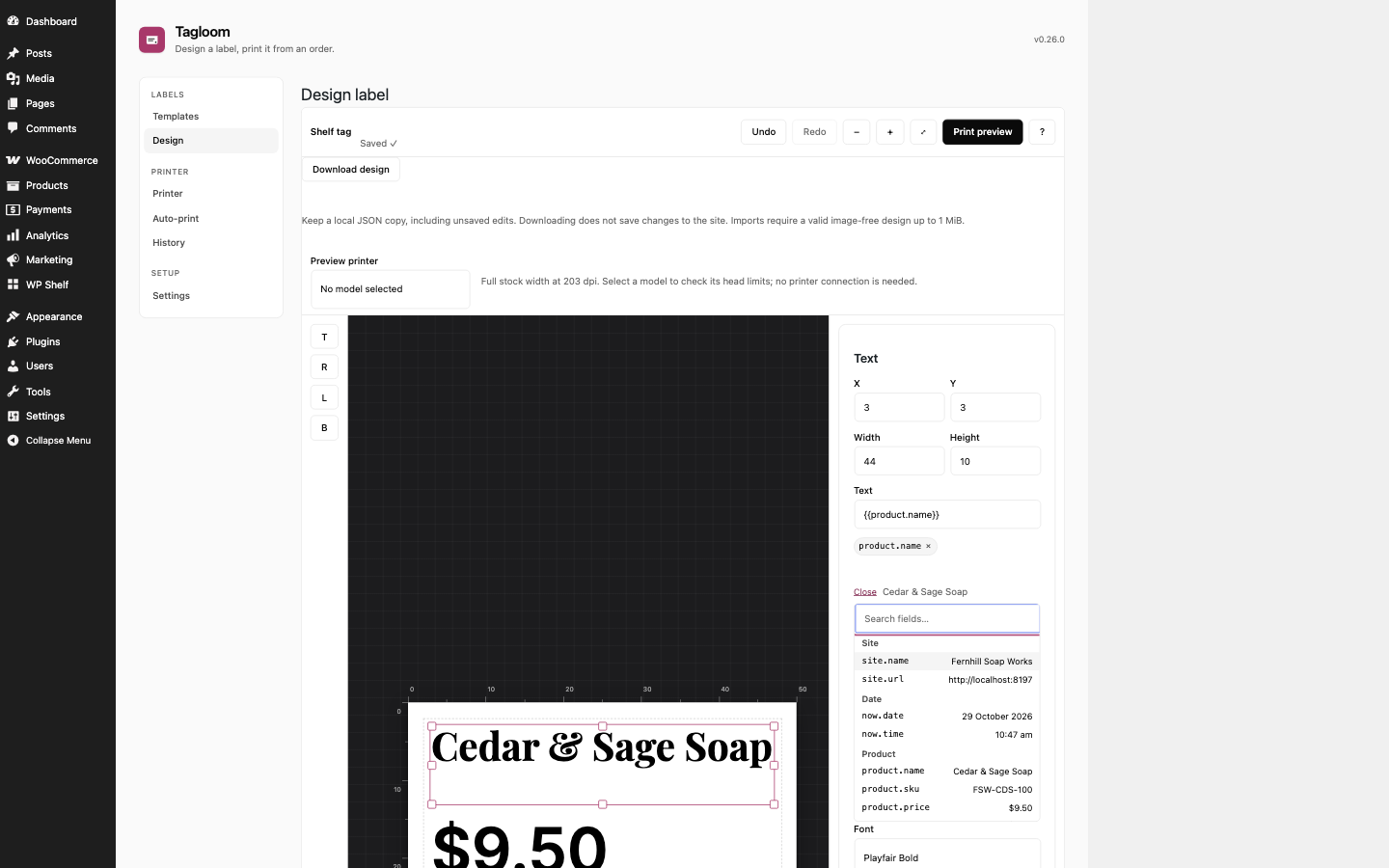

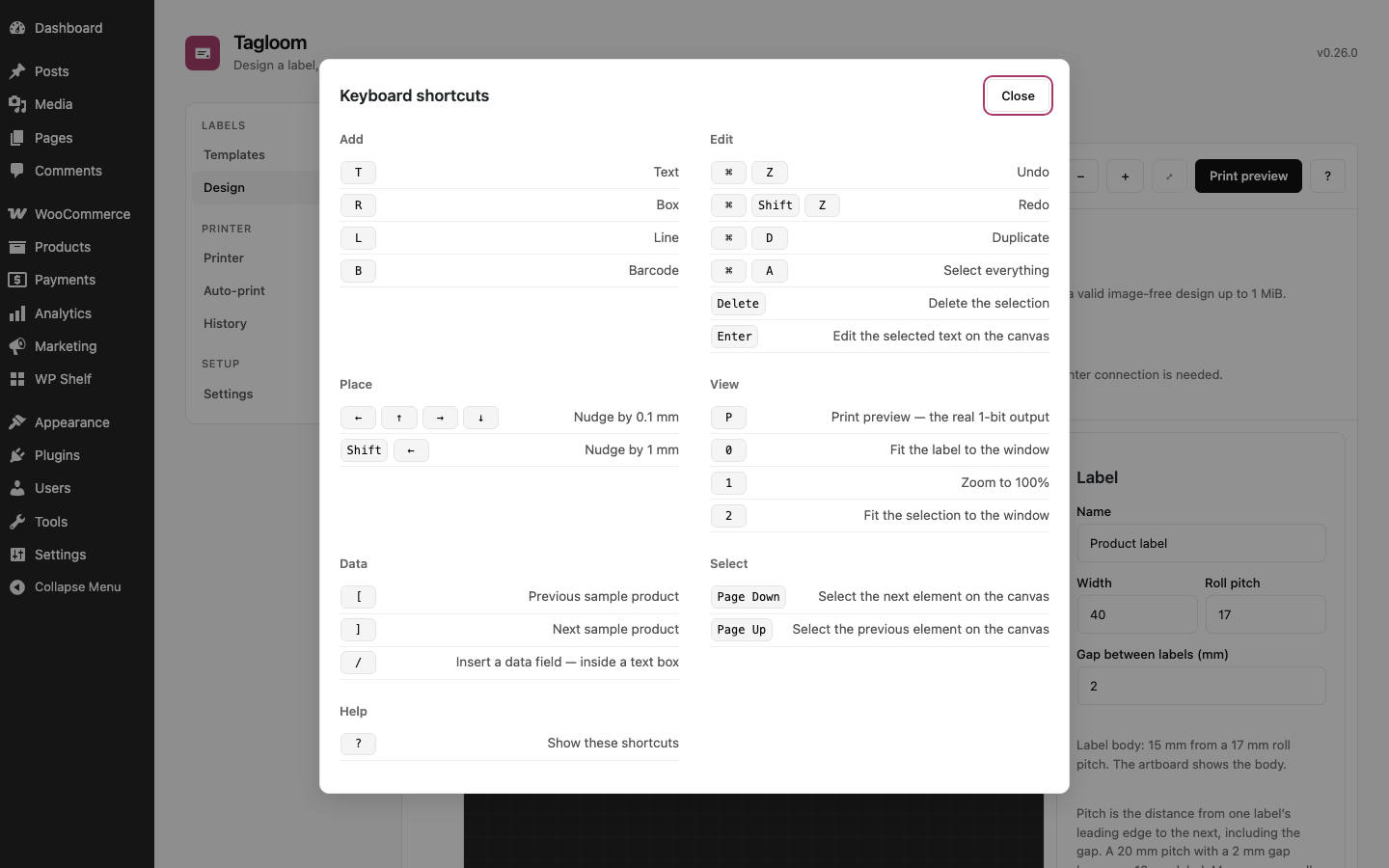
![The same design against the longest product name in the catalogue. Cycle the sample with [ and ] and watch a template survive data you have not seen yet.](https://ps.w.org/tagloom/assets/screenshot-4.png?rev=3772675)

Installation
- Install and activate the plugin. WooCommerce must be active.
- Open WP Shelf Tagloom in a desktop Chrome or Edge window, over HTTPS. In Templates, choose a starter and set the stock width, roll pitch, measured gap and type. Pitch includes the label body and its following gap. Enter 0 when there is no gap.
- Open Printer, turn the printer on, press Connect printer, and pick it from the browser’s pairing dialog.
- Under Loaded roll, select the template matching the roll in the printer. Press Print test label and check what comes out. With no template selected, the diagnostic uses the printer’s default size instead. No printer model is physically verified yet; see the hardware status above.
- Return to Templates to design the label and preview a real product.
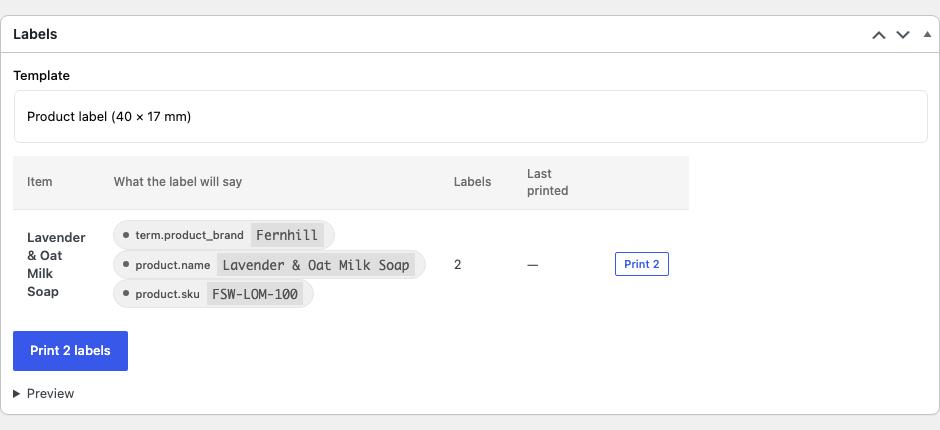
- Open a WooCommerce order and use its Labels box to select your template.
FAQ
-
Why does it need Chrome or Edge?
-
Tagloom uses Web Bluetooth to communicate with the printer. This release targets
desktop Chrome and Edge. If the API is unavailable or blocked, the Printer screen
explains the problem before you try to print. -
Why does it need HTTPS?
-
Browsers only expose Bluetooth to a secure page. On a plain-HTTP admin the API is
not there at all. Tagloom detects this specifically and says so, rather than
blaming your browser. -
Does it work on iPad or iPhone?
-
This release does not support iPhone or iPad. Use a desktop computer with
Chrome or Edge and Bluetooth. -
Why does an older template ask me to measure the gap?
-
Older templates stored one height. Tagloom keeps that value as the roll pitch and
preserves your design. It cannot infer the actual gap on your roll, so enter the
measured gap in the designer before printing. A 20 mm pitch with a 2 mm gap gives
18 mm of label body. Continuous stock has no gap. If an element extends beyond
the body, move or resize it; Tagloom will refuse the run before wasting labels. -
Does changing rolls change calibration?
-
Feed offsets are saved per printer model, stock width, roll pitch, measured gap
and sensor mode. Templates on the same stock share a measurement. Select the
loaded roll on the Printer screen before testing; use the uncompensated ruler to
measure it, and save 0 for raw output. If only an older printer-wide offset
exists, review and explicitly adopt it for this stock or save a new measurement.
A nonzero old offset must be reviewed before that stock can print. Reload other
open print screens after saving calibration. Rolls with identical dimensions and
sensor mode share a measurement; re-measure when their material changes. -
Does it send my order data anywhere?
-
Tagloom reads your products and orders from your WordPress site and sends label
content to your paired printer. Templates and print history stay in your
WordPress database. No WP Shelf account or external print service is involved. -
Can I print several labels for each product?
-
Select products in WooCommerce, choose Print labels, then set Copies per
product from 1 to 100. The screen shows the planned label total before pairing.
Every selected product gets that many copies; stock quantities are not changed.
The count and template stay fixed if the run stops, so resuming keeps the same
choice. Order labels use the quantities on the order instead.
Reviews
There are no reviews for this plugin.
Contributors & Developers
“Tagloom — Label Designer & Bluetooth Printing for WooCommerce” is open source software. The following people have contributed to this plugin.
Contributors
Translate “Tagloom — Label Designer & Bluetooth Printing for WooCommerce” into your language.
Interested in development?
Browse the code, check out the SVN repository, or subscribe to the development log by RSS.
Changelog
0.26.0
- Find published products and variations by saved name or exact SKU without leaving your label design, including variations without their own SKU. Variation details and IDs distinguish choices; only attributes in saved names are searchable. Search selection preserves artwork, bindings and Undo history.
0.25.1
- Keep out-of-range measurements local with clear unsaved-value guidance instead of saving a value the server silently clamps. Position and element-size limits follow the stock.
- Accept legal fractional measurements without a false accessibility error, preserve coarse keyboard arrow steps, and show the precision actually stored.
0.25.0
- Enter negative and decimal measurements naturally in the designer. Clearing an unfinished measurement keeps the current design intact; blur, Enter or Escape restores its last valid value.
- Keep unfinished numeric input with its selected element, and preserve live editing and Undo for completed values.
0.24.0
- Distinguish unavailable print history from a verified empty journal, retain filters/page on Retry, and show Next only when another record exists. Malformed history filters no longer produce PHP warnings.
- Show blocking barcode problems beside the designer, with numbered actions that select and focus the affected properties. Invalid, too-narrow or cropped barcodes must be fixed before a sample preview; ordinary text warnings and empty values stay editable.
0.23.0
- Retry a pending print record with the same durable receipt, without duplicating journal totals or verified item stamps. Conflicting attempt identities are refused. This protects bookkeeping; physical printer outcomes still require inspection.
- An interrupted item-stamp save continues from the original recorded content and time. Identified attempts use History and item records instead of adding a separate order note.
0.22.0
- Keep the template fixed across Stop/Start while an order is entered or unfinished work remains; announce station status changes accessibly.
- Auto-print withholds the entire queue when previously handled orders cannot be verified from the print journal. Failed checks hide stale backlog actions and retain station state for the next check; manual printing is unchanged.
0.21.0
- Mark changed, unfinished inline text as unsaved and protect it when leaving or reloading the designer.
- Keep ordinary Enter, Escape, click-away, Undo and download behavior; older saves cannot mark a newer inline draft saved.
0.20.0
- Download the current authored design, including unsaved wording, as a local JSON recovery copy without acknowledging a site save.
0.19.0
- Import a text, barcode or shape template JSON file as a new design from the Templates screen, with validation and an explicit Open action.
- Keep the template file picker within narrow admin layouts.
- Refuse image-containing imports before saving because this designer does not yet support attaching their image files.
- Stop unresolved images before preview or printing, with clear removal guidance, and remove the unfinished Image tool.
- Keep existing templates, defaults and printer calibration unchanged; require checking the list after an unconfirmed import.
0.18.8
- Bulk print links from the Orders list, the Products list and auto-print are now signed, and the print screen ignores a selection it did not issue.
- The print screen lists only the products and orders your account can edit, and says how many selected items it left out.
0.18.7
- Retry sample data without losing the current label design or Undo history.
- Keep cached samples usable and prevent print previews from presenting unknown or stale sample values as empty fields.
0.18.6
- Fix: resolve the Templates printer health indicator from the current connection state and preserve server-side errors.
0.18.5
- Duplicate a saved label template into an independent editable copy while preserving its stock, artwork and data bindings.
- Keep source templates and defaults unchanged; refuse unreadable documents and retain operation ownership while opening the new designer.
0.18.4
- Choose 1–100 copies per selected product and see the planned label total before connecting to a printer; product stock stays unchanged.
- Keep the selected copy count and template through interrupted batches, refuse invalid counts before pairing, and preserve order quantities.
0.18.3
- Keep canvas movement aligned with the pointer through snapping and Alt-drag duplication.
- Finish a pointer gesture before keyboard edits, tab changes or cancellation so undo preserves both actions.
- Retain confirmed print positions when a record cannot be saved, and retry queued records without printing labels again. Cached manual resume remains available offline.
- Verify saved order-item print records before confirming success; failed stamp writes remain pending for bookkeeping retry.
0.18.2
- Report failed template writes accurately, keep unsaved designer changes with explicit retry, and guard navigation until saving succeeds.
- Repair deleted defaults and resolve template selection consistently across order, bulk and auto-print screens; halt stale-template automation without losing confirmed run progress.
- Preserve actionable printer and stock-calibration errors across print surfaces.
0.18.1
- Fix: repeated connection clicks share one printer session. Leaving a screen cancels its pending connection, and events from a previous printer cannot clear the current one. Auto-print keeps its existing silent reconnect behavior and invalidates timed-out connection attempts.
- Fix: switching printers is disabled while a print is preparing, running, recording its result or cooling down. A printer cannot start a second label task before the first has finished cleanup.
- Fix: active print operations guard page reloads and navigation. Leaving a partially printed or uncertain run requires confirmation, because its resume position exists only in the current screen. Auto-print also protects an order still finishing after Stop is pressed.
- Fix: custom meta exclusions also match hidden fields through their public binding names. An internal_* rule now excludes _internal_cost from product and order labels too.
- Existing bundle labels, order-wide labels, automatic paid-order printing, access checks and adoption of data from earlier Labely builds are retained. No physical printer or barcode scanner has been verified.
0.18.0
- The plugin has a new name: Tagloom. A store updating from an earlier build keeps its templates, print history, settings and the record of what printed on each order line; they are carried over the first time it loads.
- Fix: the designer’s field picker now shows a product’s fields only to someone who can edit that product, and a sample order’s delivery details only to someone who can open that order.
0.17.6
- New Auto-print screen (Tagloom Auto-print): leave it open with the printer connected and every new paid order prints its labels by itself. It keeps the screen awake, raises the printer’s auto power-off to its maximum, reconnects on its own when the printer is switched back on, claims each order so two stations never print the same one, and stops for a person whenever a print’s outcome is uncertain.
- A print screen now reconnects to the printer it already used on that page without reopening the chooser.
0.17.5
- Keep both legacy and HPOS Orders bulk-action hooks registered so the address action remains available when WooCommerce changes storage mode.
0.17.4
- Select multiple orders and choose Print address labels from the Orders bulk actions. The existing bulk print screen opens with an address template and prints one label per order, retaining its per-order progress and resume behavior.
0.17.3
- Order-wide quick print actions are hidden when the resolved label has no visible content, such as an empty customer note. The template remains selectable from the picker.
0.17.2
- Order-wide templates now have direct Print buttons beside the template picker, so an address label or customer note can be printed without changing templates first. A paused run keeps those buttons disabled until it is resumed or finished.
0.17.1
- Fix order and other print screens failing before the Bluetooth chooser opens after an update. Browser-loaded modules now carry the plugin version in their import URLs, so long-lived caches cannot mix files from different releases.
0.17.0
- Bundles print one label per product inside them. Set Settings Bundles to the meta key that lists a bundle’s product ids — on the order line, or on the product — and an order line for a gift set or sampler prints a label for each product in it, with that product’s own name, brand and custom fields, instead of one label naming the set. Contents recorded on the order line win over the product, so a set edited after the sale still labels what was sold.
item.bundle_namenames the bundle a label came from. - A template can print once per order instead of once per item, for an address label or a packing note. Such a template sees the order’s fields — new among them
order.shipping_name,order.shipping_address(formatted the way WooCommerce formats the destination country, with the store’s own country left off),order.phoneandorder.customer_note— and the designer now lists order fields, taken from the most recent order. - Text can run to twelve lines. From three lines up, text fills each line before starting the next and keeps the line breaks in its data, which is what an address or a note needs; one and two lines still balance a name across them.
- Text elements gain a vertical position in their box (top, middle, bottom), a case setting (UPPERCASE, or the first letter of each line capitalised for addresses customers typed in lower case), letter spacing in the panel, and “Leave out when its fields are empty” — so “Batch: {{meta.batch_code}}” prints no line at all on a product with no batch code, rather than “Batch:”.
- Each row on the order screen has its own Print button, for the one label that smudged. The table follows the picked template, so switching to a per-order template shows its single row.
- What printed for each product in a bundle is recorded against the order line, one entry per product, merged across runs: labelling one today and the next tomorrow leaves both.
- Fixed: brand names and other text stored with HTML entities printed them literally — “Dolce & Gabbana” on the label. Names, terms and order text are decoded before they reach the canvas.
Earlier release notes are included in CHANGELOG.md.