
Description
TableRefresh fills existing TablePress tables with the data from a CSV file on the web or from a public Google Sheet, and keeps them up to date. Pick a table, paste a link, and choose how often to sync. The table ID, shortcode, name, description, and all table options stay the same, so pages that show the table need no changes.
TableRefresh is an independent add-on for the free TablePress plugin. It is not made by, affiliated with, or endorsed by TablePress or its developer.
Features
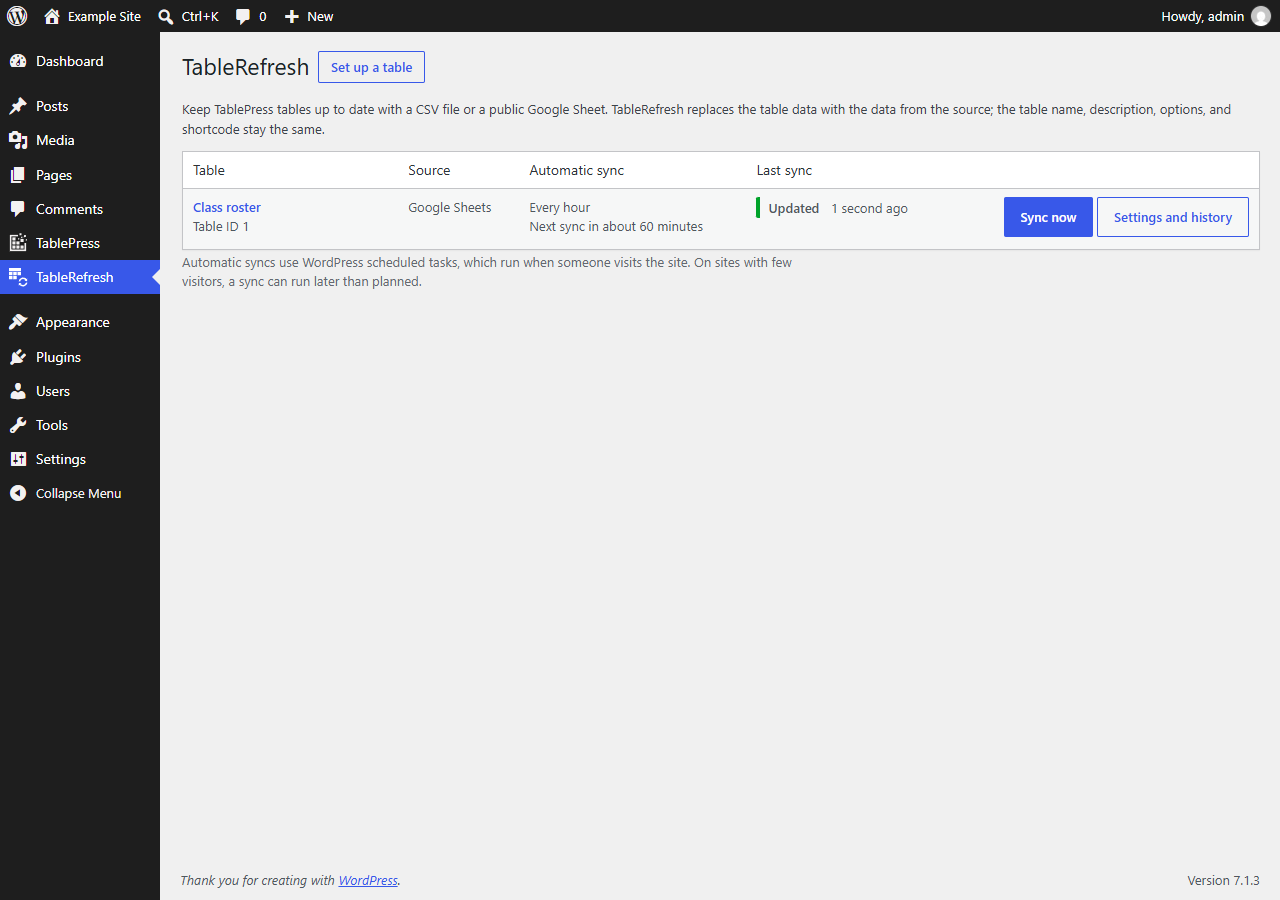
- Set up in the TableRefresh menu, right below TablePress: choose a table, paste a CSV or Google Sheets link, choose hourly, daily, or weekly.
- “Sync now” updates a table immediately.
- Each table shows its last result, its last successful sync, and the 10 most recent attempts in plain language.
- Google Sheets sharing links work as they are; TableRefresh finds the CSV export address itself.
- Edits made in TablePress are never overwritten without asking: if someone changed a table after the last sync, automatic sync pauses until you decide to keep the changes or replace them with the source data. A table that someone else has open in the TablePress editor is not synchronized.
- A sync replaces a table completely or not at all. The complete file is downloaded and checked before anything is written; a failed or interrupted update is undone.
- Cell content from the source is filtered for unsafe HTML. Formulas and shortcodes from the source are shown as text, not run.
- At most 5 revisions created by synchronization are kept per table; revisions you create yourself are never deleted.
- WP-CLI commands for scripts and server cron jobs.
- No account, no paid service, no tracking.
External services
TableRefresh downloads the data source that you enter: a CSV file at the address you choose, or a Google Sheet from Google’s servers (docs.google.com and googleusercontent.com). For each sync, your site sends a normal web request for that address; no data about your site or its visitors is sent. When you use Google Sheets, Google’s Terms of Service and Privacy Policy apply. TableRefresh contacts no other service.
Requirements
- WordPress 6.7 or newer, PHP 7.4 or newer with the cURL extension.
- The free TablePress plugin, version 3.0 or newer.
- MySQL or MariaDB with the InnoDB storage engine for the posts, postmeta, and options tables (the WordPress default). On other storage engines, synchronization is refused, because a table could not be updated all at once; see the FAQ. SQLite (for example WordPress Playground) is not supported.
Screenshots


Installation
- Install and activate TablePress, if it is not active yet.
- Install TableRefresh from Plugins > Add New (search for “TableRefresh”), or upload the ZIP file under Plugins > Add New > Upload Plugin, and activate it.
- In TablePress, create the table that should show the data, or use an existing table.
- Click TableRefresh in the admin menu (right below TablePress) and click “Set up a table”.
- Select the table, paste the link to your CSV file or Google Sheet, choose how often to sync, confirm that the current content of the table may be replaced, and click “Save and sync now”.
For a Google Sheet: in Google Sheets, click Share, set General access to “Anyone with the link”, click “Copy link”, and paste that link.
FAQ
-
Is TableRefresh part of TablePress?
-
No. TableRefresh is an independent plugin that works with the free TablePress plugin. Please ask questions about TableRefresh in its own support forum.
-
Can I use a private Google Sheet?
-
No. The sheet must be shared with “Anyone with the link”, or published with File > Share > Publish to web. Anyone who has the link can see the data. Sources that need signing in are not supported.
-
Which sheet tab is used?
-
The tab that was open when you copied the link from the browser’s address bar (the link contains its “gid”). A link from the Share dialog uses the first tab.
-
Why did a sync run later than planned?
-
Automatic syncs use WordPress’s scheduled tasks (WP-Cron). They run when someone visits your site, so on sites with few visitors they can run later than planned. For exact times, let a server cron job call wp-cron.php (with DISABLE_WP_CRON set in wp-config.php).
-
What happens if someone edits a synchronized table in TablePress?
-
The next sync does not overwrite the edit. It stops, and automatic sync pauses. In the TableRefresh menu you then choose: keep the changes (automatic sync is turned off) or replace them with the data from the source. In the other direction, if someone opened a table in the TablePress editor before a sync and saves it afterwards, TablePress shows an error and nothing is saved, so the older copy cannot overwrite the synchronized data.
-
What happens when a sync fails?
-
The table stays as it was, and the history shows why. A failed sync is not retried before the next scheduled time. After 5 failed syncs in a row, automatic sync pauses until a “Sync now” succeeds.
-
Does a sync change my table settings?
-
No. Only the rows and columns are replaced. The table ID, shortcode, name, description, and table options stay as they are. Rows and columns that were hidden stay hidden where they still exist.
-
Are formulas and shortcodes from the source run?
-
No. A cell that starts with “=” is shown as text, and a shortcode is shown as text, not run. WP-CLI options can allow them for trusted sources.
-
Who can use TableRefresh?
-
Users who can manage options (administrators) and who may edit the table in TablePress. The filter
tablerefresh_capabilitychanges the first requirement. -
My database tables use MyISAM.
-
TableRefresh then refuses to sync, because an interrupted update could leave a half-written table that visitors would see. Convert the posts, postmeta, and options tables to InnoDB (the WordPress default). The filter
tablerefresh_allow_non_atomic_updatesallows syncing anyway, at that risk: a failed sync is still undone, but a crash during the update can leave a partially written table until the next sync orwp tablerefresh recoverrepairs it. -
Can I use a proxy server?
-
Downloads through a WordPress HTTP proxy (
WP_PROXY_HOST) are refused, because TableRefresh could not then protect your server against requests to internal networks. If your proxy itself blocks internal networks, allow it with the filtertablerefresh_allow_proxy. -
How do I use WP-CLI?
-
wp tablerefresh sync [–on-conflict=<abort|overwrite>] [–format=json] synchronizes a table once;
wp help tablerefresh synclists all options.wp tablerefresh recover <table_id>finishes or undoes an interrupted update; every sync does this automatically first. -
What is removed when I delete the plugin?
-
Deactivating TableRefresh stops all automatic syncs and keeps the settings; activating it again resumes them. Deleting the plugin removes its settings, history, and scheduled tasks. Your TablePress tables keep their current data.
-
Known limitations
-
- One source per table; CSV data only (Google Sheets are exported as CSV). At most 5 MB per download.
- “Sync now” runs while you wait, up to about 15 seconds for a slow source.
- All automatic syncs that are due run one after another in one scheduled-task request. If the server ends that request early, the remaining syncs run with the next scheduled tasks; a sync that was cut off is undone and runs again at its next scheduled time.
- A sync lock expires after 5 minutes (filter
tablerefresh_lock_ttl); a sync that would take longer is stopped before it writes. - Only the TablePress editor’s own “Save Changes” is checked against newer synchronized data. Other ways of writing to a table (for example a TablePress import into an existing table) can overwrite a sync; the next sync then reports the change instead of overwriting it.
- TableRefresh relies on parts of TablePress that are not an official programming interface. This release is tested with the free TablePress 3.0 and 3.4.1; every release from 3.0 to 3.4.1 was tested during earlier development. TablePress Pro and Max are not tested.
- Database drop-ins that spread queries over several database connections (for example HyperDB or LudicrousDB) are not tested; such setups may fail to sync, but never keep a partial update.
Reviews
There are no reviews for this plugin.
Contributors & Developers
“TableRefresh – Auto Sync for TablePress” is open source software. The following people have contributed to this plugin.
Contributors
Translate “TableRefresh – Auto Sync for TablePress” into your language.
Interested in development?
Browse the code, check out the SVN repository, or subscribe to the development log by RSS.
Changelog
1.0.0
- First public release.
- TableRefresh admin menu, right below TablePress: set up tables, Sync now, history, and decisions after edits in TablePress.
- Automatic sync with WordPress scheduled tasks: hourly, daily, or weekly.
- CSV files and public Google Sheets; atomic updates with recovery of interrupted updates.