

Description
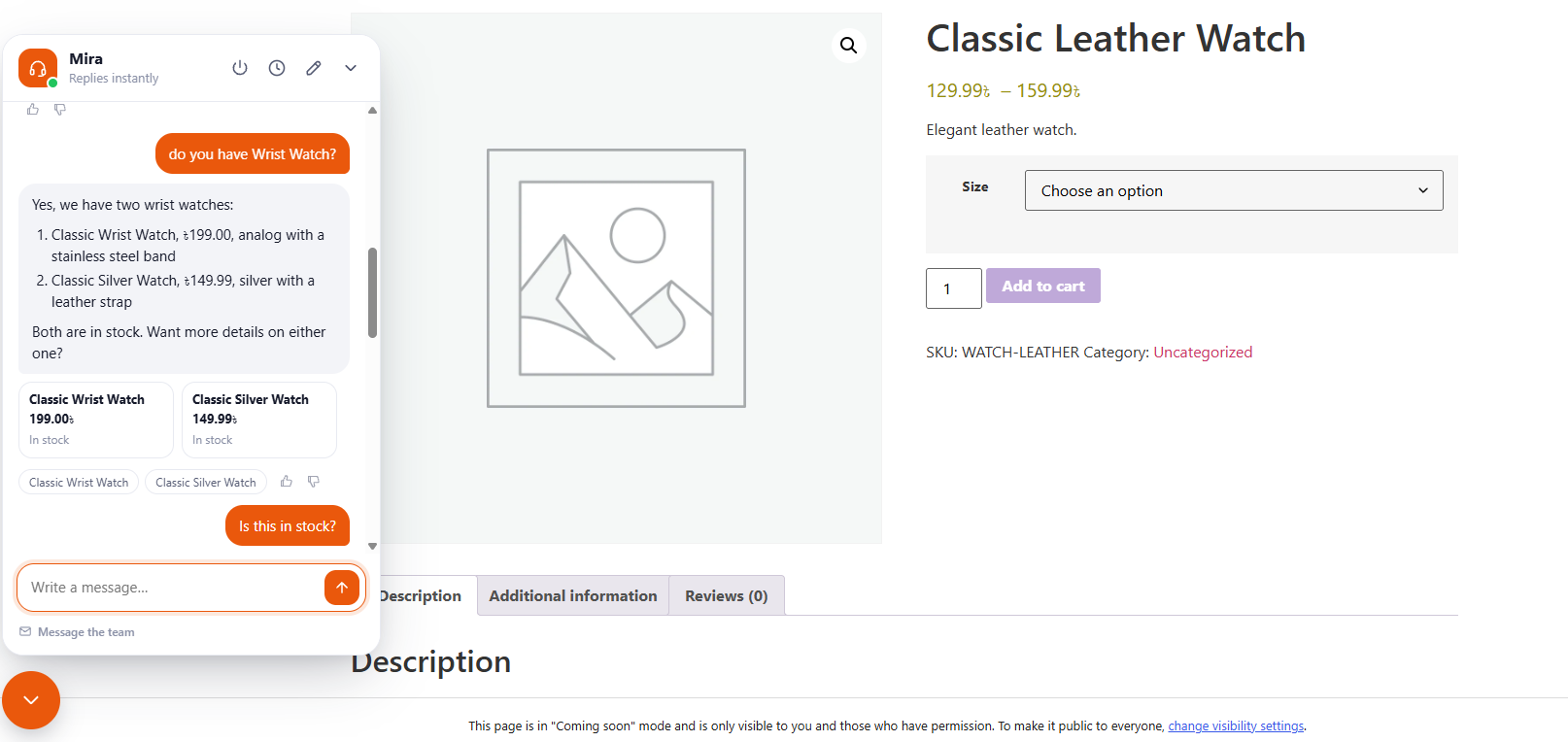
Smarto AI Customer Support adds a chat to your site with an AI assistant that knows your business. It answers from your pages, posts, products, courses and the documents you add, and it hands questions it cannot answer to your team by email.
Setup guides, every setting explained and fixes for common problems: documentation.
It is built for every kind of WordPress site:
- Online stores (WooCommerce): products, live prices and stock, variations, shipping options, store policies, and the customer’s own orders and tracking.
- Course sites (Tutor LMS, LearnPress): the course catalog, what a course covers, and a logged-in student’s own enrollment and progress.
- Business and service sites: services, opening hours (“are you open now?”), location, service area, quote and booking requests.
- Blogs, documentation and membership sites: answers from your published content, with links to the source pages.
Support only, by design
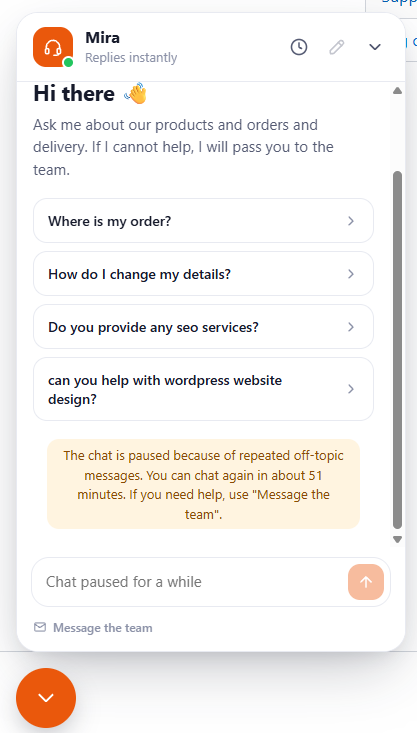
The assistant only helps with questions about your business. It politely refuses coding help, homework, essays, general knowledge questions and attempts to change its rules, so nobody can use your AI budget as a free chatbot.
- A quick scope check labels each message and refuses off-topic requests before the full answer is written, which also saves cost.
- Repeated misuse ends the chat.
- Message length, messages per minute, chats per day, and daily or monthly token limits.
- A built-in scope tester runs common misuse prompts against your settings.
Private data stays private
- Visitors only see public information or their own data. Who the visitor is comes from WordPress (their login), never from what the AI says.
- Guests can check an order with the order number, the billing email and a one-time code sent to that email.
- Order details shared with the AI never include addresses, phone numbers, emails or payment details.
- Lesson and quiz content is never used, and the assistant never gives quiz or exam answers.
- The assistant never shares staff details, other customers’ data or how your site is built.
- It can only read pages of your own site, never other websites.
Knowledge
- Choose which post types are used: all, only the ones you tick in the editor, or none.
- Upload Markdown, text, CSV, HTML or Word (.docx) files. Only the text is kept.
- Paste text or add questions and answers.
- Questions it could not answer are collected so you can answer each one once.
- Content is re-indexed automatically when you save a post.
Your team stays in control
- A ticket inbox: open, waiting on customer and closed views, search, filters and bulk actions.
- Reply to customers by email right from the ticket, and keep private notes for your team.
- Customers get a reference number, a confirmation email and a private page to answer you; your team gets an email for each new ticket.
- Full transcripts that show which tools the assistant used.
- Dashboard with conversations, handoffs, ratings, helpful votes, blocked misuse and AI usage.
- An optional “AI + human support. AI can make mistakes.” note under the chat, which opens the Message the team form.
- Skills: step by step instructions in plain language, such as how to handle returns or quote requests. Edit the built-in ones or write your own.
AI providers
Bring your own API key from OpenAI, Anthropic (Claude), Google Gemini, OpenRouter, or any OpenAI-compatible server. You pay the provider directly. Keys are stored encrypted.
Pro
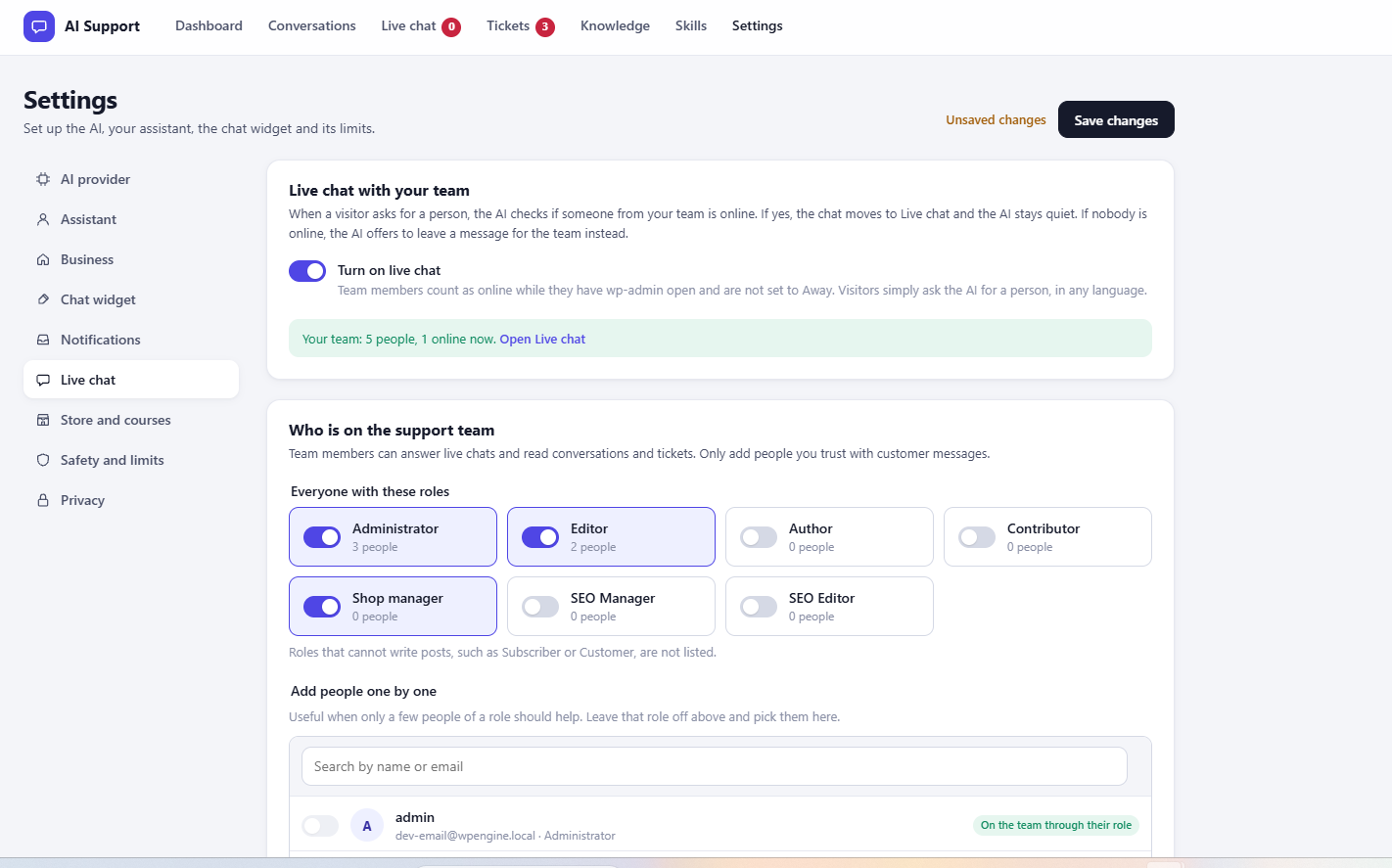
Smarto AI Customer Support Pro is a separate, optional plugin sold on wpsmarto.com. It adds live chat with your team, customer email replies and files into tickets, saved replies, ticket assignment and response times, team reports, CSV export, page greetings and custom widget text. This plugin works fully without it, with no account, license or time limit.
External services
Smarto AI Customer Support connects to a third-party AI service only after you add your own API key, and only to the provider you select. Your API keys are stored encrypted on your site and are sent only to that provider.
AI providers
The assistant needs an AI provider to write its replies. You choose one in Settings, AI provider. Nothing is sent until you add an API key and either turn on the chat widget or use the test chat.
What is sent and when:
- Each time a visitor sends a chat message: the conversation so far, the assistant’s instructions, your business profile, the parts of your knowledge that match the question, the list of tools the assistant can use, and the results of those tools (for example product details, or an order status without addresses, phone numbers, emails or payment details).
- When the scope check is on: the visitor’s latest message and a few earlier ones, in a short separate request that checks the message is about your business.
- When you click Test connection or load the model list in Settings: your API key, to read the provider’s model list and send a short test prompt.
Supported providers:
- OpenAI (api.openai.com): Terms of use, Privacy policy
- Anthropic (Claude) (api.anthropic.com): Commercial terms, Privacy policy
- Google Gemini API (generativelanguage.googleapis.com): Gemini API terms, Privacy policy
- OpenRouter (openrouter.ai): Terms of service, Privacy policy. Your site address is also sent as the referrer and the plugin name as the app title, as OpenRouter asks apps to do.
- Custom provider: if you enter the address of your own OpenAI-compatible server, the same data is sent to that address. Its terms and privacy policy are set by whoever runs that server.
Emails
New tickets, confirmations to customers and your replies are sent through your site’s own email setup (wp_mail). The plugin does not contact any email service itself.
WP Smarto
The plugin does not send any data to WP Smarto, the plugin author, and has no tracking or analytics. Links to wpsmarto.com on the Settings screen are plain links that open in your browser.
Screenshots






Installation
- Install and activate the plugin. A short setup guide opens and walks you through your business, the AI provider and the chat widget.
- Or set it up by hand: go to AI Support, Settings, AI provider. Add an API key, choose a model and click Test connection.
- Fill in Assistant and business.
- Go to AI Support, Knowledge and choose your content, upload documents or add questions and answers.
- Try it in AI Support, Test chat and run the scope tester.
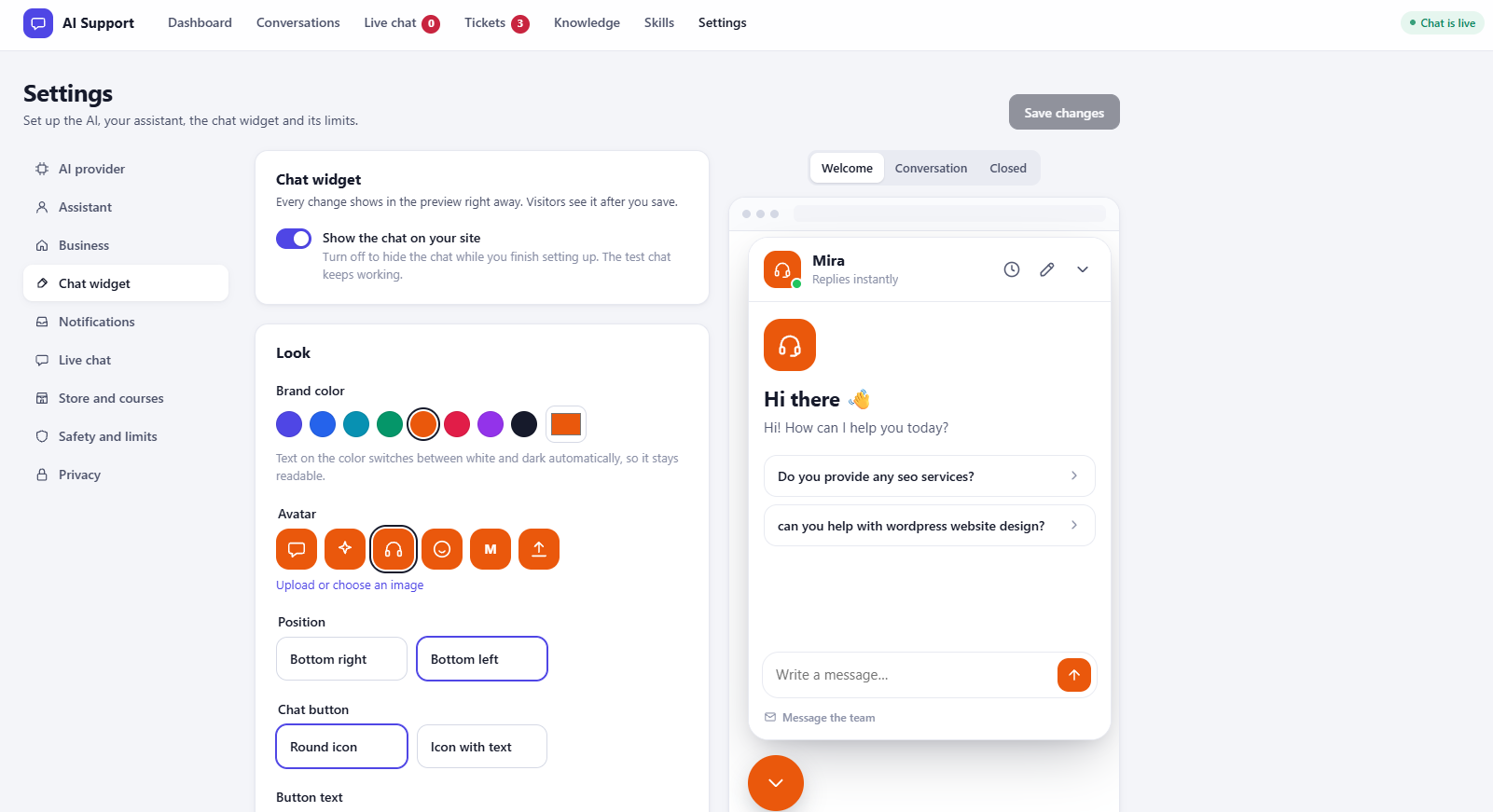
- Turn on the chat in Settings, Chat widget.
You can open the setup guide again from AI Support, Dashboard.
FAQ
-
Does it work with page caching?
-
Yes. Pages hold no nonce or session data. The chat gets a signed session when a visitor opens it.
-
Can I put the chat inside a page?
-
Yes. Use the shortcode [smartoaics_chat], for example on a Help page.
-
Yes. Link to #smartoaics-open, or add the class smartoaics-open to any button. Add data-smartoaics-message=”Your question” to send a question right away. Developers can call SmartoaicsWidget.open(), SmartoaicsWidget.close() and SmartoaicsWidget.ask( text ).
-
Will my theme change how the chat looks?
-
No. The chat is drawn in its own isolated layer (Shadow DOM), so theme styles cannot change it. Its colors and texts are set in Settings, Chat widget.
-
Which LMS plugins are supported?
-
Tutor LMS and LearnPress. Developers can add more with the smartoaics_lms_drivers filter.
-
Can it change orders, give refunds or apply coupons?
-
No. It reads information and creates tickets for your team. It only shares coupon codes you list in Settings.
-
Where are chats stored?
-
In your WordPress database. They are deleted automatically after the number of days you choose, and they are included in the WordPress personal data export and erase tools.
Reviews
There are no reviews for this plugin.
Contributors & Developers
“Smarto AI Customer Support” is open source software. The following people have contributed to this plugin.
Contributors
Translate “Smarto AI Customer Support” into your language.
Interested in development?
Browse the code, check out the SVN repository, or subscribe to the development log by RSS.