
Description
A Calendly integration for WordPress that needs no API key: paste your Calendly link, see your booking page in the editor, publish. No shortcode to type, no settings page to fill in before it works.
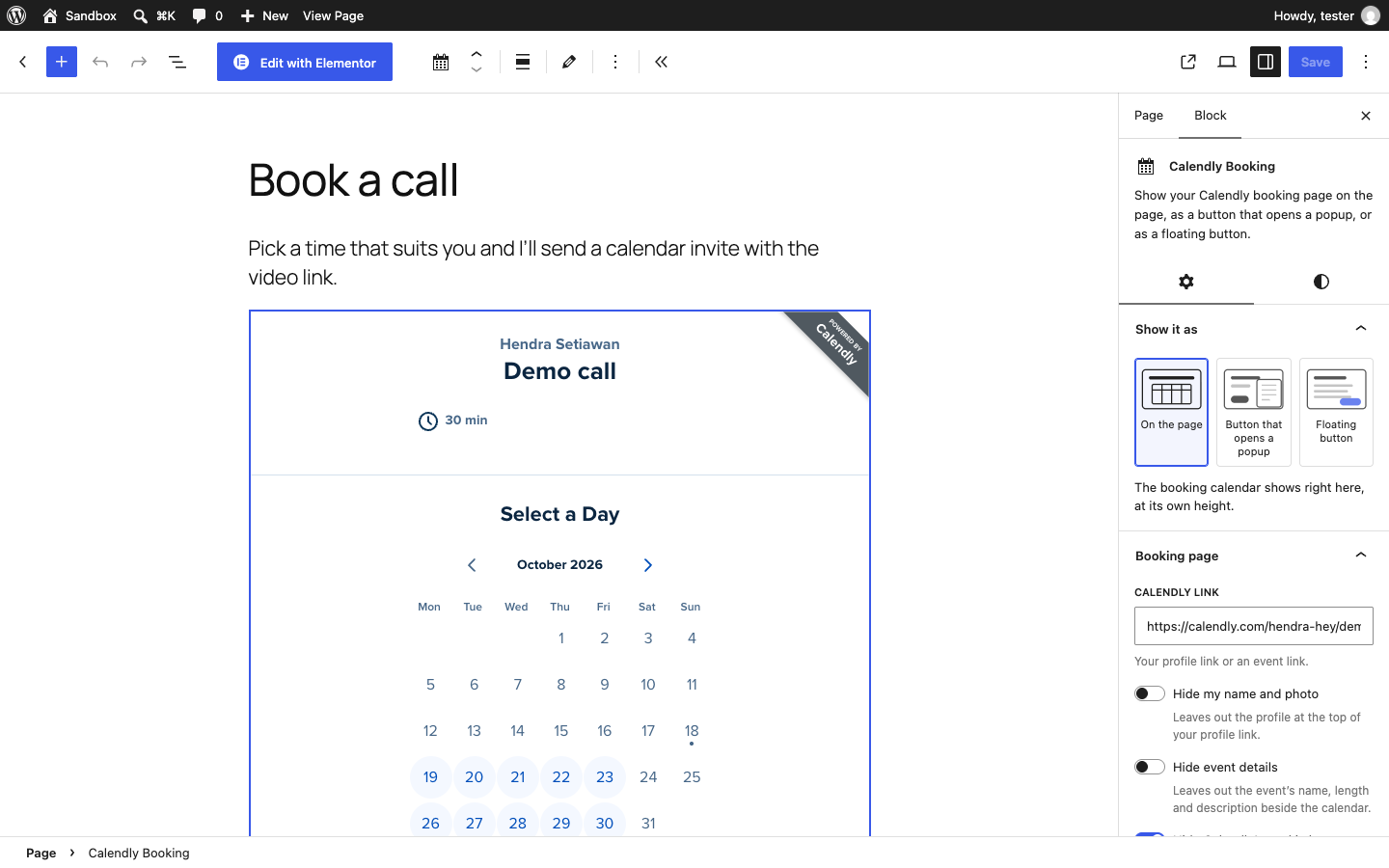
Skybee Booking for Calendly gives you a Calendly Booking block that shows the real booking calendar in the editor, a Calendly Booking widget for Elementor, and a [calendly_booking] shortcode for the classic editor, widgets, Divi, Bricks and other page builders. Choose how to show it with three pictures: on the page, a button that opens a popup, or a floating button in the corner of every page.
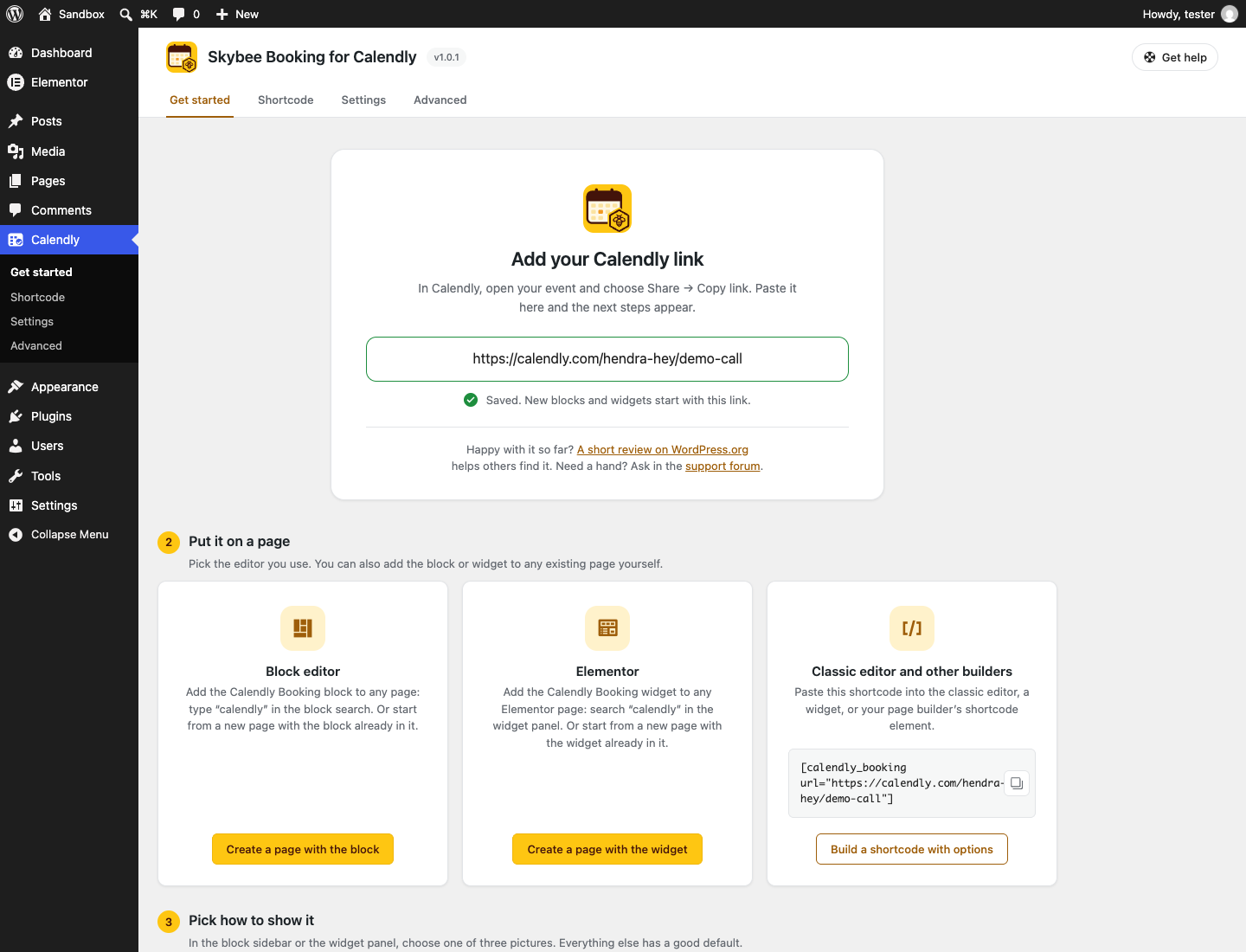
After activation, a Get started page saves your Calendly link once, so every new block and widget starts with it, and creates a page with the block or the Elementor widget already in place.
Made for coaches, consultants, therapists, tutors, freelancers and small businesses whose website exists to get a call booked.
How to add Calendly to WordPress
- In Calendly, open your event and choose Share Copy link. Your profile link works too.
- In the WordPress editor, add the Calendly Booking block. Type “calendly” in the block search to find it.
- Paste the link and click Show booking page. The calendar appears in the editor.
- In the block sidebar, pick On the page, Button that opens a popup or Floating button, adjust the options, and publish.
Using Elementor? Add the Calendly Booking widget, paste the link and pick how to show it.
Using the classic editor or another page builder? Paste the shortcode instead: [calendly_booking url="https://calendly.com/your-name/30min"]. Go to Calendly Shortcode to build one with your options and copy it.
Features
- Paste any Calendly link: an event link or your profile link, with or without extras. Pasted embed code works too.
- Three ways to show it: on the page, a button that opens a popup, or a floating button that stays in the corner while the visitor scrolls.
- The calendar on the page grows to its own height, so there is no inner scroll bar. Several booking pages on one page each keep their own height.
- Plain-word options: hide your name and photo, hide the event details, hide Calendly’s cookie banner, width and position, button text and style.
- Colours for the booking page (background, text, buttons and links), applied by Calendly on its paid plans.
- Fill in the name and email of visitors who are logged in to your site.
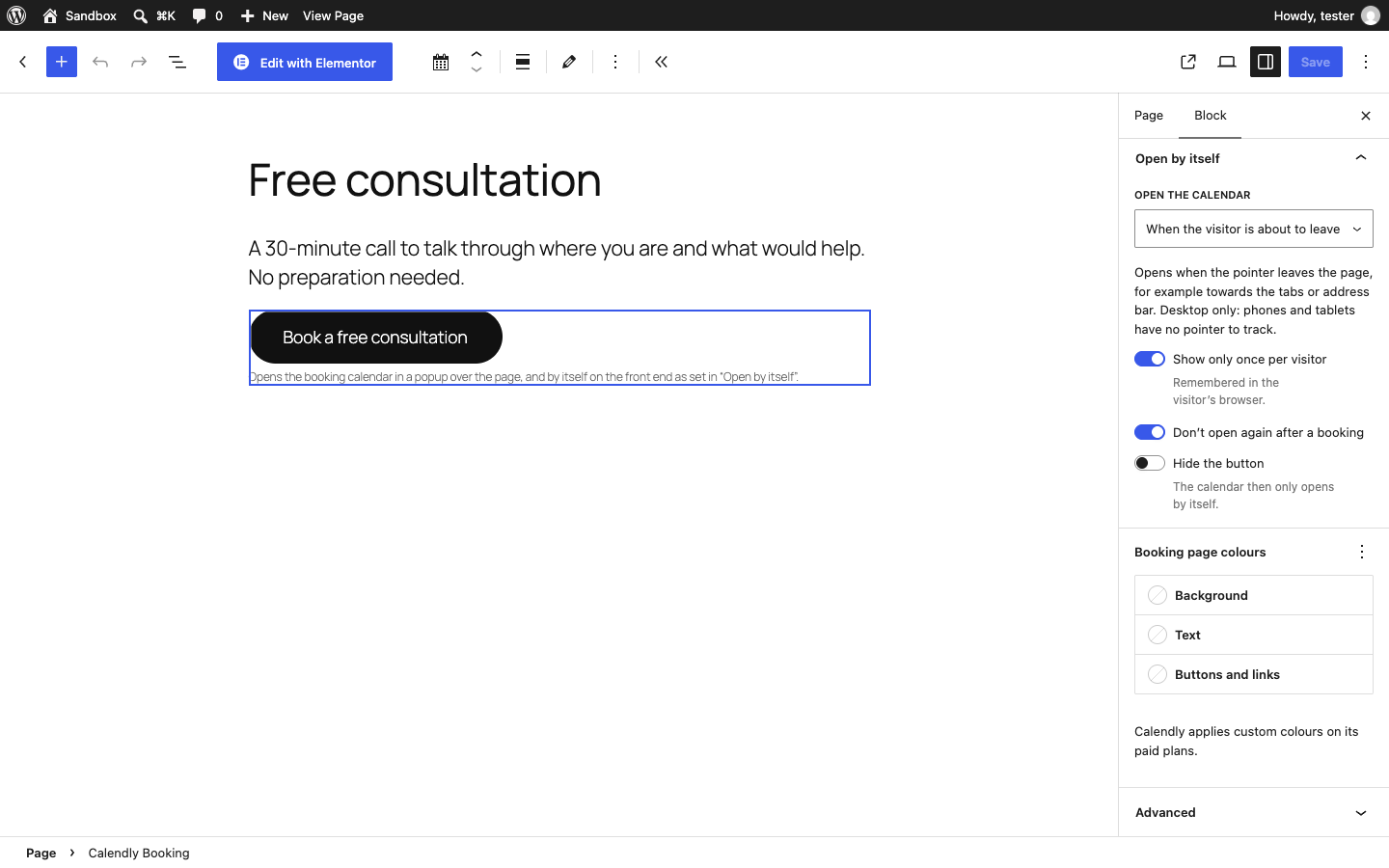
- Popups that open by themselves: after a delay, when the visitor is about to leave (exit intent) or after scrolling part of the page. Show them once per visitor, not again after a booking, and with or without a button.
- An Elementor widget with the same options, plus a Style tab for the popup button and the floating button.
- A shortcode builder: choose your options under Calendly Shortcode and copy the finished shortcode.
- Optional booking tracking: send a booking event to the Google Analytics, Google Tag Manager and Meta Pixel tags already on your site.
- Optional thank-you page: send visitors to a page of your choice after they book.
- Optional campaign tags: keep
utm_sourceand the other campaign tags for the visit, so a booking on a later page still shows the campaign in Calendly. - Optional “Load booking page on click”: nothing is requested from Calendly until the visitor clicks, which helps with cookie consent and page speed.
- Optional AI assistant support: lets Claude, ChatGPT and other assistants add your booking page through WordPress Abilities (WordPress 6.9+).
- Calendly’s script loads only on pages where a booking page is shown. The plugin stores no booking data and needs no Calendly API key.
- A Get started page that saves your link once and creates a page with the block or widget for you. A settings page with defaults for new booking pages, under its own Calendly menu. No dashboard notices.
Shortcode
[calendly_booking url="https://calendly.com/your-name/30min" mode="popup" button_text="Book a call"]
See the FAQ for the full list of attributes.
Why this plugin exists. Calendly’s own embed code works in a Custom HTML block, but you get no preview in the editor, every option means editing HTML by hand, and page builders need a different approach again. This plugin does that work for you.
External services
This plugin shows booking pages from Calendly (calendly.com), a third-party scheduling service. It does not work without it.
On every page where a booking page is shown, the plugin loads Calendly’s embed script from https://assets.calendly.com/assets/external/widget.js and its stylesheet from https://assets.calendly.com/assets/external/widget.css, and shows the booking page from https://calendly.com/{your-link} in an iframe or a popup. Calendly’s script sends your site’s domain to Calendly with the booking page request. Anything a visitor enters or books is sent to Calendly, not to your WordPress site. Calendly sets its own cookies and shows its own cookie banner inside the booking page; the plugin can hide that banner, but Calendly still uses cookies, so your own cookie notice should cover them.
If Fill in details for logged-in visitors is on (the default), the name and email of a visitor who is logged in to your WordPress site are passed to Calendly so the booking form is filled in for them. Nothing is passed for visitors who are not logged in.
The plugin does not require a Calendly API key and does not contact Calendly from the WordPress admin, except to show the live booking page in the block editor and in Elementor’s editor.
Optional features, all off by default (Calendly Advanced):
- Track bookings. When Calendly reports a completed booking, the plugin sends a
calendly_bookingevent to the Google Analytics (gtag), Google Tag Manager (dataLayer) and Meta Pixel (fbq) tags already on your page. The event carries no booking details and no personal data. The plugin adds no analytics tags of its own; what your own tags send, and to whom, is governed by those services. - Thank-you page. After a completed booking, the visitor is sent to the page you choose on your own site.
- Remember campaign tags.
utm_*parameters in the page address are kept in the visitor’s browser (sessionStorage, until the tab closes) and passed to Calendly with booking pages on later pages. To catch them on the page the visitor lands on, a few lines of inline JavaScript are added to every page of the site while this option is on. - Load the booking page on click. Booking pages on the page show a placeholder, and nothing is requested from Calendly until the visitor clicks. The choice is remembered in the visitor’s browser for the visit (
sessionStorage).
Popups set to “Show only once per visitor” or “Don’t open again after a booking” are remembered in the visitor’s browser (localStorage).
Calendly’s terms: https://calendly.com/legal/customer-terms-conditions
Calendly’s privacy notice: https://calendly.com/legal/privacy-notice
Screenshots
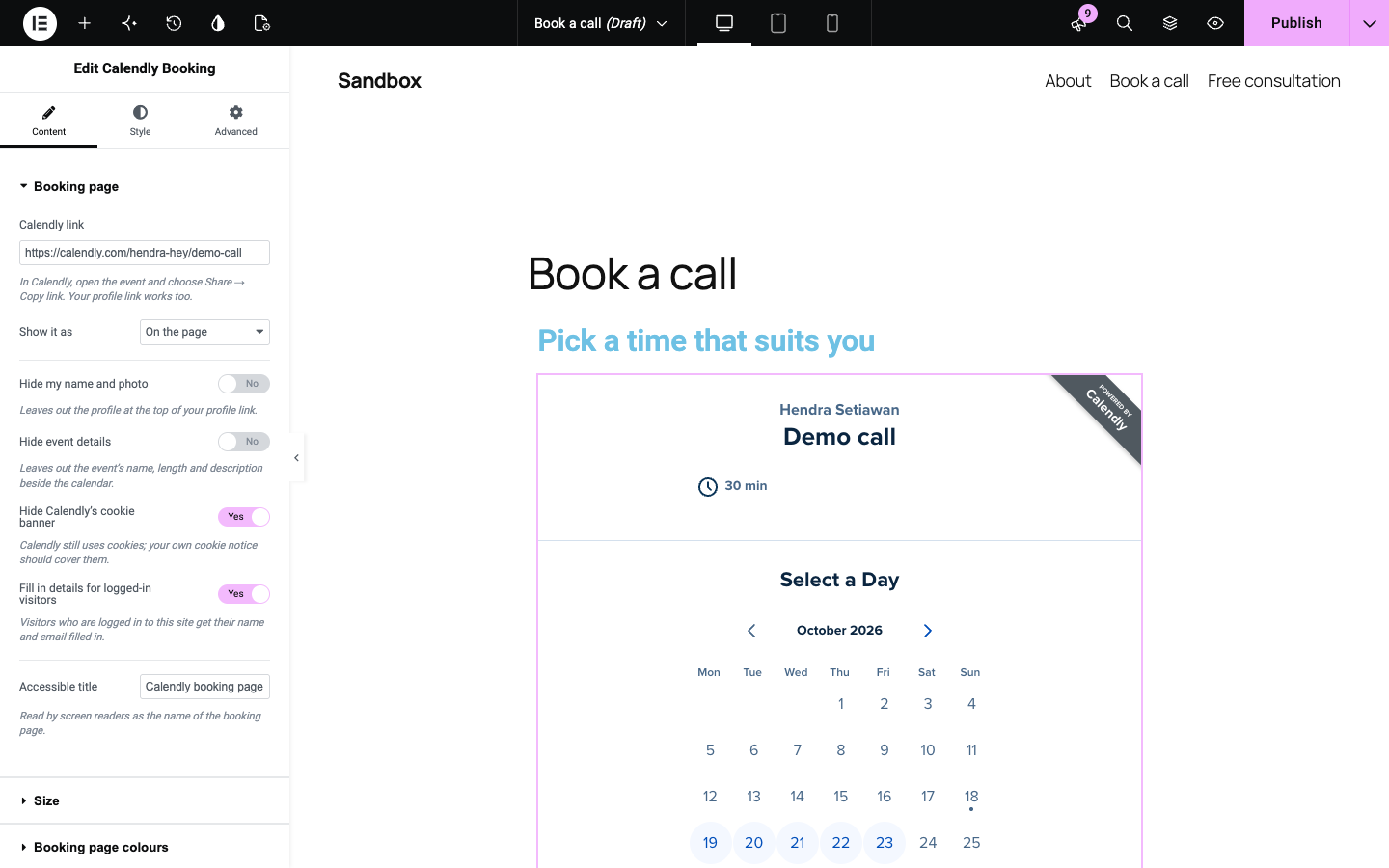
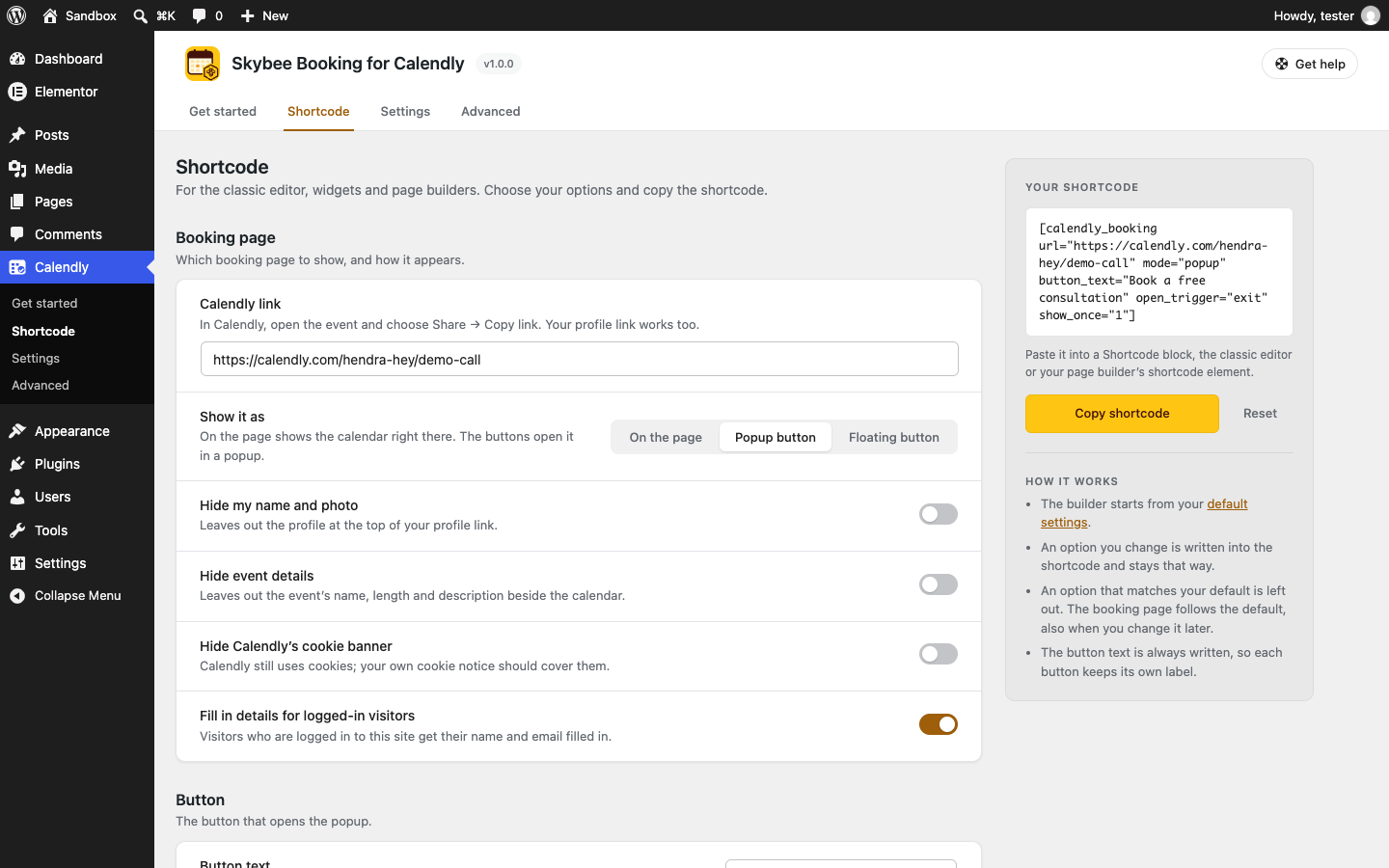
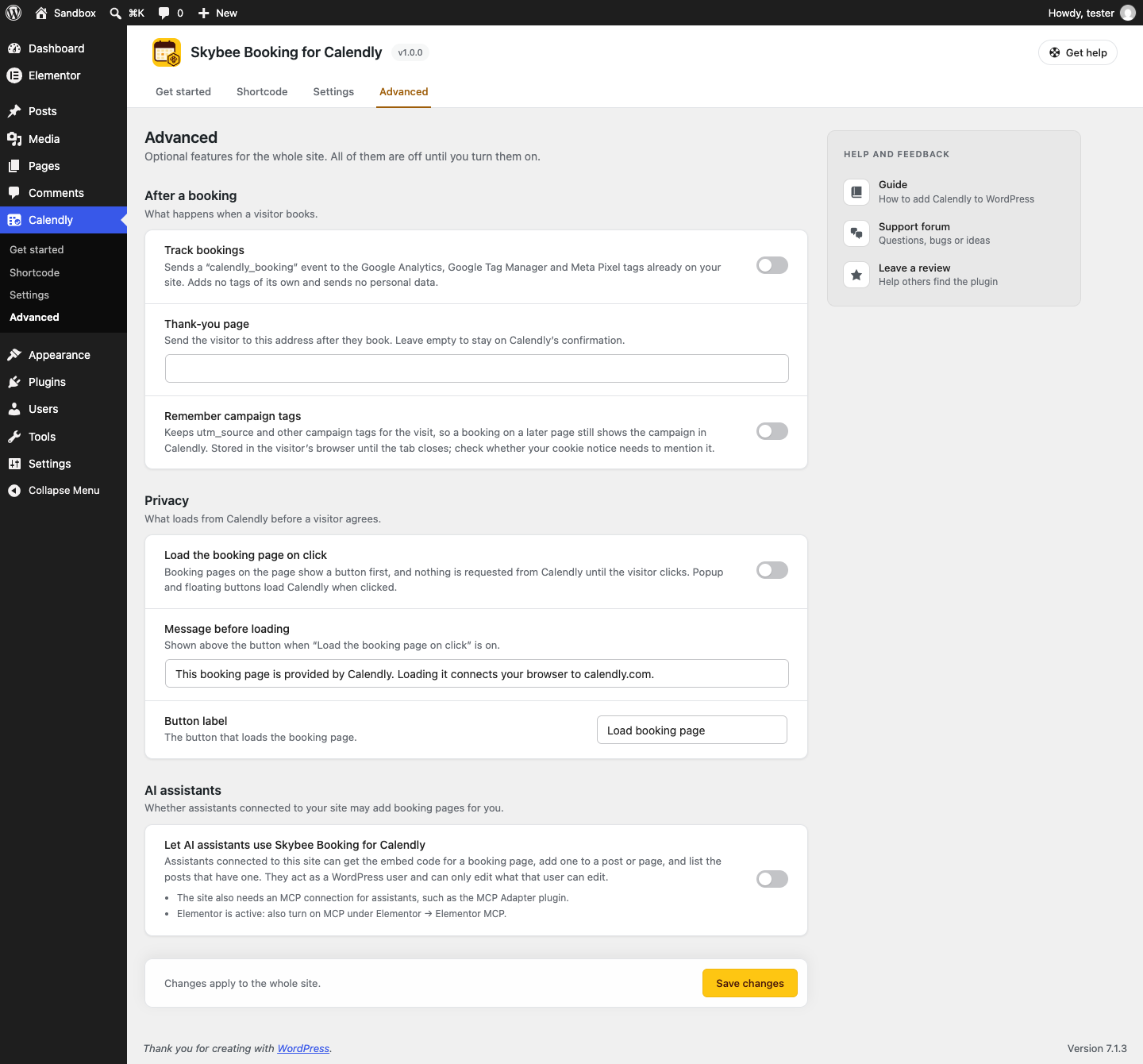
Blocks
This plugin provides 1 block.
- Calendly Booking Show your Calendly booking page on the page, as a button that opens a popup, or as a floating button.
Installation
- Upload the plugin folder to
/wp-content/plugins/or install it from the Plugins screen. - Activate the plugin. The Get started page opens: paste your Calendly link and it saves itself, then create a page with the block or the Elementor widget in one click.
- Or add the Calendly Booking block to any post or page (or the Calendly Booking widget in Elementor) and paste your Calendly link, or use the
[calendly_booking url="..."]shortcode. - Optionally set defaults under Calendly Settings.
FAQ
-
Is this an official Calendly integration?
-
No. Skybee Booking for Calendly is an independent plugin by Hendra Setiawan and is not made by, affiliated with or endorsed by Calendly. “Calendly” is a trademark of Calendly LLC.
-
Do I need a Calendly API key?
-
No. The plugin works with the public link of your booking page, the same one you would share by email. Nothing has to be connected or synced.
-
Do I need a Calendly account?
-
Yes. Booking pages are set up at calendly.com; a free Calendly account is enough.
-
Do I have to set anything up first?
-
No. The block and the widget work as soon as you paste a Calendly link. The Get started page under the Calendly menu is a shortcut: save your link there once and every new block and widget starts with it, and a shortcode without a link uses it. Each block or widget can still use a different link.
-
Which link do I paste?
-
An event link (
https://calendly.com/your-name/30min) shows that event’s calendar. Your profile link (https://calendly.com/your-name) shows all your events and lets the visitor pick one. In Calendly, open the event and choose Share Copy link. If you paste Calendly’s embed code instead, the plugin picks the link out of it. -
Can I change the colours of the booking page?
-
You can set a background, text and button colour in the block, widget or shortcode. Calendly applies them on its paid plans. On a free Calendly plan the booking page keeps Calendly’s own colours. That is a Calendly rule, not something the plugin can change.
-
Not unless you switch that line on in the button’s options. Calendly’s branding inside the booking page itself depends on your Calendly plan.
-
How do I show a Calendly popup instead of the calendar on the page?
-
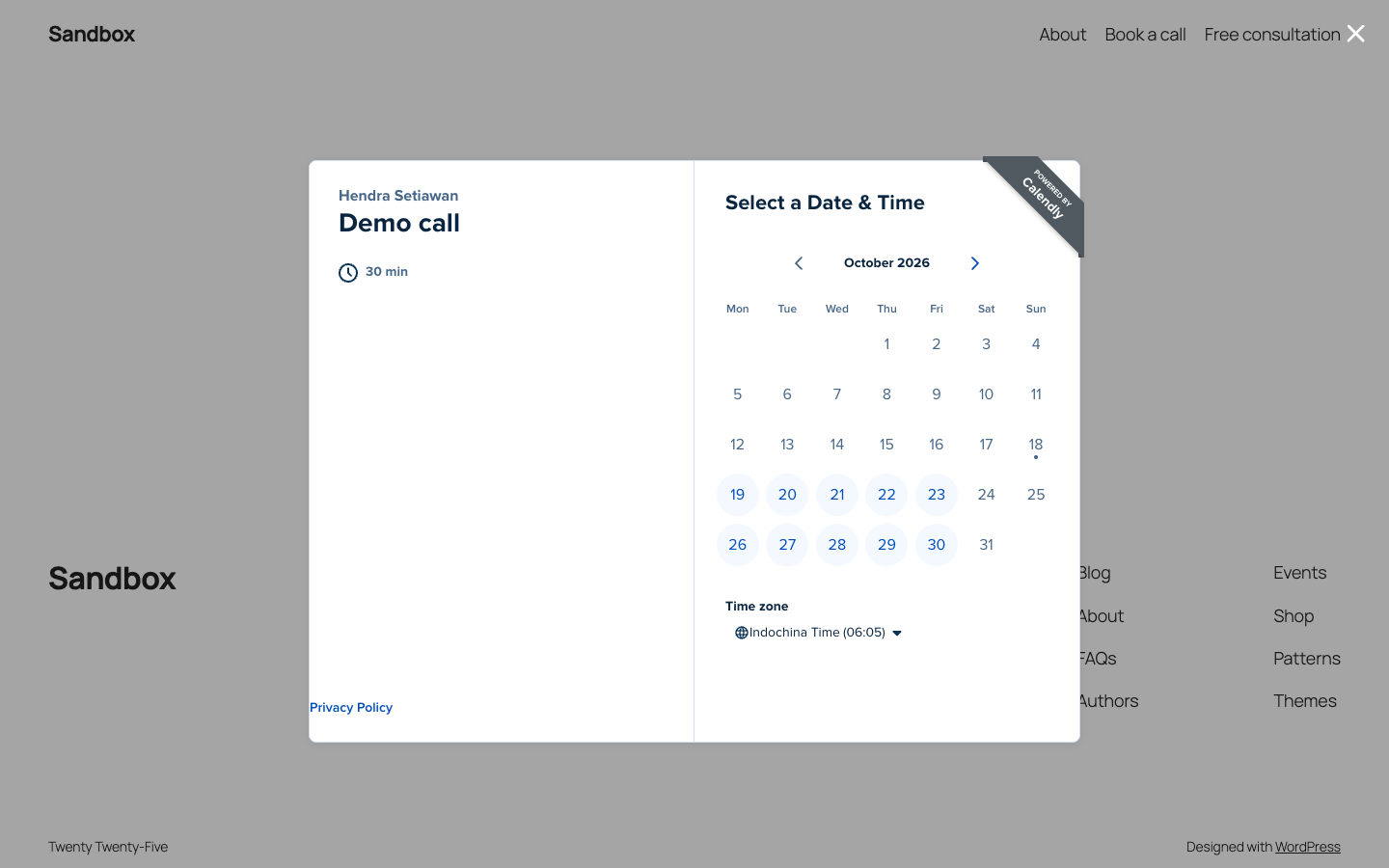
In the block sidebar, pick Button that opens a popup. Your page shows a button that opens the calendar over the page. Pick Floating button for a button that stays in the bottom corner of the page while the visitor scrolls. With the shortcode, use
mode="popup"ormode="floating". -
Can the popup open by itself?
-
Yes. Under Open by itself, choose after a delay, when the visitor is about to leave (exit intent, desktop only) or after scrolling part of the page. You can open it only once per visitor, not again after the visitor booked, and hide the button so the calendar only opens by itself. With the shortcode:
[calendly_booking url="..." mode="popup" open_trigger="exit" show_once="1" hide_button="1"]. -
Is it GDPR friendly?
-
Calendly loads inside the booking page and sets its own cookies, as it does on calendly.com. If you want nothing requested from Calendly until the visitor agrees, turn on Load the booking page on click under Calendly Advanced: the calendar then shows a short message and a button first. You can also hide Calendly’s cookie banner from the block, and cover Calendly in your own cookie notice instead. The External services section above lists what is sent where.
-
How do I add Calendly to Elementor, Divi or Bricks?
-
In Elementor, add the Calendly Booking widget. It has the same options as the block and a Style tab for the buttons. In Divi, Bricks and other builders, put
[calendly_booking url="..."]in the builder’s shortcode, text or HTML element. Calendly Shortcode builds the shortcode for you. The same shortcode works in the classic editor and in widgets. -
What if another plugin already uses the [calendly_booking] shortcode?
-
The plugin never replaces another plugin’s shortcode. If the name is already taken on your site, Calendly Settings says so, and you can use the block or the Elementor widget instead.
-
What shortcode attributes are there?
-
You don’t need to learn them: Calendly Shortcode writes the shortcode from the options you choose. For reference:
url(required),mode(inline,popup,floating),hide_profile,hide_details,hide_cookie_banner,prefill(1 or 0),widthandmin_height(px),box_align(left,center,right),button_text,button_style(inheritorbasic),badge_color,badge_text_color,badge_branding(floating button),background_color,text_color,primary_color(hex colours),open_trigger(click,delay,exit,scroll),open_delay(seconds),open_scroll(percent of the page),show_once,hide_after_booking,hide_button(automatic opening only),title(accessible name of the booking page). -
Where do I see my bookings?
-
In your Calendly account, as always. The plugin shows your booking page; everything visitors book is stored by Calendly. If you would like to see bookings inside WordPress, say so in the support forum: those requests decide what gets built next.
-
Can I track bookings in Google Analytics, Tag Manager or Meta Pixel?
-
Yes. Turn on Track bookings under Calendly Advanced. When a visitor completes a booking, a
calendly_bookingevent is sent to the tags already on your site. In Google Tag Manager, use a Custom Event trigger forcalendly_booking. Sites that use Google Analytics without Tag Manager receive the same event name. Meta Pixel receivesCalendlyBookingas a custom event. The plugin adds no tags of its own, so your site needs one of these installed. -
Can I send visitors to a thank-you page after they book?
-
Yes. Enter the page’s address under Thank-you page on Calendly Advanced. After a completed booking the visitor is sent there.
-
Calendly already picks up
utm_sourceand the other campaign tags from the page the booking page is on. To keep them when the visitor lands on one page and books on another, turn on Remember campaign tags under Calendly Advanced. The values are kept in the visitor’s browser until the tab closes, so check whether your cookie notice should mention it. -
Does it work with AI assistants?
-
Yes, once you turn it on. It is off by default: go to Calendly Advanced and turn on Let AI assistants use Skybee Booking for Calendly. On WordPress 6.9 or newer, the plugin then registers three WordPress Abilities that assistants connected to your site (for example through WordPress’s MCP adapter) can use: get the embed code for a booking page, add a booking page to a post or page, and list the posts that contain one. They follow WordPress permissions: only users who can edit a post can add a booking page to it. Adding a booking page never changes existing content, and it is saved as a normal revision.
If Elementor is active: recent Elementor versions switch the site’s MCP server off until you turn MCP on under Elementor Elementor MCP. Turn it on there if your assistant can’t find the abilities.
-
Will this slow my site down?
-
No. Calendly’s script is only loaded on pages where a booking page is actually shown. If you turn on Remember campaign tags, a few lines of inline JavaScript are added to every page so the tags are kept from the page the visitor lands on; no extra file is loaded.
-
Where is the source code for the block?
-
The block editor script in
build/is compiled from the files insrc/, which are included in the plugin. To rebuild it, runnpm installand thennpm run buildin the plugin folder. The build uses @wordpress/scripts, as listed inpackage.json.
Reviews
There are no reviews for this plugin.
Contributors & Developers
“Skybee Booking for Calendly – Booking Block, Popup & Elementor Widget” is open source software. The following people have contributed to this plugin.
Contributors
Interested in development?
Browse the code, check out the SVN repository, or subscribe to the development log by RSS.
Changelog
1.0.1
- Get started: a link to the support forum while you set up, and a review link once your Calendly link is saved.
1.0.0
- Initial release: Calendly Booking block, Elementor widget and
[calendly_booking]shortcode; on the page, popup button and floating button; popups that open by themselves; a Get started page and a shortcode builder; booking tracking, thank-you page, campaign tags, load on click and AI assistant support under Calendly Advanced.